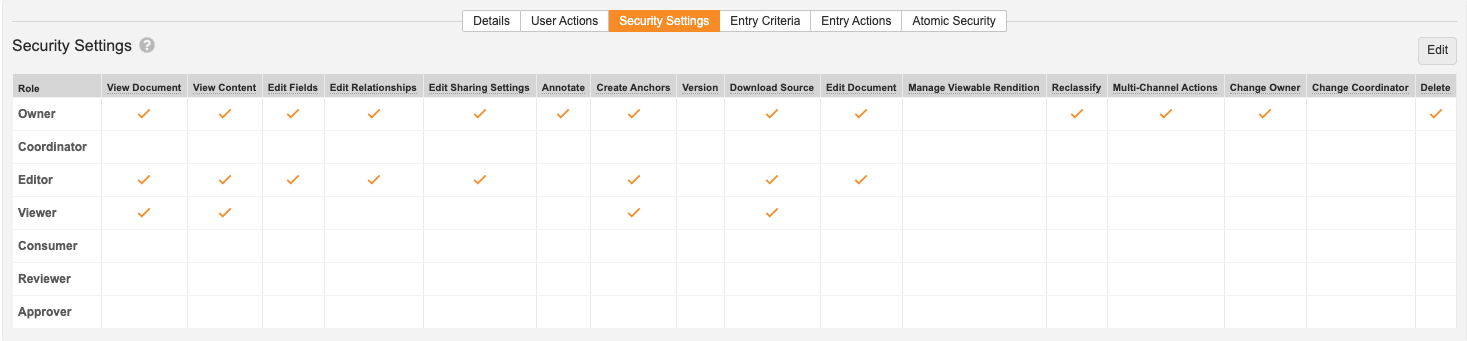
Note: Within a document lifecycle state, there are two ways to define permissions: using the security matrix in the Security Settings tab and through the Atomic Security tab. The following article addresses the security matrix only.
Permission checks for prior versions are based on if the user has the permission on the latest version. Learn more about Role Permissions.
## How to Edit Security Settings {#edit}
To configure settings in the security matrix:
1. Click the **Edit** button. Each permission/role intersection becomes an editable checkbox.
2. Set or clear checkboxes to modify the permissions assigned to each role. Some permissions include others by default (for example, the **Edit Fields** permission gives access to the **View Document** permission). Because the selected permission depends on the other included permission, the checkbox for the included permission is disabled.
3. Click **Save** to save the current status of all checkboxes.
## Permissions & Enabled Actions {#perms}
The following permissions appear in the security matrix for each role:
### View Document
Enabled actions:
: * Search for the document
* View Where Used
* View version history for any previous versions which the user has permission to view
* View fields, relationships, and security
* View document's audit trail
* View and download attachments
### View Content
Enabled actions:
: * View annotations
* Download renditions
* View version history, including content, for any previous versions which the user has permission to view
* View document content
* Download document with annotations
* Export binder if the document is in a binder
* View document thumbnails
Includes:
: View Document
### Edit Relationships
Enabled actions:
: * Add, edit, or remove document relationships
* Add, delete, or version attachments
Includes:
: View Document
### Edit Fields
Enabled actions:
: Edit all document fields, Add or remove renditions
Includes:
: View Document
### Edit Sharing Settings
Enabled actions:
: Add or remove users from roles on a document
Includes:
: View Document
### Annotate
Enabled actions:
: * Add annotations
* Reply to annotations
* Add document level comments
* Move annotations
Includes:
: View Content
### Version
Enabled actions:
: Create a new draft of the document
Includes:
: View Document
### Create Anchors
Enabled actions:
: Create anchors on the latest version of a document
Includes:
: View Content
### Download Source
Enabled actions:
: Download the source file for a document
Includes:
: View Content
### Edit Document
Enabled actions:
: * Check out the document
* Check in the document
* Edit binder (structure, not document fields)
* Upload new version
* Upload a file to a content placeholder
Includes:
: View Document, Download Source
### Manage Viewable Rendition
Enabled actions:
: * Delete viewable rendition
* Re-render document to create viewable rendition
* Upload viewable rendition
* Save page rotations
Includes:
: View Document, Edit Fields
### Reclassify
Enabled actions:
: Modify the type, subtype, and classification of the document
Includes:
: View Document, Edit Fields
### Multi-Channel Actions
Enabled actions:
: Ability to use the Create Presentation action on a document; this option is only available if your Vault uses Atomic Security for Documents
Includes:
: View Document, Edit Fields
### Distribute Controlled Copy
Enabled actions:
: Access user actions (from Actions menu) to distribute controlled copies
Includes:
: View Document
### Change Owner
Enabled actions:
: Change the user assigned to the document owner role
Includes:
: View Document, Edit Sharing Settings
### Change Coordinator
Enabled actions:
: Change the user assigned to the document coordinator role
Includes:
: View Document, Edit Sharing Settings
### Delete
Enabled actions:
: Delete the document
Includes:
: View Document, View Content
## Best Practices {#best}
When setting up your security rules, we recommend to:
* not give the **Version** permission on states that will have in-progress workflows if the workflow will create a new major version
* not give the **Edit Document** permission on states that have in-progress workflows if the workflow changes the document's state
## About Changes to Active Vaults
Sometimes, Admins make changes to the security matrix that result in users immediately losing the **View Document** permission for a document that they can currently access. When permission changes like this occur, Vault immediately prevents users from performing any actions for which they don't have permissions, including opening the _Doc Info_ page for a document. However, documents for which users no longer have the **View Document** permission may continue to appear in those users' search results and reports for several minutes.