# Bulk Creating Activities, Submissions & Regulatory Objectives (RIM)

The Create Related Records wizard standardizes and minimizes much of the local affiliate data entry required for global change events by allowing RIM Registrations users to create _Activity_, _Submission_, and _Regulatory Objective_ records in bulk.


<div class="note-border alert-info">
  <div class="alert alert-info" role="alert">
    <div><i class="far fa-info-circle"></i></div>
    <div class="alert-text">
      <p><strong>Note</strong>: The Create Related Records wizard can be <a href="/en/gr/59835/">configured</a> by an Admin in RIM Registrations Vaults.</p>
    </div>
  </div>
</div>


## Creating Records in Bulk

The steps below apply to all registration types.

<div class="note-border alert-info">
  <div class="alert alert-info" role="alert">
    <div><i class="far fa-info-circle"></i></div>
    <div class="alert-text">
      <p><strong>Note</strong>: The Create Related Records wizard only supports simple reference constraints, for example, <code class="language-plaintext highlighter-rouge">controlled_vocabulary_type__rim = &lt;value&gt;</code>, or constraints based only on the fields of the current record type being created. Vault ignores any other constraints due to a lack of available information to enforce them.</p>
    </div>
  </div>
</div>


### From an Event Record

To create _Activity_, _Submission_, or _Regulatory Objective_ records in bulk:

  1. Open the associated _Event_ record from Business Admin or a custom tab.
  2. Select **Create Related Records** from the **All Actions** menu.
  3. Use the checkboxes to indicate whether you're creating **Activities**, **Submissions**, or **Regulatory Objectives**. You can select multiple objects, but only objects you have permission to create are available.
  4. If creating _Activities_, select the **Activity Scope Level**. Vault may automatically select a scope, but you can choose a different one. See details about [_Activity_ record creation][1] below.
  5. If your Vault has object types configured for the _Submission_ or _Activity_ objects, select an **Activity Type**, **Type of Submission**, or **Regulatory Objective Type**. Depending on your Vault's configuration, object types may be determined automatically for _Activity_ based on the related _Event_, or for _Submission_ or _Regulatory Objective_ based on the related _Application_.
  6. Select the **Markets** affected by the _Event_.
  7. Optional: Select **Impacted Products**. Vault automatically populates this field if the _Event_ is associated with fewer than 100 _Products_. If the _Event_ is associated with more than 100 _Products_, click the **binoculars** icon to select _Products_.
  8. If creating _Submissions_, select a **Submission Type** for all the records created through this bulk action. Because submission types vary across markets, you can use the generic _Planned Submission_ or, when <a href="/en/gr/59835/">enabled</a>, select from a pre-filtered list of preferred global terms. In either case, you must select a valid **Submission Type** (based on <a href="/en/gr/28740/">reference constraints</a>) for the countries in the selected market, otherwise _Submission_ creation fails.
  9. If necessary, populate any required fields for the selected _Activity_, _Submission_, or _Regulatory Objective_ object types.
  10. Click **Next**.
  11. If creating _Submissions and Regulatory Objectives_, Vault displays the **Select** **Relationships** page. Vault shows a list of available relationship types for the _Event_ object and automatically selects all active relationship types. Deselect any relationship types that you do not want to copy forward to the newly-created _Regulatory Objectives_ and _Submissions_. In the next step, you'll select specific related records to include.
  12. In **Define Relationships**, you'll see the join records for each selected relationship type. Use the checkboxes to choose the specific items to copy as joins for the _Regulatory Objectives_ or _Submissions_ you're creating.
  13. On the **Additional Details** page (or **Application Details** page, when [record review][6] is enabled), select an existing **Application** that corresponds to each market. The selected application becomes the parent record for the new _Submission_ record. This selection is optional when only creating _Activity_ records. If you selected **Country** level activity scope, Vault automatically filters the _Application_ by **Region**. If you selected **Application** or **Application and Product** level activity scope, Vault automatically filters the _Application_ for each _Country_ by **Region** and **Lead Market**. You cannot remove the **Region** filter.
  14. If necessary, populate any additional required fields for the selected _Submission_ or _Regulatory Objective_ object types.
  15. Click **Next** to proceed.
  16. On the **Confirmation** page, review the details of the records that will be created or updated. Click **Finish** to start creating records, or select **Generate Preview**. The preview option appears only when enabled. See [Reviewing & Refining Related Records][6] for details and additional instructions.

See [How Vault Creates Related Records][1] for details on the records the wizard creates.

### From an Impact Assessment Report {#iar}

You can start this process from the <a href="/en/gr/43119/ ">one-click impact assessment reports</a> or from a custom report with one of the impact assessment report types. When creating from a report, you'll have fewer fields to populate, as Vault pulls most data from the report itself.

To create _Activity_, _Submission_, or _Regulatory Objective_ records from a report:

  1. Run the report.
  2. Select **Create Related Records** from the **All Actions** menu.
  3. If starting from a copy of the standard report, select a specific **Event**. Vault may populate this field automatically depending on the type of Impact Assessment Report your Vault uses.
  4. Use the checkboxes to indicate whether you're creating **Activities**, **Submissions**, or **Regulatory Objectives**. You can select multiple objects, but only objects you have permission to create are available.
  5. If creating _Activities_, select the **Activity Scope Level**. Vault may automatically select a scope, but you can choose a different one. See details about [_Activity_ record creation][5] below.
  6. If your Vault has object types configured for the _Submission_, _Activity_, or _Regulatory Objective_ objects, select an **Activity Type**, **Type of Submission**, and **Regulatory Objective Type**. Depending on your Vault's configuration, object types may be populated automatically for _Activity_ based on the related _Event_ or for _Submission_ or _Regulatory Objective_ based on the related _Application_.
  7. If creating _Submissions_, select a **Submission Type** for all the records created through this bulk action. Because submission types vary across markets, you can use the generic _Planned Submission_ or, when <a href="/en/gr/59835/">enabled</a>, select from a pre-filtered list of preferred global terms. In either case, you must select a valid **Submission Type** (based on <a href="/en/gr/28740/">reference constraints</a>) for the related countries, otherwise _Submission_ creation fails.
  8. If necessary, select a _Regulatory Objective_ object type.
  9. If necessary, populate any required fields for the selected _Activity_, _Submission_, or _Regulatory Objective_ object types.
  10. Click **Next** to proceed.
  11. If creating _Submissions_ or _Regulatory Objectives_, Vault displays the **Select Relationships** page. Vault shows a list of available relationship types for the _Event_ object and automatically selects all active types. Deselect the relationship types that you do not want to copy forward to the newly-created _Regulatory Objectives_ and _Submissions_. In the next step, you'll select specific related records to include.
  12. In **Define Relationships**, you'll see the join records for each selected relationship type. Use the checkboxes to choose the specific items to copy as joins for the _Regulatory Objectives_ and _Submissions_ you're creating.
  13. On the **Confirmation** page, review the details of the records that will be created or updated. Click **Finish** to start creating records, or select **Generate Preview**. The preview option is available only when enabled, and when the related _Event_ is not already under preview. See [Reviewing & Refining Related Records][6] for details and additional instructions.

See [How Vault Creates Related Records][5] for details on the records the wizard creates.

## Reviewing & Refining Related Records {#reviewing-and-refining-related-records}

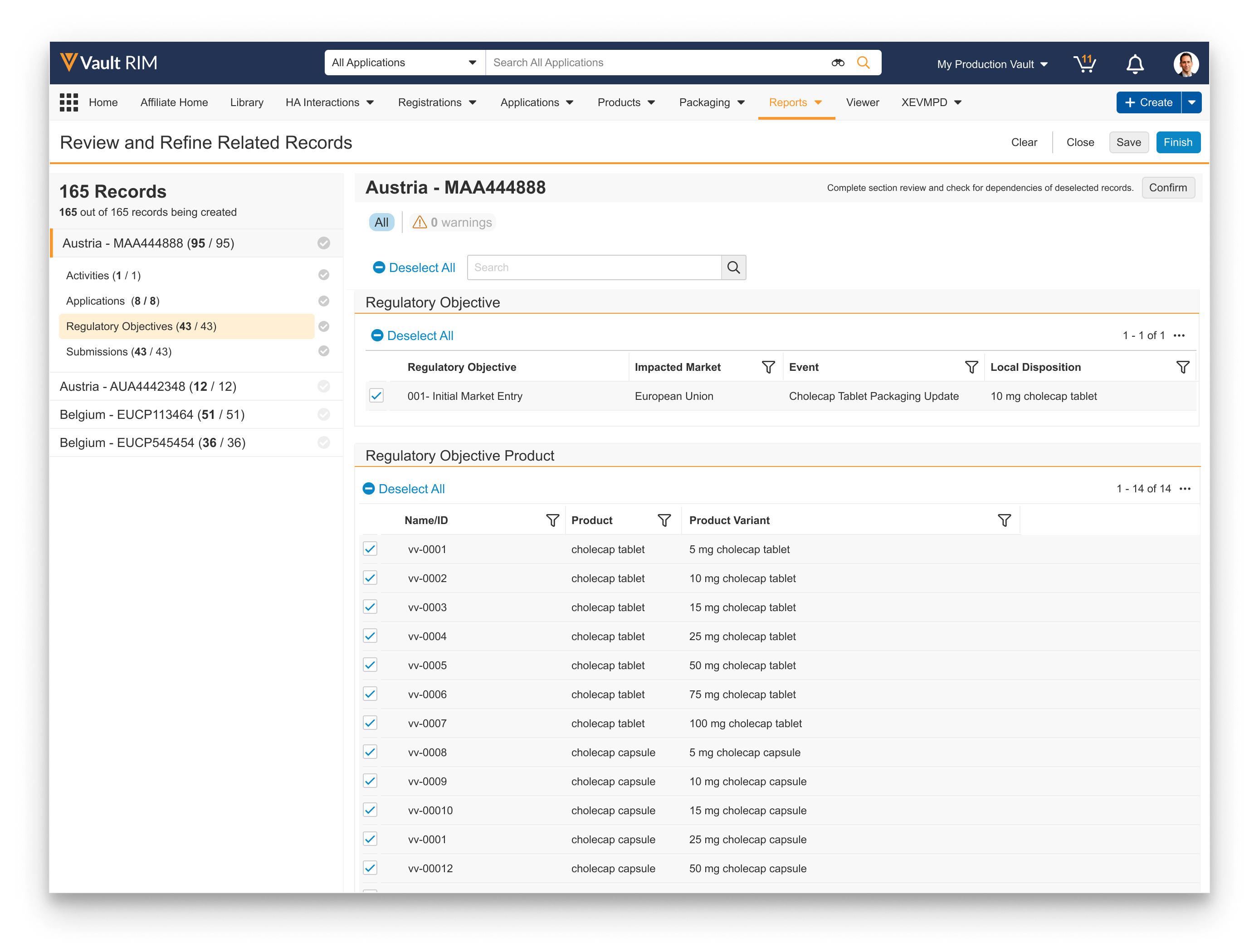
When this feature is <a href="/en/gr/59835/#configuring-related-record-review">configured by an Admin</a>, the last page in the wizard includes the **Generate Preview** button. This section describes the steps required to complete the record creation process you initiated from an _Event_ or Impact Assessment Report, as outlined above.

<a href="https://platform.veevavault.help/assets/images/review-and-refine-related-records-23R3.png" data-lightbox="review and refine" data-title="" data-alt="Review & Refine Related Records panel">
  <img class="docimage" src="https://platform.veevavault.help/assets/images/review-and-refine-related-records-23R3.png" alt="Review & Refine Related Records panel" style="width: 50%;"  />
</a>

### Generating a Preview {#generating-a-preview}

The Create Related Records wizard includes additional functionality for previewing the records Vault is proposing to create or update based on the _Event_ and other selected records. Vault displays proposed records in the wizard, allowing you to navigate through each Lead Market's _Application_ and remove any related records which Vault should not create or update. Once you've refined the list, Vault creates or updates the records according to the logic in [How Vault Creates Related Records][10].

When you click the **Generate Preview** button in the wizard, Vault:

  * Kicks off a job to create and gather the selected records and metadata. Once complete, you'll receive an email and Vault notification with a link to [review][11] them in Vault directly, as well as an attached CSV file summarizing the included records.
  * Transitions the _Event_ record to the _In Data Review_ state, which prevents all users from initiating the wizard for that _Event_ or Impact Assessment Report.

See additional details on [saving][8] and [clearing][9] preview files.

<div class="note-border alert-info">
  <div class="alert alert-info" role="alert">
    <div><i class="far fa-info-circle"></i></div>
    <div class="alert-text">
      <p><strong>Note</strong>: Vault does not include default values when generating a preview. This is because Vault populates <em>Submission</em> relationship record fields before setting any default values on the related <em>Application</em> relationship records. Previews will include default values in a future release.</p>
    </div>
  </div>
</div>


### Reviewing Related Records {#reviewing-related-records}


<div class="note-border alert-info">
  <div class="alert alert-info" role="alert">
    <div><i class="far fa-info-circle"></i></div>
    <div class="alert-text">
      <p><strong>Note</strong>: Depending on your Vault’s <a href="/en/gr/8913022/">configuration</a>, the <strong>Review Related Records</strong> action may be labeled as <strong>Review Local Regulatory Information</strong>.</p>
    </div>
  </div>
</div>


You can also select the **Review Related Records** action from the _Event_ record or report **Actions** menu. The action is available anytime an _Event_ and its related records are available for [preview][12].

To review and refine related records:

1. Click the link in the preview email or Vault notification, or select **Review Related Records** from an _Event_ in the _In Data Review_ state.
2. Vault displays the **Review and Refine Related Records** page. In the left-hand panel, select the Lead Market's _Application_, then the related record type you'd like to review. Applications and their related records appear with various icons denoting their status prior to your review and confirmation: <i class="fas fa-check-circle" style="color: #b3b3b3;"></i> records are active, <i class="fas fa-check-circle" style="color: #dadada;"></i> records are inactive, and records with a <i class="far fa-exclamation-triangle" style="color: #cc6600;"></i> indicate a [dependency warning][7].
3. In the right-hand panel, use the various UI options to perform your review:
  * Add columns and apply filters within each section.
  * At the top of the panel, click the <i class="far fa-exclamation-triangle" style="color: #cc6600;"></i> button to quickly display only the records with dependency warnings, or click the **All** button to return to a listing of all records in the preview.
  * To include a record, check the box to the left of the item, or uncheck the box to omit it. You can also click **Select All** or **Deselect All** to add or remove the selections for all records in that section.
  * If you encounter incorrect records requiring updates, click the **Clear** button to [remove the preview file][9].
  * If you cannot complete your review in a single session, click the **Save** button to [save your selections][8].
4. When you've refined the list to your requirements for a given related record type, click **Confirm**. In the event of dependency warnings, the **Dependency Issues** dialog appears, requiring you to click **Continue** to confirm such records will be created, or **Cancel** to return to the **Review and Refine Related Records** page.
5. Repeat Steps 2-4 until you've reviewed and confirmed the desired related record types. (The wizard does not require that you review and confirm all record types for all Applications.) As you proceed through the list, Vault adds a green checkmark <i class="fas fa-check-circle" style="color: #539137;"></i> next to each record in the left-hand panel to indicate you've confirmed that selection, and that there have been no further changes to it since confirming.
6. When your review is complete, select **Finish** to create the records that are still selected in the preview.

Vault begins creating records according to your review. Once complete, you'll receive an email and Vault notification with a CSV file confirming the records Vault created or updated.

### About Dependency Warnings {#about-dependency-warnings}

A record dependency warning indicates that the wizard will create independent records, or records without a reference to a related record.

For example, if you deselect a _Submission Product_ record, Vault flags any related _Submission Inactive Ingredient_ records with a dependency warning <i class="far fa-exclamation-triangle" style="color: #cc6600;"></i>. If you do not deselect the flagged records, Vault creates _Submission Inactive Ingredient_ records with a blank _Submission Product_ field. When you deselect a flagged record, Vault removes the dependency warning and does not create any such records.

### Saving Preview Files {#saving-preview-files}

When a given user is working in the wizard, Vault prevents all other users from generating a new preview file or working with the current one.

If you cannot complete your review in a single session, click the **Save** button at the top of the wizard's _Summary and Refine_ page. Vault keeps your selections until you or another user return to it by running the _Review Related Records_ action.

### Clearing Preview Files {#clearing-preview-files}

In the event a preview includes incorrect or missing data, you can remove it and generate a new preview file.

To do so, click **Clear** at the top of the wizard's _Summary and Refine_ page, or select the **Clear Preview** action from an _In Review_ Event record's **Actions** menu.

Once cleared, the _Event_ record returns to its previous lifecycle state and you can re-run the _Create Related Records_ action.


## How Vault Creates Related Records {#how-vault-creates-related-records}

The sections below describe how the wizard creates related records based on the originating record and <a href="/en/gr/53688/">RIM Application Settings</a>, such as _Enable Application Relationships_ (the <a href="/en/gr/73649/">Submission Wizard</a>).

During this process, Vault additionally applies validation logic based on the above factors. See <a href="/en/gr/313221/">additional details</a> about validation in RIM Registrations Vaults.

<div class="note-border alert-info">
  <div class="alert alert-info" role="alert">
    <div><i class="far fa-info-circle"></i></div>
    <div class="alert-text">
      <p><strong>Note</strong>: The wizard does not create <em>Activity</em> records when <em>Common (EU)</em> or <em>Common (GCC)</em> Country values are selected. These are primarily used in Submissions Publishing for defining Content Plan sections.</p>
    </div>
  </div>
</div>


### From an Event {#event-activity-creation}

Vault creates one _Submission_ record and one _Regulatory Objective_ record for each _Application_. If you defined relationships for the _Event_, Vault only copies the selected _Event_ relationship records to the new _Regulatory Objective_ and _Submission_ records. When the <a href="/en/gr/59835/#enabling-application-relationships">_Enable Application Relationships_</a> setting is in use, Vault also creates new _Application_ relationship records if an existing match is not found.

The _Activity Scope Level_ you selected when creating related records from an _Event_ record determines how many _Activity_ records Vault creates:

  * **Application**: Vault creates one _Activity_ record for each _Application_. Use this scope level in cases where you prefer to manage the fewest _Activity_ records, and where task completion can be sufficiently tracked at this highest level of granularity.
  * **Application and Product**: Vault creates one _Activity_ record for each combination of _Application_ and _Product_. These records are useful for changes to each _Product_ involved in an _Application_ which need to be tracked to completion.
    * When the <a href="/en/gr/59835/#enabling-application-relationships">_Enable Application Relationships_</a> setting is in use, Vault creates one _Activity_ per unique combination of _Application_ and _Product_ selected in the wizard where the _Product_ also exists in at least one _Application Product_ relationship record's _Product_ (`pharmaceutical_product__v`) field.
  * **Country, Application and Product**: Vault creates one _Activity_ for each combination of _Lead Market_ and _Product_. When run from an Event, this scope excludes Application Countries that are not the Lead Market, mirroring the _Application_ and _Product Scope_, unless the user adds the secondary countries (either by hand or as Event Country records) and assigns them the Application within the wizard.
  * **Country and Application**: Vault creates one _Activity_ for each combination of _Country_ and _Application_, based on the _Country_ records related to each _Application_ record you selected on the _Additional Details_ page. This is especially helpful for Mutual Recognition (MRP) and Decentralised (DCP) procedure types, as activity completion can be tracked for each member state included for those applications.
    * If the _Event Countries_ object is used and only the Lead Market is included as Event Country, Vault creates one Activity per _Lead Market_, mirroring the Application scope, unless the user adds the secondary countries and assigns them the _Application_ within the wizard.

Additional behavior notes:

* Vault additionally applies validation logic based on the _Enable Application Relationships_ setting and other factors. See <a href="/en/gr/313221/">additional details</a> about validation in RIM Registrations Vaults.
* Vault does not create related _Activity Registration_ records when you start the wizard from an _Event_ record.
* Except for the specific **Application and Product** and **Country, Application and Product** scenarios described above, the wizard does not further filter _Products_ based on the selected Impacted Product.

### From an Impact Assessment Report {#iar-activity-creation}

Vault creates one _Submission_ record and one _Regulatory Objective_ record for each _Application_. Vault also creates a relationship between the _Registrations_ in the report and the relevant newly created _Regulatory Objective_. If you defined relationships for the _Event_, Vault only copies the selected _Event_ relationship records to the new _Regulatory Objective_ and _Submission_ records. When the <a href="/en/gr/59835/#enabling-application-relationships">_Enable Application Relationships_</a> setting is in use, Vault also creates new _Application_ relationship records if an existing match is not found.

When you run the Create Related Records wizard from an Impact Assessment Report, Vault also applies validation logic before creating _Regulatory Objective_ and _Submission_ relationship records to prevent invalid relationships. See <a href="/en/gr/313221/">additional details</a> on this and other types of validation Vault performs.

The _Activity Scope Level_ you selected when creating related records from an Impact Assessment Report determines how many _Activity_ records Vault creates:

  * **Application**: Vault creates one _Activity_ record for each _Application_. Use this scope level in cases where you prefer to manage the fewest _Activity_ records, and where task completion can be sufficiently tracked at this highest level of granularity.
  * **Application and Product**: Vault creates one _Activity_ record for each combination of _Product_ and _Application_. Vault determines products based on the _Product_ value on the _Registered Product_ records related to the _Registration_ records for that report. These records are useful for changes to each _Product_ involved in an _Application_ which need to be tracked to completion.
  * **Country, Application and Product**: Vault creates one _Activity_ for each combination of _Application_, _Country_, and _Product_ (`drug_product__v`)[\*][3] related to the _Registrations_ in the report. Vault determines products based on the _Product_ value on the _Registered Product_ records related to the _Registration_ records for that report, and includes all countries associated with the impacted Registrations within the scope. This option creates the highest number of _Activity_ records. Use this scope level for changes that need to be completed and tracked at the country level on a product-by-product basis.
  * **Country and Application**: Vault creates one _Activity_ for each unique combination of _Application_ and _Country_ across the _Registrations_. This is especially helpful for Mutual Recognition (MRP) and Decentralised (DCP) procedure types, as activity completion can be tracked for each member state included for those applications.

When you start the wizard from an Impact Assessment Report, Vault also creates related _Activity Registration_ records when the _Application_ on the _Activity_ matches the _Application_ on the _Registration_:
  * When creating _Activity_ records with a defined scope of **Application and Product** or **Country, Application and Product**, Vault creates _Activity Registration_ records only for the Registration(s) with _Registered Products_ matching the _Impacted Product_ value on the _Activity_.
  * When creating _Activity_ records with a defined **Country and Application** scope, Vault creates _Activity Registration_ records only for the _Activity_ and _Registration_ pairings with matching _Country_ and _Application_ field values.

### Copying Custom Fields

Vault copies custom field values from _Event_ relationship records to the corresponding _Submission_ join records or _Regulatory Objective_ relationship records when custom fields with matching names and field types are configured on both objects. Vault supports copying custom fields for _Picklist_, _Object_, _Date_, _DateTime_, _Yes/No_, _Text_, and _Number_ field types.

### Field & Relationship Defaulting

Vault populates these fields during bulk creation:

| Object | Field | Details |
|---|---|---|
| Activity, Submission, Regulatory Objective | Name | Vault assigns record names based either on a static pattern as displayed in the wizard UI or on system-managed naming defined on the relevant object. Depending on the configuration of your Vault, record name uniqueness is enforced as necessary by appending a six-digit unique number on the end of the name. Vault may truncate names if required due to character limits. For _Regulatory Objective_ and _Submission_ records, your Admin can also configure a naming pattern that Vault only uses when creating records through this wizard. |
| Activity | Event | New _Activities_ become child records of the _Event_ from which you started the process. |
| Activity | Activity Status | If applicable, this field defaults to _Planned_. |
| Activity | Impacted Market | Vault creates one _Activity_ record for each selected market. When creating from a report, this reflects the report data. |
| Activity | Impacted Product | This field is populated with the Product (`drug_product__v`)[*][3] record optionally added in the wizard or based on the _Product_ related to the _Registrations_ in the report data. Vault only populates this field when the _Activity Scope Level_ is _Application_ and _Product_. |
| Activity | Planned Completion Date | This field inherits the value from the same field on the _Event_ record, if any. |
| Activity | Related Application | This field points to the _Application_ record associated with the market during bulk creation, if any. When creating from a report, this reflects the report data. |
| Activity | Related Submission | This field points to the _Submission_ record created for the same market. If creating only _Activities_, this field is blank. If bulk creation includes _Activities_ and _Submissions_ (or _Submissions_ without _Activities_), Vault updates any existing _Activity_ records in the _Country Impacted_ lifecycle state type for the same _Event_ and _Application_. |
| Activity | Regulatory Objective | This field points to the _Regulatory Objective_ record created for the same market. If creating only _Activities_, this field is blank. If bulk creation includes _Activities_ and _Regulatory Objectives_ (or _Regulatory Objectives_ without _Activities_), Vault updates any existing _Activity_ records in the _Country Impacted_ lifecycle state type for the same _Event_ and _Application_. |
| Submission, Regulatory Objective | Application Number | This field points to the _Application_ record associated with the market during bulk creation. When creating from a report, this reflects the report data. |
| Submission, Regulatory Objective | Manufacturing Site Role | This field uses the selection made during bulk creation. When enabled, Vault populates the field with the local term mapped to the preferred global term you selected in the wizard. Otherwise, Vault populates this field with the _Global Manufacturing Site Role_ value from the _Event_ relationship record when there are multiple matches, or if a match does not exist.
| Submission | Submission Type, Submission Subtype | These fields use the selection made during bulk creation. When enabled, Vault populates them with the local term mapped to the preferred global term you selected in the wizard. Otherwise, Vault populates this field as _Planned Submission_ when there are multiple matches, or if a match does not exist. |

## Bulk Action Processing Time & Notifications

Bulk creation occurs asynchronously, meaning that there may be a delay before you see the new records, particularly on Vaults with a lot of activity. Once you confirm a bulk creation, Vault puts the action in a queue with other asynchronous tasks. When the changes are complete, a note appears in your **Notifications** page and Vault sends you an email with a link to download a CSV summary file. The CSV link expires after 14 days.

If Vault is unable to complete any of the creation tasks, the CSV will include an explanation of the errors. Known reasons for these errors include:

  * Records that are in an active workflow will not be modified
  * Records already in the specified state will not be modified

## Related Permissions

Generally, bulk creation requires that your security profile grant _Create_ permission on the objects you're creating, for example, _Submission_. Vault checks for the required permissions during the asynchronous record creation phase of the process. You may be able to view the action even if it is not available to you. Any <a href="/en/gr/39108/ ">field-level security</a> your Admin has configured on these objects may impact record creation as well.

See <a href="/en/gr/59835/#configuring-user-permissions">additional details</a> about the permissions required to use this feature.

<table class="nobord">
  <tr>
    <td width="100%">
      <p class="p1">
        <a id="footnote"></a>*In Vaults created after the 19R1 release, the following objects are relabeled to support medical devices:
      </p>
      <ul class="ul1">
        <li class="li1">
          The <em>Product</em> (<code>product__v</code>) object is now <em>Product Family</em>.
        </li>
        <li class="li1">
          The <em>Drug Product</em> (<code>drug_product__v</code>) object is now <em>Product</em>.
        </li>
      </ul>
      <p class="p1">
        In existing Vaults, Admins can <a href="/en/gr/15057/#customizestandardobjects">update these objects manually</a>.
      </p>
    </td>
  </tr>
</table>

 [1]: #event-activity-creation
 [3]: #footnote
 [5]: #iar-activity-creation
 [6]: #reviewing-and-refining-related-records
 [7]: #about-dependency-warnings
 [8]: #saving-preview-files
 [9]: #clearing-preview-files
 [10]: #how-vault-creates-related-records
 [11]: #reviewing-related-records
 [12]: #generating-a-preview
