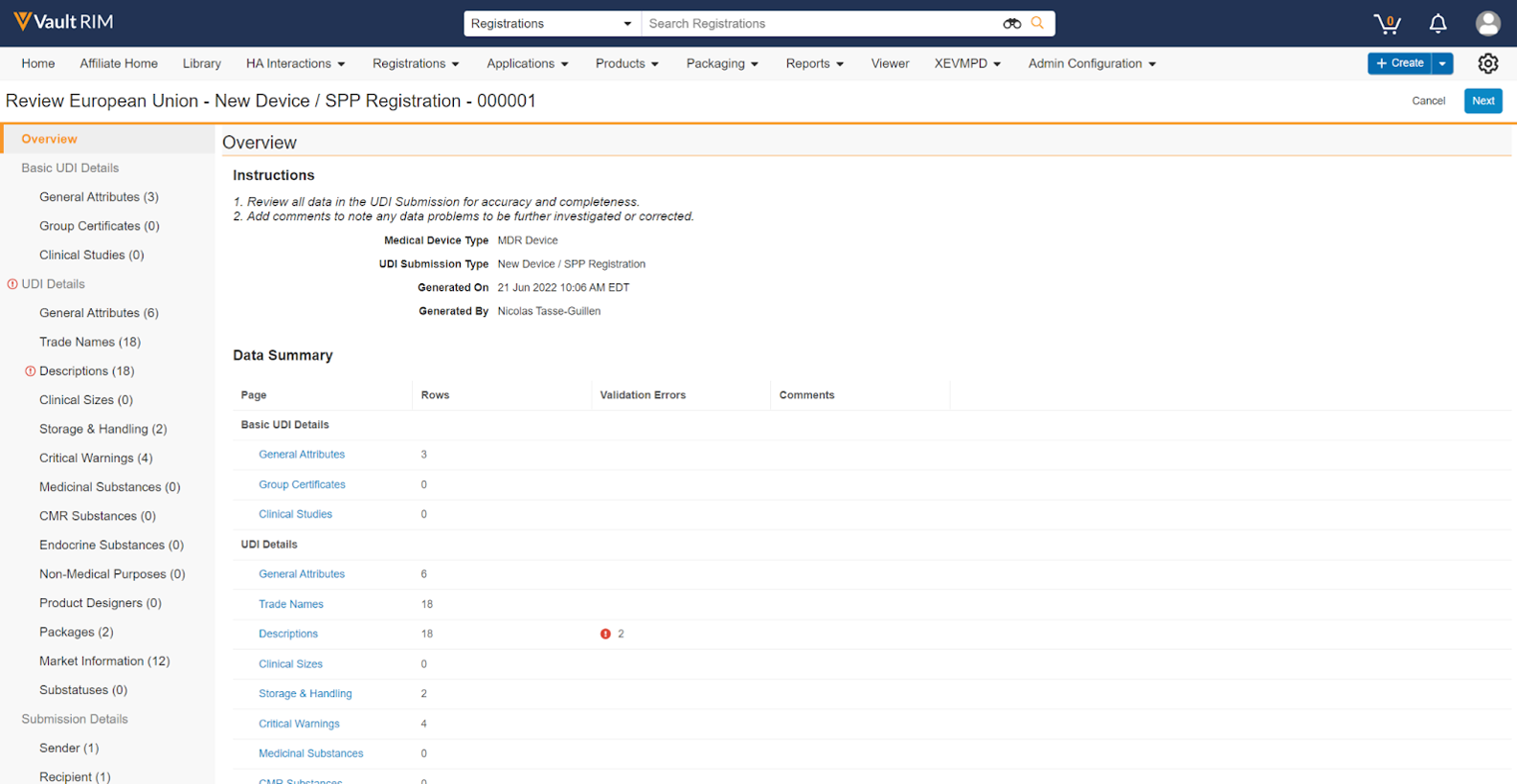
Note: This feature is only available on RIM Registrations Vaults and must be configured by an Admin.
### Data Category Pages
Each data category page is a grid of columns applicable to the _Medical Device Type_ of the _UDI Submission_. Depending upon the data displayed for the category, you can review validation errors, add comments where corrections may be required, and filter and search.
#### Reviewing Validation Errors
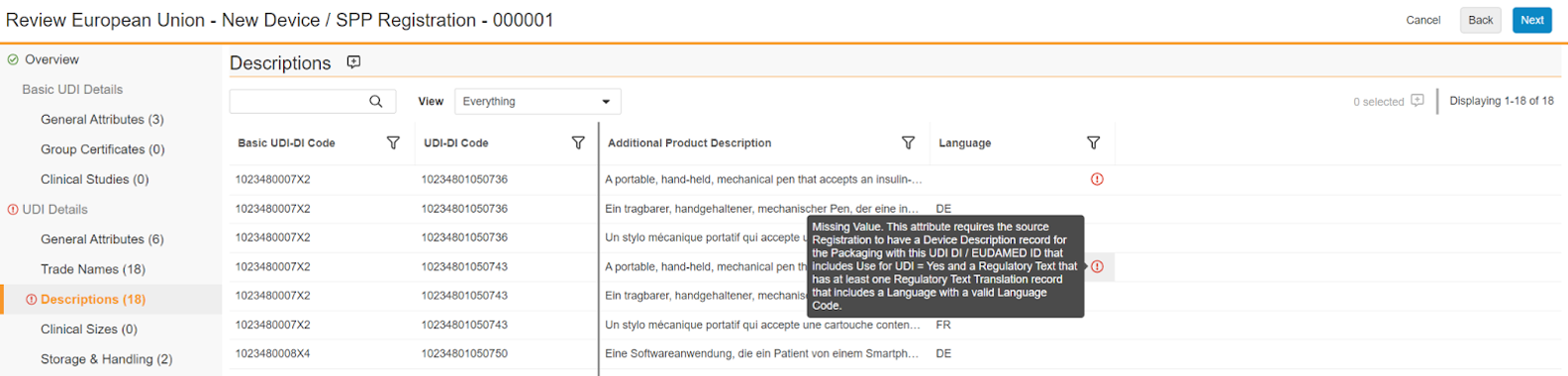
In the columns where there are validation errors, you can hover over the red exclamation circle icon to display Vault's suggestions for how to fix the source data. These suggestions are also provided within the summary report Vault generates at the end of the review process.
 #### Commenting
You can use the viewer's commenting feature to annotate validation errors and other displayed data that is technically valid but requires correction, such as a misspelling.
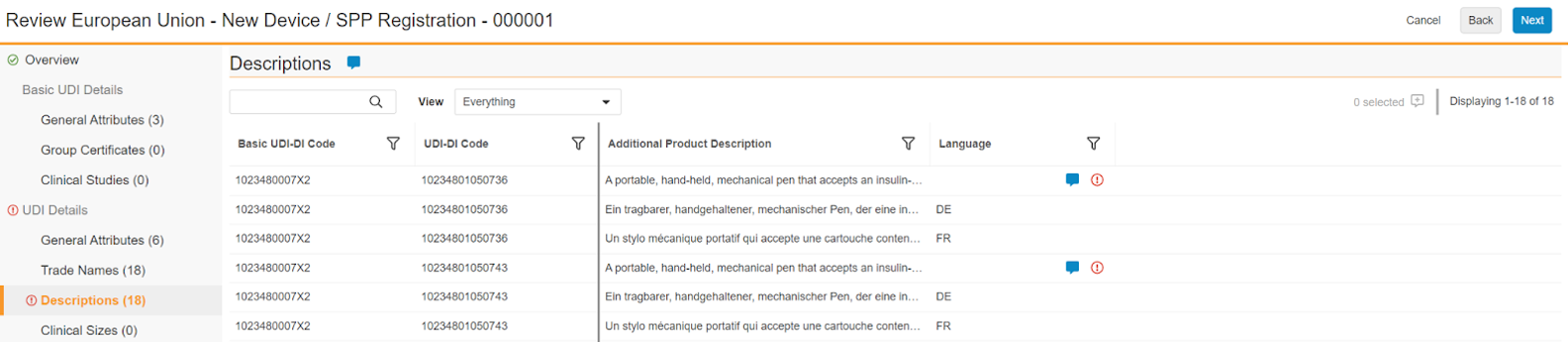
To add a comment for the entire page, click the comment icon to the right of the data category heading. To add a comment for one or more cells, click the comment icon to the left of the record count for the page. Then, enter text in the **Comment** dialog and click **Save**.
#### Commenting
You can use the viewer's commenting feature to annotate validation errors and other displayed data that is technically valid but requires correction, such as a misspelling.
To add a comment for the entire page, click the comment icon to the right of the data category heading. To add a comment for one or more cells, click the comment icon to the left of the record count for the page. Then, enter text in the **Comment** dialog and click **Save**.
 Pages and cells with saved comments appear with a solid blue comment icon:
 #### Searching, Filtering, and Monitoring Review Progress
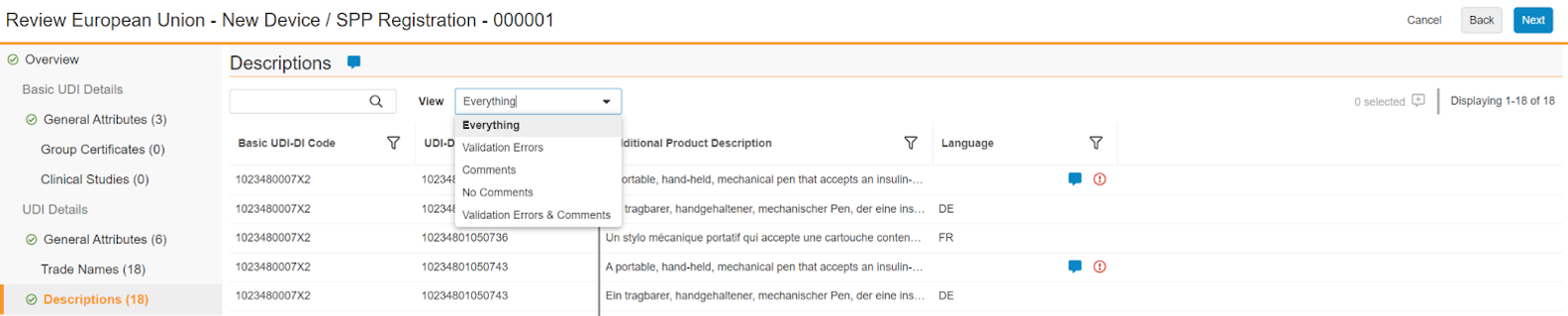
As your review progresses, Vault updates the left-hand navigation panel with a green checkmark to indicate the page has been visited.
Additionally, throughout your review, you can perform a text search across all rows and all columns, and filter by each visible column.
When applicable, you can make a selection in the **View** dropdown to show **Everything**, rows with one or more **Validation Errors** or **Comments** only, **No Comments**, or all rows with **Validation Errors & Comments**.
#### Searching, Filtering, and Monitoring Review Progress
As your review progresses, Vault updates the left-hand navigation panel with a green checkmark to indicate the page has been visited.
Additionally, throughout your review, you can perform a text search across all rows and all columns, and filter by each visible column.
When applicable, you can make a selection in the **View** dropdown to show **Everything**, rows with one or more **Validation Errors** or **Comments** only, **No Comments**, or all rows with **Validation Errors & Comments**.
 ### Next Steps Page
When your review is complete, Vault displays the **Next Steps** page with options on how to proceed, based upon whether the XML file contains validation errors.
The option to submit directly to EUDAMED appears when the submission does not contain any validation errors, and when your Vault is configured for machine-to-machine submission. See [Direct Submissions from Vault][4] for additional steps.
### Next Steps Page
When your review is complete, Vault displays the **Next Steps** page with options on how to proceed, based upon whether the XML file contains validation errors.
The option to submit directly to EUDAMED appears when the submission does not contain any validation errors, and when your Vault is configured for machine-to-machine submission. See [Direct Submissions from Vault][4] for additional steps.
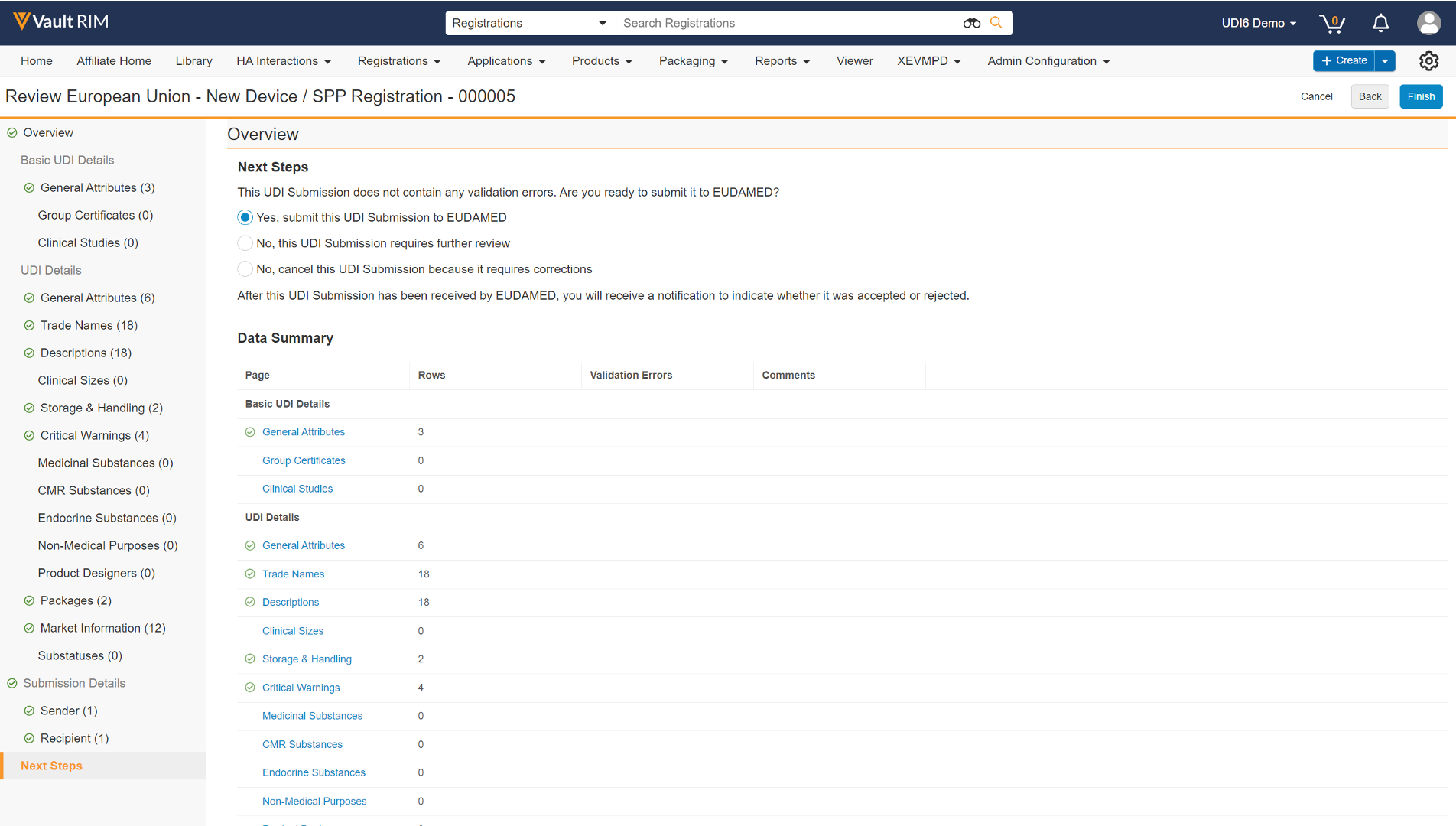 If your Vault's viewer configuration does not include submission capability, in most cases, when you click **Finish**, Vault sends a report summarizing the review and updates the lifecycle states of related objects and documents accordingly.
See the following sections for more information:
* [Pre-Submission Lifecycle State Updates][2]
* [Manual Uploads to EUDAMED][5]
* [About the UDI Submission Review Report][1]
## Pre-Submission Lifecycle State Updates {#automatic-state-updates}
When you select a review verdict other than _Requires further review_, Vault updates the below components' lifecycle states:
* _UDI Submission_ object record
* _Registered Device Identifier_ object records for the identifiers included in the submission
* _UDI Submission_ XML document in the Library
The table below describes Vault behavior based upon review outcome. Object lifecycle state labels may differ in your Vault, depending upon your Admin's configuration.
| Review Outcome | Object Lifecycle State | Document Lifecycle State |
|---|---|---|
| Requires further review | N/A – no change | N/A – no change |
| Cancel | Canceled | Canceled |
| Ready to submit to EUDAMED | Ready to Submit | Ready to Submit |
| Submit to EUDAMED
If your Vault's viewer configuration does not include submission capability, in most cases, when you click **Finish**, Vault sends a report summarizing the review and updates the lifecycle states of related objects and documents accordingly.
See the following sections for more information:
* [Pre-Submission Lifecycle State Updates][2]
* [Manual Uploads to EUDAMED][5]
* [About the UDI Submission Review Report][1]
## Pre-Submission Lifecycle State Updates {#automatic-state-updates}
When you select a review verdict other than _Requires further review_, Vault updates the below components' lifecycle states:
* _UDI Submission_ object record
* _Registered Device Identifier_ object records for the identifiers included in the submission
* _UDI Submission_ XML document in the Library
The table below describes Vault behavior based upon review outcome. Object lifecycle state labels may differ in your Vault, depending upon your Admin's configuration.
| Review Outcome | Object Lifecycle State | Document Lifecycle State |
|---|---|---|
| Requires further review | N/A – no change | N/A – no change |
| Cancel | Canceled | Canceled |
| Ready to submit to EUDAMED | Ready to Submit | Ready to Submit |
| Submit to EUDAMED| Submission Outcome | Vault Action | Lifecycle State Change |
|---|---|---|
| Failed to send | Notification | Ready to Submit |
| No response | Notification | Ready to Submit |
| Unexpected or partial response | • Notification • Attachment on UDI Submission record |
N/A – no change |
| Rejected | • Notification • Attachment on UDI Submission record • UDI Submission Error records created for each data category related to UDI Submission record |
Rejected by HA |
| Partially Accepted | • Notification • Attachment on UDI Submission record |
Partially Accepted by HA |
| Accepted | • Notification • Attachment on UDI Submission record |
Accepted by HA |