
Note: This feature is only available on RIM Registrations Vaults.
Vault remembers your selection the next time you log into Vault to view **Affiliate Home**.
## Affiliate Home Tab Components
The **Affiliate Home** tab contains the following components, which display data based on the context you selected. You can only see data for objects to which you have access.
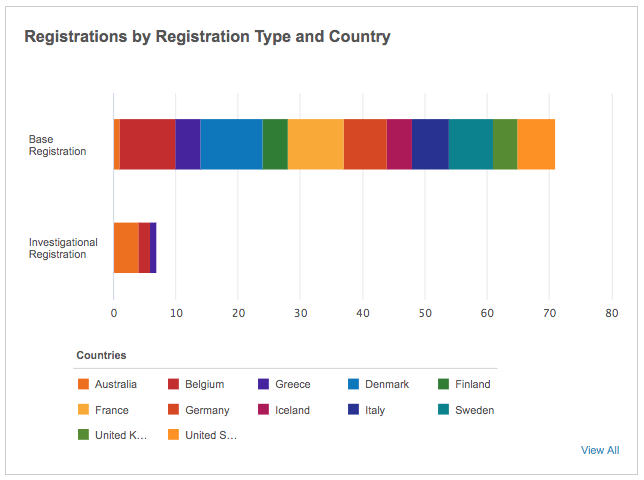
Clicking a value in any chart's legend adds or removes that value from the current chart view. Clicking a segment in a chart or the **View All** link at the bottom of that chart's pane navigates you to the tab for the related object, filtered by your current context. To return to the **Affiliate Home** tab, use the breadcrumb navigation at the top of the page.
### Quick Action Bar
You can launch several actions directly from the **Affiliate Home** tab, allowing you to determine the impact of a planned change across multiple countries or regions, create or update records to track the progress of a planned change in a specific market, and create or update records based on responses from Health Authorities. See the [Affiliate Home Actions][5] section below for details about each action available.
 ### Activities
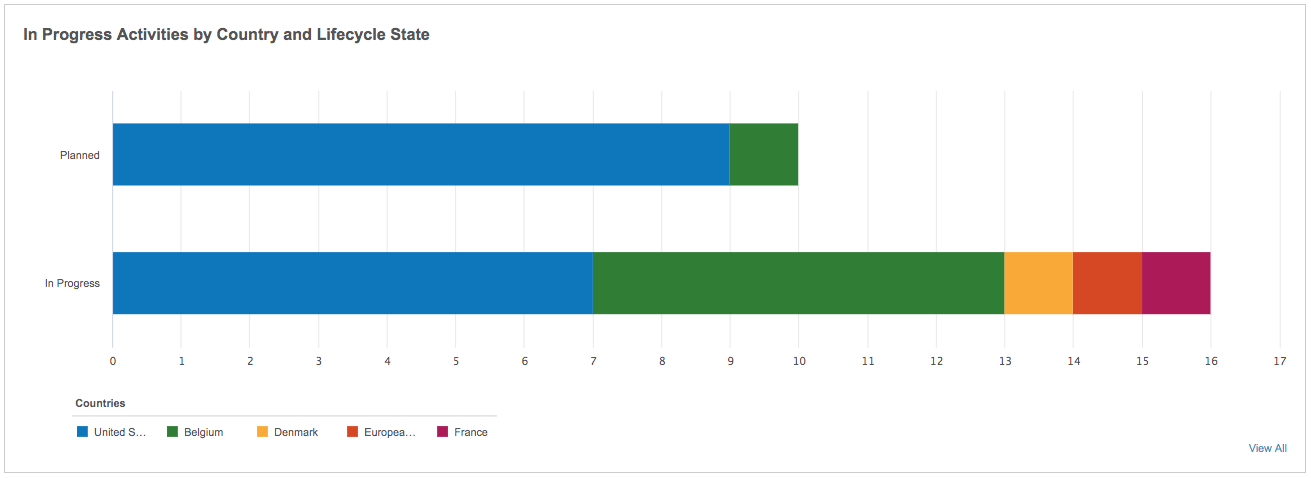
The **Activities** pane displays the status of _Activities_ for your selected _Countries_. If you didn't filter on a _Product Family_ in the context selector, you can also hover over a _Country_ segment in the bar chart to see that country's count of _Activities_ for each _Product Family_.
### Activities
The **Activities** pane displays the status of _Activities_ for your selected _Countries_. If you didn't filter on a _Product Family_ in the context selector, you can also hover over a _Country_ segment in the bar chart to see that country's count of _Activities_ for each _Product Family_.
 ### Regulatory Objectives
The **Regulatory Objectives** pane displays counts of _Regulatory Objective_ records filtered by status for each _Country_ you selected. If you didn't filter on a _Product Family_ in the context selector, you can also hover over a segment in the bar chart to see that country's count of _Regulatory Objectives_ in that status for each _Product Family_.
### Regulatory Objectives
The **Regulatory Objectives** pane displays counts of _Regulatory Objective_ records filtered by status for each _Country_ you selected. If you didn't filter on a _Product Family_ in the context selector, you can also hover over a segment in the bar chart to see that country's count of _Regulatory Objectives_ in that status for each _Product Family_.
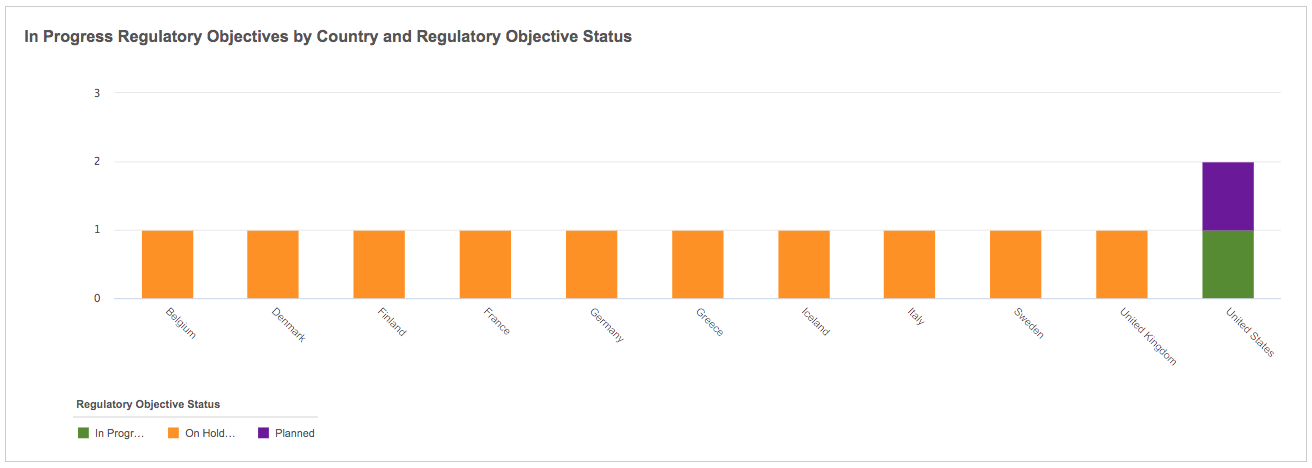
Note: When you click a chart segment or the View All link in this pane, the tab only includes filters for the Country and Product Family that you selected within the Affiliate Home tab, and you can only see 300 records. If you add additional filters or columns, you may see an error due to the length of the URL. To prevent this, we recommend clicking the links in the chart hovercards or filtering by Product Family on the Affiliate Home tab to narrow your view.
 ### My Tasks
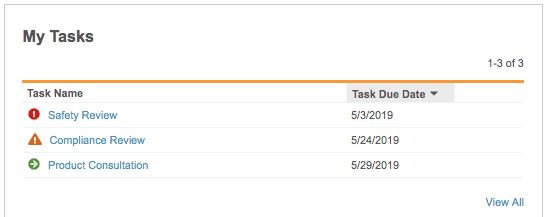
The **My Tasks** pane shows your outstanding available and assigned tasks by status: due in more than a week, coming due within the week, or overdue. Click a task to navigate to the related document or object record and complete the associated task. Click **View All** to see all of your open tasks.
### My Tasks
The **My Tasks** pane shows your outstanding available and assigned tasks by status: due in more than a week, coming due within the week, or overdue. Click a task to navigate to the related document or object record and complete the associated task. Click **View All** to see all of your open tasks.
 ## Affiliate Home Actions {#actions}
From the **Quick Actions** bar, you can select and complete any necessary actions directly from the **Affiliate Home** tab. If you can't click an action, you may not have the correct permissions.
### Impact Assessment Report
Vault includes Impact Assessment Reports to quickly display all _Registration_ records impacted by a planned _Event_. This helps you determine the impact of a planned change across multiple countries or regions. To run a report directly from the **Affiliate Home** tab:
1. Click the **Impact Assessment Report** icon.
2. Select an **Event** from which to run the report. If you've filtered by _Product Family_ in the context selector, Vault only displays _Events_ related to that _Product Family_.
3. Fill in the fields in the dialog to set the report's context.
4. Click **Continue**.
Vault runs the report and opens it in a new tab. See Impact Assessment Reports
for complete details about running these reports.
### Bundling Activities
Vault allows you to bundle multiple _Activity_ records into new submissions and regulatory objectives, helping you track the progress of a planned change in a specific market. To bundle records from the **Affiliate Home** tab:
1. Click the **Bundle Activities** icon. This action may have a different name depending on your Admin's configuration.
2. Select an **Activity**. Vault filters _Activity_ records based on your choices in the context selector.
3. Click **Continue** to start the bundling process. See Bundling Submissions
for detailed information on how to bundle _Activity_ records.
You can only select **Bundle Activities** if an Admin has enabled bundling in your Vault.
### Upload Documents
You can upload documents directly from the **Affiliate Home** tab. Click the **Upload Documents** icon. Vault navigates you to the **Upload Files** page. See Adding Documents
for details about creating documents in Vault.
When you finish uploading your document, Vault opens the Doc Info page
for your new document.
### Manage Registered Details
After you receive a notification from a Health Authority that your _Regulatory Objective_ is approved, you can add or update various related _Registered Details_ records:
1. Click the **Manage Registered Details** icon. This action may have a different name depending on your Admin's configuration.
2. Select a **Regulatory Objective**. Vault filters _Regulatory Objective_ records based on your choices in the context selector.
3. Click **Continue** to launch the **Manage Registered Details** wizard. See Managing Registered Details
for detailed information.
### Create Registrations
Bulk creation allows you to quickly create _Registration_ records based on the data defined in the _Application_ and _Submission_ records for easy and consistent data entry. Vault ensures that each product, product variant, or pack size combination results in a unique registration, which facilitates tracking and management at a granular level. To create registrations in bulk:
1. Click the **Create Registrations** icon.
2. Select an **Application**. Vault only displays _Applications_ where the _Lead Market_ is a country you chose in the context selector.
3. Click **Continue** to start the bulk creation process. See Bulk Creating Registrations
for detailed information.
## Limitations
We do not recommend using the Affiliate Home tab on Internet Explorer 11 browsers. Users may also experience some unexpected results when working on Microsoft Edge browsers.
## Related Permissions
You must have at least _Read_ permission on the following objects and fields to see the Affiliate Home tab components:
* _Country_
* _Product Family_ (`product__v`)
* _Regulatory Objective_
* _Lifecycle State_
* _Product Family_ (`product__v`)
* _Country Decision Detail_
* _Country_
* _Regulatory Objective Status_
* __Product Family__ (`product__v`)
* _Registration_
* _Registration Type_
* _Country_
* _Product Family_ (`product__v`)
* _Activities_
* _Impacted Market_
* _Product Family_ (`product__v`)
* _Lifecycle State_
* _Application_
* _Primary Product Family_
* _Lead Market_
You must have _View_ permission on the following tabs:
* _Affiliate Home_ standard tab
* _Regulatory Objective_ standard tab
* _Registrations_ custom object tab that is not filtered by object type
* _Activities_ custom object tab that is not filtered by object type
To create documents, you also need _Create Document_ permission on any applicable document types.
[5]: #actions
## Affiliate Home Actions {#actions}
From the **Quick Actions** bar, you can select and complete any necessary actions directly from the **Affiliate Home** tab. If you can't click an action, you may not have the correct permissions.
### Impact Assessment Report
Vault includes Impact Assessment Reports to quickly display all _Registration_ records impacted by a planned _Event_. This helps you determine the impact of a planned change across multiple countries or regions. To run a report directly from the **Affiliate Home** tab:
1. Click the **Impact Assessment Report** icon.
2. Select an **Event** from which to run the report. If you've filtered by _Product Family_ in the context selector, Vault only displays _Events_ related to that _Product Family_.
3. Fill in the fields in the dialog to set the report's context.
4. Click **Continue**.
Vault runs the report and opens it in a new tab. See Impact Assessment Reports
for complete details about running these reports.
### Bundling Activities
Vault allows you to bundle multiple _Activity_ records into new submissions and regulatory objectives, helping you track the progress of a planned change in a specific market. To bundle records from the **Affiliate Home** tab:
1. Click the **Bundle Activities** icon. This action may have a different name depending on your Admin's configuration.
2. Select an **Activity**. Vault filters _Activity_ records based on your choices in the context selector.
3. Click **Continue** to start the bundling process. See Bundling Submissions
for detailed information on how to bundle _Activity_ records.
You can only select **Bundle Activities** if an Admin has enabled bundling in your Vault.
### Upload Documents
You can upload documents directly from the **Affiliate Home** tab. Click the **Upload Documents** icon. Vault navigates you to the **Upload Files** page. See Adding Documents
for details about creating documents in Vault.
When you finish uploading your document, Vault opens the Doc Info page
for your new document.
### Manage Registered Details
After you receive a notification from a Health Authority that your _Regulatory Objective_ is approved, you can add or update various related _Registered Details_ records:
1. Click the **Manage Registered Details** icon. This action may have a different name depending on your Admin's configuration.
2. Select a **Regulatory Objective**. Vault filters _Regulatory Objective_ records based on your choices in the context selector.
3. Click **Continue** to launch the **Manage Registered Details** wizard. See Managing Registered Details
for detailed information.
### Create Registrations
Bulk creation allows you to quickly create _Registration_ records based on the data defined in the _Application_ and _Submission_ records for easy and consistent data entry. Vault ensures that each product, product variant, or pack size combination results in a unique registration, which facilitates tracking and management at a granular level. To create registrations in bulk:
1. Click the **Create Registrations** icon.
2. Select an **Application**. Vault only displays _Applications_ where the _Lead Market_ is a country you chose in the context selector.
3. Click **Continue** to start the bulk creation process. See Bulk Creating Registrations
for detailed information.
## Limitations
We do not recommend using the Affiliate Home tab on Internet Explorer 11 browsers. Users may also experience some unexpected results when working on Microsoft Edge browsers.
## Related Permissions
You must have at least _Read_ permission on the following objects and fields to see the Affiliate Home tab components:
* _Country_
* _Product Family_ (`product__v`)
* _Regulatory Objective_
* _Lifecycle State_
* _Product Family_ (`product__v`)
* _Country Decision Detail_
* _Country_
* _Regulatory Objective Status_
* __Product Family__ (`product__v`)
* _Registration_
* _Registration Type_
* _Country_
* _Product Family_ (`product__v`)
* _Activities_
* _Impacted Market_
* _Product Family_ (`product__v`)
* _Lifecycle State_
* _Application_
* _Primary Product Family_
* _Lead Market_
You must have _View_ permission on the following tabs:
* _Affiliate Home_ standard tab
* _Regulatory Objective_ standard tab
* _Registrations_ custom object tab that is not filtered by object type
* _Activities_ custom object tab that is not filtered by object type
To create documents, you also need _Create Document_ permission on any applicable document types.
[5]: #actions