# Configuring Automated Linking & Link Evaluator

Submissions Publishing offers several methods for efficiently managing hyperlinks within eCTD submissions, for example <a href="/en/gr/486081/">Vault Link Annotations to permalinks</a>. While this method allows for creating link annotations more dynamically, it requires selecting link targets of the same type to existing Vault locations.

With <a href="/en/gr/55400/">Automated Linking and Link Evaluator</a>, authors can identify links earlier in your organization's document authoring and publishing workstream: While drafting a Microsoft Word document, authors select an area targeting a link that does not yet exist. Once the document is uploaded and the submission is published, publishers can initiate a Content Plan user action to automatically create the links, then verify and resolve any broken links with the Link Evaluator.


<div class="note-border alert-info">
  <div class="alert alert-info" role="alert">
    <div><i class="far fa-info-circle"></i></div>
    <div class="alert-text">
      <p><strong>Note</strong>: These features are available in RIM Submissions Publishing Vaults only.</p>
    </div>
  </div>
</div>


## Feature Overview & Components

Automated Linking and the Link Evaluator work in tandem to generate and verify links in eCTD submissions: When Automated Linking does not create a link or generates a broken link, the Link Evaluator is a visual component available to users to identify and fix it.

However, your organization can leverage the Link Evaluator's capabilities without Automated Linking functionality. When configured, Vault allows users to manually identify and fix failed or broken links within a submission, regardless of the method used to create the link.

This section discusses how Vault generates and evaluates links from a technical perspective. A simpler flow for authors and publishers is available in <a href="/en/gr/55400/">Working with Automated Linking & Link Evaluator</a>.

### Automated Linking


<div class="note-border alert-info">
  <div class="alert alert-info" role="alert">
    <div><i class="far fa-info-circle"></i></div>
    <div class="alert-text">
      <p><strong>Note</strong>: Only published PDF document renditions are eligible for Automated Linking.</p>
    </div>
  </div>
</div>


Vault relies on both Microsoft Word and Vault components to automatically generate hyperlinks:

* After an author highlights a string of text in their draft document to be linked within Vault, they run a **Microsoft Word macro**. The <a class="external-link " href="https://support.microsoft.com/en-us/office/create-or-run-a-macro-c6b99036-905c-49a6-818a-dfb98b7c3c9c" target="_blank" rel="noopener">macro<i class="fa fa-external-link" aria-hidden="true"></i></a> parses the selected text and adds Veeva Specific URL(s) to the selection or parts of the selection, depending on how many destinations it contains. See [About Microsoft Word Macros][9] for Veeva-provided templates. You can also build a macro to suit your organization's requirements.
* The **Veeva Specific URL** is a special URL scheme specific to Automated Linking and is encoded with the link target description. Vault uses the [Veeva Specific URL][8] (along with Automated Linking Rules) to identify and generate a permalink for the targeted destination.
* [**Automated Linking Rules**][1] are a class of object records where Admins define specific rules for automated link creation. The rules are captured in the below objects and join object records. Vault assesses these records against the various Veeva Specific URL components when generating links.
    * _Automated Linking Rule_
    * _Automated Linking Group_
    * _Automated Linking Rule Group_
    * _Automated Linking Destination Type_
    * _Automated Linking Rule Destination Type_
* When a publisher runs the **Create Automated Links** action on a _Content Plan_ or _Content Plan Item_ record, Vault initiates the **Automated Hyperlinking <a href="/en/gr/44922/#regulatory-jobs">SDK job</a>**. During the job run, Vault reviews the published PDF document renditions matched to the record from which the action was run, as well as all active records below it. For each PDF rendition containing a Veeva Specific URL, Vault converts it to a link based on the _Automated Linking Rule Group_ record referenced on the _Automated Linking Rule Group_ field in the _Content Plan Item_ record.
* When the job is complete, Vault sends a **notification** to the publisher who initiated the action. The notification includes a summary of links processed, successfully resolved, and failed, as well as a link to the Link Evaluator.
<div class="note-border alert-info">
  <div class="alert alert-info" role="alert">
    <div><i class="far fa-info-circle"></i></div>
    <div class="alert-text">
      <p><strong>Note</strong>: The notification displaying the number of links processed and successfully resolved may not match what is displayed in Link Evaluator. If the same Veeva Specific URL appears multiple times in the source document, the notification only counts it once. Whereas Link Evaluator displays all instances of the link.</p>
    </div>
  </div>
</div>


### Link Evaluator

The Link Evaluator relies on the following Vault components:

* When a _Content Plan_ or _Content Plan Item_ record is published, Vault stores all publishing-specific information in a **Publishing Metadata** object record for that _Content Plan_ or _Content Plan Item_ record. Vault relates the two components via the _Publishing Metadata_ field on the selected content plan record.
* When a user runs the **Evaluate Links** action on a _Content Plan_ or _Content Plan Item_ record, Vault displays the Link Evaluator. This UI element shows the link information for all published PDF renditions matched to the record from which the action was run. When running the action from a _Content Plan_ record, Vault also considers and displays all active _Content Plan Item_ records with matched documents below it.

## Configuration Overview


<div class="note-border alert-info">
  <div class="alert alert-info" role="alert">
    <div><i class="far fa-info-circle"></i></div>
    <div class="alert-text">
      <p><strong>Note</strong>: You can configure Link Evaluator with or without Automated Linking capabilities. We do not recommend configuring Automated Linking without Link Evaluator, as we cannot guarantee the accuracy of all auto-created links.</p>
    </div>
  </div>
</div>


###  Configuring Automated Linking

To configure Automated Linking in your Vault:

1. <a href="/en/gr/32857/#assign">Assign</a> the _Automated Linking Group_ field to all _Content Plan Item_ and _Content Plan Item Template_ object types, then <a href="/en/gr/26387/">add</a> it to all object page layouts.
2. On the _Automated Linking Group_ object page layout, configure a related object section for the _Automated Linking Rule_ object. This section displays all [_Automated Linking Rules_][1] Vault considers for a given _Content Plan Item_.
3. On the _Automated Linking Rule_ object page layout, <a href="/en/gr/26387/">add</a> related object sections for the _Automated Linking Group_ and _Automated Linking Destination Type_ objects. These sections display all _Automated Linking Groups_ where the rule appears, as well as all _Automated Linking Destination Type_ records Vault references in addition to the rule when locating links.
4. The _Create Automated Links_ object action on the _Content Plan_ and _Content Plan Item_ objects is provisioned as active by default. To enable it, <a href="/en/gr/32857/#user-actions">assign</a> it to all _Content Plan_ and _Content Plan Item_ object types.
5. Review your Vault's _Content Plan_ and _Content Plan Item_ object lifecycles. By default, the _Create Automated Links_ action is provisioned for these objects as _Available in All Lifecycle States_. This means you must ensure that, for each lifecycle state in which publishers will be reviewing and fixing links, their role must have _Execute_ <a href="/en/gr/47850/#Atomic_Security_Actions">Atomic Security permission</a> for the _Create Automated Links_ action.
6. Review your Vault's security configuration and ensure users are assigned a permission set with the [related object permissions][10].
7. Create and relate [_Automated Linking Rule_][1], [_Automated Linking Group_][7], and [_Automated Linking Destination Type_][6] records to suit your organization's automated linking requirements.
8. Populate the related field for new _Automated Linking Group_ record(s) on your Vault's existing _Content Plan Item_ and _Content Plan Item Template_ records.

Additionally, your organization's draft documents must use Microsoft Word macros for creating the Veeva Specific URL which Vault uses to generate automatic links. See [About Microsoft Word Macros][9].

### Configuring Link Evaluator

To configure Link Evaluator in your Vault:

1. The _Evaluate Links_ object action on the _Content Plan_ and _Content Plan Item_ objects is provisioned by default as active. To enable it, <a href="/en/gr/32857/#user-actions">assign</a> it to the below _Content Plan_ and _Content Plan Item_ object types. Link Evaluator is supported for these object types only.
  * Clinical (Module 5)
  * Nonclinical (Module 4)
  * Quality (Module 3)
  * Regional (Module 1)
  * Summary (Module 2)
2. Review your Vault's _Content Plan_ and _Content Plan Item_ object lifecycles. By default, the _Evaluate Links_ action is provisioned for these objects as _Available in All Lifecycle States_. This means you must ensure that, for each lifecycle state in which publishers will be reviewing and fixing links, their role must have _Execute_ <a href="/en/gr/47850/#Atomic_Security_Actions">Atomic Security permission</a> for the _Evaluate Links_ action.
3. In **Configuration > Objects > Content Plan Item > Object Types**, ensure the _Publishing Metadata_ field is enabled for all object types. If it is not, it must be minimally <a href="/en/gr/32857/#assign">assigned</a> to the supported object types listed in step 1.
4. Review your Vault's security configuration and ensure users are assigned a permission set with the [related object permissions][10].

## Defining Automated Linking Rules {#defining-automated-linking-rules}

Along with the Veeva Specific URL, _Automated Linking Rules_ and its related objects determine where Vault searches for potential links within a document. The _Automated Linking Rule_ object fields listed below are required.

* **Allowed Clarifier Pattern** defines the possible _Content Plan Item_ title elements Vault will encounter when assessing a document's [Veeva Specific URL][8] and applying _Automated Linking Rules_. If a clarifier does not match the _Automated Linking Rule_ record's established pattern, Vault does not run the rule when generating links. See [Defining the Allowed Clarifier Pattern][2].
* **Target Search Phrase** defines the Veeva Specific URL element Vault should use to search for the target document. See [Defining the Target Search Phrase][3].
* **Target Search Type** specifies the location of where Vault should search for the clarifier, either in the _Published Document Filename_, _Published Document Title_, or both.
* The **Sequence Search Type** multi-select picklist field defines the sequence and scope of Vault's search for potential links. Vault processes the various search type options according to the logic described in [Defining the Sequence Search Type][4].
* **Target Search Folder**: A comma-separated list to define the folders in which Vault should search for the target document. See [Defining the Target Search Folder][5] for details.
* **Target Uniqueness Policy**: A single-select field which determines how Vault should create links when it finds duplicate matching results. When you select _First Match_, Vault searches the current Submission first, in the order specified in the [_Target Search Folder_][5] field. See [Defining the Sequence Search Type][4] for details on how Vault determines the current Submission.

### Defining the Allowed Clarifier Pattern {#defining-the-allowed-clarifier-pattern}

The Veeva Specific URL uses a clarifier to target links within a published document, using the _Content Plan Item_ record's _Title_ (`xml_title__v`) field, document's _Title_ field, or both. The document author defines the clarifier along with other Veeva Specific URL elements when they run the macro. See also [About the Veeva Specific URL][8] for further details.

To better locate hyperlinks, Vault also references the _Allowed Clarifier Pattern_ within your Vault's _Automated Linking Rule_ records. This field indicates the format and order in which Vault can expect to locate a clarifier.

For example, a `{#######}{*}` _Allowed Clarifier Pattern_ allows an _Automated Linking Rule_ to run when a clarifier starts with seven (7) numbers and has any additional characters following those numbers. In this example, the wildcard token `{*}` denotes any characters appearing in the _Content Plan Item_ record's _Title_ field, such as the file extension (".pdf"). You can use up to three (3) wildcard tokens in a given pattern.

You can also populate the _Allowed Clarifier Pattern_ with specific words which always appear in a given _Content Plan Item_ record. For example, `Report-{#######}` allows an _Automated Linking Rule_ to run when the clarifier (_Content Plan Item_ record _Title_) begins with "Report-" and is followed by seven (7) numbers.

When Vault encounters an invalid _Allowed Clarified Pattern_, it stops processing the _Content Plan Item_ record and updates the _Link Status_ field to _Unresolved AH - Invalid Rule_.

### Defining the Target Search Phrase {#defining-the-target-search-phrase}

The _Target Search Phrase_ field defines which [Veeva Specific URL][8] element Vault should use to search for the target document.

Each _Target Search Phrase_ option is listed below, with an accompanying list showing the example _Target Search Phrase_ input options which Vault uses to determine the scope of the search. URL elements in **bold** are the inputs to the listed Search Scope.

For reference, the Veeva Specific URL format is `{VeevaIdentifier}/{version}/{Clarifier}/{target-destination-type}/{target-destination}`

#### {Clarifier}

* _Target Search Phrase_ value: `{Clarifier}`
* Veeva Specific URL: v-auto-link:v1/**Form FDA 356h**/Section/1.2
* Search Scope: "Form FDA 356h"

#### {ClarifierNumberOnly}

* _Target Search Phrase_ value: ema-responses-`{ClarifierNumberOnly}`
* Veeva Specific URLs:
    * v-auto-link:v1/Question **11**/Section/1.2
    * v-auto-link:v1/Question **1.2.3**/Section/1.2
* Search Scope: "ema-responses-11" or "ema-responses-123"

#### {ClarifierTextOnly}

* _Target Search Phrase_ value: ema-responses-`{ClarifierTextOnly}`
* Veeva Specific URLs:
    * v-auto-link:v1/**Question** 11/Section/1.2
    * v-auto-link:v1/**Quest** 11 **ion**/Section/1.2
* Search Scope: "ema-responses-question"

#### {TargetDestinationType}

* _Target Search Phrase_ value: `{TargetDestinationType}`-12
* Veeva Specific URL: v-auto-link:v1/Report 1234567/**Appendix**/12
* Search Scope: "Appendix-12"

#### {TargetDestination}

* _Target Search Phrase_ value: `{TargetDestinationType}`-`{TargetDestination}`
* Veeva Specific URL: v-auto-link:v1/Report 1234567/**Appendix**/**12**
* Search Scope: "Appendix-12"

#### {TargetDestinationNumberOnly}

* _Target Search Phrase_ value: `{ClarifierNumberOnly}`-csr-go-29754-`{TargetDestinationNumberOnly}`
* Veeva Specific URL: v-auto-link:v1/**Report 1234567**/**16**.**1**.**1**/Appendix
* Search Scope: "1234567-csr-go-1611"

#### {*} Wildcard Token

You can add the wildcard token `{*}` to any of the above _Target Search Phrase_ options to expand the search to any character appearing after the search phrase. Below is an example of how Vault searches when the token appears after the clarifier.

* _Target Search Phrase_ value: `{Clarifier}``{*}`
* Veeva Specific URL: v-auto-link:v1/**Report**/16.1.1/Appendix
* Search Scope: Any document with "Report" appearing at the beginning of its title


### Defining the Sequence Search Type {#defining-the-sequence-search-type}

The _Automated Linking Rule_ object's _Sequence Search Type_ field defines the sequence in which Vault searches for potential links. You can select one or more of the various search type options listed below, and Vault processes them as described.

* **Current Submission**: The _Submission_ record with the highest _Sequence ID_ field value, for example 0010. When selected, Vault always searches for this record first.
* **Previous Submission**: A _Submission_ record with a _Sequence ID_ field value which is lower than that of the current _Submission_ record. For example, if the current Submission's ID is 0010, Vault searches 0009 as the previous Submission.
* **Recent 5 Submissions**: Any of the five (5) Submissions preceding the current Submission, determined by the _Sequence ID_ minus 5. For example, if the current Submission's ID is 0010, Vault searches 0005 through 0009.
* **Cross Application**: When <a href="/en/gr/48602/#enabling-cross-application-links">cross-application links</a> are enabled, Vault searches _Applications_ which share _Lead Market_, _Health Authority_, and _Health Authority Division_ field values. When selected with at least one of the other options, Vault also searches Submissions in different Applications, as well as Submissions in the same Application.

#### About Previous & Recent Submissions

In addition to the criteria described in the picklist options above, a previous or recent _Submission_ record must also meet the below criteria in order for Vault to consider it in a search:
* The _Submission_ record must be active with a _Sequence ID_ (`xml_submission_id__v`) value beginning with a numerical value 0 and higher, for example 0001 or 1000.
* The related _Dossier Detail_ record must not have a _Dossier Status_ of _Publishing Active._
* The _Submission_ record must have an _Actual Submission Date_.


### Defining the Target Search Folder {#defining-the-target-search-folder}

The _Automated Linking Rule_ object's _Target Search Folder_ field defines the module or modules in which Vault should search for a target document. For example, if you populate this field as `m1,m2,m3`, Vault searches these specific binder nodes only.

The _Target Search Folder_ field also supports special `{SameFolder}` and `{*}` wildcard tokens for narrowing the search:
* Use the `{SameFolder}` token alone to search a folder within the same folder as the source document. For example, if the source document's _Content Plan Item_ path is "m1/us/2252.pdf", `{SameFolder}` limits the search to binder nodes containing "m1/us" within the submission being searched.
* Use the `{*}` wildcard token to match any character, including forward-slashes (`/`). For example:
    * `m1/{*}` searches only binder nodes which start with "m1"
    * `m3/33-lit-ref/{*},m4/43-lit-ref/{*},m5/54-lit-ref/{*}` searches only binder nodes under "m3/33-lit-ref", "m4/43-lit-ref", or "m5/54-lit-ref" within the submission being searched.

## Defining Automated Linking Destination Types {#defining-automated-linking-destination-types}

_Automated Linking Destination Type_ records are optional records for specifying the locations Vault should search (as it pertains to the [Veeva Specific URL][8]) when applying the related _Automated Linking Rule_.

For example, if an _Automated Linking Rule_'s _Target Search Phrase_ is defined for the {clarifier} element only, and the clarifier appears on a document page or in a bookmark, you can relate the rule to two (2) _Automated Linking Destination Type_ records: One for the page, and one for the bookmark. Each of these locations are captured in the _Automated Linking Destination Type_ field _Target Destination Search Type_.


## Defining Automated Linking Groups {#defining-automated-linking-groups}

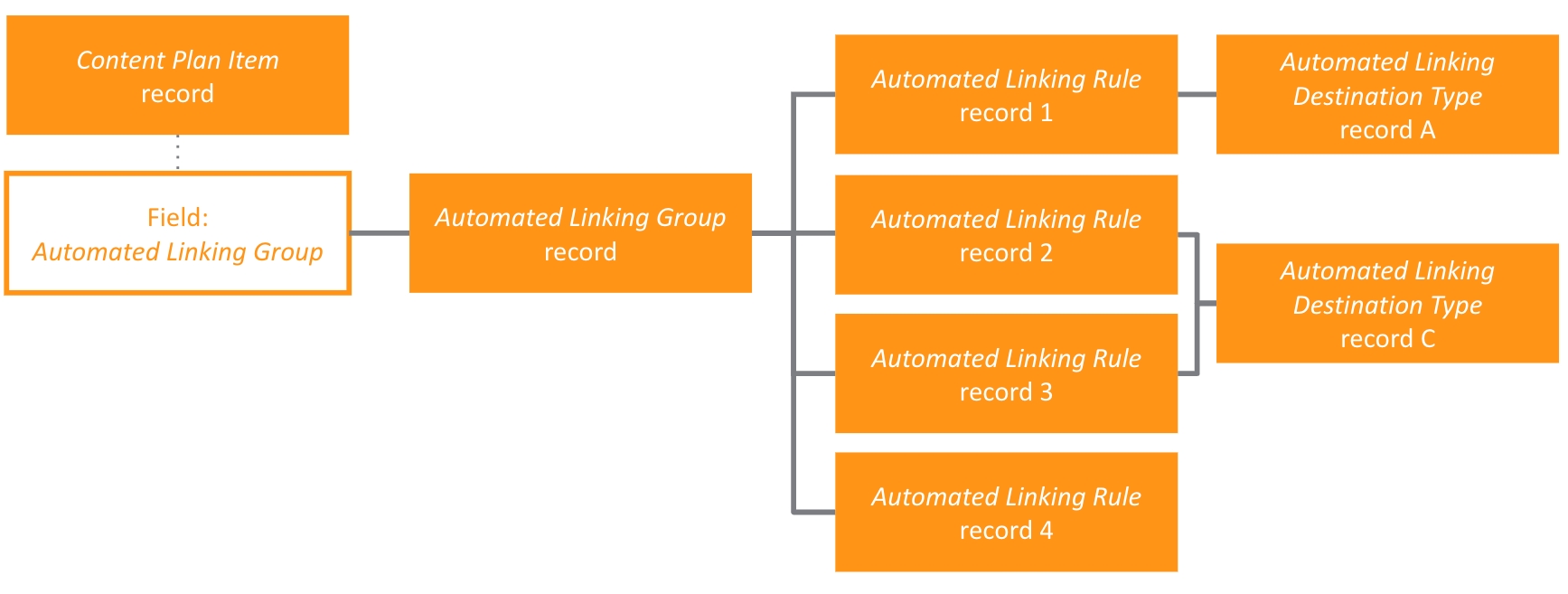
Once you've defined _Automated Linking Rules_ and _Automated Linking Destination Types_ for those rules, you'll need to add the rule records to at least one _Automated Linking Group_ record. A single _Automated Linking Group_ record connects one _Content Plan Item_ and the established rules and destination types for that item via the _Content Plan Item_ record's _Automated Linking Group_ field.

<a href="https://platform.veevavault.help/assets/images/automated-linking-object-relationships-23R3.png" data-lightbox="automated linking" data-title="" data-alt="automated linking object relationships">
  <img class="docimage" src="https://platform.veevavault.help/assets/images/automated-linking-object-relationships-23R3.png" alt="automated linking object relationships" style="width: 50%;"  />
</a>

The _Automated Linking Group_ record also includes the _Quit on Failed Match_ field to define how Vault should treat subsequent rules in the group when it cannot locate a matching target for one rule. When selected, the option prevents Vault from running any subsequent rules within the group.


<div class="note-border alert-info">
  <div class="alert alert-info" role="alert">
    <div><i class="far fa-info-circle"></i></div>
    <div class="alert-text">
      <p><strong>Note</strong>: The <em>Quit on Failed Match</em> checkbox field is required and unchecked (false) by default. When creating new records, you can leave the field as-is if Vault should continue processing subsequent <em>Automated Linking Rules</em> after it encounters a failed match in the group.</p>
    </div>
  </div>
</div>


## About the Veeva Specific URL {#about-the-veeva-specific-url}

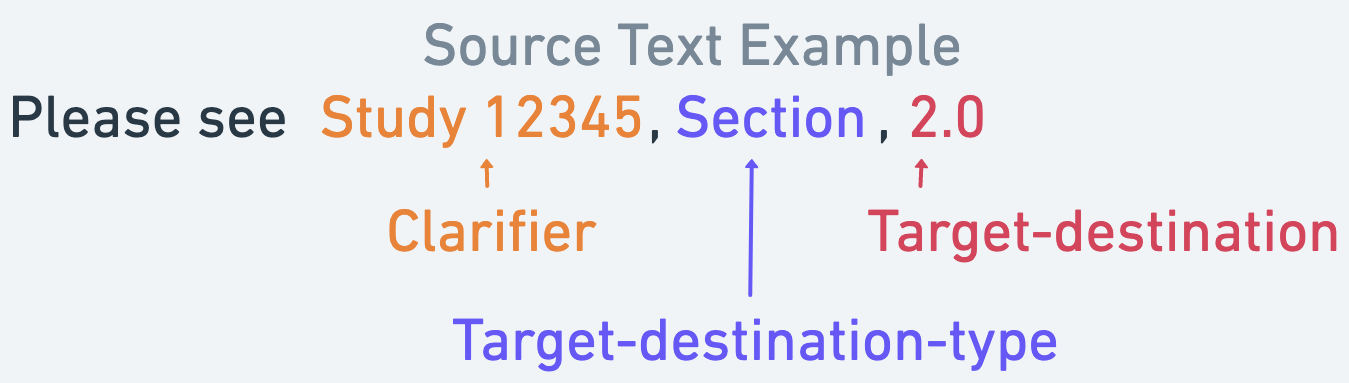
The Veeva Specific URL is an intermediary between a potential link an author identifies in a Microsoft Word document and the actual hyperlink Vault creates within the document once published. It consists of several elements defined in the [Microsoft Word macro][9].

Some elements also require you to further specify requirements for locating links via [_Automated Linking Rules_][1], such as the _Allowed Clarifier Pattern_ and _Target Search Phrase_, as well as the rule's associated _Automated Linking Destination Type_ records.

Each element is represented in the Veeva Specific URL per the below:

`{VeevaIdentifier}/{version}/{Clarifier}/{target-destination-type}/{target-destination}`

These elements map to the example source text and Veeva Specific URL as follows:

<a href="https://platform.veevavault.help/assets/images/automated-linking-veeva-specific-url-example-23R3.png" data-lightbox="automated linking" data-title="" data-alt="automated linking veeva specific URL example">
  <img class="docimage" src="https://platform.veevavault.help/assets/images/automated-linking-veeva-specific-url-example-23R3.png" alt="automated linking veeva specific URL example" style="width: 40%;"  />
</a>

<a href="https://platform.veevavault.help/assets/images/automated-linking-source-text-example-23R3.png" data-lightbox="automated linking" data-title="" data-alt="automated linking veeva specific URL example">
  <img class="docimage" src="https://platform.veevavault.help/assets/images/automated-linking-source-text-example-23R3.png" alt="automated linking veeva specific URL example" style="width: 40%;"  />
</a>


<div class="note-border alert-info">
  <div class="alert alert-info" role="alert">
    <div><i class="far fa-info-circle"></i></div>
    <div class="alert-text">
      <p><strong>Note</strong>: The <code class="language-plaintext highlighter-rouge">{VeevaIdentifier}</code> and <code class="language-plaintext highlighter-rouge">{version}</code> elements are Vault-generated and refer specifically to the Veeva Specific URL for that document. The <code class="language-plaintext highlighter-rouge">{VeevaIdentifier}</code> is always “v-auto-link:” and <code class="language-plaintext highlighter-rouge">{version}</code> refers to the number of times the URL has been updated.</p>
    </div>
  </div>
</div>


## About Microsoft Word Macros {#about-microsoft-word-macros}

After an author highlights a string of text in their draft document to be linked within Vault, they run a Microsoft Word <a class="external-link " href="https://support.microsoft.com/en-us/office/create-or-run-a-macro-c6b99036-905c-49a6-818a-dfb98b7c3c9c" target="_blank" rel="noopener">macro<i class="fa fa-external-link" aria-hidden="true"></i></a>. The macro parses the selected text and adds Veeva Specific URL(s) to the selection or parts of the selection, depending on how many destinations it contains.


<div class="note-border alert-info">
  <div class="alert alert-info" role="alert">
    <div><i class="far fa-info-circle"></i></div>
    <div class="alert-text">
      <p><strong>Note</strong>: Veeva provides a macro-enabled template Word document (DOTM) for testing or use in your Vault, or you can build a macro to suit your organization’s requirements. Specific instructions for installing the macro are not provided to users, as this process will vary across organizations.</p>
    </div>
  </div>
</div>


### About Veeva-Provided Template Macros

The Veeva-provided DOTM file includes two macros, A and B. All document authors (users) generating links must have the macro installed locally. To use it, <a class="download-link " href="https://platform.veevavault.help/assets/downloads/veeva-provided-macros-23R3.zip" target="_blank" rel="noopener">download<i class="fa fa-download" aria-hidden="true"></i></a> the macro-enabled template Word document and distribute it to these users according to your organization's requirements.

Macro A includes our recommended best practice, especially for organizations with a strict authoring style that can be replicated with every link. Macro B is a basic alternative for links authored in a unique format which cannot be easily converted with Macro A.

### Customizing Microsoft Word Macros

If you plan to build a custom Microsoft Word macro, you must ensure it meets certain criteria in order for Vault to read the URL outputs.

Some characters (or unicode code points) cannot be added to a URL's components as literal values. Instead, you must encode them with a percent (`%`) character as follows:
* Forward slash (`/`) must be encoded as `%2F`
* Percent (`%`) must be encoded as `%25`

Once percent-encoded, the characters appear in their encoded formats everywhere the character would normally appear.

Additionally, URLs can only include 7-bit ASCII values, and all characters outside of that range must be <a class="external-link " href="https://en.wikipedia.org/wiki/Percent-encoding" target="_blank" rel="noopener">percent-encoded<i class="fa fa-external-link" aria-hidden="true"></i></a> in the UTF-8 character set. In particular, all literal characters in the URL must have a numerical value of 127 or less.

For example, the 曾 character (unicode number U+66FE) must be encoded as `%E6%9B%BE.`

## Related Limits

| Action | Limit |
|---|---|
| Automated Linking Rule records | 1,000 |
| Automated Linking Rules per Rule Group | 200 |
| Automated Linking Destination Type records | 1,000 |
| Number of Wildcard characters in a rule definition field | 3 |

## Related Permissions {#related-permissions}

### Automated Linking Permissions

Users working with Automated Linking must be assigned a <a href="/en/gr/23647/">permission set</a> with the below permissions.

| Permission Label | Permission |
|---|---|
| Objects: Content Plan: Object Action Permissions | _Create Automated Links_ action: Execute |
| Objects: Content Plan Item: Object Action Permissions | _Create Automated Links_ action: Execute |
| Objects: Publishing Metadata | Read |

### Link Evaluator Permissions

Users working with Link Evaluator must be assigned a <a href="/en/gr/23647/">permission set</a> with the below permissions.

| Permission Label | Permission |
|---|---|
| Objects: Content Plan: Object Action Permissions | _Evaluate Links_ action: Execute |
| Objects: Content Plan Item: Object Action Permissions | _Evaluate Links_ action: Execute |
| Objects: Content Plan Item | Edit (required for <a href="/en/gr/55400/#about-link-evaluator-overrides">applying overrides</a>) |
| Objects: Content Plan Item: Object Field Permissions | _Publishing Metadata_ field: _Read_ for all supported object types |
| Objects: Publishing Metadata | Read |
| Pages: Link Evaluator | View |

[1]: #defining-automated-linking-rules
[2]: #defining-the-allowed-clarifier-pattern
[3]: #defining-the-target-search-phrase
[4]: #defining-the-sequence-search-type
[5]: #defining-the-target-search-folder
[6]: #defining-automated-linking-destination-types
[7]: #defining-automated-linking-groups
[8]: #about-the-veeva-specific-url
[9]: #about-microsoft-word-macros
[10]: #related-permissions