# Configuring the Application Chronology Multi-Pass Report (RIM)

You can configure an Application Chronology multi-pass report that connects submissions, regulatory objectives, commitments, and correspondence documents to an application, all ordered by date. Your organization can use this report to see everything that has occurred for an application organized in chronological order. See <a href="/en/gr/55007/">Multi-Pass Reporting</a> for detailed information about this type of report.

<div class="note-border alert-info">
  <div class="alert alert-info" role="alert">
    <div><i class="far fa-info-circle"></i></div>
    <div class="alert-text">
      <p><strong>Note</strong>: This feature is only available on RIM Vaults.</p>
    </div>
  </div>
</div>


## Configuration Overview

The steps below outline the configuration required to set up an Application Chronology report:

  1. Configure custom [reporting date formula fields][2] on the _Submission_ and _Regulatory Objective_ objects.
  2. Configure necessary [_Report Types_][3].
  3. Configure necessary [_Report Views_][4].
  4. Configure the [Multi-Pass Report Type for Application Chronology][5].
  5. Create the [Application Chronology Report][6].
  6. Configure a [Web Action][7] for Application Chronology.

## Configuring Reporting Date Fields {#reporting-date}

To provide a more comprehensive report, add custom formula fields to the _Submission_ and _Regulatory Objective_ objects to use a planned or targeted date when the actual or approval date is not populated.

### Submission Reporting Date

To create the _Reporting Date_ field on the _Submission_ object:

  1. Navigate to **Admin > Configuration > Objects > Submission > Fields** and click **Create**.
  2. Select the **Formula** field type.
  3. Enter a **Label**, for example, _Reporting Date_.
  4. In the **Return Type** drop-down, select **Date**.
  5. Optional: Add the following **Help Content**: "When actual submission date is empty, formula displays the planned submission date for use in the Chronology Report."
  6. Enter the following **Formula Expression**: `If(IsBlank(actual_submission_date__rim),planned_submission_date__rim,actual_submission_date__rim)`
  7. Click **Save**.

Next, add the field to all _Submission_ object types and remove it from all object page layouts.

### Regulatory Objective Reporting Date

To create the _Reporting Date_ field on the _Regulatory Objective_ object:

  1. Navigate to **Admin > Configuration > Objects > Regulatory Objective > Fields** and click **Create**.
  2. Select the **Formula** field type.
  3. Enter a **Label**, for example, _Reporting Date_.
  4. In the **Return Type** drop-down, select **Date**.
  5. Optional: Add the following **Help Content**: "When actual approval date is empty, formula displays the target approval date for use in the Chronology Report."
  6. Enter the following **Formula Expression**: `If(IsBlank(actual_approval_date__rim),target_approval_date__rim,actual_approval_date__rim)`
  7. Click **Save**.

Next, add the field to all _Regulatory Objective_ object types and remove it from all object page layouts.

## Creating Report Types {#report-types}

Navigate to **Admin > Configuration > Report Types** and create or update the following <a href="/en/gr/21543/">report types</a>:

  * **Date**: **Ensure the _Date_ report type is set to _Active_**.
  * **Submission**: Create a _Submission_ report type if one does not already exist, with _Submission_ as the primary reporting object.
  * **Regulatory Objective**: Create a _Regulatory Objective_ report type if one does not already exist, with _Regulatory Objective_ as the primary reporting object.
  * **Commitment**: Create a _Commitment_ report type if one does not already exist, with _Commitment_ as the primary reporting object.

## Creating Report Views {#report-views}

Navigate to **Admin > Configuration > Report Views** to create the necessary <a href="/en/gr/55007/#report_views">report views</a>.

### Basic Report Views

Create the following basic report views based on the report types you created:

  * **Date**: Create a _Date_ report view for the _Date_ report type you enabled.
  * **Submission**: Create a _Submission_ report view for the _Submission_ report type you created.
  * **Regulatory Objective**: Create a _Regulatory Objective_ report view for the _Regulatory Objective_ report type you created.
  * **Commitment**: Create a _Commitment_ report view for the _Commitment_ report type you created.

Do not configure filters while setting up these report views. You will add filters and columns when creating the Application Chronology report itself.

### Regulatory Correspondence Report View

To create a _Regulatory Correspondence_ report view:

  1. From the _Report Views_ page, click **Create**.
  2. In the **Report Type** menu, select _Document_.
  3. Set the **Type** to _Regulatory_ and the **Subtype** to _Correspondence_.
  4. Enter a **Name**, for example, _Regulatory Correspondence_.
  5. Click **Continue**.
  6. Add a filter for _Correspondence Date is not blank_.
  7. Click **Save**.

## Configuring the Application Chronology Multi-Pass Report Type {#multi-pass-type}

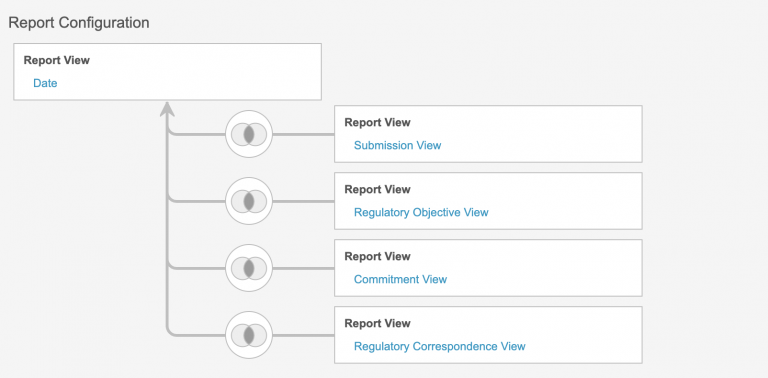
Next, create an Application Chronology report type as a <a href="/en/gr/55007/">multi-pass report</a>. The _Date_ report view will always need to be the primary reporting object, but the order of the other report views can differ. You can also adjust the order within the report itself.

  1. Navigate to **Admin > Configuration > Report Types** and click **Create**.
  2. Enter a **Label**, for example, _Application Chronology_.
  3. In the **Class** field, select _Multi-Pass_.
  4. In the _Report Configuration_ section, select the _Date_ view as the **Reporting Entity**.
  5. Click **Add Relationship** to add a relationship to the _Submission_ report view and populate the fields:
      1. In the **Select new entity** field, select _Submission_.
      2. In the **Match Date on** field, select _Date > Date_.
      3. In the **Match new entity on** field, select _Submission > Reporting Date_.
      4. In the **Join type** field, select _Inner_.
      5. Click **Add**.
  6. Click **Add Relationship** to add a relationship to the _Regulatory Objective_ report view:
      1. In the **Select new entity** field, select _Regulatory Objective_.
      2. In the **Match Date on** field, select _Date > Date_.
      3. In the **Match new entity on** field, select _Regulatory Objective > Reporting Date_.
      4. In the **Join type** field, select _Inner_.
      5. Click **Add**.
  7. Click **Add Relationship** to add a relationship to the _Commitment_ report view:
      1. In the **Select new entity** field, select _Commitment_.
      2. In the **Match Date on** field, select _Date > Date_.
      3. In the **Match new entity on** field, select _Commitment > Commitment Due Date_.
      4. In the **Join type** field, select _Inner_.
      5. Click **Add**.
  8. Click **Add Relationship** to add a relationship to the _Regulatory Correspondence_ report view:
      1. In the **Select new entity** field, select _Regulatory Correspondence_.
      2. In the **Match Date on** field, select _Date > Date_.
      3. In the **Match new entity on** field, select _Document > Correspondence Date_.
      4. In the **Join type** field, select _Inner_.
      5. Click **Add**.
  9. On the _Create Report Type_ page, click **Save**. Your report configuration will look like this.

<a href="https://platform.veevavault.help/assets/images/Application_Chronology_Report_Configuration_20r13.png" data-lightbox="Application_Chronology_Report_Configuration_20r13.png" data-title="" data-alt="">
  <img class="docimage" src="https://platform.veevavault.help/assets/images/Application_Chronology_Report_Configuration_20r13.png" alt="" style=""  />
</a>

## Creating the Application Chronology Report {#create-report}

After you configure the Application Chronology report type, you can create the report itself:

  1. Navigate to the **Reports** tab and click **Create**.
  2. In the **Report Type** menu, expand the _Date_ type and select **Application Chronology**.
  3. Optional: Enter a **Name** and **Description**.
  4. Click **Continue**.
  5. Add [prompts, filters, and groupings][11].
  6. Configure any [columns][12] you want to display.

When you've finished adding all filters, prompts, groupings, and columns, click **Save** to save the report.

### Adding Prompts, Filters & Groupings {#prompts-filters-groupings}

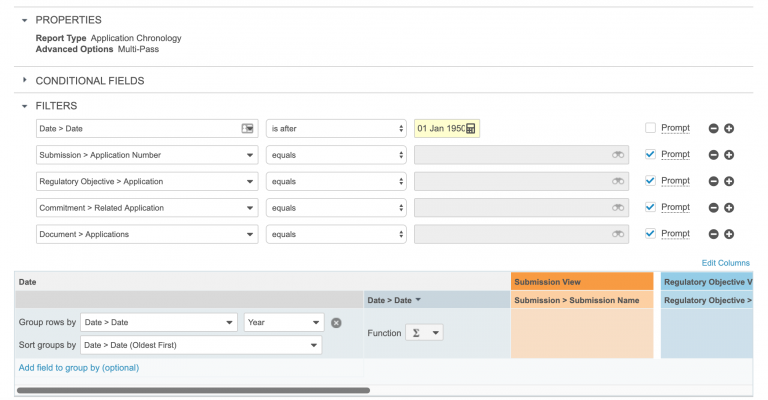
We recommend adding the following filters, prompts, and groupings:

  * Add a _Date_ filter: _Date > Date is after "01 Jan 1950"_. The date you select should approximate the oldest date on which your organization has any related documents or records.
  * Add the following filters and select the **Prompt** checkbox for each:
      * _Submission > Application Number equals_
      * Regulatory Objective > Application equals
      * Commitment > Related Application equals
      * Document > Applications equals
  * Add the following grouping:
      * In the **Group rows by** drop-down, select _Date > Date_. In the **Select period** drop-down, choose _Year_.
      * In the **Sort groups by** drop-down, select _Date > Date (Newest First)_.
      * Click the **Date > Date** column header so that the sort arrow is pointing down.
<a href="https://platform.veevavault.help/assets/images/App_Chronology_Report_Setup_20r13.png" data-lightbox="App_Chronology_Report_Setup_20r13.png" data-title="" data-alt="">
  <img class="docimage" src="https://platform.veevavault.help/assets/images/App_Chronology_Report_Setup_20r13.png" alt="" style=""  />
</a>

### Setting Up Columns {#columns}

Click **Edit Columns** to add the columns you need. We recommend adding the following columns:

  * _Date > Date_
  * _Submission > Submission Name_
  * _Submission > Lifecycle State_
  * _Regulatory Objective > Name_
  * _Regulatory Objective > Lifecycle State_
  * _Commitment > Name_
  * _Commitment > Lifecycle State_
  * _Document > Document Name_
  * _Document > Document Status_

## Configuring the Web Action {#web-action}

After you save your report, we recommend configuring a <a href="/en/gr/21270/">web action</a> to allow users to launch the report. Configuring a web action will prevent users from needing to fill in repetitive report prompts. Follow the steps in the sections below to configure the web action.

### Running the Report

First, run the Application Chronology report you created:

  1. Navigate to the **Reports** table and select _Application Chronology_ report you created.
  2. In the **Select Report Values** dialog, complete the report prompts.
  3. Click **Continue**.
  4. Copy the generated report's URL.

### Creating the Web Action

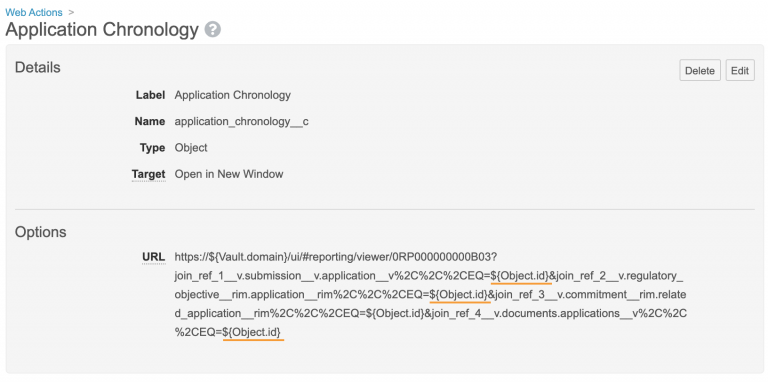
Next, you can create the web action using the report's URL. Note that you cannot simply copy and paste the URL. You'll need to replace certain elements of the URL with different parameters.

To create the web action:

  1. Navigate to **Admin > Configuration > Web Actions** and click **Create**.
  2. Enter a **Label**, for example, _Application Chronology_.
  3. In the **Type** drop-down, select **Object**.
  4. Select a **Target** from the drop-down. We recommend setting this to _Open in New Window_.
  5. In the **URL** box, enter the copied URL.
  6. Edit the URL you entered to replace the domain with the `${Vault.domain}` parameter and each of the _00A_ record IDs with the `${Object.id}` parameter.
  7. Click **Save**.
<a href="https://platform.veevavault.help/assets/images/App_Chronology_Web_Action_20r13.png" data-lightbox="App_Chronology_Web_Action_20r13.png" data-title="" data-alt="">
  <img class="docimage" src="https://platform.veevavault.help/assets/images/App_Chronology_Web_Action_20r13.png" alt="" style=""  />
</a>

### Configuring the User Action

Finally, you can configure the web action as a <a href="/en/gr/59885/#user-actions">user action</a> on the _Application_ object lifecycle. If your Vault doesn't already include an _Application_ lifecycle, you'll need to create one first. We recommend adding this action on the _Active_ state. If needed, you can add additional security on the action to only make it available to certain users.

 [2]: #reporting-date
 [3]: #report-types
 [4]: #report-views
 [5]: #multi-pass-type
 [6]: #create-report
 [7]: #web-action
 [11]: #prompts-filters-groupings
 [12]: #columns
