# Setting Up Configurable Impact Assessment Reports (RIM)

Admins can configure comprehensive <a href="/en/gr/43119/">one-click reports</a> specifically for RIM Registrations Vaults based on standard report types, custom report types, and multi-pass reports. Users can run these reports from an _Event_ record to determine the impact of proposed changes. Users can then bulk create submissions, regulatory objectives, or activities from any of these reports.

<div class="note-border alert-info">
  <div class="alert alert-info" role="alert">
    <div><i class="far fa-info-circle"></i></div>
    <div class="alert-text">
      <p><strong>Note</strong>: This feature is only available on RIM Registrations Vaults.</p>
    </div>
  </div>
</div>


## About Configurable Impact Assessment Reports

Configurable Impact Assessment Reports are based on Admin-defined Vault reports, giving Report Administrators greater control over the information they include. Report Administrators can create comprehensive reports, including columns, prompts, and filters, reducing the work required for users running the reports. Report Administrators can also set up multi-pass reports to gather information across different objects. This article refers to these Admin-defined reports as "report templates".

When a user runs the Impact Assessment Report, Vault creates a copy of the report template. Vault names the copied report based on the _Event_ record from which the user initiated the action, and filters the report based on the values the user selected in the dialog. The user who ran the Impact Assessment Report is the owner of the report copy and can work with it like a normal report. Users can also launch the <a href="/en/gr/31322/">Create Related Records</a> wizard from the report copies.

## Configuration Overview

Follow the steps below to set up configurable Impact Assessment Reports:

  1. Set up any [report types or multi-pass report views][3] that you want to use for Impact Assessment Reports.
  2. Enable [configurable Impact Assessment Reports][4].
  3. Create the [report templates][5] for the Impact Assessment Reports from the **Reports** tab.
  4. Add the [_Registrations Impact Assessment_ tag][6] to any report templates you've created.
  5. Update [sharing settings][7] to ensure that the appropriate users or groups have a _Viewer_ role on the report templates.

## Configuring Report Types for Impact Assessment Reports {#report-types}

Before you enable configurable Impact Assessment Reports, navigate to **Admin > Configuration > Report Types** to set up any report types that you want to use for Impact Assessment Reports in your Vault. These report types must use _Registration_ as the primary reporting object. See detailed instructions about configuring <a href="/en/gr/21543/">report types</a> and <a href="/en/gr/55007/">multi-pass reports</a>.


## Enabling Configurable Impact Assessment Reports {#enable}

To enable configurable Impact Assessment Reports:

  1. Navigate to **Admin > Settings > Application Settings**.
  2. Select the **Enable Configurable Impact Assessment Reports** checkbox.
  3. Choose report types from the _Select Report Types for Impact Assessment Action_ drop-down. You can choose any custom, standard, or multi-pass report type that uses _Registration_ as the primary reporting object. You can select up to 100 report types.

## Setting Up Report Templates {#report-templates}

A report view is a Vault report that you create that will be a template view for Impact Assessment Reports. Follow the steps in the sections below to ensure that users can create Impact Assessment Reports from your reports.

### Creating Report Templates

To create report templates:

  1. Navigate to the **Reports** tab and click **Create**.
  2. Select a _Report Type_ that uses _Registration_ as the primary reporting object.
  3. Fill in any necessary fields and click **Continue** to open the report builder.
  4. Define the report by adding any filters, prompts, and conditions, and choose the columns you want to display. See additional details about report prompts.
  5. Click **Save**.

### Adding Tags {#tags}

After you've created your report templates, you need to tag them for Impact Assessment Reports:

  1. Navigate to the **Reports** tab.
  2. If the **Tags** column is not already visible in your view, select **Edit Columns** from the main **Actions** menu to add it.
  3. Use <a href="/en/gr/31019/">inline editing</a> to add the _Registrations Impact Assessment_ tag to any report templates you've created.

### Updating Sharing Settings {#sharing-settings}

Ensure that the appropriate users have access to the report templates so that they can create Impact Assessment Reports from them. Select **Sharing Settings** from each report's **Actions** menu, and assign the appropriate groups to the _Viewer_ role.


### Adding Report Filters & Prompts {#report-filters-prompts}

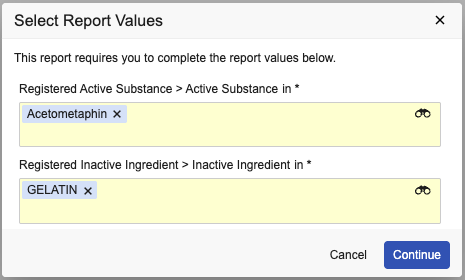
Report prompts allow users to narrow the scope of records in the resulting Impact Assessment Report. A single report prompt is represented by a filter with the **Prompt** option enabled. Users can select up to 100 values for a given prompt.

<a href="https://platform.veevavault.help/assets/images/configurable-IAR-dialog.png" data-lightbox="report filters" data-title="" data-alt="select report values dialog">
  <img class="docimage" src="https://platform.veevavault.help/assets/images/configurable-IAR-dialog.png" alt="select report values dialog" style="max-width: 100%;"  />
</a>

When configured within a multi-pass <a href="/en/gr/55007/#report-views">report view</a>, Vault can automatically populate values with *Event* relationship object data. See [additional details][10] on how Vault maps registered details to related events.

Additionally, report views allow you to configure certain prompts such that users can quickly select all in-scope *Product Variant*, *Product*, or *Country* records. The filter prompts eligible for this feature are indicated in the table below.

To configure a filter for selecting all records:

* Each filter must be configured with the IN operator.
* The report must use <a href="/en/gr/55007/#adv-logic">Advanced Logic</a> to specify how Vault should select all records. This feature supports up to 350 characters of advanced logic syntax.

<a href="https://platform.veevavault.help/assets/images/configurable-IAR-filters.png" data-lightbox="report filters" data-title="" data-alt="report filters">
  <img class="docimage" src="https://platform.veevavault.help/assets/images/configurable-IAR-filters.png" alt="report filters" style="max-width: 100%;"  />
</a>

When a user opts to select all records resulting in more than 10,000 results, Vault automatically splits the filters into batches of 100 and updates the Advanced Logic syntax to accommodate each batch. For example, if there are 10,350 *Product Variant* and 105 *Country* records, Vault splits each filter into batches such that *Product Variant* filters represent records 1-100 (filter 1), 101-200 (filter 2), 201-300 (filter 3), etc., and the *Country* filter (6) remains the same. Then, the updated Advanced Logic syntax reflects each *Product Variant* filter, plus the *Country* filter: `(1 OR 2 OR 3 … OR …) AND 6`.


#### Prompt & Field Mapping {#field-mapping}

The table below details the fields that Vault can automatically populates in the configurable Impact Assessment Report dialog. You can use this information to determine the prompts that you include when setting up report templates.

| Report Prompt <br>(Filter with Prompt Option) | Values Defaulted From <br>(Object: Field) | Note |
|---|---|---|
| Activity > Event | Activity: Event | To default a value, the filter must be configured with the IN operator. |
| Registered Active Substance > Active Substance | Event Active Substance: Active Substance |  |
| Registered Active Substance > Manufacturer Name | Event Active Substance: Manufacturer |  |
| Registered Clinical Study > Clinical Study | Event Clinical Study: Clinical Study |  |
| Registered Clinical Study > Site | Event Clinical Study: Site |  |
| Registered Inactive Ingredient > Manufacturer Name | Event Inactive Ingredient: Manufacturer |  |
| Registered Inactive Ingredient > Inactive Ingredient | Event Inactive Ingredient: Inactive Ingredient |  |
| Registered Indication > Indication | Event Indication: Indication |  |
| Registered Packaging Characteristic > Characteristic Type | Event Packaging Characteristic: Characteristic Type |  |
| Registered Packaging Characteristic > Characteristic Value | Event Packaging Characteristic: Characteristic Value |  |
| Registered Packaging Characteristic > Packaging | Event Packaging Characteristic: Packaging | Prompt allows report users to select all in-scope records. |
| Registered Packaging > Finished Product Code | Event Packaging: Finished Product Code |  |
| Registered Packaging > Finished Product Manufacturer | Event Packaging: Finished Product Manufacturer |  |
| Registered Packaging > Packaging | Event Packaging: Packaging | Prompt allows report users to select all in-scope records. |
| Registered Packaging > Packaging Site | Event Packaging: Packaging Site |  |
| Registered Packaging > Packaging UDI-DI | Event Packaging: Packaging UDI-DI |  |
| Registered Packaging > Product | Event Packaging: Product | Prompt allows report users to select all in-scope records. |
| Registered Packaging > Product Variant | Event Packaging: Product Variant | Prompt allows report users to select all in-scope records. |
| Registered Packaging > Shelf Life | Event Packaging: Shelf Life |  |
| Registered Product Characteristic > Characteristic Type | Event Product Characteristic: Characteristic Type |  |
| Registered Product Characteristic > Characteristic Value | Event Product Characteristic: Characteristic Value |  |
| Registered Product Characteristic > Product | Event Product Characteristic: Product |  |
| Registered Product Characteristic > Product Variant | Event Product Characteristic: Product Variant |  |
| Registered Product Classification > Classification | Event Product Classification: Classification |  |
| Registered Product Classification > Packaging | Event Product Classification: Packaging |  |
| Registered Product Classification > Product | Event Product Classification: Product | Prompt allows report users to select all in-scope records. |
| Registered Product Classification > Product Variant | Event Product Classification: Product Variant | Prompt allows report users to select all in-scope records. |
| Registered Product > Manufacturer | Event Product: Manufacturer |  |
| Registered Product > Product | Event Product: Product | Prompt allows report users to select all in-scope records. |
| Registered Product > Product Variant | Event Product: Product Variant | Prompt allows report users to select all in-scope records. |
| Registered Product > Packaging | Event Product: Packaging | Prompt allows report users to select all in-scope records. |
| Registered Product > Risk Class | Event Product: Risk Class |  |
| Registered Shelf Life or Condition > Packaging | Event Shelf Life or Condition: Packaging | Prompt allows report users to select all in-scope records. |
| Registered Shelf Life or Condition > Product | Event Shelf Life or Condition: Product | Prompt allows report users to select all in-scope records. |
| Registered Shelf Life or Condition > Product Variant | Event Shelf Life or Condition: Product Variant | Prompt allows report users to select all in-scope records. |
| Registration > Country | Event Country: Country | - Prompt allows report users to select all in-scope records.<br> - Recommended: Set this filter as optional, allowing Vault to pre-populate countries from _Event Country_ records (if they exist), while still allowing users to manually adjust scope or skip the filter.<br> - Requires the _Event_ object page layout to include an _Event Country_ section. |
| Registration > Product Family | Event > Impacted Product |  |

## Example Use Cases

### Withdrawing a Site

When a manufacturing site is planned to be withdrawn, users would need to see everywhere that site is used across all registered details, including _Registered Packaging_ records, _Registered Product_ records, and _Registered Active Substance_ records. To accomplish this, you can use multi-pass reporting with configurable Impact Assessment Reports.

### Identifying Activities without a Related Submission or Regulatory Objective

The VernBio change control process requires users to create _Event_ and corresponding _Activity_ records to review and define a change's impact in a given market. Following the assessment, they use the <a href="/en/gr/31322/">Create Related Records wizard</a> to facilitate regulatory actions through new _Regulatory Objective_ and _Submission_ records.

To support this requirement, VernBio's Vault Admin can configure a multi-pass report template and Impact Assessment Report to display only the relevant _Activity_ records which do not have a related _Regulatory Objective_ or _Submission_. Then, when users bulk create records from the report, Vault updates the in-scope _Activity_ records' fields with references to the newly-created ones.

To ensure the _Activity_ records created earlier in the process are linked to the _Regulatory Objective_ and _Submission_ records created in the latter, VernBio's Vault Admin configures or creates the following:

* Standard report types for the _Registration_ (primary) and _Activity_ (related) objects (for example, "Registration with Activity"), as well as the _Event_ and _Activity_ objects ("Event with Activity")
* Report views for each of the new standard report types
* A multi-pass report type using the newly-created report views
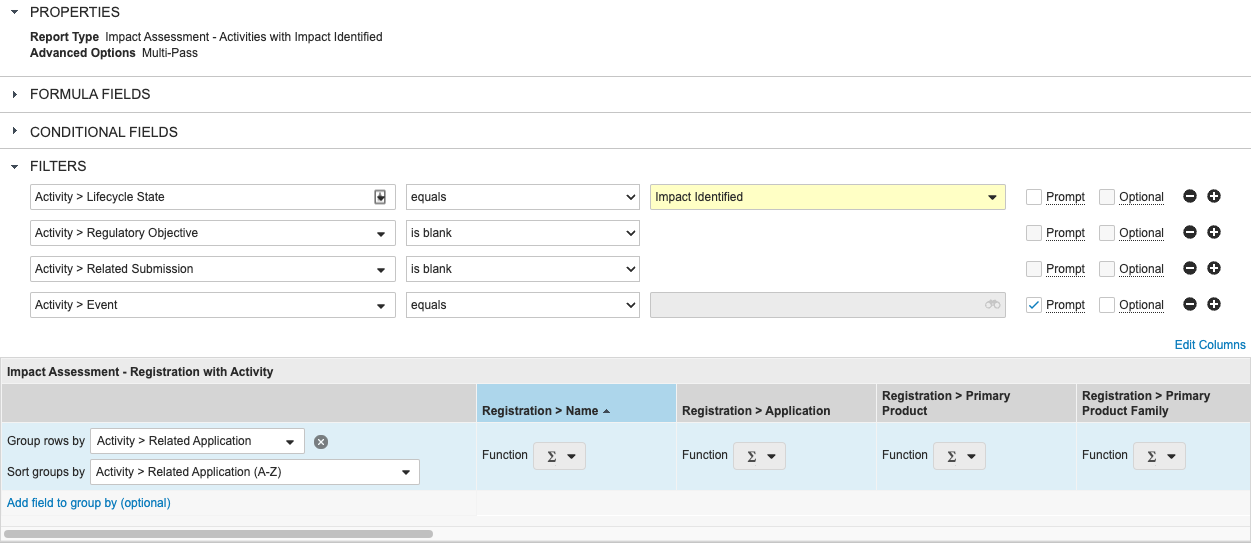
* A multi-pass report ("Impact Assessment - Activities with Impact Identified") with _Activity_ object filters for the _Lifecycle State_, _Regulatory Objective_, _Related Submission_, and _Event_ fields, as well as a prompt for _Event_. _Activity_ records are also further filtered by lifecycle state: As the Create Related Records wizard only supports activities in the state configured to use this lifecycle's _Country Impacted_ state type, VernBio's report filters by the _Impact Identified_ state.

See the screenshot below for VernBio's multi-pass report configuration. You can also download a <a class="download-link " href="https://platform.veevavault.help/assets/downloads/Sample Report - Impact Assessment - Activities with Impact Identified.xlsx" target="_blank" rel="noopener">sample output report<i class="fa fa-download" aria-hidden="true"></i></a> to review the columns included in the report views.

<a href="https://platform.veevavault.help/assets/images/impact-assessment-activities-with-impact-identified-report-configuration.png" data-lightbox="impact-assessment-activities-with-impact-identified-report-configuration.png" data-title="" data-alt="IAR use case">
  <img class="docimage" src="https://platform.veevavault.help/assets/images/impact-assessment-activities-with-impact-identified-report-configuration.png" alt="IAR use case" style="max-width: 100%;width: 300px;"  />
</a>

 [3]: #report-types
 [4]: #enable
 [5]: #report-templates
 [6]: #tags
 [7]: #sharing-settings
 [10]: #field-mapping
