Note: This feature is only available on RIM Registrations Vaults and must be configured by an Admin.
### Working with IDMP Groupings {#working-with-idmp-groupings}
The IDMP Viewer supports reviewing data for a single _Product Data Submission_ record, or you can create an _IDMP Grouping_ object record for up to 20 _Product Data Submission_ records in scope of the related _Regulatory Objective_.
Using a grouping also allows you to [refresh][4] IDMP elements from source data for the included _Product Data Submissions_.
To create an IDMP grouping:
1. From a _Regulatory Objective_ record, navigate to the **IDMP Groupings** section.
2. Click **Create**, populate any required fields, and click **Save**. Vault loads the _Regulatory Objective_ record page.
3. Navigate to the **IDMP Groupings** section and open the record you created.
4. Within the **IDMP Product Data Submissions** section, click **Create**.
5. In the **Create IDMP Product Data Submission** dialog, populate a **Medicinal Product** and any other required fields. Click **Save**.
Repeat these steps as applicable for up to 20 _Product Data Submission_ records. Selecting more than 20 records causes the related Vault job to error when generating the view.
## About the Data View Owner {#about-the-data-view-owner}
By default, Vault sets the _Data View Owner_ on the selected _Product Data Submission_ records with the name of the user who initiates the viewer session. When populated, all other users are prevented from initiating a session which includes any of these records.
In the event the Data View Owner is unable to commit their changes and end the session, remove their name from this field. This discards all uncommitted changes, unlocks the _Product Data Submission_ record(s), and allows another user to initiate a new session.
When the related Vault setting
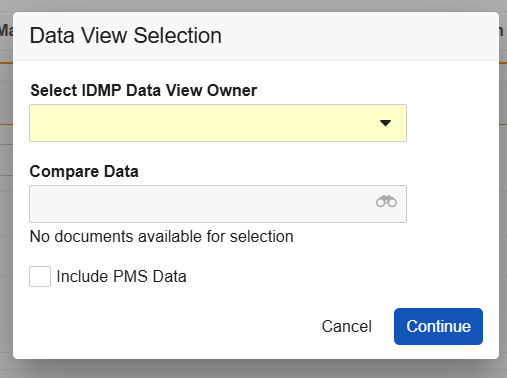
is enabled, the initiating user is instead prompted to select a **Data View Owner** in the viewer's **Data View Selection** dialog. They can select themselves, or designate a different owner. In the latter scenario, the designated owner receives a notification with their user-specific link to the viewer session. The initiating user does not receive a notification and cannot access the session.
### FHIR Message Version Support
Generally, the IDMP Viewer supports generating and comparing FHIR messages using v5.0.0 only.
While the viewer can display messages for other FHIR versions, comparison data may be incomplete. See additional details
about how Vault supports different FHIR versions.
## Initiating an IDMP Viewer Session {#initiating}
You can initiate an IDMP Viewer session via the **Generate IDMP Data View** action from an _IDMP Grouping_ record you've [created][1], or from a single _Product Data Submission_ record. Generally, a single IDMP Viewer session can include up to 20 total [data sets][7].
Depending on your Vault's configuration, the action may only be available for records in a specific lifecycle state, for example _In Progress_ for _IDMP Groupings_ and _Planned_ for _Product Data Submissions_.
1. From a _Regulatory Objective_ record, navigate to the **IDMP Groupings** or **Product Data Submissions** section to locate the record you wish to load in the viewer.
2. In the record's **Actions** menu, select **Generate IDMP Data View**. Depending on your Vault's IDMP Viewer settings
, the **Data View Selection** dialog includes various prompts. Click **Continue** once you've made your selection(s).
* Use the **Select IDMP [Data View Owner][3]** dropdown to select yourself, or designate another user.
* Select FHIR messages within the **Compare Data** dropdown for comparison in the viewer. Options are limited to messages stored in the Library under the _IDMP > EU IDMP Submission_ or _IDMP > eAF FHIR Output_ document subtypes.
* Select or deselect the **Include PMS Data** checkbox option.
Vault begins processing the request. Once complete, you or the selected owner receive a Vault notification and email with a link to the IDMP Viewer session, as well as a CSV file confirming results.
Note: IDMP Viewer links are unique to the user who received the notification and cannot be shared.
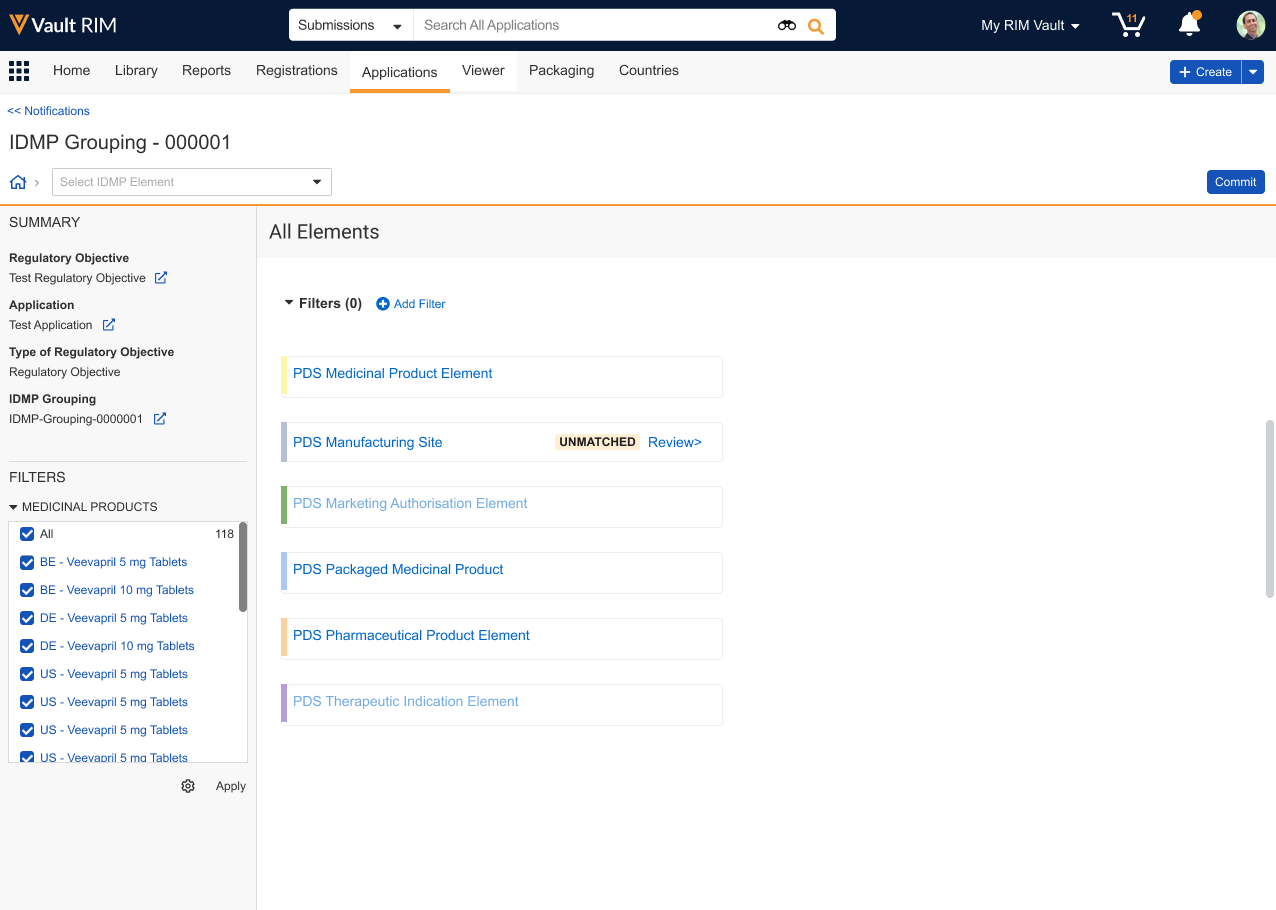 Once Vault launches the comparison view, you can:
* Select the **FHIR Data**, **PMS Data**, or [**Unmatched**][8] filter chip to quickly display that type.
* Apply additional standard filters, as well as the **Only Text Fields** and **Differing Values** quick filters.
* Select or deselect records in the left-hand navigation tree to temporarily hide or show them in the comparison view.
* Click **Edit** to update [text override fields][5].
As you work in the viewer, Vault saves any changes to a temporary file it creates for the session.
### About Unmatched Data {#unmatched}
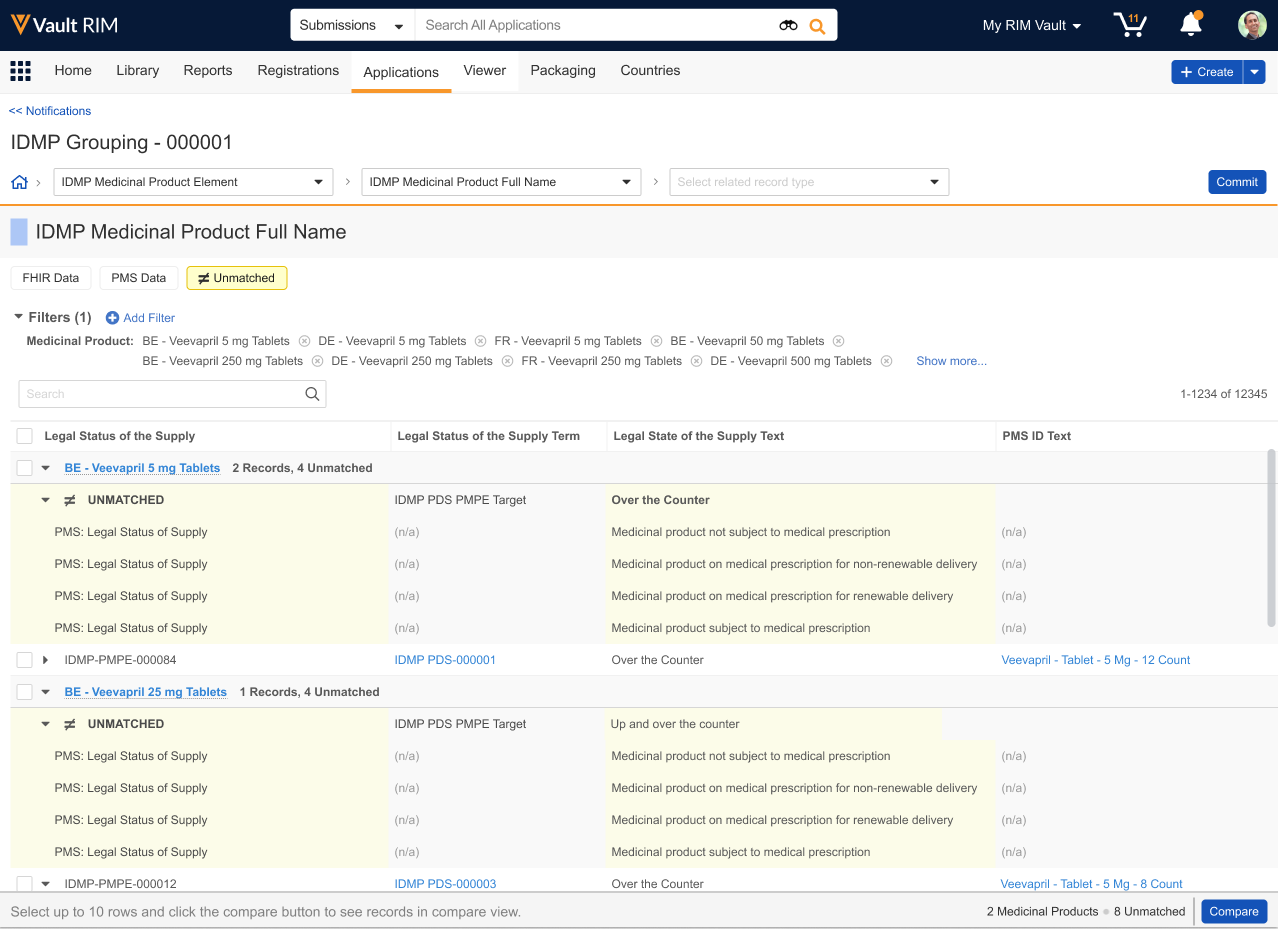
When the IDMP Viewer flags PMS or FHIR message data as **Unmatched**, this means that the data exists in PMS but does not exist in RIM, or PMS data does not match existing RIM data based on defining characteristics. The viewer's various filters can help you determine which is correct.
When updates are required, we recommend doing so within RIM by updating the source data then re-generating IDMP data and the data view. The ability to update source data directly within the IDMP Viewer will be supported in a future Vault release.
The **Unmatched** filter chip displays such records in the viewer grid within highlighted blocks. Each block is an XML representation of PMS data elements for the indicated medicinal product.
Records are grouped by the parent *Medicinal Product* with other records of the same type. For example, the viewer displays unmatched *PDS Packaged Medicinal Product Element* records with matched *PDS Packaged Medicinal Product Element* records from PMS and IDMP output records of the same type.
Once Vault launches the comparison view, you can:
* Select the **FHIR Data**, **PMS Data**, or [**Unmatched**][8] filter chip to quickly display that type.
* Apply additional standard filters, as well as the **Only Text Fields** and **Differing Values** quick filters.
* Select or deselect records in the left-hand navigation tree to temporarily hide or show them in the comparison view.
* Click **Edit** to update [text override fields][5].
As you work in the viewer, Vault saves any changes to a temporary file it creates for the session.
### About Unmatched Data {#unmatched}
When the IDMP Viewer flags PMS or FHIR message data as **Unmatched**, this means that the data exists in PMS but does not exist in RIM, or PMS data does not match existing RIM data based on defining characteristics. The viewer's various filters can help you determine which is correct.
When updates are required, we recommend doing so within RIM by updating the source data then re-generating IDMP data and the data view. The ability to update source data directly within the IDMP Viewer will be supported in a future Vault release.
The **Unmatched** filter chip displays such records in the viewer grid within highlighted blocks. Each block is an XML representation of PMS data elements for the indicated medicinal product.
Records are grouped by the parent *Medicinal Product* with other records of the same type. For example, the viewer displays unmatched *PDS Packaged Medicinal Product Element* records with matched *PDS Packaged Medicinal Product Element* records from PMS and IDMP output records of the same type.
 ### About Text Fields & Differing Values {#about-text-fields-and-differing-values}
You can apply the comparison view's **Only Text Fields** and **Differing Values** quick filters together or separately.
* The **Only text fields** filter displays only text override fields, for example _GMO Text_, which overrides the _GMO_ field in the _PDS Classification System_ object.
* The **Differing values** filter displays only editable text override fields with different field values.
* Vault highlights fields in blue to indicate a data difference in that field, in comparison to the record listed first in the grid, on the far left.
* Vault does not highlight differences in other types of fields, such as object reference fields. For example, Vault would not highlight a _Legal Basis_ field because it is a _PDS Classification System_ field referencing a Legal Basis _Controlled Vocabulary_ object record.
### About Text Fields & Differing Values {#about-text-fields-and-differing-values}
You can apply the comparison view's **Only Text Fields** and **Differing Values** quick filters together or separately.
* The **Only text fields** filter displays only text override fields, for example _GMO Text_, which overrides the _GMO_ field in the _PDS Classification System_ object.
* The **Differing values** filter displays only editable text override fields with different field values.
* Vault highlights fields in blue to indicate a data difference in that field, in comparison to the record listed first in the grid, on the far left.
* Vault does not highlight differences in other types of fields, such as object reference fields. For example, Vault would not highlight a _Legal Basis_ field because it is a _PDS Classification System_ field referencing a Legal Basis _Controlled Vocabulary_ object record.
Note: Vault highlights differing fields only to indicate further review may be required. Highlighting does not necessarily indicate a problem with the data, and some differences among like records may be appropriate. For example, the PDS Classification System object includes the GMO Text field, which is configured for only the GMO object type. When comparing a GMO record against other classification object types (Legal Basis, Paediatric Use), the viewer highlights the GMO Text field as different, because GMO Text is not configured for the other types.