Note: The bracket notation ${} is not needed if you place the field within a Microsoft Word template syntax. For example, ${HideTableIf(Rowsetcount()=0)} is valid, whereas ${HideTableIf(${Rowsetcount()}=0)} is invalid.
When users download the Word formatted output, labels in this syntax are translated to the user's Vault language. | | `${field_name__c;description}` | References a field's _Description_ value from the root object record or related record if a `${Rowset()}` is used. The field _Description_ value is pulled from the object defined in the `${Rowset()}`. A field _Description_ value is returned even if the `${Rowset()}` returns zero object records.
When users download the Word formatted output, descriptions in this syntax are translated to the user's Vault language.| | `${outboundrelationshipname__cr.field2__c}` | To reference a specific field value from an outbound related object, you can prepend the field name with the outbound relationship name using dot notation.
This syntax only works for three levels of outbound relationships.
You can also reference the field label and description using dot notation: `${outboundrelationshipname__cr.field2__c;label}`, `${outboundrelationshipname__cr.field2__c;description}`. | | `${object;label}`
`${object;plurallabel}` | References the _Object Label_ or _Object Plural Label_ value of a root object or related object if a `${Rowset()}` is used. If this syntax is used after a `${RepeatRow()}` or `${RepeatTable()}` syntax, an _Object Label_ or _Object Plural Label_ value is still returned even if the `${Rowset()}` returns zero object records. | | `${object;description}` | References the _Description_ value of a root object or related object if a `${Rowset()}` is used. If this syntax is used after a `${RepeatRow()}` or `${RepeatTable()}` syntax, a _Description_ value is still returned even if the `${Rowset()}` returns zero object records. | | `${user__sys.first_name__sys}`
`${user__sys.last_name__sys}`
`${user__sys.name__v}`
`${user__sys.username__sys}` | Displays the name and username of the user that generated the formatted output. | | `${relationship_name;label}` | References the _Relationship Label_ of inbound relationships (`${inboundrelationshipname__cr;label}`). If used with an outbound relationship (`${outboundrelationshipname__cr;label}`), this syntax references the _Field Label_ that defines the object relationship.
If this syntax is used after a `${RepeatRow()}` or `${RepeatTable()}` syntax, an _Object Label_ value is still returned even if the `${Rowset()}` returns zero object record.| | `${rich_text__c;vaultfont}` | Displays Rich Text field values on the Word formatted outputs exactly as they are displayed in the Vault interface where `rich_text__c` is the field name of a Rich Text field.
Omitting the `;vaultfont` modifier displays the Rich Text field value in the font used on the Word formatted output template. Other rich text formatting, such as bullet points, font color, and background color will still display on the generated Word formatted output.| | `${user__sys.language__sys}`
`${user__sys.locale__sys}` | Displays the user's language and locale. | | `${fo_generated_datetime}` | Displays the date and time when the formatted output was generated. | | `${Rowsetcount()}` | Returns the total number of values returned in the `${Rowset()}` syntax. | | `${Rowsetindex()}` | Returns the number (index) of the current `${Rowset()}` iteration for the given `${RepeatRow()}` or `${RepeatTable()}` syntax.
This syntax is a 1-based index.
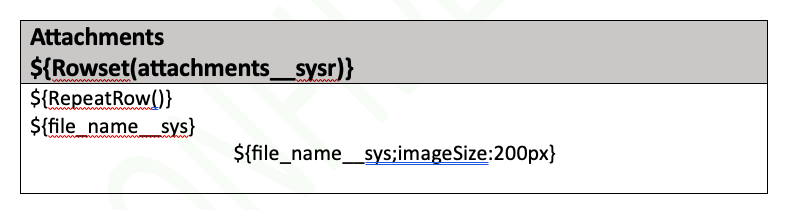
You must place this field within a row or table with a `${RepeatRow()}` or `${RepeatTable()}` syntax. | | `${file_name__sys;imageSize:200px}` | Prints the image of an attachment. Vault scales the image down so its largest dimension meets the specified pixel size.
Vault supports the following image file types: .jpeg, .png, .gif, .bmp. If the attachment file is not one of the aforementioned image file types, Vault prints nothing on the template.
This syntax is available for attachments listed in an object record's _Attachments_ section and Attachment field types.
To display an image from a record's _Attachments_ section, you must use the `imageSize` syntax on the `file_name__sys` field. To display an image file from an Attachment field, you must append the `imageSize` syntax to the Attachment field's token, which allows you to define the image's size.
See below for an example of using this syntax to display images from a record's _Attachments_ section:
See below for an example of using this syntax to display an image from an Attachment field:
 |
## Using Object Relationships
When including data from related objects in a Word formatted output template, the approach varies depending upon the type of relationship.
### Inbound Relationship
If you reference an object with an inbound relationship from the root object, you can use nested tables and multiple `$Rowset()` functions. In the example image below, the last two (2) rows pull _Name_ and _Modified Date_ from the _Permission Set_ by accessing that information through multiple `${Rowset()}` functions. In this example, the template is traversing several inbound relationships by first referencing _User Role_ (`user_role__sysr`), then _Application Role_ (`application_role__sysr`), then _Permission Set_ (`permission_set__sysr`):
|
## Using Object Relationships
When including data from related objects in a Word formatted output template, the approach varies depending upon the type of relationship.
### Inbound Relationship
If you reference an object with an inbound relationship from the root object, you can use nested tables and multiple `$Rowset()` functions. In the example image below, the last two (2) rows pull _Name_ and _Modified Date_ from the _Permission Set_ by accessing that information through multiple `${Rowset()}` functions. In this example, the template is traversing several inbound relationships by first referencing _User Role_ (`user_role__sysr`), then _Application Role_ (`application_role__sysr`), then _Permission Set_ (`permission_set__sysr`):
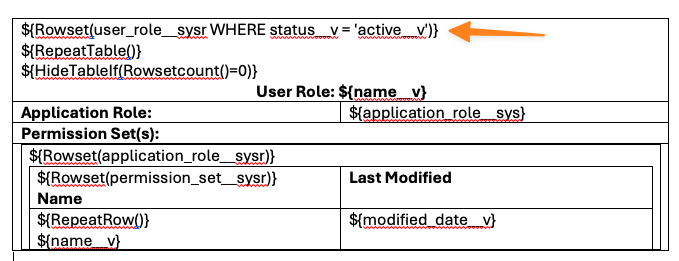 When nesting tables, it is helpful to leave the borders available while editing, but you can remove the borders and adjust table margins to hide the nesting in the final template.
### Outbound Relationship
For outbound relationships, you can use dot notation up to three relationships from the current object you're referencing, either the root object, or based on the current `${Rowset()}`.
For example, the following syntax on a _Checklist_ object returns the _Profile Key_ (`profile_key__sys`) field on _Security Profile_: `${respondent__sysr.security_profile__sysr.profile_key__sys}`.
Since _Respondent_ (`respondent__sysr`) is an outbound relationship from _Checklist_, and _Security Profile_ (`security_profile__sysr`) is an outbound relationship from _Respondent_, you don't need to use `${Rowset()}` functions and table nesting to print the _Profile Key_ field.
If the outbound relationship is to a _Document_, dot notation is supported as well, such as `${related_document__cr.name__v}`. However, the _Document_ must be the last relationship referenced in the syntax. For example, `${related_document__cr.related_object__cr.name__v}` is not supported.
## How to Create Word Formatted Output Templates {#create-word-fo-temp}
To create a Word formatted output template:
1. Navigate to **Business Admin > Templates > Formatted Outputs**.
2. Click **Create Formatted Output**.
3. Select **Microsoft Word** from the **Input File Type** picklist.
4. Enter the **Label**.
5. Optional: Modify the **Name**. This value does not appear to end users. It is used through Vault API.
6. Select an object from the **Root Object** picklist.
7. If the object has object types, select an object type from the **Root Object Type** picklist.
8. Optional: Click **Download Data Model** to download a CSV file that contains the fields from the root object, as well as related objects (up to two (2) levels) and their fields. You can use the CSV file to navigate object relationships you want included in your output, as well as copy and paste the `${Rowset()}` and field syntax to your Microsoft Word template. Inactive objects and fields are excluded from the CSV file, as well as the repeated inverses of previously listed relationships (such as object B's relationship back to object A, when the relationship from A to B was already included).
9. Design your template in Microsoft Word using the [syntax described above][0].
10. Click **Choose** and upload your Microsoft Word (.docx) file. Once attached, the file name appears next to the **Choose** button. Vault runs an automated validation process at this time and may display an error message if any errors are detected.
11. Select **Word** or **PDF** from the **Output Format** picklist.
12. Click **Save**.
13. Click **Download Preview** to test your template with a record in your Vault to ensure the template operates as intended. This action downloads a zip file which contains the sample output file as well as a debug log, which includes any errors encountered during the process to assist with troubleshooting.
Once your template is complete, you can expose it as a [user action][1].
## How to Edit Word Formatted Output Templates
To edit a Word formatted output template:
1. From the **Formatted Outputs** page, click on a template from the list.
2. Click **Edit**.
3. Make any necessary changes. You can update the _Label_, _Name_, uploaded file, and output format. You cannot change the root object or root object type, or the input file type.
4. Click **Save**.
## How to Delete Word Formatted Output Templates
To delete a Word formatted output template, hover over the template you wish to delete and click the red (**x**) button. From the **Delete Formatted Output Template** window, click **Continue**. You can also click on a template and click the **Delete** button.
## Configuring the User Action to Download a Word Formatted Output Template {#word-fo-user-action}
To allow users to generate an output from your configured Word formatted output template, you must configure the **Download Formatted Output** user action on an object lifecycle state. This is the same user action regardless of formatted output type (Word or Adobe).
If the object has attachments enabled, two options are available for this user action:
* **Package and include Record Attachments with file**: This includes the object record's attachments in the download package.
* **Attach file to Root Object/Object Type Record**: This attaches the generated Word formatted output to the object record.
If one of the above options are enabled, a user must have _Edit_ access to the object to execute this action. If neither are enabled, users do not require _Edit_ access and Vault can generate formatted outputs for object records in closed or locked states.
If the object has attachment security enabled, the object lifecycle state that the user action is configured on requires the following action permissions:
* **Package and include Record Attachments with file**: _Execute_ permission for the _Attachments: View_ and _Download_ action
* **Attach file to Root Object/Object Type Record**: _Execute_ permission for the _Attachments: Upload_ action
## Best Practices for Creating Word Formatted Output Templates
Follow these guidelines to ensure your Word formatted output template is accurate:
* Design your Microsoft Word (.docx) file using the [Microsoft Word template syntax][0] and [field reference syntax][2] mentioned above. We highly recommend copying and pasting values from the _Data Model CSV_ file to your template to reduce typo errors.
* When creating your Word formatted output template, we recommend uploading your template frequently and testing incrementally during your design process. For example, start with the first group of data in your template, upload it, then test the template before adding more data. This process can assist in troubleshooting as your template grows.
* When initially testing, select **Word** as the **Output Format**. This action allows for faster testing of your template. You can change this field back to **PDF** once testing is complete, if needed.
* You can only use `${RepeatRow()}` and `${RepeatTable()}` in a table where a `${Rowset()` is defined.
* Start all variable names used in `#define` with an underscore (\_) and use all capital letters (for example, `_HIDETABLEEMPTY`). This can help differentiate variables from other text in your document.
* If some content is not operating as expected in your Microsoft Word document, such as spacing, padding, and text wrapping, check the settings of your table. Right-click the table and navigate to _Table Properties_ (or use the _Layout_ tab) to check your table's details, such as cell margins, cell alignment, text wrapping, and fixed column width.
## Limits
* Up to 20 pages per Word template input file.
* Up to 2,000 records can be printed per individual relationship captured in a `${Rowset()}` syntax.
* Up to 25,000 records can be printed per Word formatted output.
* Up to five levels of relationship traversals are supported from the root object. This includes combinations of traversals, such as three inbound relationships through nested tables plus two outbound relationships via dot notation.
* Up to 40 unique objects can be referenced in the template. This includes related objects, the root object, documents, and attachments.
* Up to 100 instances of the `${Rowset()}` syntax are allowed per Word formatted output template.
* You can only use one `${Rowset()}` syntax per table. However, you can nest tables, and each nested table can have its own `${Rowset()}` syntax.
* You can only use one `${RepeatRow()}` or `${RepeatTable()}` per cell.
* If `MAXROWS` is used in the Word template, such as a $`{Rowset()}`, the clause can return a maximum of 2,000 records.
[0]: #microsoft-word-template-syntax
[1]: #word-fo-user-action
[2]: #word-fo-field-reference-syntax
When nesting tables, it is helpful to leave the borders available while editing, but you can remove the borders and adjust table margins to hide the nesting in the final template.
### Outbound Relationship
For outbound relationships, you can use dot notation up to three relationships from the current object you're referencing, either the root object, or based on the current `${Rowset()}`.
For example, the following syntax on a _Checklist_ object returns the _Profile Key_ (`profile_key__sys`) field on _Security Profile_: `${respondent__sysr.security_profile__sysr.profile_key__sys}`.
Since _Respondent_ (`respondent__sysr`) is an outbound relationship from _Checklist_, and _Security Profile_ (`security_profile__sysr`) is an outbound relationship from _Respondent_, you don't need to use `${Rowset()}` functions and table nesting to print the _Profile Key_ field.
If the outbound relationship is to a _Document_, dot notation is supported as well, such as `${related_document__cr.name__v}`. However, the _Document_ must be the last relationship referenced in the syntax. For example, `${related_document__cr.related_object__cr.name__v}` is not supported.
## How to Create Word Formatted Output Templates {#create-word-fo-temp}
To create a Word formatted output template:
1. Navigate to **Business Admin > Templates > Formatted Outputs**.
2. Click **Create Formatted Output**.
3. Select **Microsoft Word** from the **Input File Type** picklist.
4. Enter the **Label**.
5. Optional: Modify the **Name**. This value does not appear to end users. It is used through Vault API.
6. Select an object from the **Root Object** picklist.
7. If the object has object types, select an object type from the **Root Object Type** picklist.
8. Optional: Click **Download Data Model** to download a CSV file that contains the fields from the root object, as well as related objects (up to two (2) levels) and their fields. You can use the CSV file to navigate object relationships you want included in your output, as well as copy and paste the `${Rowset()}` and field syntax to your Microsoft Word template. Inactive objects and fields are excluded from the CSV file, as well as the repeated inverses of previously listed relationships (such as object B's relationship back to object A, when the relationship from A to B was already included).
9. Design your template in Microsoft Word using the [syntax described above][0].
10. Click **Choose** and upload your Microsoft Word (.docx) file. Once attached, the file name appears next to the **Choose** button. Vault runs an automated validation process at this time and may display an error message if any errors are detected.
11. Select **Word** or **PDF** from the **Output Format** picklist.
12. Click **Save**.
13. Click **Download Preview** to test your template with a record in your Vault to ensure the template operates as intended. This action downloads a zip file which contains the sample output file as well as a debug log, which includes any errors encountered during the process to assist with troubleshooting.
Once your template is complete, you can expose it as a [user action][1].
## How to Edit Word Formatted Output Templates
To edit a Word formatted output template:
1. From the **Formatted Outputs** page, click on a template from the list.
2. Click **Edit**.
3. Make any necessary changes. You can update the _Label_, _Name_, uploaded file, and output format. You cannot change the root object or root object type, or the input file type.
4. Click **Save**.
## How to Delete Word Formatted Output Templates
To delete a Word formatted output template, hover over the template you wish to delete and click the red (**x**) button. From the **Delete Formatted Output Template** window, click **Continue**. You can also click on a template and click the **Delete** button.
## Configuring the User Action to Download a Word Formatted Output Template {#word-fo-user-action}
To allow users to generate an output from your configured Word formatted output template, you must configure the **Download Formatted Output** user action on an object lifecycle state. This is the same user action regardless of formatted output type (Word or Adobe).
If the object has attachments enabled, two options are available for this user action:
* **Package and include Record Attachments with file**: This includes the object record's attachments in the download package.
* **Attach file to Root Object/Object Type Record**: This attaches the generated Word formatted output to the object record.
If one of the above options are enabled, a user must have _Edit_ access to the object to execute this action. If neither are enabled, users do not require _Edit_ access and Vault can generate formatted outputs for object records in closed or locked states.
If the object has attachment security enabled, the object lifecycle state that the user action is configured on requires the following action permissions:
* **Package and include Record Attachments with file**: _Execute_ permission for the _Attachments: View_ and _Download_ action
* **Attach file to Root Object/Object Type Record**: _Execute_ permission for the _Attachments: Upload_ action
## Best Practices for Creating Word Formatted Output Templates
Follow these guidelines to ensure your Word formatted output template is accurate:
* Design your Microsoft Word (.docx) file using the [Microsoft Word template syntax][0] and [field reference syntax][2] mentioned above. We highly recommend copying and pasting values from the _Data Model CSV_ file to your template to reduce typo errors.
* When creating your Word formatted output template, we recommend uploading your template frequently and testing incrementally during your design process. For example, start with the first group of data in your template, upload it, then test the template before adding more data. This process can assist in troubleshooting as your template grows.
* When initially testing, select **Word** as the **Output Format**. This action allows for faster testing of your template. You can change this field back to **PDF** once testing is complete, if needed.
* You can only use `${RepeatRow()}` and `${RepeatTable()}` in a table where a `${Rowset()` is defined.
* Start all variable names used in `#define` with an underscore (\_) and use all capital letters (for example, `_HIDETABLEEMPTY`). This can help differentiate variables from other text in your document.
* If some content is not operating as expected in your Microsoft Word document, such as spacing, padding, and text wrapping, check the settings of your table. Right-click the table and navigate to _Table Properties_ (or use the _Layout_ tab) to check your table's details, such as cell margins, cell alignment, text wrapping, and fixed column width.
## Limits
* Up to 20 pages per Word template input file.
* Up to 2,000 records can be printed per individual relationship captured in a `${Rowset()}` syntax.
* Up to 25,000 records can be printed per Word formatted output.
* Up to five levels of relationship traversals are supported from the root object. This includes combinations of traversals, such as three inbound relationships through nested tables plus two outbound relationships via dot notation.
* Up to 40 unique objects can be referenced in the template. This includes related objects, the root object, documents, and attachments.
* Up to 100 instances of the `${Rowset()}` syntax are allowed per Word formatted output template.
* You can only use one `${Rowset()}` syntax per table. However, you can nest tables, and each nested table can have its own `${Rowset()}` syntax.
* You can only use one `${RepeatRow()}` or `${RepeatTable()}` per cell.
* If `MAXROWS` is used in the Word template, such as a $`{Rowset()}`, the clause can return a maximum of 2,000 records.
[0]: #microsoft-word-template-syntax
[1]: #word-fo-user-action
[2]: #word-fo-field-reference-syntax