 ## Permission Dependencies
Vault Compare reports a difference when the configuration in one Vault grants both a controlling permission and its [dependent permissions](/en/lr/22824/#about-permission-dependencies), and the configuration in the other Vault grants only the controlling permission, even though the controlling permission implies the dependent permission. In this instance, the permissions in each Vault grant the same level of access, so you may ignore the permission difference for validation purposes.
Vault Compare reports a difference related to permission dependencies in the following examples:
* A permission is set to _Read_ and _Edit_ in one Vault and only _Edit_ in the other Vault. You can ignore this difference for validation purposes, because the _Edit_ permission implies the _Read_ permission.
* A permission is set to _Workflow: eSignature_ and _Workflow: Participate_ in one Vault and only _Workflow: eSignature_ in the other Vault. You can ignore this difference for validation purposes, because the _Workflow: eSignature_ permission implies the _Workflow: Participate_ permission.
## How to Compare Vaults
To use Vault Compare:
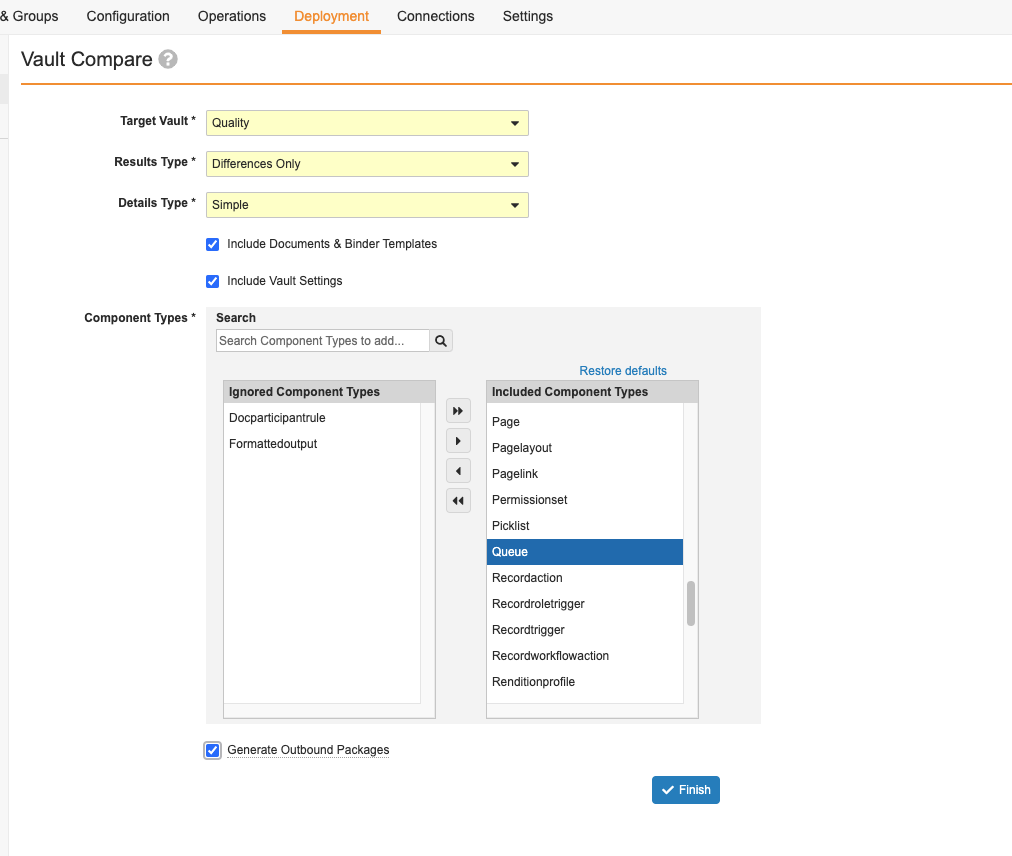
1. Navigate to **Admin > Deployment > Vault Compare**.
2. Select a **Target Vault**. This is the Vault to compare against your current Vault.
3. Select a [**Results Type**][2] to define what scope to include.
4. Select a [**Details Type**][3] to define what level of detail to include.
5. Optional: The **Include Documents & Binder Templates** checkbox makes document and binder templates available for comparison. Vault does not compare the content of document templates. To exclude these components, deselect this checkbox.
6. Optional: The **Include Vault Settings** checkbox makes Vault settings available for comparison. To exclude these components, deselect the checkbox.
7. Select the [**Component Types**][4] to include or ignore. To filter for specific types, use the **Search** box. To start over, click **Restore**.
8. Optional: Select the **Generate Outbound Package** checkbox to create one or more [Outbound Packages](/en/lr/36919/) containing components that are different between the source Vault and target Vault or are missing in the target Vault.
9. Click **Finish** to start the comparison. This process may take a while. When complete, you'll receive a notification with a link to download an Excel file of the comparison. If you selected the _Generate Outbound Package_ checkbox, the notification includes direct links to any resulting _Outbound Package_ records, or a link to a page of records if there are too many to display in the notification. If Vault encounters any component or configuration issues, the notification also includes a link to download an error log as a CSV file. If there are pending component updates, Vault places the report request in a queue and sends you a notification. Once component update processing is complete, Vault generates the report and sends another notification.
## Permission Dependencies
Vault Compare reports a difference when the configuration in one Vault grants both a controlling permission and its [dependent permissions](/en/lr/22824/#about-permission-dependencies), and the configuration in the other Vault grants only the controlling permission, even though the controlling permission implies the dependent permission. In this instance, the permissions in each Vault grant the same level of access, so you may ignore the permission difference for validation purposes.
Vault Compare reports a difference related to permission dependencies in the following examples:
* A permission is set to _Read_ and _Edit_ in one Vault and only _Edit_ in the other Vault. You can ignore this difference for validation purposes, because the _Edit_ permission implies the _Read_ permission.
* A permission is set to _Workflow: eSignature_ and _Workflow: Participate_ in one Vault and only _Workflow: eSignature_ in the other Vault. You can ignore this difference for validation purposes, because the _Workflow: eSignature_ permission implies the _Workflow: Participate_ permission.
## How to Compare Vaults
To use Vault Compare:
1. Navigate to **Admin > Deployment > Vault Compare**.
2. Select a **Target Vault**. This is the Vault to compare against your current Vault.
3. Select a [**Results Type**][2] to define what scope to include.
4. Select a [**Details Type**][3] to define what level of detail to include.
5. Optional: The **Include Documents & Binder Templates** checkbox makes document and binder templates available for comparison. Vault does not compare the content of document templates. To exclude these components, deselect this checkbox.
6. Optional: The **Include Vault Settings** checkbox makes Vault settings available for comparison. To exclude these components, deselect the checkbox.
7. Select the [**Component Types**][4] to include or ignore. To filter for specific types, use the **Search** box. To start over, click **Restore**.
8. Optional: Select the **Generate Outbound Package** checkbox to create one or more [Outbound Packages](/en/lr/36919/) containing components that are different between the source Vault and target Vault or are missing in the target Vault.
9. Click **Finish** to start the comparison. This process may take a while. When complete, you'll receive a notification with a link to download an Excel file of the comparison. If you selected the _Generate Outbound Package_ checkbox, the notification includes direct links to any resulting _Outbound Package_ records, or a link to a page of records if there are too many to display in the notification. If Vault encounters any component or configuration issues, the notification also includes a link to download an error log as a CSV file. If there are pending component updates, Vault places the report request in a queue and sends you a notification. Once component update processing is complete, Vault generates the report and sends another notification.
Note: Vault may display differences in the Vault Compare report when comparing Vault Settings from a Limited Release Vault and a General Release Vault. For example, you may see differences in the report when a new setting is added to a Limited Release Vault but is not yet available for a General Release Vault.
Note: Note that if the Lifecycle Stage (stage__sys) and Lifecycle State Stage ID (state_stage_id__sys) fields are visible on any object page layout, there may be a Vault Compare difference. We recommend that you delete those fields from the page layout to avoid this discrepancy.
| Type | Permission Label | Controls |
| Security Profile | Admin: Deployment: Environment: Vault Comparison | Ability to access the Vault Compare feature. |
| Security Profile | Admin: Deployment: Migration Packages: Create | Ability to select the Generate Outbound Package checkbox. |