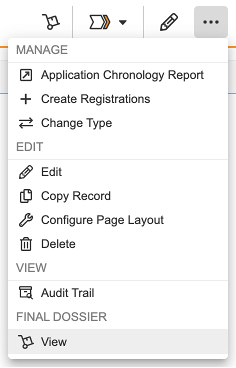
Note: This feature is available in RIM Submissions Archive Vaults only. As of 23R1, an enhanced viewer automatically replaces the legacy Submissions Archive Viewer. See About the New Submissions Archive Viewer for more information.
To return to the object record view, click the record's link at the top of the page.
## Viewer Components
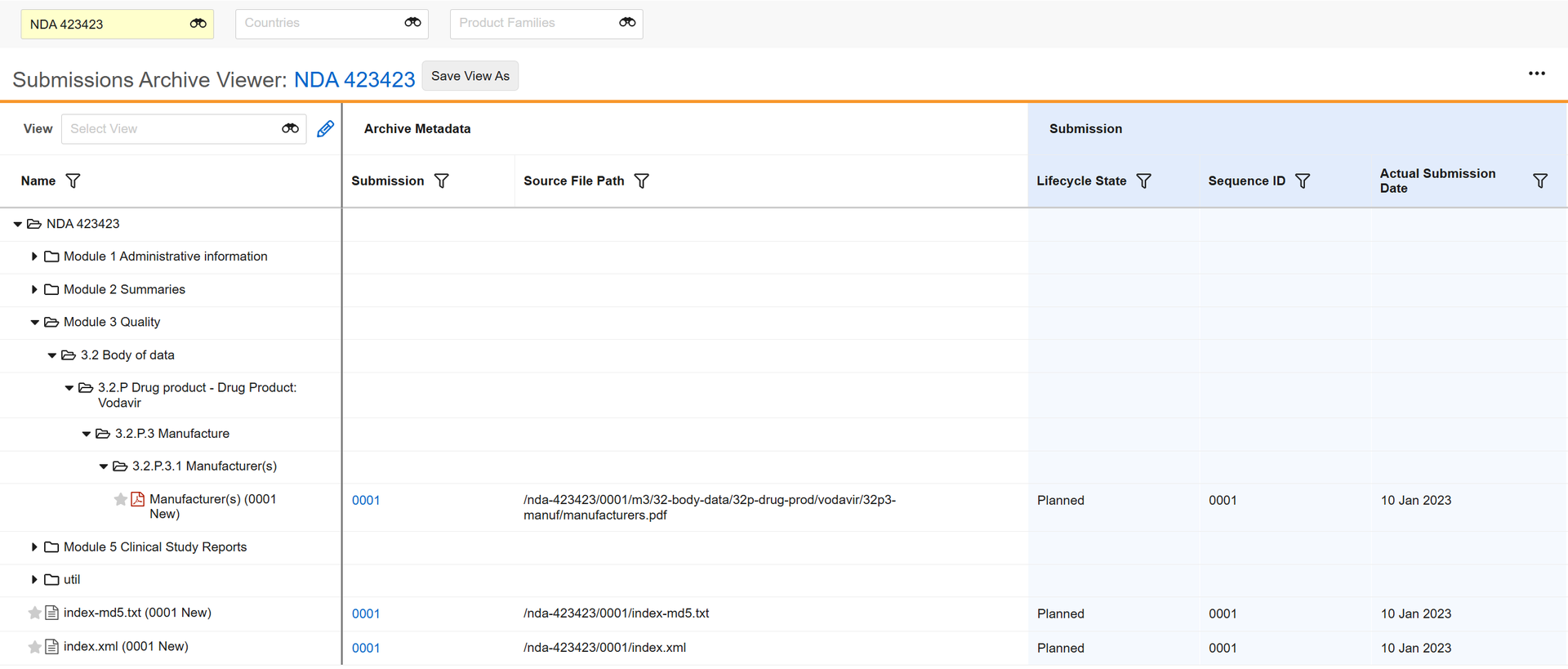
The Submissions Archive Viewer is divided into two primary areas:
* The hierarchy view on the left shows an application's submission data structure, with capabilities to expand and collapse sections, as well as search and view historical information.
* The right panel shows submission metadata in a grid view, allowing you to filter and search on pertinent submission details. Vault remembers your selections and displays them each time you use the viewer.
This orientation also allows you to open documents directly in the viewer, without losing your place in the hierarchy or any filters you've applied in the grid.
Note: While there are no limitations to the number of Submissions the viewer displays, you can only view up to 5,000 hierarchy nodes at a time. When the limit is reached, the viewer displays a message prompting you to refine the view with filters.
 ## Working with the Hierarchy View
When you open the viewer, Vault displays all nodes in the hierarchy tree, with the application and correspondence document nodes appearing at the highest level. You can expand and collapse sections individually or in bulk, as well as keyword search section names to narrow the sections you see in the hierarchy view panel.
The hierarchy tree also allows you to view documents, their historical information, and leaf details directly in the viewer, without navigating away from the viewer or losing any filters you've applied in the grid.
### Expanding, Collapsing, & Sorting
When you open the viewer and select a new _Application_, Vault displays the root _Application_ node expanded to the first level, with all other sections collapsed.
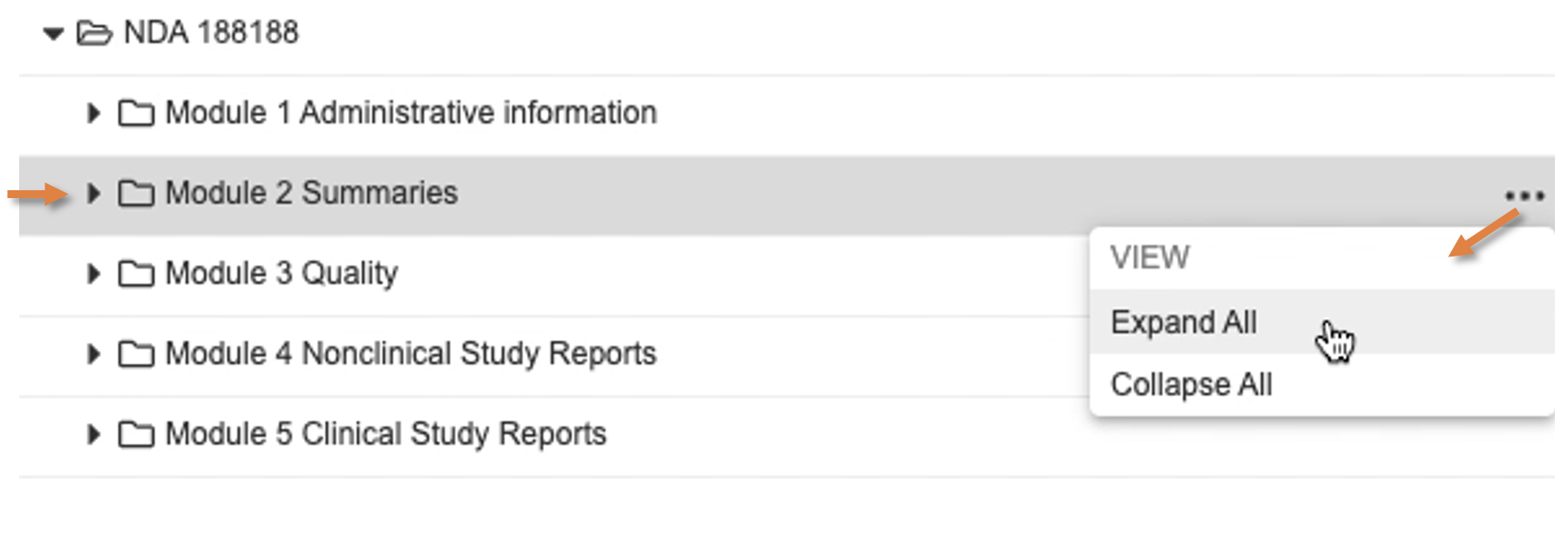
Click a node's **arrow** icon to open a section one level at a time, or click **Expand All** in any section or module's **Actions** menu to display all leaf nodes within that section.
To collapse or close a section, click the **arrow** icon. You can click **Collapse All** in any section or module's Actions menu to hide all leaf nodes. Using the Collapse All action removes sections so they do not count towards the 5,000 hierarchy node limit.
## Working with the Hierarchy View
When you open the viewer, Vault displays all nodes in the hierarchy tree, with the application and correspondence document nodes appearing at the highest level. You can expand and collapse sections individually or in bulk, as well as keyword search section names to narrow the sections you see in the hierarchy view panel.
The hierarchy tree also allows you to view documents, their historical information, and leaf details directly in the viewer, without navigating away from the viewer or losing any filters you've applied in the grid.
### Expanding, Collapsing, & Sorting
When you open the viewer and select a new _Application_, Vault displays the root _Application_ node expanded to the first level, with all other sections collapsed.
Click a node's **arrow** icon to open a section one level at a time, or click **Expand All** in any section or module's **Actions** menu to display all leaf nodes within that section.
To collapse or close a section, click the **arrow** icon. You can click **Collapse All** in any section or module's Actions menu to hide all leaf nodes. Using the Collapse All action removes sections so they do not count towards the 5,000 hierarchy node limit.
 #### Section & Document Ordering
Vault dynamically orders documents and sections based on several criteria, beginning with whether an item is eCTD or non-eCTD. Based on this, Submission documents and sections appear in the following default order:
* eCTD documents
* eCTD sections
* eCTD XML files
* eCTD checksum file
* non-eCTD unreferenced sections (for example, working documents folders)
* non-eCTD sections
* non-eCTD files
* Correspondence documents
Within this hierarchy, items are then ordered by the _Submission_ record's _Actual Submission Date_, combined with the related _Submission Metadata_ record values:
* If the _Actual Submission Date_ is blank, Vault defaults to the _Submission Metadata_ record's _Ordering Date Time_ (`order_datetime__v`) field.
* When multiple Submissions are selected in the viewer, Vault displays items according to the _Submission Metadata_ record's _Ordering DateTime_ and _Submission_ (`sequence_record_id__v`) values.
Vault also determines order based on whether a Submission is published or imported, illustrated in the table below.
| | Published Submissions | Imported Submissions |
|---|---|---|
| **eCTD, STF** | STF XML order | STF XML order |
| **eCTD, non-STF** | Created/publish time of the leaf/document | XML order |
| **non-eCTD** | Alphanumeric | Alphanumeric |
#### Section & Document Ordering
Vault dynamically orders documents and sections based on several criteria, beginning with whether an item is eCTD or non-eCTD. Based on this, Submission documents and sections appear in the following default order:
* eCTD documents
* eCTD sections
* eCTD XML files
* eCTD checksum file
* non-eCTD unreferenced sections (for example, working documents folders)
* non-eCTD sections
* non-eCTD files
* Correspondence documents
Within this hierarchy, items are then ordered by the _Submission_ record's _Actual Submission Date_, combined with the related _Submission Metadata_ record values:
* If the _Actual Submission Date_ is blank, Vault defaults to the _Submission Metadata_ record's _Ordering Date Time_ (`order_datetime__v`) field.
* When multiple Submissions are selected in the viewer, Vault displays items according to the _Submission Metadata_ record's _Ordering DateTime_ and _Submission_ (`sequence_record_id__v`) values.
Vault also determines order based on whether a Submission is published or imported, illustrated in the table below.
| | Published Submissions | Imported Submissions |
|---|---|---|
| **eCTD, STF** | STF XML order | STF XML order |
| **eCTD, non-STF** | Created/publish time of the leaf/document | XML order |
| **non-eCTD** | Alphanumeric | Alphanumeric |
Note: Vault calculates the Ordering DateTime value using a formula expression: If the Submission’s Actual Submission Date is blank, Ordering DateTime is the Submission Metadata record’s SA Date (sequence_order__v), expressed in UTC format. In this scenario, SA Date is the date and time the Submission was imported.
 ### Searching the Hierarchy View
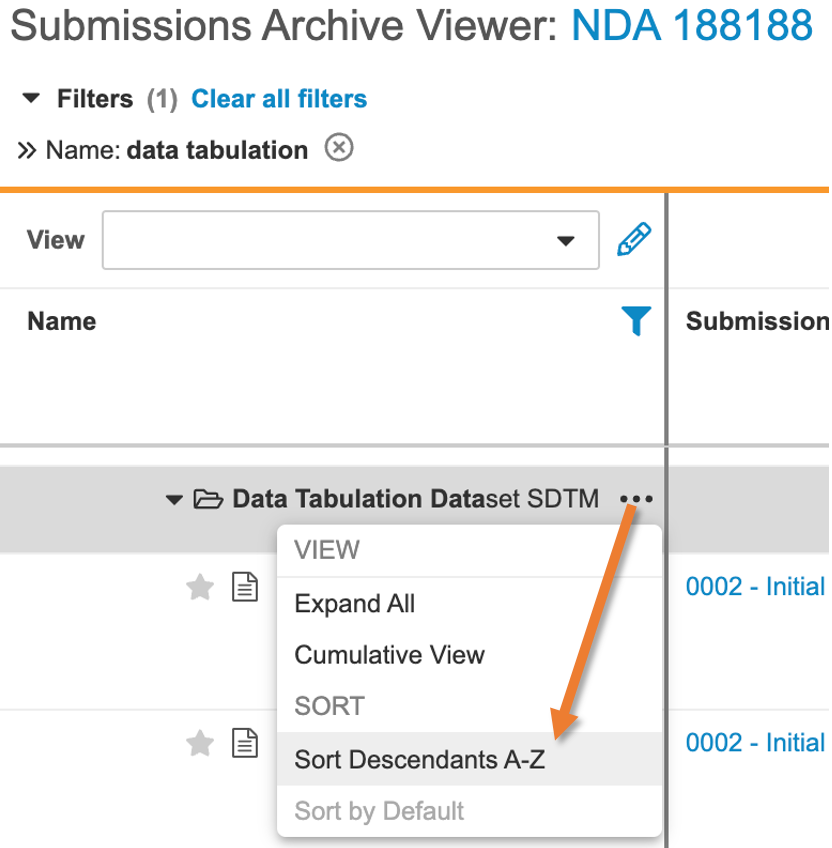
You can keyword search section names in the **Name** column (based on the _XML Section Title_ field), using at least three (3) characters. Vault language and advanced eCTD section names are not reflected in the search.
For example, you can search "study reports" to display only the hierarchy sections containing study reports:
### Searching the Hierarchy View
You can keyword search section names in the **Name** column (based on the _XML Section Title_ field), using at least three (3) characters. Vault language and advanced eCTD section names are not reflected in the search.
For example, you can search "study reports" to display only the hierarchy sections containing study reports:
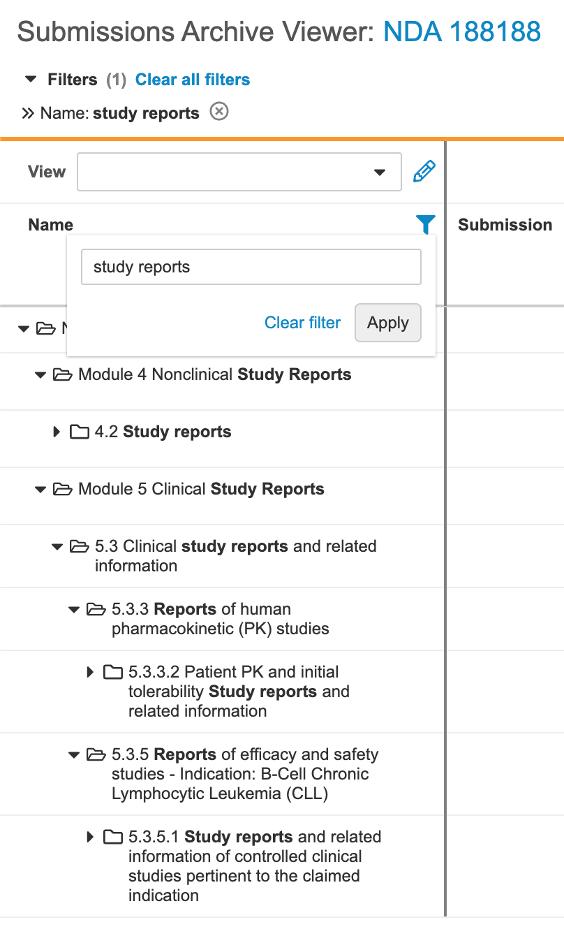 You can also search for specific modules and section names using XML values. From the example above, if you search for "m5-3-3", Vault will display section 5.3.3. Reports of human pharmacokinetic (PK) studies based on that section's _XML Title ID_ value in the related _Submission Metadata_ record.
### Viewing eCTD 4.0 Keywords {#viewing-ectd-keywords}
The Submissions Archive Viewer displays eCTD 4.0 _Sender Defined_ and _Health Authority Defined Keywords_. The system shows the _Keyword Display Name_ and a key indicator (
You can also search for specific modules and section names using XML values. From the example above, if you search for "m5-3-3", Vault will display section 5.3.3. Reports of human pharmacokinetic (PK) studies based on that section's _XML Title ID_ value in the related _Submission Metadata_ record.
### Viewing eCTD 4.0 Keywords {#viewing-ectd-keywords}
The Submissions Archive Viewer displays eCTD 4.0 _Sender Defined_ and _Health Authority Defined Keywords_. The system shows the _Keyword Display Name_ and a key indicator ( ) to the right of the Keyword in the grid cell. _Health Authority Defined Keywords_ are populated in the grid cell for selected columns for individual documents.
Hovering over the key indicator displays the _Keyword_ hovercard which details the _Display Name_, _Submission_, _Sequence ID_, and _Actual Submission Date_ information. For example, a _Sender Defined Key_ appears as shown:
) to the right of the Keyword in the grid cell. _Health Authority Defined Keywords_ are populated in the grid cell for selected columns for individual documents.
Hovering over the key indicator displays the _Keyword_ hovercard which details the _Display Name_, _Submission_, _Sequence ID_, and _Actual Submission Date_ information. For example, a _Sender Defined Key_ appears as shown:
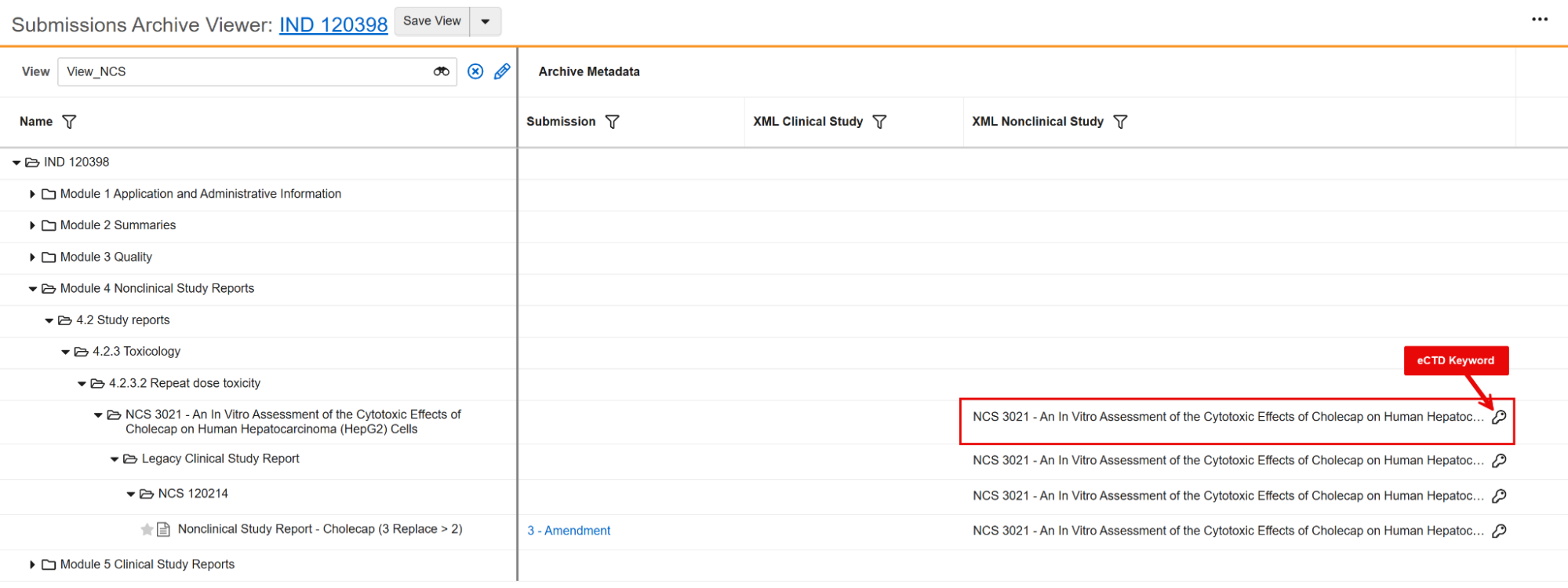 The _Sender Keyword Hovercard_ displays different values for the _Code System OID_ based on the status of the first and subsequent published _Submission_ records. The Code System OID appears on all subsequent submissions, and for all _Health Authority Keywords_. For published submissions where a Keyword is defined for the first time in the Application, the Code System OID appears in the Keyword hovercard once the submission where the Keyword is defined is moved into the Health Authority Received lifecycle state.
### Viewing Documents
The _Sender Keyword Hovercard_ displays different values for the _Code System OID_ based on the status of the first and subsequent published _Submission_ records. The Code System OID appears on all subsequent submissions, and for all _Health Authority Keywords_. For published submissions where a Keyword is defined for the first time in the Application, the Code System OID appears in the Keyword hovercard once the submission where the Keyword is defined is moved into the Health Authority Received lifecycle state.
### Viewing Documents
Note: When you click an embedded web link to an external URL (for example, https://google.com), Vault opens the link in a new browser tab. This behavior applies to all external URLs, and Vault only refreshes the mini-browser window when you click an internal Vault link or bookmark.
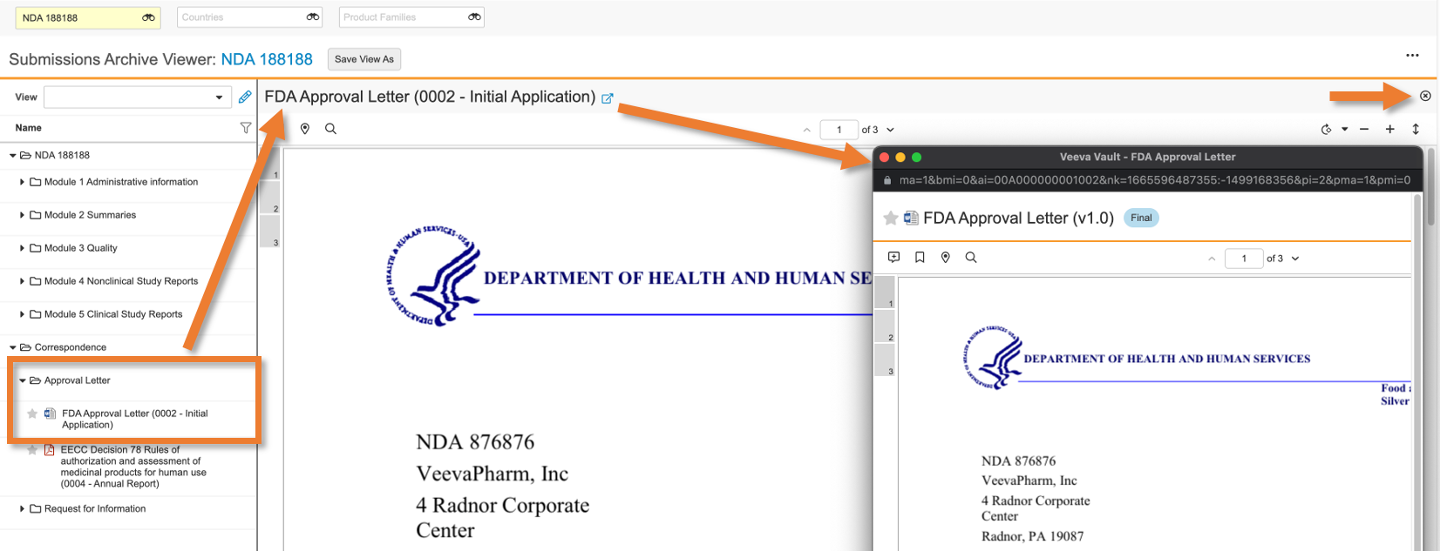 You can also view documents from the [leaf hovercard][4], and from [document and section histories][5].
#### Cursor Modes
The document viewer opens with the _Select_ cursor mode enabled by default. This mode allows videos to be rendered in the Viewer and allows you to copy text from the Viewer.
You can also use _Grab_ to single-click embedded links within the document. In _Select_ mode, you can hover your cursor over embedded links to display a tooltip with the link's clickable URL.
You can switch modes with the keyboard shortcut **CTRL + Shift on a PC**, or **Command + Shift** on a Mac.
#### Limitations of Custom Library Tabs
While Admins can configure custom Document tabs to filter for Submissions Archive content, these tabs do not support the full functional suite of the **Submissions Archive Viewer**. To ensure full functionality, users should access Submissions Archive documents via the standard **Viewer** tab.
**Key Considerations**
* **Link Navigation:** Relative hyperlinks (X-refs) embedded within PDF renditions are only functional when viewed through the standard Submissions Archive Viewer tab. These links will not resolve or navigate to the destination when the document is accessed via a custom Library or Document tab.
* **Document Layouts:** The specialized **Submission Details** document field layout is only available within the mini-browser launched from the standard Viewer tab. When accessing these documents from a custom Library tab, Vault displays the standard Document Information page based on the document type's default layout.
### Viewing Leaf Details {#viewing-leaf-details}
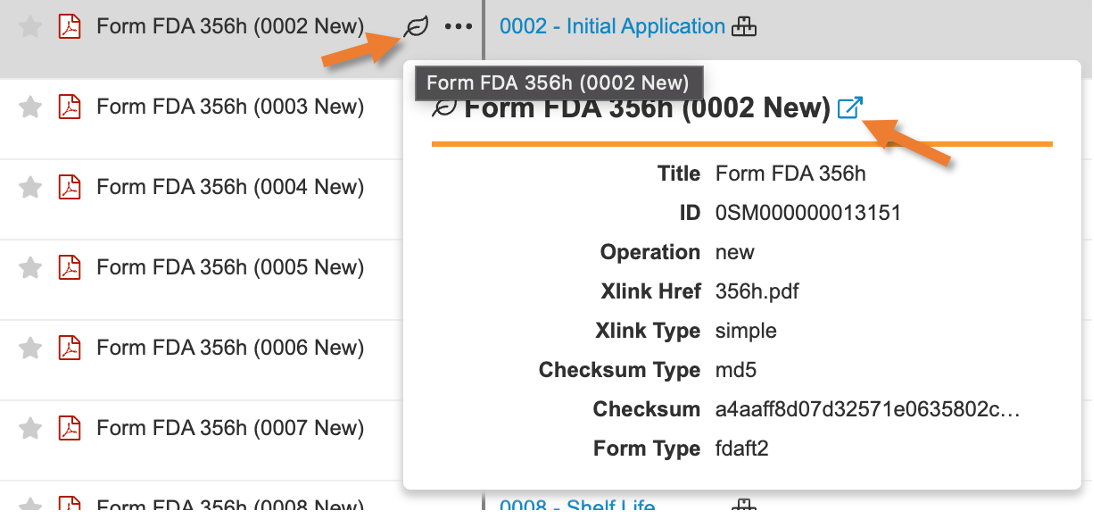
Leaf details are metadata from the XML file that went through with the submission. The **Viewer** tab is the only place in your Vault where XML metadata are available.
To view leaf details, open a submission and hover over a specific document. Then, hover over the **leaf** icon.
You can also click the pop-out icon to view the document in a mini-browser window. When you click another document's pop-out icon, the current mini-browser window refreshes to display the new document.
You can also view documents from the [leaf hovercard][4], and from [document and section histories][5].
#### Cursor Modes
The document viewer opens with the _Select_ cursor mode enabled by default. This mode allows videos to be rendered in the Viewer and allows you to copy text from the Viewer.
You can also use _Grab_ to single-click embedded links within the document. In _Select_ mode, you can hover your cursor over embedded links to display a tooltip with the link's clickable URL.
You can switch modes with the keyboard shortcut **CTRL + Shift on a PC**, or **Command + Shift** on a Mac.
#### Limitations of Custom Library Tabs
While Admins can configure custom Document tabs to filter for Submissions Archive content, these tabs do not support the full functional suite of the **Submissions Archive Viewer**. To ensure full functionality, users should access Submissions Archive documents via the standard **Viewer** tab.
**Key Considerations**
* **Link Navigation:** Relative hyperlinks (X-refs) embedded within PDF renditions are only functional when viewed through the standard Submissions Archive Viewer tab. These links will not resolve or navigate to the destination when the document is accessed via a custom Library or Document tab.
* **Document Layouts:** The specialized **Submission Details** document field layout is only available within the mini-browser launched from the standard Viewer tab. When accessing these documents from a custom Library tab, Vault displays the standard Document Information page based on the document type's default layout.
### Viewing Leaf Details {#viewing-leaf-details}
Leaf details are metadata from the XML file that went through with the submission. The **Viewer** tab is the only place in your Vault where XML metadata are available.
To view leaf details, open a submission and hover over a specific document. Then, hover over the **leaf** icon.
You can also click the pop-out icon to view the document in a mini-browser window. When you click another document's pop-out icon, the current mini-browser window refreshes to display the new document.
 You can also access leaf details within [document and section histories][5].
### Viewing Leaf Source File Paths
Leaf source file path is metadata for reviewing and surfacing issues with hyperlinks. You can view and filter leaf source file path field metadata in the [grid view](/en/lr/450731/#working-with-the-grid). This allows you to identify and diagnose publishing and import errors that are associated with the leaf source file paths.
The _Source File Path_ field can be selected as a filterable column in the viewer to display the file path that is used by Vault to represent a file's location as though it were on a file system. This field is also [searchable](/en/lr/13824/#searching-on-alpha-numeric--punctuated-fields).
### Viewing Document & Section Histories {#viewing-document-and-section-histories}
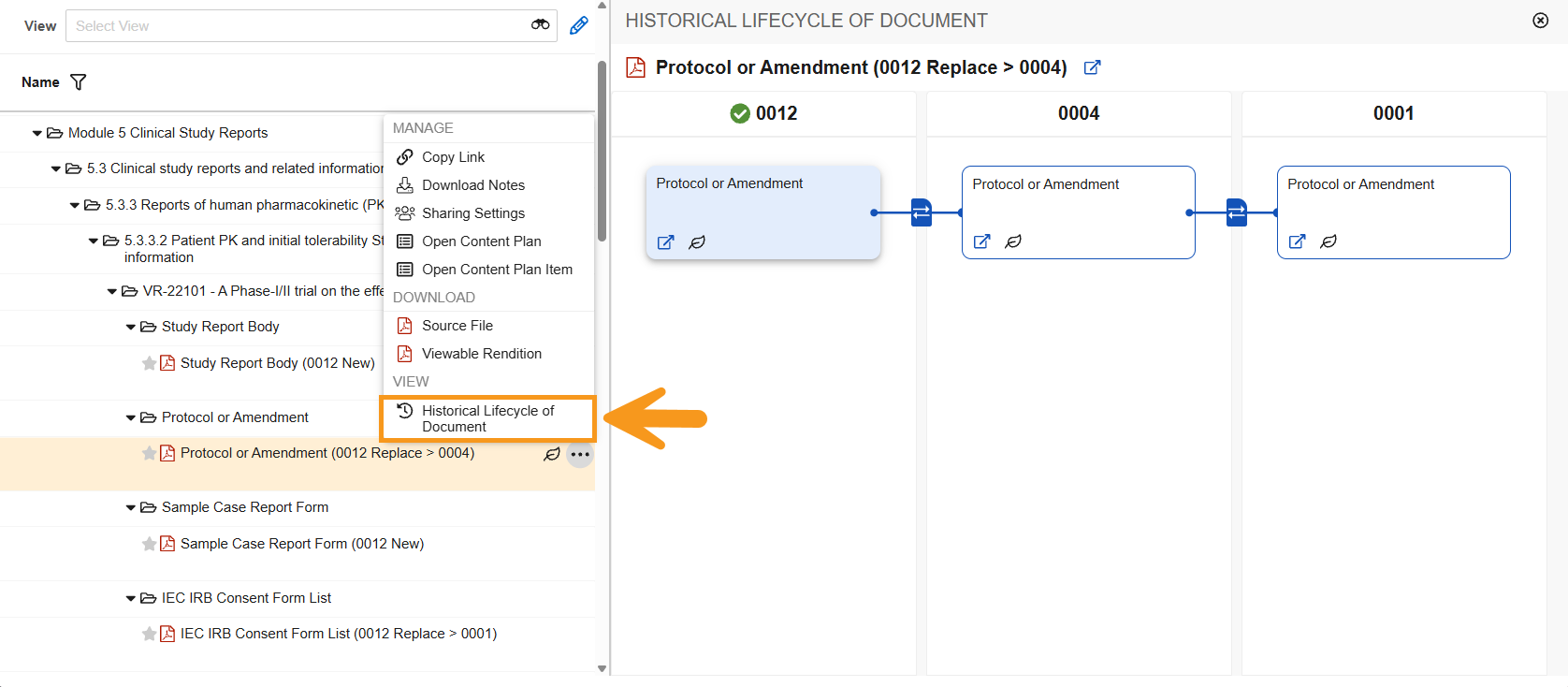
You can use the **Historical Lifecycle of Document** action to review a document's history, specific to the versions referenced at various points in the submission's lifecycle. (These are unrelated to document or object lifecycles within Vault.)
The **Cumulative** **View** is similarly available for reviewing section history.
Both views allow you to click a document's name or the pop-out icon to view in a mini-browser window, as well as hover to view leaf details. When you click another document's name or pop-out icon, the current mini-browser window refreshes to display the new document.
#### Historical Lifecycle of Document
To view an individual document's historical lifecycle, select **Historical Lifecycle of Document** from the document's **Actions** menu. Vault displays the lifecycle on the right side of the viewer, overlaid on the grid. Click **close** (**x**) to close the view and return to the grid, or click the **pop-out icon** to view documents in a mini-browser window.
You can also access leaf details within [document and section histories][5].
### Viewing Leaf Source File Paths
Leaf source file path is metadata for reviewing and surfacing issues with hyperlinks. You can view and filter leaf source file path field metadata in the [grid view](/en/lr/450731/#working-with-the-grid). This allows you to identify and diagnose publishing and import errors that are associated with the leaf source file paths.
The _Source File Path_ field can be selected as a filterable column in the viewer to display the file path that is used by Vault to represent a file's location as though it were on a file system. This field is also [searchable](/en/lr/13824/#searching-on-alpha-numeric--punctuated-fields).
### Viewing Document & Section Histories {#viewing-document-and-section-histories}
You can use the **Historical Lifecycle of Document** action to review a document's history, specific to the versions referenced at various points in the submission's lifecycle. (These are unrelated to document or object lifecycles within Vault.)
The **Cumulative** **View** is similarly available for reviewing section history.
Both views allow you to click a document's name or the pop-out icon to view in a mini-browser window, as well as hover to view leaf details. When you click another document's name or pop-out icon, the current mini-browser window refreshes to display the new document.
#### Historical Lifecycle of Document
To view an individual document's historical lifecycle, select **Historical Lifecycle of Document** from the document's **Actions** menu. Vault displays the lifecycle on the right side of the viewer, overlaid on the grid. Click **close** (**x**) to close the view and return to the grid, or click the **pop-out icon** to view documents in a mini-browser window.
 #### Section Cumulative View
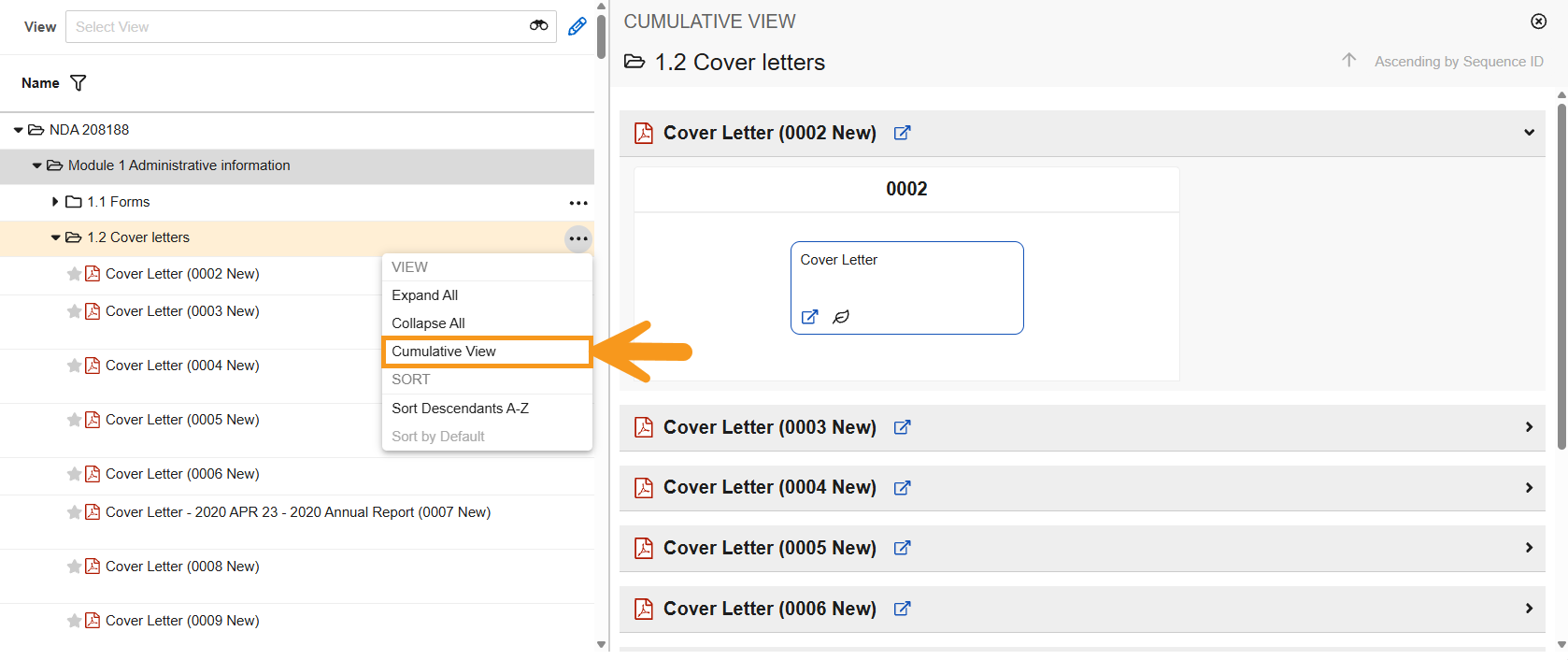
You can view the historical lifecycle for all documents in a section at once using the **Cumulative View**, which includes documents removed from the current section.
To access this view, select **Cumulative View** from a section's **Actions** menu. Vault displays the lifecycle on the right side of the viewer, overlaid on the grid. Click **close** (**x**) to close the view and return to the grid, or click the **pop-out icon** to view documents in a mini-browser window.
#### Section Cumulative View
You can view the historical lifecycle for all documents in a section at once using the **Cumulative View**, which includes documents removed from the current section.
To access this view, select **Cumulative View** from a section's **Actions** menu. Vault displays the lifecycle on the right side of the viewer, overlaid on the grid. Click **close** (**x**) to close the view and return to the grid, or click the **pop-out icon** to view documents in a mini-browser window.
Note: The Cumulative View action is not available from sections in Japan eCTD 3.2 submissions. This view is not compatible with the JP XSD 1.0 Cumulative XML format (eCTD 3.2). You can use the Historical Lifecycle of Document action on documents in Japan eCTD 3.2 submissions.
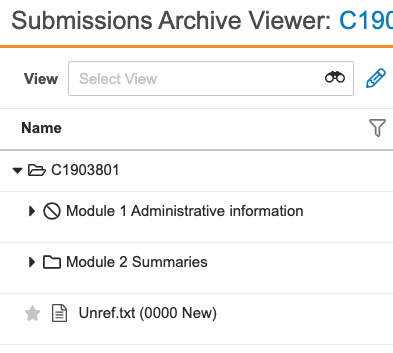 Empty section styling applies to unfiltered electronically-submitted eCTD and EAEU R.022 dossiers only. It does not appear for non-eCTD submissions, Correspondences, or when you apply filtering in the viewer.
Note: It is possible for eCTD applications to be marked with empty sections following a replace operation. This occurs when documents are moved to a new section requiring specific metadata, such as the Active Substance or Manufacturer.
Note: When viewing imported submissions that use the JP 1.0 (Japanese) schema, you can only select and view one submission at a time, due to the structure of the Japanese XML.
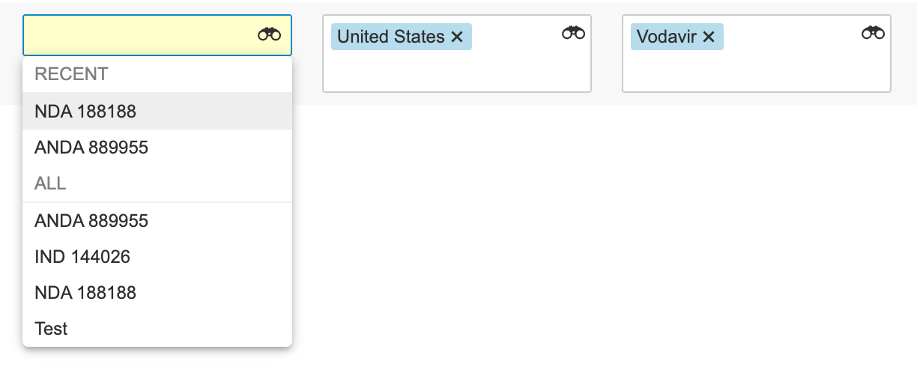 You cannot select an _Application_ to refine the list of selectable _Countries_ or _Product Families_.
### Filtering by Submission & Submission Join Records {#filtering-by-submissions-and-joins}
Click the **filter** icon in the **Submission** column to narrow selections by one or more _Submission_ records. The values you can select depend on the records related to the application and the objects for which you have _View_ permission.
You cannot select an _Application_ to refine the list of selectable _Countries_ or _Product Families_.
### Filtering by Submission & Submission Join Records {#filtering-by-submissions-and-joins}
Click the **filter** icon in the **Submission** column to narrow selections by one or more _Submission_ records. The values you can select depend on the records related to the application and the objects for which you have _View_ permission.
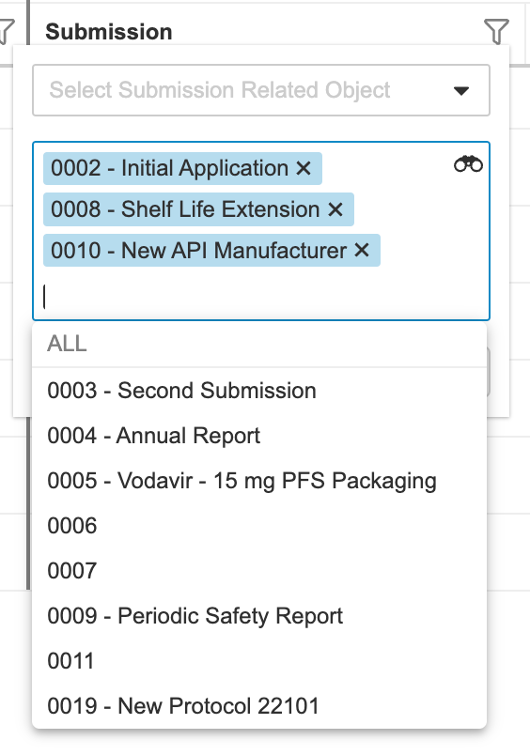 The _Submission_ filter also allows you to select a _Submission_ related object (or join object) for filtering.
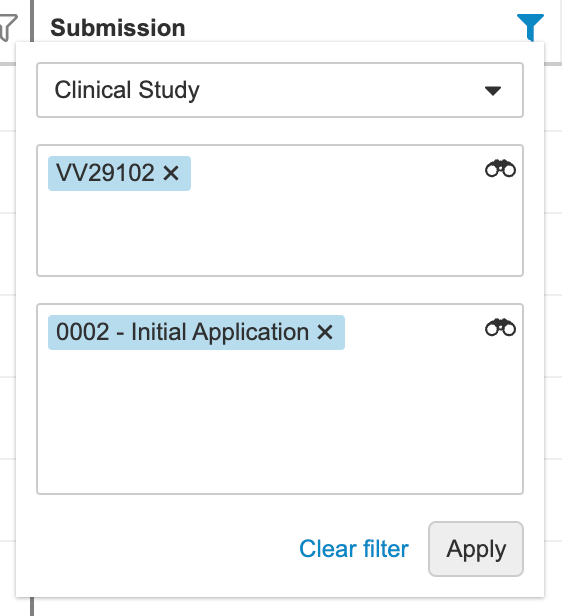
For example, you can select the _Clinical Study_ related object and one of its records ("VV29102") to display only the nodes applicable to the VV29102 clinical study. To further refine results, select a _Submission_ record ("0002 - Initial Application").
The _Submission_ filter also allows you to select a _Submission_ related object (or join object) for filtering.
For example, you can select the _Clinical Study_ related object and one of its records ("VV29102") to display only the nodes applicable to the VV29102 clinical study. To further refine results, select a _Submission_ record ("0002 - Initial Application").
 When a single ICH eCTD 4.0-based submission is applied in the Submission filter, Submissions Archive Viewer displays the _Submission Unit_ (`submissionunit.xml`) and _SHA-256_ checksum (`sha256.txt`) file in the _Name_ column. When more than one submission is applied in the Submission filter, Submissions Archive Viewer hides the _Submission Unit_ and _SHA-256_ files.
### Sharing URLs to Submissions in an Application
The Submissions Archive URL includes the Application ID and Submission ID.
When you filter the Submissions in the Submission column, Vault automatically adds the _Submission_ record's _ID_ to the URL. If you remove a Submission from view, Vault removes the ID.
#### Limits for URL Length
The Submissions Archive Viewer has a threshold of 70 submission record IDs. This limit applies to:
* Submission Object Column Filter: You cannot select more than 70 records in this filter.
* Copy Viewer URL Feature: Shared URLs cannot exceed 70 submission record IDs.
**Important Note on Name Column Filtering**: When using the Name column text filter, Vault automatically adds the associated submission IDs to the URL. If the text filter identifies rows pertaining to more than 70 Submissions, the URL string becomes too long for the web browser to process. In these cases, the browser may display a generic "Network Error".
**Viewer Capacity vs. URL Limits**: The Submissions Archive Viewer grid can display up to 5,000 rows. If your view exceeds 5,000 rows, a "Too many results" message appears at the bottom of the Name column. Note that while you can view up to 5,000 rows in the interface, you cannot use the Copy URL feature if those rows represent more than 70 unique submission record IDs.
## Navigating Within Submissions
Many submission documents contain hyperlinks or bookmarks to other documents. When using the **Viewer** tab, you can navigate directly to those documents in a mini-browser window by clicking the link or bookmark. When you click another Vault link or bookmark, the current mini-browser window refreshes to display the new document. When you click external (non-Vault) web links embedded into documents, Vault opens the URL in a new browser tab.
This cross-document navigation is supported for documents within the same submission, documents across submissions, or even across applications. However, this navigation only works in the **Viewer** tab, not in the Library or any custom document tabs.
In some cases, you won't be able to access a specific document via the link:
* You don't have permission to view the document.
* The document hasn't been imported to the Vault.
* The link's relative path was incorrect when imported to the Vault.
## Opening the Application & Submissions
When you select an Application, you can open that record directly from the Submissions Archive Viewer header. Click the link on the _Application_'s name to open its object record detail page.
When you've filtered to show one or more submissions, you can also open each submission directly from the applied filters. Click the link on the submission's name to open its object record detail page.
### Viewing Inactive Applications & Submissions
When [enabled](/en/lr/53688/#submissions-archive-features) in your Vault, you can select and view inactive _Application_ and _Submission_ records in the viewer. **View** and **Export** actions are still available.
## Viewing Correspondence Documents {#viewing-correspondence-documents}
When enabled, you can view correspondence documents tied to a _Submission_ in the **Viewer** tab. The correspondence documents you see depend on the related _Application_ or _Submission_ record and the _Submission_ record's _Dossier Status_ or _Submissions Archive Status_. You'll only see correspondence documents when the submission is in one of the following statuses:
|Field|Status|
|--- |--- |
|Submissions Archive Status|IMPORT_SUCCEEDED|
|Dossier Status|Import Successful|
|Dossier Status|Publishing Inactive|
|Dossier Status|Transmission In Queue|
|Dossier Status|Transmission In Progress|
|Dossier Status|Transmission Failed|
|Dossier Status|Transmission Successful|
### Correspondence Document Display Order
By default, correspondence documents display in a folder at the root, and the folder's label matches the document type of the correspondence document type. You can also [temporarily sort them alphabetically][1].
Default ordering within the viewer is based upon _Submission_ and _Application_
* Correspondence documents tagged with a single _Submission_ number are ordered alphabetically based upon {Submission Date}{Document name}. For example, "2019-Feb-12DocumentA", where the Submission Date is "2019-Feb-12" and the document name is "DocumentA".
* Correspondence documents tagged with multiple _Submission_ numbers are ordered alphabetically based upon {Submission Date of the earliest tagged Submission}{Document name}. For example, "2019-Feb-12DocumentA" where the _Submission Date_ is "2019-Feb-12" and the document name is "DocumentA".
Correspondence documents tagged with an associated _Application_ number only are displayed alphabetically based on the document name at the bottom of the correspondence document list.
### Filtering Application-Level Correspondence Documents
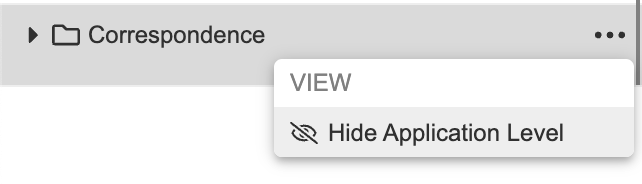
You can quickly hide correspondence documents and folders tagged with an associated _Application_ using the **Hide** **Application Level** action on the **Correspondence Document** node. Select **Show Application Level** on the same node to toggle the view.
When a single ICH eCTD 4.0-based submission is applied in the Submission filter, Submissions Archive Viewer displays the _Submission Unit_ (`submissionunit.xml`) and _SHA-256_ checksum (`sha256.txt`) file in the _Name_ column. When more than one submission is applied in the Submission filter, Submissions Archive Viewer hides the _Submission Unit_ and _SHA-256_ files.
### Sharing URLs to Submissions in an Application
The Submissions Archive URL includes the Application ID and Submission ID.
When you filter the Submissions in the Submission column, Vault automatically adds the _Submission_ record's _ID_ to the URL. If you remove a Submission from view, Vault removes the ID.
#### Limits for URL Length
The Submissions Archive Viewer has a threshold of 70 submission record IDs. This limit applies to:
* Submission Object Column Filter: You cannot select more than 70 records in this filter.
* Copy Viewer URL Feature: Shared URLs cannot exceed 70 submission record IDs.
**Important Note on Name Column Filtering**: When using the Name column text filter, Vault automatically adds the associated submission IDs to the URL. If the text filter identifies rows pertaining to more than 70 Submissions, the URL string becomes too long for the web browser to process. In these cases, the browser may display a generic "Network Error".
**Viewer Capacity vs. URL Limits**: The Submissions Archive Viewer grid can display up to 5,000 rows. If your view exceeds 5,000 rows, a "Too many results" message appears at the bottom of the Name column. Note that while you can view up to 5,000 rows in the interface, you cannot use the Copy URL feature if those rows represent more than 70 unique submission record IDs.
## Navigating Within Submissions
Many submission documents contain hyperlinks or bookmarks to other documents. When using the **Viewer** tab, you can navigate directly to those documents in a mini-browser window by clicking the link or bookmark. When you click another Vault link or bookmark, the current mini-browser window refreshes to display the new document. When you click external (non-Vault) web links embedded into documents, Vault opens the URL in a new browser tab.
This cross-document navigation is supported for documents within the same submission, documents across submissions, or even across applications. However, this navigation only works in the **Viewer** tab, not in the Library or any custom document tabs.
In some cases, you won't be able to access a specific document via the link:
* You don't have permission to view the document.
* The document hasn't been imported to the Vault.
* The link's relative path was incorrect when imported to the Vault.
## Opening the Application & Submissions
When you select an Application, you can open that record directly from the Submissions Archive Viewer header. Click the link on the _Application_'s name to open its object record detail page.
When you've filtered to show one or more submissions, you can also open each submission directly from the applied filters. Click the link on the submission's name to open its object record detail page.
### Viewing Inactive Applications & Submissions
When [enabled](/en/lr/53688/#submissions-archive-features) in your Vault, you can select and view inactive _Application_ and _Submission_ records in the viewer. **View** and **Export** actions are still available.
## Viewing Correspondence Documents {#viewing-correspondence-documents}
When enabled, you can view correspondence documents tied to a _Submission_ in the **Viewer** tab. The correspondence documents you see depend on the related _Application_ or _Submission_ record and the _Submission_ record's _Dossier Status_ or _Submissions Archive Status_. You'll only see correspondence documents when the submission is in one of the following statuses:
|Field|Status|
|--- |--- |
|Submissions Archive Status|IMPORT_SUCCEEDED|
|Dossier Status|Import Successful|
|Dossier Status|Publishing Inactive|
|Dossier Status|Transmission In Queue|
|Dossier Status|Transmission In Progress|
|Dossier Status|Transmission Failed|
|Dossier Status|Transmission Successful|
### Correspondence Document Display Order
By default, correspondence documents display in a folder at the root, and the folder's label matches the document type of the correspondence document type. You can also [temporarily sort them alphabetically][1].
Default ordering within the viewer is based upon _Submission_ and _Application_
* Correspondence documents tagged with a single _Submission_ number are ordered alphabetically based upon {Submission Date}{Document name}. For example, "2019-Feb-12DocumentA", where the Submission Date is "2019-Feb-12" and the document name is "DocumentA".
* Correspondence documents tagged with multiple _Submission_ numbers are ordered alphabetically based upon {Submission Date of the earliest tagged Submission}{Document name}. For example, "2019-Feb-12DocumentA" where the _Submission Date_ is "2019-Feb-12" and the document name is "DocumentA".
Correspondence documents tagged with an associated _Application_ number only are displayed alphabetically based on the document name at the bottom of the correspondence document list.
### Filtering Application-Level Correspondence Documents
You can quickly hide correspondence documents and folders tagged with an associated _Application_ using the **Hide** **Application Level** action on the **Correspondence Document** node. Select **Show Application Level** on the same node to toggle the view.
 When you execute the action, Vault applies or removes the filter regardless of whether you've applied [filters in the **Submission** column][2] in the grid.
### Filtering Correspondence by Regulatory Objective
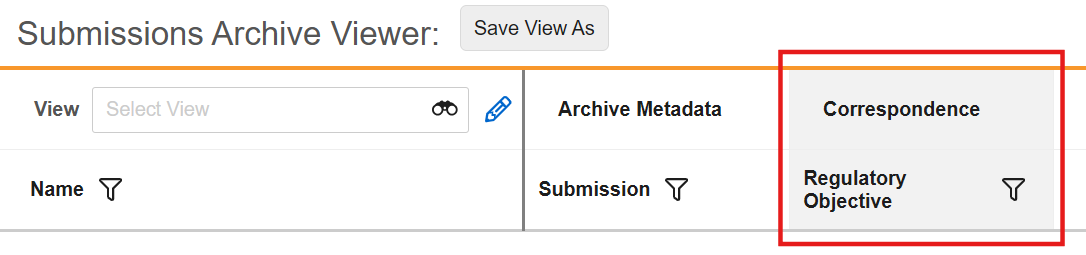
You can also filter correspondence by its associated regulatory objective. You can add the Regulatory Objective column (in the Correspondence column grouping) to a new or existing saved view. This allows you to review Health Authority correspondence related to a regulatory objective, whether it is associated to the application alone or application and submissions, set on document fields on the Correspondence document in Vault Library.
When a Regulatory Objective column filter is applied, the Submissions Archive Viewer only displays the Correspondence section and its subsections (submission sections are omitted from the Viewer). To view submission sections, i.e. non-Correspondence section structure and content, remove the Regulatory Objective filter.
When you execute the action, Vault applies or removes the filter regardless of whether you've applied [filters in the **Submission** column][2] in the grid.
### Filtering Correspondence by Regulatory Objective
You can also filter correspondence by its associated regulatory objective. You can add the Regulatory Objective column (in the Correspondence column grouping) to a new or existing saved view. This allows you to review Health Authority correspondence related to a regulatory objective, whether it is associated to the application alone or application and submissions, set on document fields on the Correspondence document in Vault Library.
When a Regulatory Objective column filter is applied, the Submissions Archive Viewer only displays the Correspondence section and its subsections (submission sections are omitted from the Viewer). To view submission sections, i.e. non-Correspondence section structure and content, remove the Regulatory Objective filter.
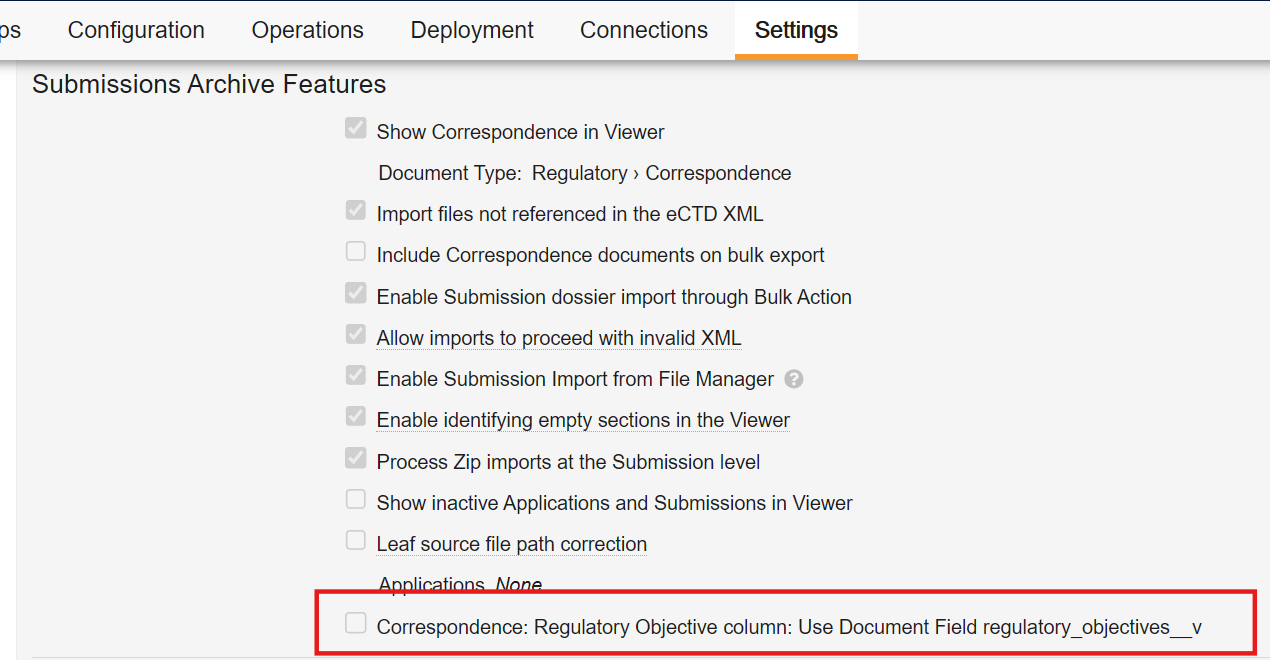
 As of 24R2, RIM Vaults have a standard `regulatory_objectives__v` document field. RIM Vaults moving from use of the custom `regulatory_objectives__c` document field to the standard `regulatory_objectives__v` document field should enable the Application Setting: **Correspondence: Regulatory Objective column: Use Document Field** `regulatory_objectives__v` under **Admin \> Settings \> Application Settings \> Submissions Archive Features,** to have the system display Regulatory Objective values from the standard document field. This setting is a two-way switch that drives the display of the column:
* When the setting is off, the system shows Regulatory Objective values stored in the custom `regulatory_objectives__c` document field (if it exists,)
* When the setting is enabled the system shows Regulatory Objective values stored in the standard `regulatory_objectives__v` document field.
RIM Vaults provisioned prior to 24R2 that are using the `regulatory_objectives__c` custom can immediately start using this new feature without migrating from the custom to standard document field. In a future release, this setting will be deprecated, at which time all customers will need to use the standard `regulatory_objectives__v` field to see this attribute in Viewer. The deprecation will be communicated via the announcements in the release notes, at a future date. By providing the temporary setting, customers will have time to migrate their document field values to the standard field while still seeing immediate benefit of the *Regulatory Objective* filtering.
As of 24R2, RIM Vaults have a standard `regulatory_objectives__v` document field. RIM Vaults moving from use of the custom `regulatory_objectives__c` document field to the standard `regulatory_objectives__v` document field should enable the Application Setting: **Correspondence: Regulatory Objective column: Use Document Field** `regulatory_objectives__v` under **Admin \> Settings \> Application Settings \> Submissions Archive Features,** to have the system display Regulatory Objective values from the standard document field. This setting is a two-way switch that drives the display of the column:
* When the setting is off, the system shows Regulatory Objective values stored in the custom `regulatory_objectives__c` document field (if it exists,)
* When the setting is enabled the system shows Regulatory Objective values stored in the standard `regulatory_objectives__v` document field.
RIM Vaults provisioned prior to 24R2 that are using the `regulatory_objectives__c` custom can immediately start using this new feature without migrating from the custom to standard document field. In a future release, this setting will be deprecated, at which time all customers will need to use the standard `regulatory_objectives__v` field to see this attribute in Viewer. The deprecation will be communicated via the announcements in the release notes, at a future date. By providing the temporary setting, customers will have time to migrate their document field values to the standard field while still seeing immediate benefit of the *Regulatory Objective* filtering.
 ## Exporting to Excel
You can export a submission's full hierarchy tree and grid data from the viewer in Excel format.
To generate the file:
1. [Filter the **Submission** column][2] to display a single submission.
2. Optional: Add or remove the columns in the grid to match those you'd like to include in the export.
3. Select **Excel Tree with all Descendants** in the viewer's **Actions** menu. You'll receive a Vault notification and email with a link to download the export file.
## Exporting to Excel
You can export a submission's full hierarchy tree and grid data from the viewer in Excel format.
To generate the file:
1. [Filter the **Submission** column][2] to display a single submission.
2. Optional: Add or remove the columns in the grid to match those you'd like to include in the export.
3. Select **Excel Tree with all Descendants** in the viewer's **Actions** menu. You'll receive a Vault notification and email with a link to download the export file.
Note: The export action appears only when a single submission is selected in the grid. Additionally, the exported file includes all available data and does not respect any filters you’ve applied prior to export. Similarly, the exported file does not reflect any user actions that changed a section’s sorting behavior, nor does the file show or hide Application-level correspondences.