# Managing Content Plans with a Lifecycle (RIM)

When managing _Submission_, _Content Plan_, _Content Plan Item_, and _Report Level Content Plan_ records with a lifecycle, you can define various lifecycle state user actions, entry actions, entry criteria, or workflow system actions to create and update content plans. This allows users to perform various actions on content plans. For example, you can set up actions for users to copy from an existing content plan or create a binder from a content plan.

<div class="note-border alert-info">
  <div class="alert alert-info" role="alert">
    <div><i class="far fa-info-circle"></i></div>
    <div class="alert-text">
      <p><strong>Note</strong>: Submission content plans and report level content plans are only available on RIM Submissions Vaults. Global content plans require both RIM Submissions and RIM Registrations.</p>
    </div>
  </div>
</div>


## Actions & Criteria

You can configure the below actions and criteria. Some actions are available only for certain content plan types.

### Actions for All Content Plans

* **Change active related object lifecycle state** (Entry Action): Enables Vault to only update the lifecycle states of related records that are in an _Active_ status.
* **Content Plan Hierarchy State Change** (User Action or System Action): Changes the state of the current _Content Plan_ record and all of its child _Content Plan_ and _Content Plan Item_ records asynchronously.
* **Create Binder from Content Plan** (System Action): Creates a _Submissions_-type binder directly from any content plan section. If configuring this action, ensure [system-managed naming](/en/lr/18753/) is configured correctly for the _Submissions_ document type. If system-managed naming is not configured, Vault will name the binder using the name of the _Content Plan_ record from which users initiate this action.
* **Create from Document** (User Action): User action that creates a new document from a document selected in the _Create from Document_ field on the associated source _Content Plan Item Template_ record and automatically matches it to the corresponding _Content Plan Item_. This action also lets users create a [Table of Contents](/en/lr/50478/).
* **Matched Documents are Version Locked** (Entry Criteria): Checks whether all documents matched to a _Content Plan Item_ record are locked to a steady state document version before moving the record into a specific state.
* **Open Matched Document** (User Action): Allows users to open a matched document from the Content Plan Hierarchy Viewer in a mini-browser window.
* **Set Version Locking on Matched Documents** (User Action): Sets the version locking for documents matched to _Content Plan Item_ records within a content plan section.
* **Split Content Plan Item** (User Action): Creates additional _Content Plan Items_ when the number of matched documents on a _Content Plan Item_ record exceeds the number of expected documents.
* **Update Tokens in Field** (User Action for _Content Plan Items_): Updates unresolved tokens in the _Name_, _XML Title_, and _Published Output Location_ fields on an individual _Content Plan Item_ record. Vault updates records based on corresponding field values from the matched document and submission relationship fields.
* **Update Tokens in Fields** (User Action for _Content Plans_): Updates unresolved tokens in the _Name_, _XML Title_, and _Published Output Location_ fields on multiple _Content Plan Item_ records. Vault updates records based on corresponding field values from the matched document and submission relationship fields.
* **Update Content Plan Study Section** (Object Action for submission content plans): Allows users to update relevant metadata fields, then run the action to move records from one content plan section to another. The action is available for _Submission Clinical Studies_ and _Submission Nonclinical Studies_ only, and once enabled does not need to be configured as a separate user action. See [Updating Content Plan Study Sections][2] for configuration details.

### Actions for Select Content Plans

* **Create Content Plan and Content Plan Items** (System Action or Entry Action for submission and report level content plans): Creates _Content Plan_ and _Content Plan Items_ for submission and report level content plans. This action also includes an option to **Create Records as Inactive** for submission content plans.
* **Create Global Content Plan** (System Action for global content plans): When configured in a workflow, creates and updates global plans.
* **Copy Content Plan** (System Action for submission content plans and report level content plans): Copies content plan sections, content plan items, submission join records, and matched documents from an existing content plan to a new _Submission_ or report where a content plan has not been created yet.
* **Dispatch Global Content Plan** (User Action for global content plans): Allows users to dispatch global content plans from an _Event_ record. When configured with content plan synchronization, you can allow users to additionally dispatch global content plans directly from a _Content Plan_ record. See [Configuring Content Plan Synchronization](/en/lr/77855/) for more information.
* **Merge and Publish Content Plan** (User Action for submission content plans): Allows users to combine the PDF files matched within a submission content plan into a single merged PDF.
* **Publish Documents and Create Submission Ready Binder** (System Action for report level content plans): When configured in a workflow, allows users to publish directly from the content plan. When a workflow configuration includes the _Merge PDF into a single PDF file_ option, Vault publishes and merges published documents into a single PDF file.
* **Review Comparison** (User Action for submission content plans and dispatch messages): Allows users to review and accept or reject the changes Vault will make to a market-specific _Submission Content Plan_ based on comparison from a source _Global Content Plan_ initiated during dispatch. See [Configuring Content Plan Synchronization](/en/lr/77855/) for more information.
* **Regenerate Comparison** (User Action for dispatch messages): Allows users to trigger a new comparison between the source _Global Content Plan_ and market-specific _Submission Content Plan_. When running the action, Vault replaces the current comparison stored for the dispatch message. See [Configuring Content Plan Synchronization](/en/lr/77855/) for more information.

## Create Content Plan and Content Plan Items

You can set up the _Create Content Plan and Content Plan Items_ action to automatically trigger the creation and update of the _Submission_ record's content plan. You'll need to create either [lifecycle state entry actions](/en/lr/59885/#entry-actions) or [workflow system actions](/en/lr/33550/) (_Create Content Plan_ type for both) to trigger creation and update of the _Submission_ record's content plan.

To prevent users from triggering this workflow on a record that doesn't have a _Plan Template_ defined, we recommend making the workflow start or state change user action conditional.

You can also configure the _Create Content Plan and Content Plan Items_ action to always create specific records as _Active_ or _Inactive_, allowing users to quickly assemble small, daily submissions with only the necessary _Active_ records. See [Creating Records as Inactive][1] for more information.

## Copy Content Plan {#content-plan-copy}

You can set up the **Copy Content Plan** system action in an object workflow. This action automatically copies content plan sections, content plan items, submission or report level content plan join records, and matched documents from an existing content plan to a new one. This is useful when a new product or annual review needs to be submitted in multiple regions. Vault also maintains the lifecycle state of copied _Content Plan_ and _Content Plan Item_ records that are in an _Inactive_ status.

  <div class="note-border alert-info">
  <div class="alert alert-info" role="alert">
    <div><i class="far fa-info-circle"></i></div>
    <div class="alert-text">
      <p><strong>Note</strong>: Copying a content plan is only available for submission content plans and report level content plans.</p>
    </div>
  </div>
</div>


### About Content Plan Template Constraints

  <div class="note-border alert-info">
  <div class="alert alert-info" role="alert">
    <div><i class="far fa-info-circle"></i></div>
    <div class="alert-text">
      <p><strong>Note</strong>: Template Constraints are not supported for report level content plans.</p>
    </div>
  </div>
</div>


When you set up the **Copy Content Plan** action, you can choose whether or not to allow Vault to enforce content plan template constraints on the new content plan:

  * If you don't select the **Ignore Content Plan Template Constraints** checkbox, Vault creates sections in the new content plan based on the content plan template constraints configured for the target application and submission. In this case, Vault does not copy sections from the source content plan to the newly-copied content plan if the sections are excluded in the content plan template constraints. Vault also updates records to be _Active_ or _Inactive_ in the new content plan based on content plan template constraints.
  * If you select the **Ignore Content Plan Template Constraints** checkbox, Vault creates the new content plan without applying content plan template constraints.

### How to Configure Content Plan Advanced Copy

To set up Content Plan Advanced Copy, complete the following:

  1. Create an object workflow and enter a name easily understood by users, for example, _Copy Content Plan_. For copying submission content plans, choose the lifecycle that's associated with the _Submission_ object. For copying report level content plans, choose the lifecycle that's associated with the _Report Level Content Plan_ object.
  2. Create a workflow step using the _Copy Content Plan_ label or another label that helps you identify it during workflow configuration.
  3. Edit the _Start_ workflow step and add the **Prompt for Fields** control. Select the **Copy From Content Plan** or **Copy Content Plan** field and select the **Required** checkbox.
  4. Edit the _Copy Content Plan_ step and select **System Action** from the **Type** picklist. Next, select **Copy Content Plan** from the **System Action** picklist.
  5. Optional for the _Submission_ workflow: Select the **Ignore Content Plan Template Constraints** checkbox.
  6. Optional: Create additional steps for state changes before the _End_ workflow step to indicate Content Plan is created (for example, _Plan Drafted_).
  7. For submission content plans, update the _Submission_'s object lifecycle to allow users to start the new workflow. For example, you can add a user action called _Copy from Content Plan_ on the _Planned_ and _In Progress_ states.
  8. For report level content plans, update the _Report Level Content Plan_'s object lifecycle to allow users to start the new workflow. For example, you can add a user action called _Copy Report_ on the _Active_ state. You may also choose to create multiple user actions to appear for users conditionally based on the _Report Level Content Plan Type_, for example the _Clinical Study Report_ type.

## Create Binder from Content Plan {#create-binder}

You can allow users to [create or update a binder directly from any content plan section](/en/lr/37472/#creating-a-binder) by setting up the **Create Binder from Content Plan** system action in an object workflow. With this action, Vault:
  * Converts the selected content plan section into a binder, and any descending sections into binder sections.
  * Creates a new binder, or up-versions the content plan's existing binder.
  * Associates all matched documents within the _Content Plan_ object to the binder and maintains the content plan's hierarchy.

### How to Configure Create Binder from Content Plan

To set up the **Create Binder from Content Plan** system action, complete the following:

  1. Navigate to **Admin > Settings** > **General Settings** and click **Edit.**
  2. From the **Expected Document List (EDL) Options** section, choose a document type and lifecycle from the applicable picklist. This configures which document type and lifecycle to apply when creating the binder. For example, select Submission Document Type and Binder Lifecycle.
  3. Navigate to **Admin > Configuration > Document Fields** and select the **Document Type** that was configured in the previous step (for example, Submission). [Add](/en/lr/592/) **Existing Shared Field** _Created From_ to the document type. Note this is a read-only field.
  4. Navigate to **Admin > Configuration > Objects** and select the **Content Plan**. Add the _Related Binder_ field to Object Types (if object types are enabled for the Content Plan) and assign the field to Page Layouts. Related Binder field should be set as read-only for all users (for example, through Field Level Security).
  5. Navigate to **Admin > Configuration > Workflows**. Create an object workflow and choose a lifecycle associated with the _Content Plan_ (EDL) object.
  6. Create a workflow step with _Create Binder from Content Plan_ label or another label that helps you identify it during workflow configuration.
  7. Edit the _Create Binder from Content Plan_ step and select **System Action** from the **Type** picklist. Next, select **Create Binder from Content Plan** from the **System Action** picklist.
  8. Add the newly created workflow as [user action](/en/lr/30683/) on a _Content Plan_ object lifecycle state.

### Multilingual Document Handling

If you enabled [multilingual document handling](/en/lr/13272/) in Vault, all documents include the standard document **Language** field. By default, the **Language** field is required. When uploading a document, Vault attempts to assign a language automatically based on the document's language. In order for the _Create Binder from Content Plan_ action to function properly, you need to set the **Language** field to optional.

## Content Plan Hierarchy State Change {#content-plan-state-change}

The **Content Plan Hierarchy State Change** action changes the state of the current _Content Plan_ record and all of its child _Content Plan_ and _Content Plan Item_ records asynchronously, meaning it runs in the background without preventing users from continuing their work. Users receive a notification to let them know when the state change is complete. You can configure this action as a user action on _Content Plan_ lifecycle states or as part of a _Content Plan_ object workflow.


<div class="note-border alert-info">
  <div class="alert alert-info" role="alert">
    <div><i class="far fa-info-circle"></i></div>
    <div class="alert-text">
      <p><strong>Note</strong>: The <em>Content Plan Hierarchy State Change</em> action cannot be executed in bulk from the <strong>Perform Bulk Action</strong> menu. This <a href="/en/lr/33725/">Vault Platform feature</a> does not support this and other asynchronous RIM actions.</p>
    </div>
  </div>
</div>


### How to Configure an Asynchronous State Change User Action

To configure a **Content Plan Hierarchy State Change** user action:

1. Create a [user action](/en/lr/30683/#user-action) on the relevant _Content Plan_ lifecycle state.
2. In the drop-down, select **Content Plan Hierarchy State Change**.
3. Select the **Next State** for the _Content Plan_ record and its descendant records. The state you choose must have the same _Name_ on the _Content Plan Item_ lifecycle, for example, `baselined__c`.
4. Optional: Choose one or more **Excluded States**. If descendant _Content Plan_ or _Content Plan Item_ records are in these lifecycle states, Vault excludes them from the state change. Vault excludes any descendant records that are already in the _Next State_ by default.
5. Recommended: Check **Prevent action if one or more items are being processed** to prevent users from initiating a state change while Vault is still processing publishing jobs. This option is recommended for entering the Locked state.
6. Enter the **Action Label** that users will see in the **Actions** menu.
7. Click **Save**.
8. Repeat these steps for each relevant lifecycle state change.

### How to Configure an Asynchronous State Change Object Workflow


<div class="note-border alert-info">
  <div class="alert alert-info" role="alert">
    <div><i class="far fa-info-circle"></i></div>
    <div class="alert-text">
      <p><strong>Note</strong>: When the <em>Content Plan Hierarchy State Change</em> action is executed within a workflow, Vault logs the event as performed by the workflow initiator and sends them the resulting state change notification.</p>
    </div>
  </div>
</div>


To configure the **Content Plan Hierarchy State Change** action in a workflow:

1. Create a [new object workflow](/en/lr/33550/) and enter a name easily understood by users, for example, _Change State from Draft to Baselined_. Choose a lifecycle that is associated with the _Content Plan_ object.
2. Create a workflow step and enter a label such as _State Change_ to help you identify it during workflow configuration.
3. In the **Type** field, select **System Action**.
4. In the drop-down under _System Action Options_, select **Content Plan Hierarchy State Change**.
5. Select the **Next State** for the _Content Plan_ record and its child records. The state you choose must be an active state in the _Content Plan Item_ lifecycle, and it must have the same _Name_ across both lifecycles, for example, `baselined__v`.
6. Optional: Choose one or more **Excluded States**. If child _Content Plan_ or _Content Plan Item_ records are in these lifecycle states, Vault excludes them from the state change. The states you choose must be active states in the _Content Plan Item_ lifecycle.
7. Click **Save** to exit the step and continue configuring the workflow. You can add multiple **Content Plan Hierarchy State Change** system action steps in the same workflow, if desired.

### Configuration Notes

* For every _Content Plan Hierarchy State Change_ action that you configure, you should ensure that the _Next State_ you select does not have the _Change related object lifecycle state_ or _Change active related object lifecycle state_ entry actions configured for descendant _Content Plans_ and _Content Plan Items_. If these entry actions are configured in your Vault, you must remove them to prevent them from interfering with asynchronous state changes.
* Vault can update up to 10,000 descendant records during a single asynchronous state change. If your Vault contains very large content plans, you can contact Veeva Support to request an increase to this limit.
* Vault cannot perform an active to inactive state change while an _Update Content Plan_, _Split Content Plan Item_, _Copy into Content Plan_, or _Dispatch Global Content Plan_ action is running in the same content plan.

## Open Matched Document

The **Open Matched Document** user action allows users to open matched documents in the document viewer directly from a _Content Plan Item_ record. You can set this up by configuring the user action on the _Content Plan Item_ lifecycle.

## Cascade Document Version Locking

The **Set Version Locking on Matched Documents** user action allows users to set the version locking for documents matched to _Content Plan Items_ contained within a _Content Plan_ section. You can set this up by configuring the user action on the _Content Plan_ or _Content Plan Item_ lifecycle.

### Version Locking Actions

When setting up the **Set Version Locking on Matched Documents** user action, you can configure the following version locking actions:

  * **Remove Version Locking for All Matched Documents**: This option returns documents to the unlocked state and matches the newest version of a document to the _Content Plan Item_.
  * **Lock All Unlocked Matched Documents to Latest Steady State Version**: This option explicitly locks all unlocked documents to the current _Steady_ state version. If no _Steady_ state version exists, documents remain unlocked.
  * **Override Locking on All Matched Documents to Latest Steady State Version**: This option explicitly locks all documents to the current _Steady_ state version. If no _Steady_ state version exists, documents remain unlocked.

When the **Lock** or **Override** options above are selected, you can also configure Vault to **Include Latest Lockable State Version**. This option enables Vault to use both the steady state version and the latest lockable version configured as a **Lockable Document State**. See [EDL Administration](/en/lr/33316/#matched-document-version-locking) for information about this setting.

## Matched Documents are Version Locked {#matched-doc-version-lock}

You can configure the _Matched Documents are Version Locked_ [entry criteria](/en/lr/59885/#entry_criteria) on _Content Plan Item_ lifecycle states. When a _Content Plan Item_ record moves to the defined lifecycle state, this entry criteria checks whether all documents matched to the record are locked to a steady state document version. If any matched document isn't version-locked, Vault prevents the _Content Plan Item_ record from moving to the next state. This ensures that finalized content plans don't include documents that are not version locked. Note that this entry criteria will pass validation for _Content Plan Item_ records that have no matched documents.

## Changing Lifecycle States for Active Related Objects {#change-state}

You can configure the **Change active related object lifecycle state** entry action to only update the lifecycle states of related records that are in an _Active_ status. When Vault changes the state of related records, this action skips _Inactive_ records and all of their child records, keeping them in the _Inactive_ status.

This entry action is available on object lifecycles associated with the _Content Plan_ or _Submission_ objects. When creating this action, select a **Related Object** for which to change the lifecycle state. In the **Change State To** drop-down, select the new state for that object. You can create multiple entry actions on the same lifecycle state to update the states of different related objects.

Note that if you configure both the **Change active related object lifecycle state** and the [**Change related object lifecycle state**](/en/lr/30683/#entry-actions) entry actions on the same lifecycle state for the same related object, Vault changes the state of all records, including _Inactive_ records.

## Split Content Plan Item {#split-content-plan-item}

The **Split Content Plan Item** user action allows users to create additional _Content Plan Items_ when the number of matched documents on a _Content Plan Item_ exceeds the number of expected documents. This action also automatically resolves tokens in the _Name_, _XML Title_, and _Published Output Location_ fields on the original and new _Content Plan Item_ records.

You can set this up by configuring this action on the _Content Plan Item_ object lifecycle, or any other object lifecycle associated with the _Content Plan Item_ object.

Vault cannot perform this action while an _Update Content Plan_, _Content Plan Hierarchy State Change_, _Copy into Content Plan_, _Content Plan Hierarchy State Change_, _Copy Content Plan_, or _Dispatch Global Content Plan_ action is running in the same content plan.

## Update Tokens in Field(s) {#update-tokens}

Vault provides actions to update unresolved tokens in the _Name_, _XML Title_, and _Published Output Location_ fields on a _Content Plan Item_ record based on corresponding field values from the matched document or submission.

The **Update Tokens in Field** _Content Plan Item_ action allows users to perform the action on individual _Content Plan Items_. You can set this up by configuring the action on the _Content Plan Item_ object lifecycle.

The **Update Tokens in Fields** _Content Plan_ action allows users to perform the action at the higher _Content Plan_ level to update the tokens in up to 10,000 descendant _Content Plan Items_. The action is available for configuration on the _Content Plan_ object lifecycle.

## Create Document from a Template for Content Plan Items {#create-document-from-template}

You can configure the [**Create from Document user action**](/en/lr/50478/) on the _Content Plan Item_ object lifecycle to generate documents from a document _Controlled Document Template_ or another specified document. When users initiate this action, Vault creates a new document and automatically matches it to the corresponding _Content Plan Item_.

## Create or Dispatch Global Content Plan

You can configure the **Create Global Content Plan** system action to allow users to create and update global content plans from an _Event_ record in a specific lifecycle state. The **Dispatch Global Content Plan** user action can be configured in the _Event_ object lifecycle to allow users to copy a Global Content Plan in bulk to local Submissions associated with the related _Event_'s _Activity_ records. See [Configuring Global Content Plans](/en/lr/77854/).

Additionally, you can configure the action in the Content Plan lifecycle to allow users to dispatch individual sections directly from the source content plan, as well as review and accept or reject the changes Vault will make to the target Submissions. You can also enable **Dispatch Documents Only** for the **Dispatch Global Content Plan** user action in the Content Plan lifecycle to ignore the target Submission structure and dispatch documents only. See [Configuring Content Plan Synchronization](/en/lr/77855/).

You can configure the **Dispatch Global Content Plan** user action to _Copy Relationships_ when they are not found on the target Submission. When this setting is disabled, the comparison intentionally excludes source Content Plan sections for relationships that don't exist on the target Submission. A warning file logs the excluded source Content Plan sections when the _Copy Relationships_ option is disabled or when the target Submission relationships has the Use for _Content Planning_ field set to No. 

Vault cannot dispatch a global content plan while a _Split Content Plan Item_, _Copy into Content Plan_ (where the global content plan is the target content plan), _Content Plan Hierarchy State Change_, _Update Content Plan_, _Update Content Plan Study Section_, or another dispatch action is running in the same content plan.

## Compare & Merge Content Plans {#compare-and-merge}

You can configure the **Compare and Merge Content Plans** user action to allow users to select two Submission Content Plans and run a comparison from the source Content Plan to the target Content Plan. 

Users initiate this action from the menu of the target Submission record. The user selects the source Submission from which they wish to Compare and Merge from. If the target Content Plan doesn't exist, it is created from its template first. If both Content Plans use the same template, the selected structure and documents are compared directly. If they use two different templates, Content Plan Item Template Mappings are used to map documents from the source Content Plan into the target Content Plan. The user can review the changes from the source Content Plan that are proposed to merge into the target Content Plan using the existing Comparison Viewer user interface. Changes are then committed to the target Content Plan based on the user's selection at the time of comparison completion. 

You can configure the **Compare and Merge Content Plans** user action to _Copy Relationships_ when they are not found on the target Submission. When this setting is disabled, the comparison intentionally excludes source Content Plan sections for relationships that don't exist on the target Submission. A warning file logs the excluded source Content Plan sections when the _Copy Relationships_ option is disabled.

<div class="note-border alert-info">
  <div class="alert alert-info" role="alert">
    <div><i class="far fa-info-circle"></i></div>
    <div class="alert-text">
      <p><strong>Note</strong>: When you regenerate a comparison, Vault deletes the existing comparison and creates a new one based on the latest source Content Plan and target Content Plan.</p>
    </div>
  </div>
</div>


## Merging & Publishing Content Plans & Items {#merge-and-publish}

You can configure your Vault to allow users to merge all matched documents within a content plan into a single merged PDF during the publishing process. To support authoring at a lower level of granularity, the merge functionality also allows users to merge multiple documents assigned to a single _Content Plan Item_ into a merged PDF.

### Content Plans

#### Submission Content Plans

The **Merge and Publish Content Plan** user action allows users to combine the PDF files matched within a [submission content plan](/en/lr/37472/#merge-and-publish) into a single merged PDF.

You can set this up by configuring the user action on the desired _Content Plan_ lifecycle state, and by [assigning](/en/lr/32857/#assign) the _Merged PDF Document Number_ to the _Submission_ object, its object types, and their [page layouts](/en/lr/26387/#fields).

#### Report Level Content Plans

To allow users to publish and merge report level content plans and items, you'll need to configure a workflow with the _Publish Documents and Create Submission Ready Binder_ system action and its related option, _Merge PDF into a single PDF file_.

See [Configuring Report Level Publishing](/en/lr/64522/#configuring-publishing-workflow) for configuration details.

### Content Plan Items

When users match multiple _Ready for Publishing_ documents to a _Content Plan Item_, they can set the _Expected Steady State Count_ to the number of matched documents. During initial, on-demand, and continuous publishing, Vault merges the documents in their defined order and adds the documents as individual _Source References_ to the merged and published Submissions Archive PDF document.

See also [Merging & Publishing Content Plans & Items](/en/lr/374721/).

## Creating Records as Inactive {#create-as-inactive}

When the **Create Records as Inactive** system action option is configured, Vault creates _Content Plan_ and _Content Plan Item_ records with an _Inactive_ status, except for nodes where the _Create as Active_ field is selected on the source _Content Plan Item Template_ record.

To configure your Vault to create new records as _Active_ or _Inactive_, complete the following:

1. Add the _Create as Active_ field to the object page layouts of the _Content Plan Item Template_ object types _Regional (Module 1)_, _Nonclinical (Module 4)_, and _Clinical (Module 5_). The field is set as blank (false) by default, meaning that any records where the value remains blank will be created as _Inactive_ when the content plan is created as inactive.
2. Review your Vault's _Content Plan Item Template_ object type records listed in Step 1. Select the **Create as Active** checkbox on any records which Vault should create as _Active_ when the Content Plan is created as inactive. We recommend records with a _Node Type_ of _Index-Leaf_, _Regional-Leaf_, or _STF-Leaf_, as well as Cover Letter leafs.
3. Review your Vault's _Submission_ lifecycle workflows or lifecycle states where the _Create Content Plan and Content Plan Items_ action is configured (for example, the _Create Plan_ step within the _Content Plan Creation Workflow_). We recommend adding a workflow variable to allow the user to select whether the Content Plan should be created as inactive when starting the action. To do this:
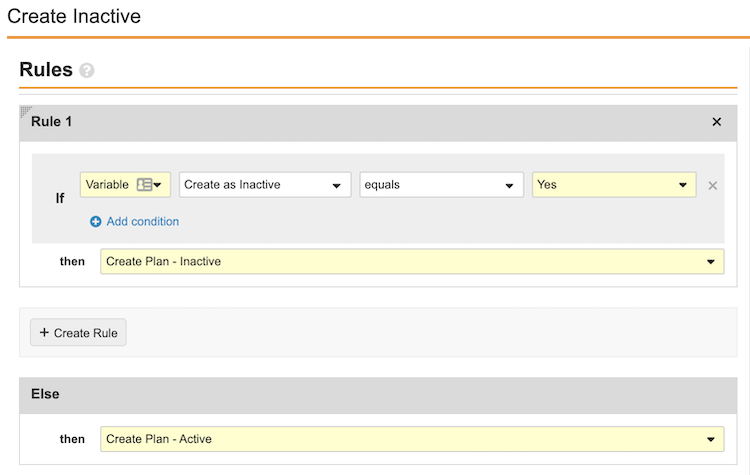
* Define a Yes/No variable called, for example, "Create as Inactive".
* Add the new "Create as Inactive" control to the workflow's Start step under **Start Options**.
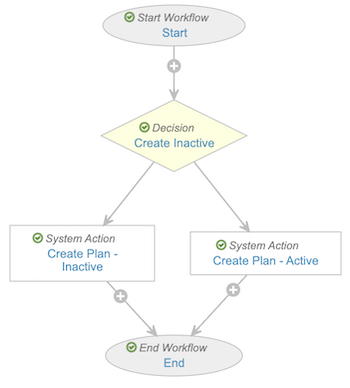
* Define a new System Action step for Vault to create the plan as inactive, for example, "Create Plan - Inactive". Select the _Create Content Plan and Content Plan Items_ System Action and the **Create Records as Inactive** checkbox.
* Optional: Relabel the existing _Create Content Plan and Content Plan Items_ System Action step to indicate the plan will be created as active, for example, "Create Plan - Active".
* Define a Decision Step between the Start step and System Action steps where Vault will create the plan as active ("Create Plan - Active") or inactive ("Create Plan - Inactive") based upon the newly-created variable. For example:
    * <a href="https://platform.veevavault.help/assets/images/create-inactive-decision-step.png" data-lightbox="CP Inactive" data-title="" data-alt="Decision Step configuration">
  <img class="docimage" src="https://platform.veevavault.help/assets/images/create-inactive-decision-step.png" alt="Decision Step configuration" style="max-width: 25%;width: 600px;"  />
</a>
    * <a href="https://platform.veevavault.help/assets/images/create-inactive-full-workflow.png" data-lightbox="CP Inactive" data-title="" data-alt="Decision Step configuration">
  <img class="docimage" src="https://platform.veevavault.help/assets/images/create-inactive-full-workflow.png" alt="Decision Step configuration" style="max-width: 25%;width: 600px;"  />
</a>

## Updating Content Plan Study Sections {#update-content-plan-study-sections}

The _Update Content Plan Study Section_ action is available for the _Submission Clinical Study_ and _Submission Nonclinical Study_ objects to move valid study sections related to a clinical or nonclinical study record within an eCTD content plan. The action moves the study section to the new location based on the updated _Clinical Study Type_ (and _Subtype_) or _Nonclinical Study Type_ (and _Subtype_) fields.

Users can perform the action for submission content plans only.

When configured, the action is available to users when:

  * The _Submission (Clinical or Nonclinical) Study_ record is _Active_, with both the (_Clinical_ or _Nonclinical_) _Study Type_ and (_Clinical_ or _Nonclinical_) _Study Subtype_ fields populated.
  * The _Submission_ record is _Active_, has an associated content plan populated in the _Content Plan_ field, and _Use for Content Planning_ is set to _True_.

### Configuring the Update Content Plan Study Section Action

To allow users to update content plan study report sections:

  1. Activate the _Update Content Plan Study Section_ action in the _Submission Clinical Study_ and _Submission Nonclinical Study_ objects.
  2. Within the _Content Plan_ object lifecycle, [add](/en/lr/56431/#associate-state-type) the _Cascade Activation_ state type, then [associate](/en/lr/30683/) it with the _Activate Section (Intermediate)_ state. This ensures any _Inactive_ ascendant records are updated to _Active_ when the target study section is moved.
  3. Also within the _Content Plan_ object lifecycle, ensure the _Inactive_ state includes a user action to change states to the _Activate Section (Intermediate)_ state. This state change action may be labeled _Change State to Draft_, according to the recommended configuration for [activating ascendant records](/en/lr/60549/#activate-ascendant-records).
  4. Review the permission set(s) assigned to the users who will be performing the action. For both the _Submission Clinical Study_ and _Submission Nonclinical Study_ objects, ensure the permission set includes _View_ and _Execute_ **Object Action Permissions** for the _Update Content Plan Study Section_ action.


[1]: #create-as-inactive
[2]: #updating-content-plan-study-sections