# Managing Submission Administrative Information (RIM)

You can view Submission Administrative Information from a single place in Vault to see the complete captured envelope of eCTD metadata information and context for a submission. With the Submission Administrative Information view, you can more quickly manage, review, and approve information, ensuring data accuracy and compliance for published submissions.

Submission Administrative Information also provides a formatted, readable view of the Regional XML for ICH eCTD 3.2 submissions and the Submission Unit XML for ICH eCTD 4.0 submissions. Instead of viewing raw XML, Vault displays submission data in a structured layout that is easier to read and navigate.


<div class="note-border alert-info">
  <div class="alert alert-info" role="alert">
    <div><i class="far fa-info-circle"></i></div>
    <div class="alert-text">
      <p><strong>Note</strong>: This feature is only available on RIM Submissions Publishing Vaults, and <a href="/en/lr/64184/">an Admin must configure it</a>.</p>
    </div>
  </div>
</div>


## Viewing Submission Administrative Information {#viewing-submission-administrative-information}

When you expand the **Submission Administrative Information** section on the _Submission Country_ record detail page, Vault displays the XML details specific to that country with a stylesheet applied. You can also view this section from the _Submission_ record detail page to see the XML details for all of the submission's supported countries.

If a Regional XML exists within the related Submissions Archive submission, you can see the XML with a stylesheet applied from the _Submission Country_ join record. If there is no _Submission Country_ join record, Vault uses the country selected on the _Application_ record.

### Viewing Submission Unit XML

When viewing an ICH eCTD 4.0submission, Vault will display envelope information from the XML as part of Submission Administrative Information.

To view the Submission Unit XML:  
1. Open the Submission record
2. Locate the Submission Administrative Information section  
3. Expand the section to view the formatted XML

You can also open the Submission Unit XML from the Submissions Archive Viewer by selecting the submissionunit.xml document. The XML displays in a structured, styled format instead of raw XML. You can open the Submission Unit XML in a separate window by clicking the View in Mini-browser icon.

With Submission Administrative Information you can:

* Review submission details in a structured format  
* View submission metadata without opening raw XML  
* Navigate to documents referenced in the submission  
* Download a formatted version of the XML

You can open Submission Administrative Information in several ways:

**From a Submission Record**

1. Open a submission  
2. Expand the Submission Administrative Information (SAI) section

**From the Submissions Archive Viewer**

1. Locate the submissionunit.xml document  
2. Click the document name

**Using the Mini-browser**

1. Click the View in Mini-browser icon next to the document  
   

You can download a PDF version of the formatted XML. The downloaded file matches what is displayed in Vault. 

## Navigating from Submission Administrative Information

The Submission Administrative Information view includes links to documents within the submission.

To open a document:

1. Locate the document in the Submission Content section

2. Click the document name

The document opens in the Mini-browser. If a specific location is defined, Vault opens directly to that location. If the Mini-browser is already open, it updates to the selected document.

## Submission Administrative Information Sections

Submission Administrative Information is organized into sections to help you review submission data efficiently.

* **Title**: Displays the application type, application identifier, and sequence number.  
* **Submission Unit Information**: Includes key submission details such as title, UUID, reception number, type and subtype, and status.  
* **Product Information** (if available): Displays product-related details such as product category and active substance.  
* **Application Information**: Includes applicant and application ID  
* **Submission Contacts** (if available): Displays contact information associated with the submission.  
* **Keyword Definitions**: Displays submission keywords in a table with keyword type, code, and display name  
* **Submission Content**: Lists documents included in the submission, including section (code), priority number, and document name and path.

### Supported Countries

Vault supports viewing Submission Administrative Information for the following countries:

  * **Australia**: [AU](/en/lr/60403/) 0.9, 3.0, 3.1, and 3.2 XSDs
  * **Canada**: [CA](/en/lr/57867/) 0.9, 1.0, and 2.2 XSDs
  * **China**: [CN](/en/lr/64696/) 1.0 XSD
  * **European Union**: [EU](/en/lr/52657/) 0.9, 0.92, 1.0, 1.1, 1.2.1, 1.3, 1.4, 2.0, 3.0, 3.0.1, and 3.1 DTDs
  * **Gulf Cooperation Council**: [GCC](/en/lr/61596/) 1.0 and 1.1 DTDs
  * **Japan**: [JP](/en/lr/66220/) 1.0 XSD and 1.6 eCTD 4.0
  * **Switzerland**: [CH](/en/lr/59852/) 1.0.1, 1.1, 1.2, 1.3, 1.4, and 1.5 DTDs
  * **Singapore**: [SG](/en/lr/857538/) 1.0
  * **South Africa**: [ZA](/en/lr/62438/) 3.1
  * **Taiwan**: [TW](/en/lr/876404/) 1.0 and 2.0 eCTD DTDs
  * **Thailand**: [TH](/en/lr/62424/) 0.92 and 1.0 XSDs
  * **Tunisia**: [TN](/en/lr/906863/) 1.1
  * **Ukraine**: [UA](/en/lr/55401/) 1.0 DTD
  * **United States**: [US](/en/lr/49070/) 2.01 and 3.3 DTDs

### About EU & GCC Submissions

For EU and GCC submissions, Vault only displays the applicable details for the selected country. For example, an EU XML contains sections for France, Germany, and Spain. If you open the _Submission Country_ record for France, Vault displays the XML information specific to France. From the _Submission_ record, you can see details for all available countries.

## Managing Submission Administrative Information

When managing Submission Administrative Information, you can see and work with the data in Vault in the same way as the data appears to the Health Authority.

To manage data, select **Update Submission Administrative Information** from the **Actions** menu of the _Submission_ or _Submission Country_ record. This option only appears when:

  * The _Dossier Status_ field on the related _Submission_ record is set to **Publishing Active** or **Publishing Inactive**
  * The _UUID_ field on the _XML Regional DTD/XSD Version_ record specifies a specific DTD/XSD version

### Supported Countries

Vault supports managing Submission Administrative Information for the following countries:

  * **Australia**: [AU](/en/lr/60403/) v3.1 eCTD XSD
  * **Canada**: [CA](/en/lr/57867/) v2.2 eCTD DTD
  * **China**: [CN](/en/lr/64696/) v1.0 eCTD XSD
  * **European Union**: [EU](/en/lr/52657/) 3.0.1 eCTD XSD
  * **Gulf Cooperation Council**: [GCC](/en/lr/61596/) v1.1 eCTD DTD
  * **Japan**: [JP](/en/lr/66220/) 1.0 eCTD XSD and 1.6 eCTD 4.0
  * **Jordan**: [JO](/en/lr/64698/) v1.1 eCTD DTD
  * **South Africa**: [ZA](/en/lr/62438/) v2.1 eCTD DTD
  * **Switzerland**: [CH](/en/lr/59852/) v1.5 eCTD DTD
  * **Thailand**: [TH](/en/lr/62424/) v1.0 eCTD XSD

### About the Submission Administrative Information Viewer

Vault compiles the Submission Administrative Information by pulling all values from defined object source fields and creating the XML. If a previous submission exists within the application, Vault pulls Submission Administrative Information field values from the active submission with the most recent _Actual Submission Date_ within that application for each country. If multiple submissions have the same _Actual Submission Date_, Vault pulls Submission Administrative Information values from the submission with the most recent _Modified Date_.

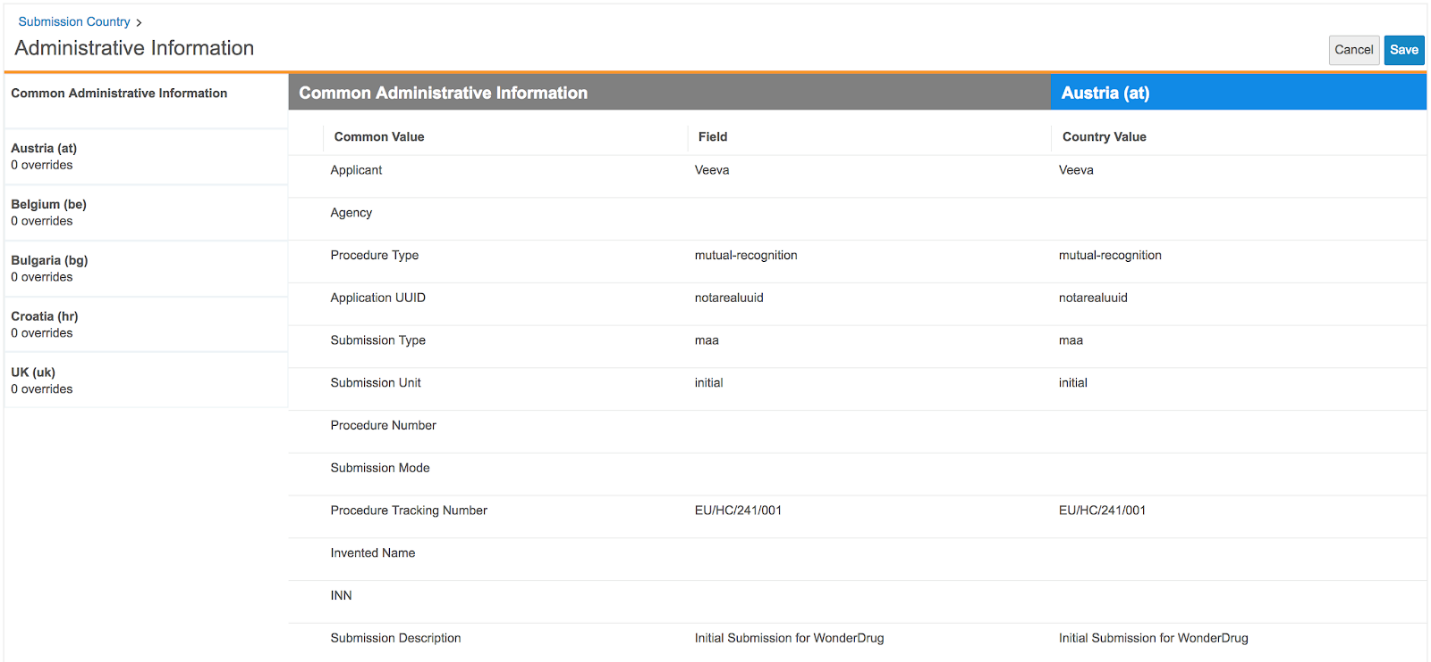
### Common Administrative Information

If more than one country is defined for the submission, Vault displays a **Common Administrative Information** page before any country-specific pages. The _Common Administrative Information_ field values apply to each country within the Submission Administrative Information.

For example, the _Submission Description_ field is defined on the _Submission_ record. Vault displays this value in the **Common Administrative Information** and for each related country. You can then overwrite this value for each country, if needed.

<a href="https://platform.veevavault.help/assets/images/Submission_Admin_Info_Management_18r34.png" data-lightbox="Submission_Admin_Info_Management_18r34.png" data-title="" data-alt="">
  <img class="docimage" src="https://platform.veevavault.help/assets/images/Submission_Admin_Info_Management_18r34.png" alt="" style=""  />
</a>

### Using Overrides {#using-overrides}

You can add overrides for certain fields when managing Submission Administrative Information. To add an override:

  1. Within the Submission Administrative Information viewer, navigate to the desired country-specific field.
  2. From the field's **Actions** menu, select **Add Override**.
  3. Vault creates an additional entry for that field. Click to inline edit and add a value.
  4. Once you've added all desired overrides, click **Save**.

To remove an override, select **Delete Override** from the **Actions** menu.

### Updating Source Fields

Vault automatically updates the Submission Administrative Information when a user updates a source field on a related object separately. If an override exists on that field for a specific country, Vault doesn't update the field in the Submission Administrative Information.

For example, Gladys is working on an EU submission. She opens the _Submission_ record, updates the value in the _XML Submission Description_ field, and saves her changes. When Gladys next manages the Submission Administrative Information, the updated field value appears in the **Common Submission Administrative Information**. When Gladys exits the view, Vault automatically updates the EU Regional XML based on the changes to the _XML Submission Description_ field.

### Saving Changes

When you save changes to the Submission Administrative Information, Vault automatically updates the published regional XML. [Continuous publishing](/en/lr/48608/#continuous_publishing) must be enabled for Vault to automatically save changes to the XML.

### Example: Fields Applying to a Specific Country

In certain circumstances, organizations need to provide additional administrative information for a specific country, several countries, or all countries in the submission. Vault provides the ability to manage Submission Administrative Information at either the country level or the submission level.

For example, if a _Procedure Tracking Number_ is specific to the submission, Gladys enters a value on the _Submission_ record, and Vault populates that value within the Submission Administrative Information. If a second _Procedure Tracking Number_ is required for a specific country, for example, France, Gladys can select the **France** section within the Submission Administrative Information viewer and add a new value. The entered value will only appear for France.

Likewise, if a value is applied for all countries except France, Gladys can add the value on the **Common Administrative Information** section and then browse to the section for France and exclude the value only for France.

## Related Permissions {#related-permissions}

To view and manage Submission Administrative Information, you'll need:

|Type|Permission Label|Controls|
|--- |--- |--- |
|Security Profile|Object: Submission: Read, Edit|Ability to view and manage _Submission Administrative Information_.|
|Security Profile|Object: Submission Country: Read, Edit|Ability to view and manage _Submission Administrative Information_.|
|Security Profile|Object: Submission Administrative Information: Read, Create, Delete| Read and Create access control the ability to use the viewer, as Vault creates a new _Submission Administrative Information_ record when a user selects this action for a given _Submission_. Delete access controls the ability to manage and save values.|
|Security Profile|Object: Submission: Object Action Permissions: Update Administrative Information: View, Execute|Ability to see and use the **Update Administrative Information** [object user action](/en/lr/43127/#ALS_profile_security) from a _Submission_ record Actions menu.|
|Security Profile|Object: Submission Country: Object Action Permissions: Update Administrative Information: View, Execute|Ability to see and use the **Update Administrative Information** [object user action](/en/lr/43127/#ALS_profile_security) from a _Submission Country_ record Actions menu.|
