# Setting Up the RIM Reference Model (RIM)

_RIM Reference Model_ and _RIM Reference Model Mapping_ are standard objects that reference and map to document types in your Vault, allowing your organization to create a standard document type hierarchy. This article will help you understand how to configure and work with the _RIM Reference Model_ and _RIM Reference Model Mapping_ objects to support standard Vault connections, the Active Dossier, and other future functionality.

<div class="note-border alert-info">
  <div class="alert alert-info" role="alert">
    <div><i class="far fa-info-circle"></i></div>
    <div class="alert-text">
      <p><strong>Note</strong>: This feature is only available on RIM Vaults</p>
    </div>
  </div>
</div>


## Reference Model Objects

The _RIM Reference Model_ object records make up the structure of the standard document type hierarchy. Unlike other objects, the object data records for _RIM Reference Model_ are completely provisioned and maintained by Veeva. You can only update the _Primary Document Type_ field on _RIM Reference Model_ records.

The _RIM Reference Model Mapping_ object records map each individual RIM document type in your Vault to a document type or reference model in other [connected Vaults][1], for example a Clinical Operations Vault. Some object data records for _RIM Reference Model Mapping_ are provisioned and maintained by Veeva. On Veeva-provisioned records, you can only edit the _Status_ and _RIM Document Type_ to set up mappings. These records have a unique _Vault RIM UUID_ field value populated. You can also create additional _RIM Reference Model Mapping_ records for document types or content types outside of the standard reference model, although you cannot set the _Vault RIM UUID_ field on these records.

Veeva will continue to add _RIM Reference Model_ and _RIM Reference Model Mapping_ records to all RIM Vaults. You cannot delete any Veeva-provisioned _RIM Reference Model_ or _RIM Reference Model Mapping_ records.

## Reference Model Fields

Several fields on the _RIM Reference Model_ and _RIM Reference Model Mapping_ objects support document type mapping:

### RIM Reference Model Fields

  * **Primary Document Type**: The main _Document Type_ represented by the RIM Reference Model.
  * **Version Introduced**: The Vault release in which the _RIM Reference Model_ record was introduced, for example, 21.2.

### RIM Reference Model Mapping Fields

  * **RIM Reference Model**: The parent _RIM Reference Model_ record.
  * **Mapping Type**: Whether this record maps a specific document type from the inbound Vault or a content type, for example, the <a class="external-link " href="https://clinical.veevavault.help/en/lr/30260" target="_blank" rel="noopener">TMF Reference Model<i class="fa fa-external-link" aria-hidden="true"></i></a> in a connected Clinical Operations Vault.
  * **Mapping Location**: The Vault application family or RIM-specific feature the mapping supports; for example, if the mapping supports the Clinical Operations and RIM Vault Connection, the _Mapping Location_ is _Clinical Operations_.
  * **RIM Document Type**: The _Document Type_ to map to in the RIM Vault.
  * **Mapping ID**: The _External ID_ of a _Document Type_ or mapping record in the connected Vault, for example, the _External ID_ of an _Artifact_ (`hierarchy__v`) record in a connected Clinical Operations Vault.
  * **Unique Mapping ID**: A Vault-populated combination of the _Mapping ID_ and _Mapping Location_. This field is system-managed.
  * **Version Introduced**: The Vault release in which the _RIM Reference Model Mapping_ record was introduced, for example, 21.2.

## Setting Up the Standard RIM Reference Model

To associate a document type to _RIM Reference Model_ and _RIM Reference Model Mapping_ records:

  1. Navigate to **Admin > Business Admin > RIM Reference Model** and open a record for specific document type.
  2. In the **Primary Document Type**, select the main document type to assign to this portion of the reference model.
  3. Click **Save**.
  4. In the _RIM Reference Model Mappings_ related object section, open a related _RIM Reference Model Mapping_ record.
  5. Click **Edit**.
  6. In the **RIM Document Type** field, select the document type for the mapping.
  7. Change the **Status** to **Active**.
  8. Click **Save**.
  9. Repeat these steps until all document types in your RIM Vault are mapped.

To allow your Vault to use the RIM Reference Model when managing the Active Dossier, update the _Document Type_ field on the _RIM Reference Model_ records. If your Vault uses a standard Vault connection, like the Clinical Operations and RIM Vault Connection, ensure all document types in the connected Vault are mapped in the _RIM Document Type_ field on the _RIM Reference Model Mapping_ records. See details about the [RIM Reference Model and Vault Connections][1] below.

### Using Vault Loader with the RIM Reference Model

You can use the following Vault Loader files as a starting point to set the _RIM Document Type_ on the _RIM Reference Model_ and _RIM Reference Model Mapping_ records:

* <a class="download-link " href="https://platform.veevavault.help/assets/downloads/RIM-Reference-Model-23R3.csv" target="_blank" rel="noopener">RIM Reference Model<i class="fa fa-download" aria-hidden="true"></i></a>
* <a class="download-link " href="https://platform.veevavault.help/assets/downloads/RIM-Reference-Model-Mapping-23R3.csv" target="_blank" rel="noopener">RIM Reference Model Mapping<i class="fa fa-download" aria-hidden="true"></i></a>

The document types included in these files are based on the latest document types delivered in new RIM Vaults. You must assess these against your organization's currently configured document types to ensure that your organization can address any discrepancies in document types before loading these files.

## Setting Up Custom Reference Model Mappings

You can set up custom _RIM Reference Model Mapping_ records in addition to the records provided by Veeva to extend your reference model. For example, you can create additional _RIM Reference Model Mapping_ records to map additional forms being transferred via the RIM to Clinical Operations Vault Connection under a single _RIM Reference Model Form_ record.

You can also use the reference model to map multiple document types to the same _Active Dossier Template_ record. See [About Multiple Document Types][3] for details.

To create custom _RIM Reference Model Mapping_ records:

  1. Navigate to **Admin > Business Admin > RIM Reference Model Mapping** and click **Create**.
  2. Enter a **Name**.
  3. In the **RIM Reference Model** field, select the associated parent _RIM Reference Model_ record.
  4. Select the **Mapping Type**, **Mapping Location**, and **RIM Document Type**. This should only be populated for mappings used in Vault connections and should be left blank for Active Dossier.
  5. Enter the **Mapping ID**. Vault automatically populates the _Unique Mapping ID_ by combining the _Mapping ID_ and _Mapping Location_. This should only be populated for mappings used in Vault connections and should be left blank for Active Dossier.
  6. Ensure the **Status** is set to **Active**.
  7. Click **Save**.

Your Vault can only have one (1) _RIM Reference Model Mapping_ record for each unique combination of _Mapping Location_ and _RIM Document Type_. This prevents Vault from mapping an external document or content type from a connected Vault to multiple document types in your RIM Vault.

## How Active Dossier Uses the RIM Reference Model {#how-active-dossier-uses-the-rim-reference-model}

<div class="note-border alert-info">
  <div class="alert alert-info" role="alert">
    <div><i class="far fa-info-circle"></i></div>
    <div class="alert-text">
      <p><strong>Note</strong>: Veeva recommends the below method for determining your Active Dossier structure. As a best practice, you should only populate the <em>Document Type</em> field on an <em>Active Dossier Template</em> record when the document type does not have a counterpart in the RIM Reference Model.</p>
    </div>
  </div>
</div>


Vault determines candidate documents and generates their corresponding Active Dossier records based on the candidate document’s Document Type and Document Type mappings. Document Type mappings are created using _Active Dossier Templates_, as well as any related _RIM Reference Model_ and _RIM Reference Model Mapping_ records.

The results depend on the _Active Dossier Template_ record, outlined in the table below. When the _RIM Reference Model_ field is populated, Vault also considers whether multiple document types are mapped. See [About Multiple Document Types][3] and [Working with Active Dossier Templates](/en/lr/71560/#working-with-active-dossier-templates) for more information.

| Document Type Field on Active Dossier Template | RIM Reference Model Field | Result |
|---|---|---|
| Blank | Populated | Vault creates Active Dossier records based on the following related objects and fields:<br>**RIM Reference Model record**: _Primary Document Type_ field<br>**RIM Reference Model Mapping record**: _RIM Document Type_ field |
| Populated | Blank or populated | Vault creates Active Dossier records based on the Active Dossier Template record’s Document Type field. |
| Blank | Blank | Vault will not create Active Dossier records for this Active Dossier Template. |

### About Multiple Document Types {#about-multiple-document-types}

Active Dossier creation logic includes the ability to track Active Dossier elements at your organization’s preferred level of document classification.

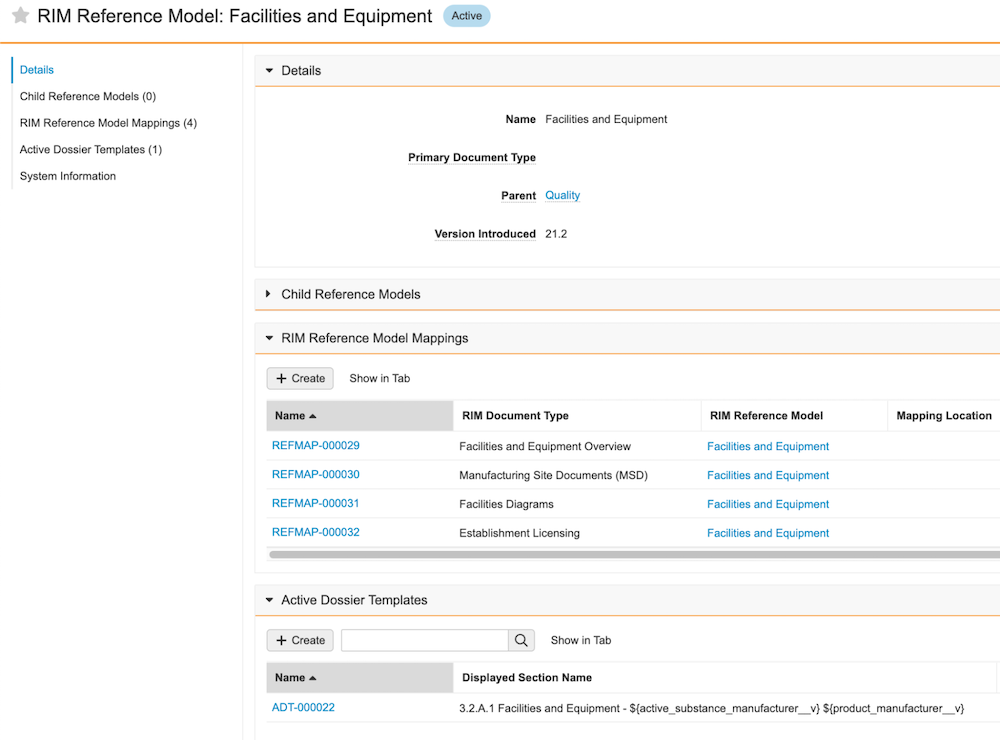
For example, the below Facilities and Equipment _RIM Reference Model_ record includes four _RIM Reference Model Mappings_. This allows for Facilities and Equipment _Active Dossier Template_ record mapping for documents written at the 3.2.A.1 level, or to multiple documents written at the 3.2.A.1.X level.

<a href="https://platform.veevavault.help/assets/images/ad-config-multiple-document-type-mapping-23R3.png" data-lightbox="active dossier" data-title="" data-alt="RIM Reference Model record configured to map to multiple documents">
  <img class="docimage" src="https://platform.veevavault.help/assets/images/ad-config-multiple-document-type-mapping-23R3.png" alt="RIM Reference Model record configured to map to multiple documents" style="max-width: 100%;width: 600px;"  />
</a>

## How Vault Connections Use the RIM Reference Model {#vault-connections}

Standardized Vault connections, for example, the [RIM-Clinical Operations Vault Connection](/en/lr/60444/), use _Document Type_ reference lookups to map source document types to target document types when creating CrossLink documents. If the connection doesn't include _Document Type_ reference lookups, Vault can use the RIM Reference Model instead. The connection configuration defines which documents are transferred, but the RIM Reference Model can help determine the document type assigned to the CrossLink document created in your RIM Vault.

When a relevant _Document Type_ reference lookup doesn't exist, Vault retrieves the _External ID_ of the document type or content type in the connected Vault and compares it to active _RIM Reference Model Mapping_ records using the following fields:

  * _Mapping Type_
  * _Mapping ID_
  * _Mapping Location_
  * _RIM Document Type_

When a match exists, Vault creates the CrossLink document and classifies it under the document type in the _RIM Document Type_ field on the _RIM Reference Model Mapping_ record.
  * If matching _RIM Reference Model Mapping_ records exist for both _Document Type_ and _Content Type_ mapping, Vault classifies the document under the _RIM Document Type_ on the record with _Content Type_ mapping.
  * If multiple valid records exist with _Content Type_ mapping, Vault references the _RIM Reference Model Mapping_ record that was created most recently.

If a matching _RIM Reference Model Mapping_ record and _Document Type_ reference lookup doesn't exist, or if there are multiple valid _RIM Reference Model Mapping_ records created at the same time, Vault creates a _User Exception Item_ record to capture the failure.

<div class="note-border alert-info">
  <div class="alert alert-info" role="alert">
    <div><i class="far fa-info-circle"></i></div>
    <div class="alert-text">
      <p><strong>Note</strong>: If your Vault has two document types with matching labels for <em>Type</em>, <em>Subtype</em>, and <em>Classification</em> that are assigned to different document lifecycles, Vault may not assign the correct lifecycle to CrossLink documents created via a Vault connection.</p>
    </div>
  </div>
</div>


 [1]: #vault-connections
 [2]: #how-active-dossier-uses-the-rim-reference-model
 [3]: #about-multiple-document-types
