
Note: This feature is available in RIM Registrations Vaults only and must be configured by a Vault Admin.
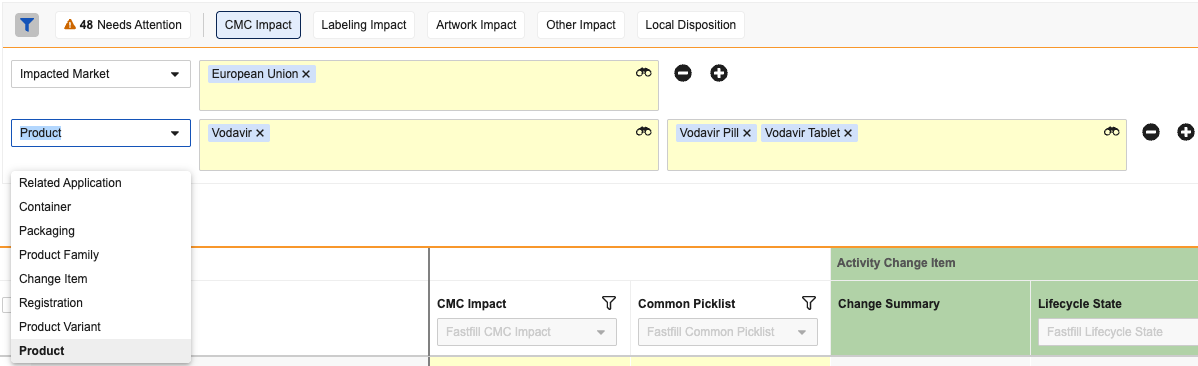
Below are additional *Activity Change Item*-specific filter rows, defaulted by **Impacted Market**. Add up to ten filter rows using the drop-down options. Toggling the filter icon hides or displays any filter rows you've applied. During assessment, this can be useful for maximizing the amount of in-view records within the grid while still maintaining your applied filters.
 ### Working with Groupings & Columns
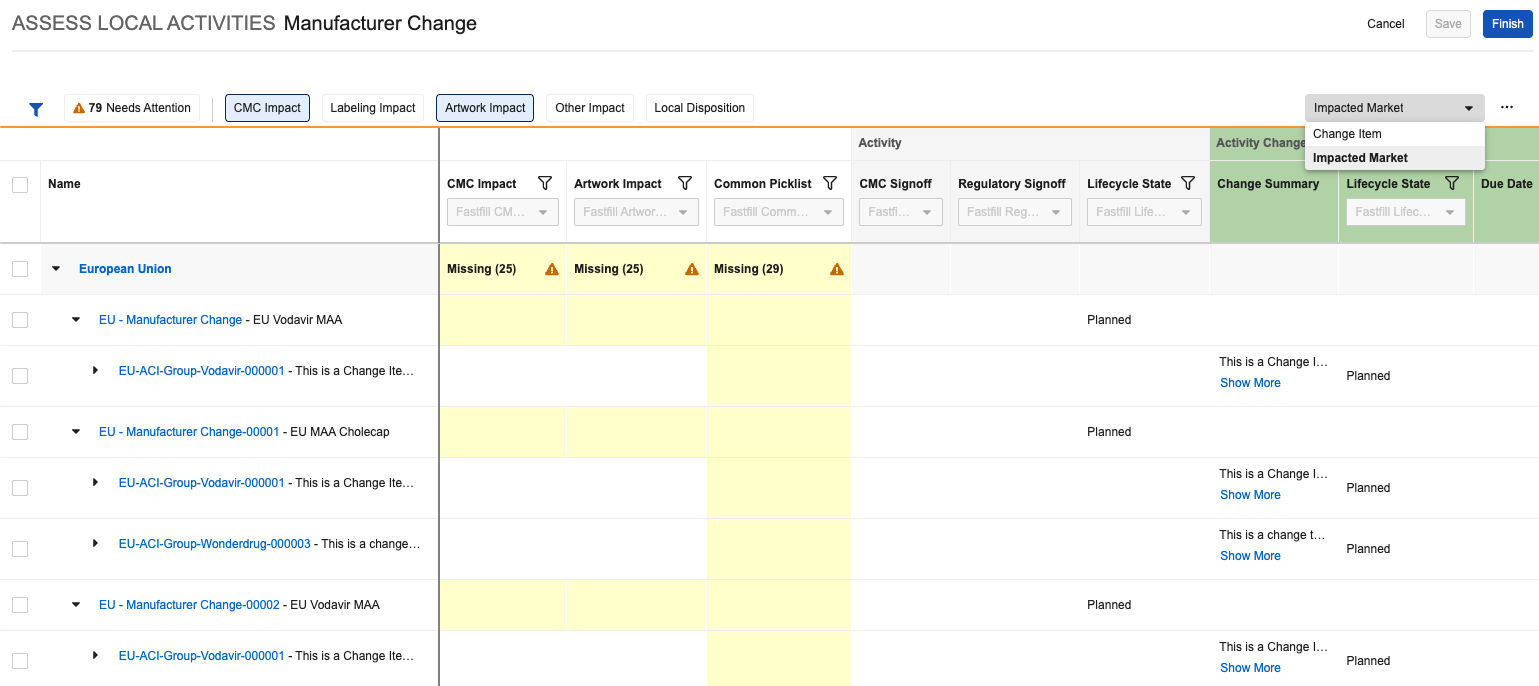
The Assess Local Activities viewer includes a right-hand grouping selector to ensure record fields (columns) are appropriately grouped for your purposes. Grouping options are generally controlled by a related [setting](/en/lr/9299271/#app-settings), and the **Change Item** option is used only in Vaults with [change item grouping](/en/lr/53688/#grouping-of-change-items) enabled.
Within a grouping, the viewer dynamically displays three collections of columns based on filters and other factors:
* Common fields between the *Activity* and *Activity Change Item* objects appear to the immediate right of the record hierarchy in the **Name** column.
* Toggling an impact-specific filter chip (for example, **CMC Impact** and **Artwork Impact** as shown here) adds or removes the corresponding column within this area.
* Common fields can include matching custom fields. As shown here, this Vault's *Activity* and *Activity Change Item* objects both include a **Common Picklist** (`common_picklist__c`) field. Common matching custom fields persist across all views and cannot be removed.
* The center **Activity** columns are any *Activity* fields which are not common. Vault only displays these columns within the **Impacted Market** grouping.
* The right-hand **Activity Change Item** column grouping contains any *Activity Change Item* fields which are not common.
### Working with Groupings & Columns
The Assess Local Activities viewer includes a right-hand grouping selector to ensure record fields (columns) are appropriately grouped for your purposes. Grouping options are generally controlled by a related [setting](/en/lr/9299271/#app-settings), and the **Change Item** option is used only in Vaults with [change item grouping](/en/lr/53688/#grouping-of-change-items) enabled.
Within a grouping, the viewer dynamically displays three collections of columns based on filters and other factors:
* Common fields between the *Activity* and *Activity Change Item* objects appear to the immediate right of the record hierarchy in the **Name** column.
* Toggling an impact-specific filter chip (for example, **CMC Impact** and **Artwork Impact** as shown here) adds or removes the corresponding column within this area.
* Common fields can include matching custom fields. As shown here, this Vault's *Activity* and *Activity Change Item* objects both include a **Common Picklist** (`common_picklist__c`) field. Common matching custom fields persist across all views and cannot be removed.
* The center **Activity** columns are any *Activity* fields which are not common. Vault only displays these columns within the **Impacted Market** grouping.
* The right-hand **Activity Change Item** column grouping contains any *Activity Change Item* fields which are not common.
 When you have access to multiple views, you can switch between them while maintaining your selected filters. However, consider the following when working across views:
* The viewer maintains column selections from view to view. For example, when you select the **Artwork Impact** filter chip in the **Impacted Market** view, this column remains within the common column area when switching to the **Change Item** view. This behavior similarly applies when you make any other column adjustment, such as adding the *Activity Change Item*'s **Due Date** column.
* The viewer does not maintain column size across views. When you resize a column in one view, the viewer reverts to the default size upon switching views.
### Editing, Saving & Finishing the Assessment
The Assess Local Activities viewer facilitates updating individual field values in the grid using [inline editing](/en/lr/31019/), or in bulk via fastfill.
To use fastfill to apply the same value to multiple records:
1. Select records using the checkboxes in the left-hand hierarchy.
2. Locate the column you'd like to update.
3. From the column's fastfill dropdown, select the applicable value(s) to apply to all selected records.
When you have access to multiple views, you can switch between them while maintaining your selected filters. However, consider the following when working across views:
* The viewer maintains column selections from view to view. For example, when you select the **Artwork Impact** filter chip in the **Impacted Market** view, this column remains within the common column area when switching to the **Change Item** view. This behavior similarly applies when you make any other column adjustment, such as adding the *Activity Change Item*'s **Due Date** column.
* The viewer does not maintain column size across views. When you resize a column in one view, the viewer reverts to the default size upon switching views.
### Editing, Saving & Finishing the Assessment
The Assess Local Activities viewer facilitates updating individual field values in the grid using [inline editing](/en/lr/31019/), or in bulk via fastfill.
To use fastfill to apply the same value to multiple records:
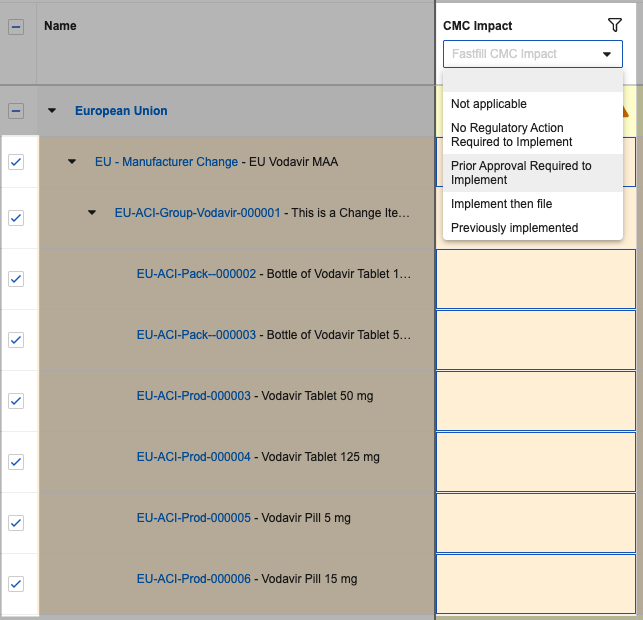
1. Select records using the checkboxes in the left-hand hierarchy.
2. Locate the column you'd like to update.
3. From the column's fastfill dropdown, select the applicable value(s) to apply to all selected records.
 Each time you edit a value and click **Save**, Vault immediately applies the update. To do this, Vault uses an SDK job to capture each individual **Save** action, then allows you to save more changes once the job completes.
From here, you can continue editing in the viewer, or click the **Finish** button to save any remaining changes and exit the viewer. When you **Finish**, Vault initiates the job again to apply any unsaved changes. Once complete, you'll receive a Vault email and notification with a results file detailing all updates.
In the event a previously-saved update fails, Vault reverts the update and details it within the results file.
## About Simultaneous Assessment {#simultaneous-assessment}
Vault allows multiple users to run the *Assess Local Activities* action simultaneously. In most cases, records under assessment will only have one responsible person, and users will not experience any unexpected behavior.
However, it is possible that different users may end up simultaneously assessing records. These overlapping records can appear in a user's filtered results when, for example:
* Different users are responsible for assessing different areas for the same *Activity Change Items*, for example both CMC and labeling.
* Different users are responsible for different products that each have different *Activity Change Items* under the same *Activity*, in which case that *Activity* appears in the filtered results for both users.
In the event of simultaneous assessment, Vault applies the updates of the user who first clicks **Save**, or is the first to save and exit the viewer via the **Finish** button. Then, any other users who are currently working with the same *Event* absorb these latest updates when reapplying filters or saving their own updates.
## Limitations
* It is possible for multiple users to run the *Assess Local Activities* action simultaneously, which can result in unexpected behavior. See [additional details][1] about simultaneous assessment.
* The Assess Local Activities viewer displays up to 2,000 rows in the grid, and up to 20 **Local Activity** columns. Similarly, users can fastfill up to 2,000 rows at a time.
## Related Permissions
See [Configuring Local Activity Assessment](/en/lr/9299271/#permissions) for the permissions required to use this feature.
[1]: #simultaneous-assessment
Each time you edit a value and click **Save**, Vault immediately applies the update. To do this, Vault uses an SDK job to capture each individual **Save** action, then allows you to save more changes once the job completes.
From here, you can continue editing in the viewer, or click the **Finish** button to save any remaining changes and exit the viewer. When you **Finish**, Vault initiates the job again to apply any unsaved changes. Once complete, you'll receive a Vault email and notification with a results file detailing all updates.
In the event a previously-saved update fails, Vault reverts the update and details it within the results file.
## About Simultaneous Assessment {#simultaneous-assessment}
Vault allows multiple users to run the *Assess Local Activities* action simultaneously. In most cases, records under assessment will only have one responsible person, and users will not experience any unexpected behavior.
However, it is possible that different users may end up simultaneously assessing records. These overlapping records can appear in a user's filtered results when, for example:
* Different users are responsible for assessing different areas for the same *Activity Change Items*, for example both CMC and labeling.
* Different users are responsible for different products that each have different *Activity Change Items* under the same *Activity*, in which case that *Activity* appears in the filtered results for both users.
In the event of simultaneous assessment, Vault applies the updates of the user who first clicks **Save**, or is the first to save and exit the viewer via the **Finish** button. Then, any other users who are currently working with the same *Event* absorb these latest updates when reapplying filters or saving their own updates.
## Limitations
* It is possible for multiple users to run the *Assess Local Activities* action simultaneously, which can result in unexpected behavior. See [additional details][1] about simultaneous assessment.
* The Assess Local Activities viewer displays up to 2,000 rows in the grid, and up to 20 **Local Activity** columns. Similarly, users can fastfill up to 2,000 rows at a time.
## Related Permissions
See [Configuring Local Activity Assessment](/en/lr/9299271/#permissions) for the permissions required to use this feature.
[1]: #simultaneous-assessment