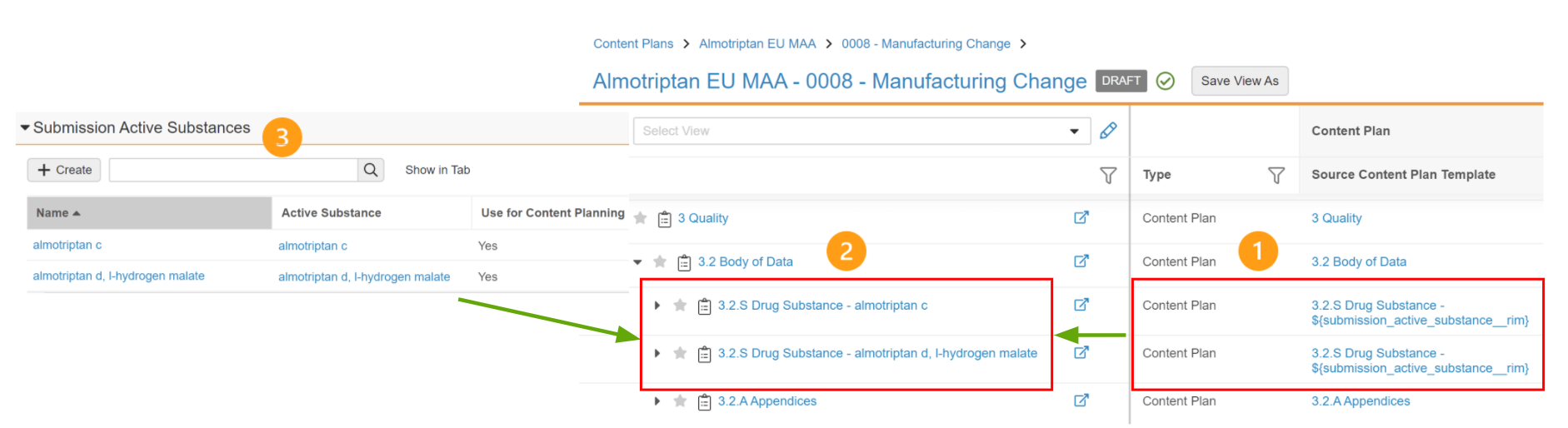
Note: This feature is only available on RIM Submissions Vaults.
This functionality is available for the _Submission_ object and specific objects with a join relationship to the _Submission_ object. Join object records connect a specific _Submission_ record to other records in your Vault to define the scope of the submission. For example, _Submission Country_ is the join object between _Submission_ and _Country_.
See also [Limitations][6] and [Supported Tokens][7] for token-specific behaviors.
### Finding and Setting Tokens
Before beginning template creation, you'll need to collect the _Object Name_ and other field name values for any objects related to the _Submission_ object. These values can become tokens within your template.
To find these values, navigate to **Admin** > **Configuration** > **Objects** and locate and open the related object. The **Details** tab displays the **Object Name**, and **Field Names** are found in the corresponding column within the **Fields** tab. For example, the name for _Submission Clinical Studies_ is `submission_clinical_studies__rim`, and the name of one of its object fields, _Clinical Study_, is `clinical_study__rim`.
#### Setting Tokens
Tokens for content plans follow the same general format as system-managed object record names:
When resolving a token referencing an object field, Vault displays the value from the field defined after the object in which it appears. Otherwise, Vault resolves the object _Name._
For example:
* To populate with the _Submission Clinical Study_ field _XML Clinical Study ID_, use the token `${submission_clinical_study__rim.xml_clinical_study_id__v}`
* To populate with the _Submission Language_, use the token `${submission_language__rim}`
When creating _Content Plan Template_ and _Content Plan Item Template_ records, you can add tokens to the below fields.
* _Name_
* _Title_ (`xml_title__v`)
* _Filename_ (for _Content Plan Item Templates_ only)
* _Folder Path_ (for _Content Plan Templates_ only)
* _XML Element Name_ (for _Content Plan Templates_ only)
Token values within the _Title_, _Filename_, _Folder Path_, and _XML Element Name_ fields resolve in the content plan, but will not create repeating sections. Additionally, the _Folder Path_ and _Filename_ fields combine to set the _Published Output Location_ on a created _Content Plan Item_ record.
### Supported Tokens {#token_support}
Vault supports tokens for _Submissions_, _Content Plans_, _Report Level Content Plans_, and matched documents.
#### Submission
Vault supports tokens for object reference and text fields on the _Submission_ object.
Long Text, Rich Text, and Formula fields, and fields referencing the _User_ object are not supported.
#### Submission Content Plan
Vault supports tokens for object reference and [text fields][8] on the below submission join objects. Long Text, Rich Text, and Formula fields, and fields referencing the _User_ object are not supported.
* `${related_submission__rim}`
* `${submission_pharmaceutical_product__rim}`
* `${submission_active_substance__rim}`
* `${submission_inactive_ingredient__rim}`
* `${submission_indication__rim}`
* `${submission_clinical_study__rim}`
* `${submission_nonclinical_study__rim}`
* `${submission_country__rim}`
* `${submission_language__rim}`
* `${submission_pharmaceutical_form__v}`
* `${submission__v.xml_submission_id__v}`
* `${submission_pharmaceutical_form__v}`
Additional token resolution behavior in Submission Content Plans includes:
* When a token is used in a record where the field is blank, the token text is not resolved. Unresolved tokens are resolved when you add a value to the field and run the _Update Content Plan_ action.
* When a tokenized field value is updated, the _Update Content Plan_ action updates the token text and refreshes the value from the template.
* When Vault detects differences in non-token text (leading up to a token) between corresponding _Content Plan Item_ and _Content Plan Item Template_ records, the text and the token are not refreshed.
#### Report Level Content Plan
Vault supports the below tokens for Report Level Content Plans. The report level plan join record _Name_ is used to resolve the token value.
* `${report_level_plan_clinical_study__v}`
* `${report_level_plan_nonclinical_study__v}`
* `${report_level_plan_product_family__v}`
#### Matched Document
Vault supports tokens for object reference and text fields on matched documents. For example, you can set the `${matched_document.clinical_site__v}` token in the filename to organize _Case Report Forms_ in the appropriate site folders for the _Published Output Location_.
Long Text, Rich Text, Autonumber, and Formula fields are not supported. When using tokens in object fields, if the referenced object field is multi-select and has multiple associated records, only the first value is resolved in the token.
Examples of commonly-used tokens include `${matched_document.name__v}` and `${matched_document.title__v}`.
When used, Vault resolves the token with the value from the field defined after `matched_document`. For example, if using the `${matched_document.ectd_title__v}` token, the `ectd_title__v` field value is resolved in the token.
Vault only resolves matched document tokens when the document count equals the expected document count. If the expected document count is one (1), the token resolves when there is a single document matched to the _Content Plan Item._
### About the _Output Name_ Field {#about-the-output-name-field}
You can leverage the _Output Name_ text field to define a unique value to tokenize in the content plan that is not represented by an existing field, such as a shortened name.
For example, a clinical study section references the _Submission Indication_, defined as "Multiple Sclerosis" through the `${submission_indication__rim}` token. However, this indication must be expressed in a different format within the _Published Output Location_. The alternate indication name ("multiplesclerosis") can be defined in the _Output Name_ field.
### About Clinical and Nonclinical Study Tokens
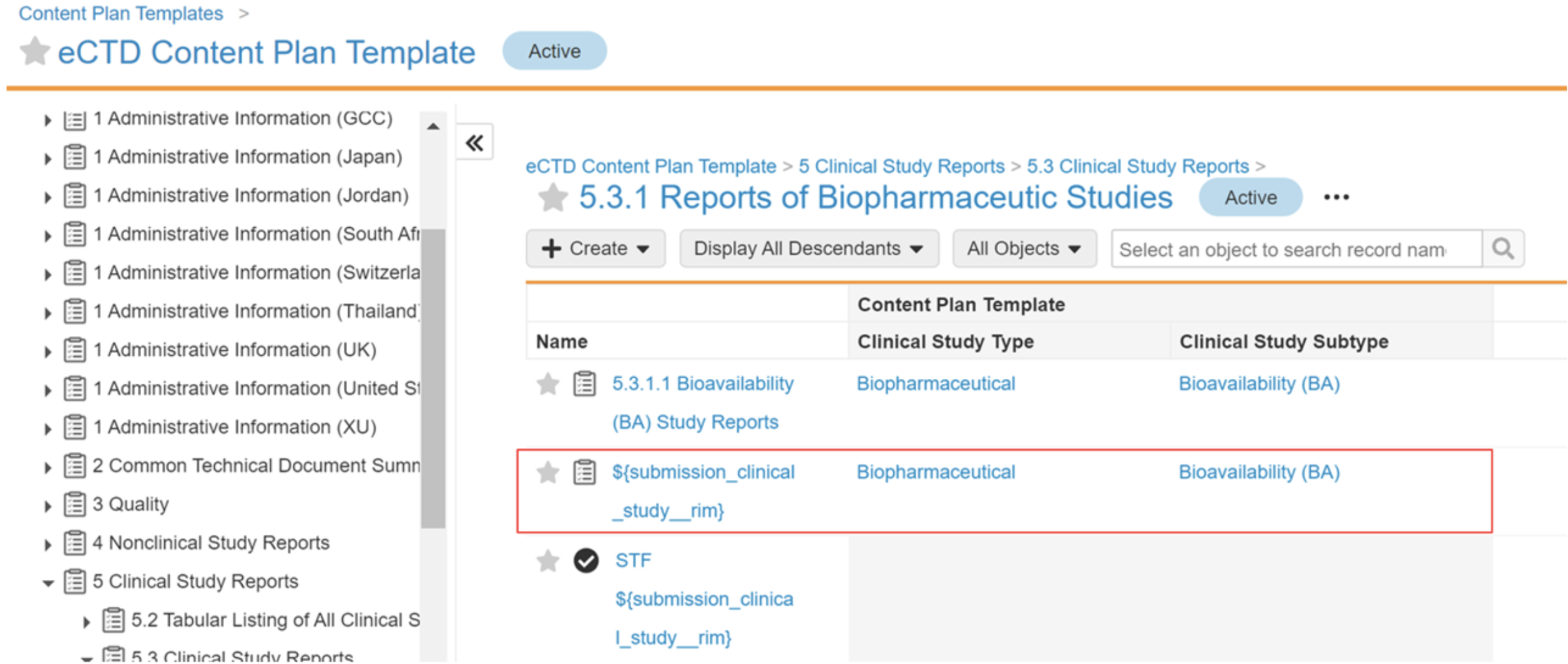
Vault creates repeating sections for clinical and nonclinical studies only when the _Study Type_ and _Study Subtype_ defined in the _Submission Clinical Study_ or _Submission Nonclinical Study_ record record match the _Study Type_ and _Study Subtype_ defined on the template record containing the clinical study or nonclinical study token.
For example, a content plan template defines the ${submission_clinical_study__rim} token in Section 5.3.1.1 with a _Clinical Study Type_ and _Clinical Study Subtype_ of **Biopharmaceutical** and **Bioavailability (BA)**:
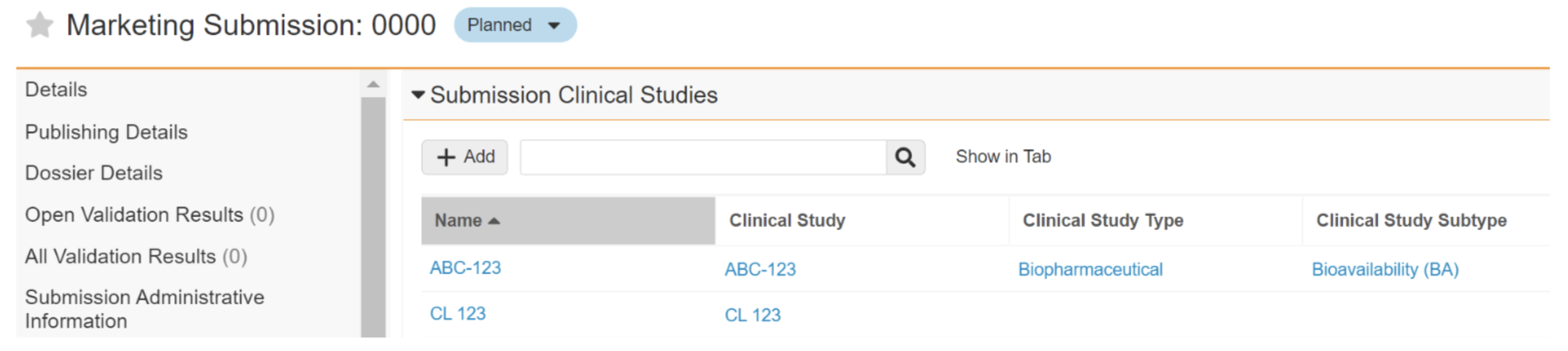
 A _Marketing Submission_ (**0000**) has two related clinical studies, **ABC-123** and **CL 123**, where ABC-123's _Clinical Study Type_ and _Subtype_ are defined and match the template, and CL 123's _Clinical Study Type_ and _Subtype_ are not yet populated.
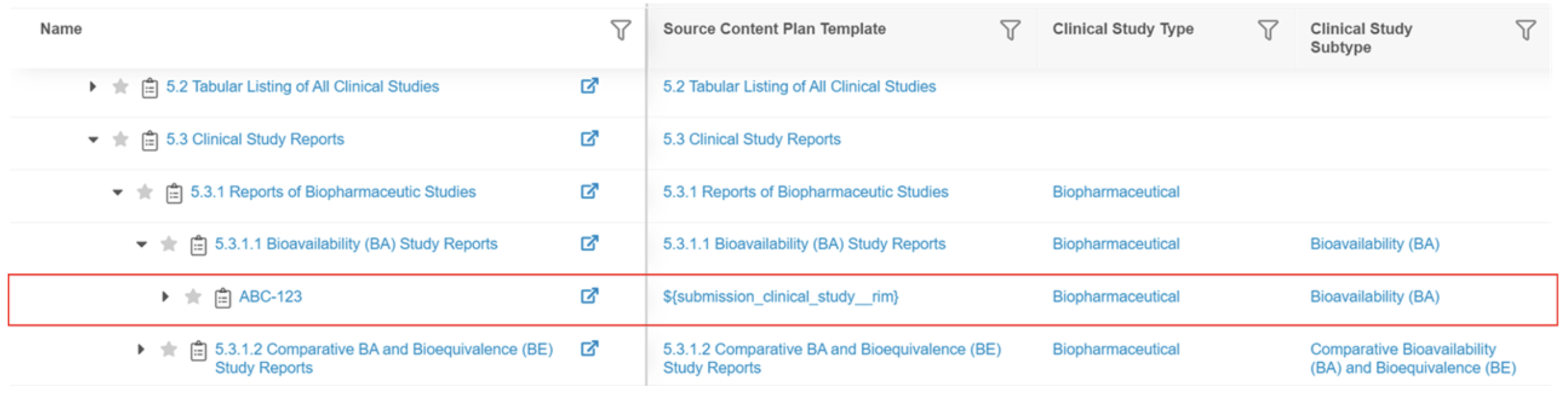
 In the resulting content plan, Section 5.3.1.1 includes a subsection with a **Biopharmaceutical** _Type_ and **Bioavailability (BA)** _Subtype_, which match the respective values defined for **ABC-123**. A section for **CL 123** will not be created until the type and subtype are defined on the _Submission Clinical Study_ record. If there is a template record with a blank type and subtype and the clinical study token in the _Name_, a section would be created for both ABC-123 and CL 123.
 ### Limitations {#limitations}
* It is recommended you use a _Submission_ join object token for only one join object at a time, as only one such token can be resolved for a Content Plan record at one time. For example, if a _Content Plan Template_ record _Name_ is defined as `${submission_clinical_study__rim} - ${submission_nonclinical_study__rim}`, only the `${submission_clinical_study__rim}` token is resolved.
* Token sections can be nested. For example, a _Content Plan Template_ section using `${submission_language__rim}` can be nested under a section using `${submission_country__rim}`, which creates a section for each _Submission Language_ under the appropriate _Submission Country_ section.
* When multiple tokens from one or more different objects are used in a _Content Plan Item_ or _Content Plan Item Template_, Vault attempts to populate all tokens if the Submission join reference is populated on the _Content Plan Item_. If the join reference is blank, the token is not resolved.
### Additional Configuration for Tokens
To use a token in a content plan template, you must ensure that the corresponding _Submission_ join fields and matching fields are added on the _Content Plan_ object types. For example, if you add the `${submission_pharmaceutical_form__v}` token to a Regional (Module 1) _Content Plan Template_ record, ensure that the _Submission Pharmaceutical Form_ and Pharmaceutical Form fields are added to the Regional (Module 1) _Content Plan_ object type. Otherwise, errors will occur during content plan creation.
[3]: #token_support
[5]: #using-tokens
[6]: #limitations
[7]: #token_support
[8]: #about-the-output-name-field
[9]: #about-xml-version-specific-content-plan-templates
### Limitations {#limitations}
* It is recommended you use a _Submission_ join object token for only one join object at a time, as only one such token can be resolved for a Content Plan record at one time. For example, if a _Content Plan Template_ record _Name_ is defined as `${submission_clinical_study__rim} - ${submission_nonclinical_study__rim}`, only the `${submission_clinical_study__rim}` token is resolved.
* Token sections can be nested. For example, a _Content Plan Template_ section using `${submission_language__rim}` can be nested under a section using `${submission_country__rim}`, which creates a section for each _Submission Language_ under the appropriate _Submission Country_ section.
* When multiple tokens from one or more different objects are used in a _Content Plan Item_ or _Content Plan Item Template_, Vault attempts to populate all tokens if the Submission join reference is populated on the _Content Plan Item_. If the join reference is blank, the token is not resolved.
### Additional Configuration for Tokens
To use a token in a content plan template, you must ensure that the corresponding _Submission_ join fields and matching fields are added on the _Content Plan_ object types. For example, if you add the `${submission_pharmaceutical_form__v}` token to a Regional (Module 1) _Content Plan Template_ record, ensure that the _Submission Pharmaceutical Form_ and Pharmaceutical Form fields are added to the Regional (Module 1) _Content Plan_ object type. Otherwise, errors will occur during content plan creation.
[3]: #token_support
[5]: #using-tokens
[6]: #limitations
[7]: #token_support
[8]: #about-the-output-name-field
[9]: #about-xml-version-specific-content-plan-templates