# Application Chronology Reports (RIM)
Application Chronology reports connect submissions, regulatory objectives, commitments, and correspondence documents to an application, all ordered by a date. You can use this report to see everything that has occurred for an application organized in chronological order.
An Admin must configure this report in order for you to use it. See Configuring the Application Chronology Multi-Pass Report for details.
Note: This feature is only available on RIM Vaults.
## About Application Chronology Reports
Running the Application Chronology report returns a list of _Submission_ and _Regulatory Objective_ records related to the _Application_ record from which you triggered the action. It also returns all _Commitment_ records associated with the application, and all documents with the _Correspondence_ document type that are related to the application. Depending on your Admin's configuration, Vault orders the results chronologically from newest to oldest, based on _Submission Date_, _Correspondence Date_, and then _Commitment Due Date_.
## Running the Report
To generate the report, navigate to an _Application_ record and choose **Application Chronology** from the **Actions** menu. This action may have a different label in your Vault, and it may only be available on _Application_ records in certain lifecycle states.
## Example Application Chronology Report Results
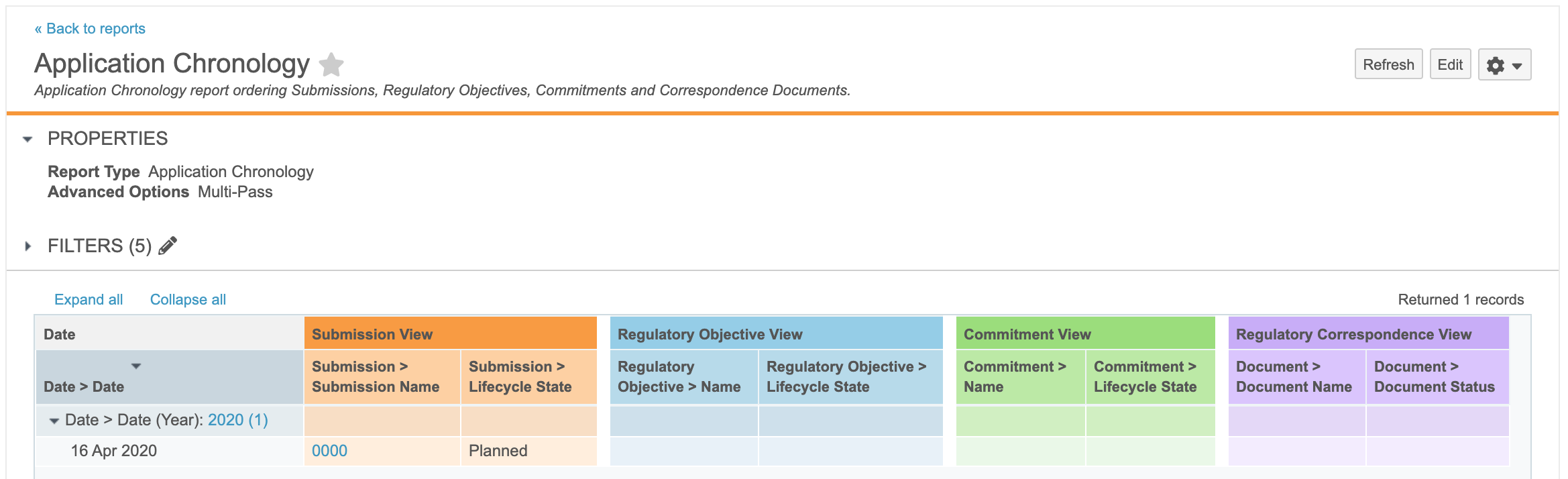
The **Application Chronology** action generates a report in a new tab, similar to this:
From this page, you can add or update filters. You can also export, share, or copy the report.