# Dispatching & Synchronizing Content Plans

Users managing global content plans at an organization's headquarters can leverage Vault's content plan synchronization capability to incrementally dispatch _Global Content Plans_ as sections are finalized. This functionality allows local affiliates to review and accept or reject the changes Vault will make to the market-specific _Submission Content Plan_ as a result of the dispatch.

This method supplements Vault's existing content plan dispatching capability: While users can still dispatch a source _Global Content Plan_ in its entirety from an _Event_, incremental dispatching reduces overall effort in synchronizing the source content plan with the target _Submission Content Plan_ as headquarters users update the source with new records and documents over time. Additionally, incremental dispatching allows affiliates to begin working on their portion of the Content Plan sooner than if the plan is dispatched in its entirety.

To support the review and synchronization, Vault generates a snapshot of the differences between what's been dispatched from the source global plan and the target submission plans, then makes them available for review in a comparison viewer. Affiliates can use the viewer to accept or reject the proposed updates, then Vault automatically applies the accepted changes to the target _Submission Content Plan_. Users can also use the comparison viewer to review, accept, and reject proposed document additions or updates when dispatching global content plans to target submissions that use different content plan templates.


<div class="note-border alert-info">
  <div class="alert alert-info" role="alert">
    <div><i class="far fa-info-circle"></i></div>
    <div class="alert-text">
      <p><strong>Note</strong>: This feature is available in Vaults licensed with both RIM Submissions and RIM Registrations with configuration by an Admin. This article assumes that your Vault follows the recommendations in <a href="/en/gr/77855/">Configuring Content Plan Synchronization</a> and <a href="/en/gr/77854/">Configuring Global Content Plans (RIM)</a>.</p>
    </div>
  </div>
</div>


## Dispatching a Global Content Plan

Vault provides two initiation points for dispatching _Global Content Plans_ to up to 250 market-specific _Submission Content Plans_:
  * From an _Event_ record
  * From a _Content Plan_ (primarily within the Content Plan Viewer)

The available options depend on your Vault's configuration. See [How Vault Dispatches Content Plans][1] for details on how Vault dispatches when you initiate from an _Event_ or _Content Plan_.

### How to Dispatch from an Event or Content Plan

After <a href="/en/gr/77852/#creating-global-content-plans-from-an-event">creating</a> a global content plan:

  1. Navigate to an **Event** record in the _Draft_ lifecycle state.
      1. To dispatch from the _Event_, select **Dispatch Global Content Plan** from the record's **Actions** menu.
      2. To dispatch from the _Content Plan_, open the content plan in the viewer by clicking the Content Plan <i class="far fa-list-alt"></i> icon, or by selecting **Global Content Plan** from the viewer's **Actions** menu. Then, locate the content plan section to be dispatched and select **Dispatch Global Content Plan** from the section's **Actions** menu.
      3. If a _Dispatch Global Content Plan_ user action is configured with <a href="/en/gr/77855/#dispatch-documents-only">_Dispatch Documents Only_</a> enabled, select the action to dispatch documents only to the _Content Plan_ without dispatching the source global content plan structure. For example, you can use this action to dispatch documents only to _Module 1_ in a CTD _Content Plan_, and can use the _Dispatch Global Content Plan_ user action with _Dispatch Documents Only_ disabled to dispatch the documents, contents, and structure to _Modules 2_ through _5_. 

  2. Vault displays the **Dispatch Global Content Plan** dialog. When <a href="/en/gr/53688/#enable-content-plan-comparison">Content Plan comparison</a> is enabled, you can select one or more individual **Sections** or **Select All** sections. When dispatching from a _Content Plan_, Vault auto-populates the **Section** field with the current _Content Plan_ record from which you initiated the action.
  3. Select up to 50 <a href="/en/gr/77852/#about-document-sets">**Document Sets**</a> or **Countries** by which to dispatch, or select **All**. This determines the Activities to which Vault will dispatch the Global Content Plan. 
  4. Click **Start**.

The **Dispatch Global Content Plan** user action dialog includes filtering options to distinguish between source Global Content Plan content and target submissions:

* Global Content Plan **Scope Filters**: Use the **Section** and/or **Document Set** fields to filter source GCP content. When you use **Document Sets**, Vault only considers target activities or submissions related to that set as valid.  
* **Target Submission Filters**: Select one of three options to identify target submissions:  
  * **Initial Submissions by Country**: Dispatches to initial submissions based on selected countries.  
  * **All Initial Submissions**: Dispatches to all initial submissions.  
  * **Select Submissions**: Allows you to choose from a drop-down list of initial and follow-up submissions related to the activities’ regulatory objectives. Submissions are grouped by application, and the initial submission for each is suffixed with **(INITIAL)**.

Vault begins the dispatch process. When complete, you'll receive an email and Vault notification. Additionally, when your Vault's <a href="/en/gr/77855/#dac-and-the-submission-owner-application-role">security configuration</a> includes it, Vault notifies the users and groups in the _Submission Owner_ role on the target _Application_ and target _Submission_ records when comparison generation is complete. When the Submission Content Plan is created from dispatch, Submission Owners receive the **SCP Created from Dispatch** notification.

When Vault encounters an error and cannot complete the dispatch or comparison generation, Vault sends an email and notification only to the user who initiated the erroneous dispatch. You can diagnose and resolve the errors, then re-dispatch or [regenerate][2] the comparison from the related [_Dispatch Message_ record][6].

## How Vault Dispatches Global Content Plans & Generates Comparisons {#how-vault-dispatches-content-plans}

Vault dispatches _Global Content Plans_ differently depending on whether a _Content Plan_ already exists for the target _Submission_, and whether the source content plan and target content plan use the same _Content Plan Template_ or a different _Content Plan Template_. 

When the target _Submission_ does not have a _Submission Content Plan_ and the _Content Plan Template_ for the _Submission_ is not defined or is the same as the source template, Vault copies the dispatched source _Global Content Plan_ records and matched documents for the dispatched sections to each valid _Activity_'s related _Submission._ 

When the target _Submission_ does not have a _Submission Content Plan_ and the defined _Content Plan Template_ for the _Submission_ is different from the source template, Vault creates a _Submission Content Plan_ using the defined _Content Plan Template_. Vault then uses the <a href="/en/gr/77855/#create-mappings">_Content Plan Item Template Mapping_</a> records to match documents from the _Source Content Plan Items_ in the Global Content Plans to the _Target Content Plan Items_ in the Submission Content Plan. 

When a target _Submission Content Plan_ exists and the source _Global Content Plan_ uses the same template as the target _Submission Content Plan_, Vault copies the dispatched source _Global Content Plan_ records and matched documents for the dispatched sections to each valid _Activity_'s related _Submission._ If the source content plan contains sections that do not exist in the target, Vault copies those sections into the target _Submission Content Plan._

When a target _Submission Content Plan_ exists and the source _Global Content Plan_ uses a different template from the target _Submission Content Plan_, Vault uses <a href="/en/gr/77855/#create-mappings">_Content Plan Item Template Mapping_</a> records to match documents from the _Source Content Plan Items_ to the _Target Content Plan Items_.

Vault selects records to dispatch based on the following criteria:

  * The **Section** selection (specific sections or all sections) in the **Dispatch Global Content Plan** dialog indicates which sections to dispatch.
  * The **Document Set** selection in the **Dispatch Global Content Plan** dialog considers target activities or submissions related to that set as valid. 
  * The **Dispatch To** selections (**Document Set**, **Country**, or **All**) in the **Dispatch Global Content Plan** dialog determine the in-scope Activities the sections will be dispatched to. It includes initial and follow-up submissions for manual selection, or you can select **All Initial Submissions**. 
  * When the source and target content plans use the same template, the source global content plan structure and documents are dispatched.
  * When the source and target content plans use different templates, only the documents from the source global content plan are dispatched.
  * When <a href="/en/gr/77855/#dispatch-documents-only">Dispatch Documents Only</a> is configured for the _Dispatch Global Content Plan_ action, only documents are dispatched to the target content plan regardless of whether it uses the same template or a different template from the source global content plan.

When dispatch comparison is enabled and a target _Submission Content Plan_ already exists, Vault generates a [comparison][3] showing the differences between the target plan and the dispatched source _Global Content Plan_. When dispatching global content plans across templates, if Vault cannot map a dispatched document from the source item to a single target item using _Content Plan Item Template Mapping_ records, the document cannot be automatically matched to a target item. [Unmapped documents][7] can be manually matched to a target item in the Comparison Viewer.

When <a href="/en/gr/71560/#configuring-active-dossier-generation-from-global-content-plan-dispatch">configured</a>, Vault can also generate Active Dossier records from a dispatch. See <a href="/en/gr/71782/#from-a-global-content-plan-dispatch">About Active Dossiers</a> for details.

### Dispatch Logic

Vault uses different dispatch logic depending on whether a _Content Plan_ already exists for the target _Submission_, and whether the source content plan and target content plan use the same _Content Plan Template_ or a different _Content Plan Template_. 

#### Dispatch Logic for Matching Source and Target Templates

During dispatch, Vault copies source _Global Content Plan_ records to target _Submissions_ according to the logic below. This information does not apply when dispatch is initiated by a user action with <a href="/en/gr/77855/#dispatch-documents-only">Dispatch Documents Only</a> enabled.

* When a target market-specific _Submission Content Plan_ does not yet exist, Vault creates one by copying the dispatched _Global Content Plan_'s records as well as their ascendants, descendants, and matched documents. From their template, Vault also creates any top-level _Content Plan_ records that are reflected in the template but are not in the _Global Content Plan_ and their descendants (for example, the appropriate module 1 section).
    * When creating a new target _Submission Content Plan_, Vault does not resolve <a href="/en/gr/61032/#using-tokens">tokens</a>.
    * If there are additional _Submission_ relationship records on the Submission that are not represented in the _Global Content Plan_, these are not added during the update. Similarly, if there are missing records from the template that are not at the top level, these are not added during the update. You can run the <a href="/en/gr/77852/#updating-global-content-plans">_Update Content Plan_</a> action after dispatch if you wish to generate these additional records from the template.
* When a record does not have a _Lead Market_, _Region_, or _Document Set_, Vault copies it. When the _Enforce Document Set Assignment_ Application is disabled (default), records in the Global Content Plan without an assigned _Document Set_ are dispatched to **all** valid target submissions. When the _Enforce Document Set Assignment_ Application Setting is enabled, records in the Global Content Plan without an assigned Document Set are not dispatched to any target submissions.
* When a record has a _Document Set_ that matches at least one of the _Activity's_ _Document Sets_, Vault copies it. When the _Enforce Document Set Assignment_ Application is disabled (default), records in the Global Content Plan without an assigned _Document Set_ are dispatched to **all** valid target submissions, including for Activities with no Document Sets assigned. When the _Enforce Document Set Assignment_ Application Setting is enabled, records in the Global Content Plan are dispatched only when they have an assigned _Document Set_ that is **relevant to the target submission**.
* When a record has a _Lead Market_ that matches the _Activity's_ _Impacted Market_, Vault copies it. If _Region_ is populated, Vault copies records with a _Region_ that matches the _Activity_'s _Impacted Market_'s _Region_.
* When the _Copy Relationships_ option is configured for the dispatch action, Vault copies only the _Event_ relationship records related to the Content Plan records that were dispatched to the target _Submission_. During comparison and sync, Vault copies only the _Event_ relationship records for the rows accepted for dispatch. 
* When the _Copy Relationships_ option is not configured, Vault does not copy any relationship records. Content Plan records related to _Event_ relationship records are only dispatched to the target _Submission_ if a matching _Submission_ relationship record already exists.
* When the <a href="/en/gr/53688/#rim-settings-enable-app-relationships">_Enable Application Relationships_</a> Application Setting is enabled, Vault copies the in-scope _Event_ relationships to the _Application_.
* When an _Activity_ record's _Local Disposition_ is "Not Applicable" (`not_applicable__rim`) or "No Regulatory Action Required to Implement" (`no_action__rim`), Vault ignores it.
* When a target _Submissions_ has an existing associated Content Plan:
    * For _Content Plans_ which are in a supported lifecycle state for <a href="/en/gr/53688/#enable-content-plan-comparison">Content Plan comparison</a>: Vault generates a comparison and updates the target _Submission Content Plan_ based on dispatch acceptance.
    * For _Content Plans_ that are not in a supported lifecycle state for dispatch comparison: Vault issues an error indicating the comparison is not supported for that submission.
* When dispatching by _Document Set_, Vault respects the _Document Sets_ selected by the user in the action dialog during the dispatch comparison process for each target submission. If the target Activity has _Document Set(s)_ other than the one selected by the user, the additional _Document Set(s)_ are excluded from the dispatch. 
* When dispatching by _Country_ only, Vault dispatches to all valid _Activities_ with an _Impacted Market_ that matches the selected _Country_.
* Vault does not look at _Content Plan Item Template Mapping_ records when the source _Global Content Plan_ and the target _Submission Content Plan_ use the same template. 

The following are supported relationships for dispatch:
* _Product_
* _Active Substance_
* _Inactive Ingredient_
* _Clinical Study_
* _Nonclinical Study_
* _Indication_
* _Pharmaceutical Form_

#### Dispatch Logic for Different Source and Target Templates

During dispatch, Vault dispatches documents from the source _Global Content Plan Template_ to target _Submission Content Plans_ according to the logic below. This information also applies when dispatch is initiated by a user action with <a href="/en/gr/77855/#dispatch-documents-only">_Dispatch Documents Only_</a> enabled. 

* When a target _Submission Content Plan_ does not yet exist, Vault creates one using the target _Content Plan Template_'s structure and documents. 
* Vault looks for any _Content Plan Item Template Mapping_ records where the _Source Content Plan Template Root_ on the record matches the source _Global Content Plan_ template and the _Target Content Plan Template Root_ on the record matches the target _Submission Content Plan_ template. For any _Content Plan Item Template Mapping_ records that meet these criteria, Vault uses those mapping records to match source documents to the specified items on the target Submission Content Plan.
* If a _Content Plan Item Template Mapping_ record matches a document to an inactive target item, Vault activates the target _Content Plan Item_ and its parent sections.
* For any source documents without matching _Content Plan Item Template Mapping_ records, Vault does not automatically match the documents to any target _Content Plan Items_. They can be [manually matched][7] to target items during the comparison review process. 
* Vault does not dispatch the target structure, content plan field values, or content plan item field values to the source submission content plan.
* With _Dispatch Documents Only_ enabled, Vault dispatches documents matched to Global _Content Plan Items_ with a blank _Lead Market_, with a _Lead Market_ that matches the target _Application's Lead Market_, or with a _Lead Market_ that matches the target _Submission's Lead Market_.
* When _Enforce Document Set Assignment_ is enabled, GCP documents are only considered for mapping when they are matched to a CPI with a _Document Set_ that is relevant to the target submission. Documents for CPIs with no Document Set are excluded from mapping.  
* When _Enforce Document Set Assignment_ is disabled, GCP documents are  considered for mapping when they  are matched to a CPI with a _Document Set_ that is relevant to the target submission or with no Document Set. Documents for CPIs with no Document Set are always included in mapping.

#### Dispatch Logic with Validation {#dispatch-logic-validation}

The <a href="/en/gr/53688/#submissions-features">_Enable Dispatch Validation_ application setting</a> and <a href="/en/gr/77854/#validate-document-lock">_Validate Matched Documents are Locked_ option</a> on the _Dispatch Global Content Plan_ user action prompt Vault to perform several validations during dispatch.

The following behaviors apply when the _Enable Dispatch Validation_ application setting is enabled and the _Supported Activity Lifecycle States_ and _Supported Submission Lifecycle States_ are configured:

* When a target _Submission_ and its corresponding _Activity_ both meet the lifecycle state validation requirements, the dispatch to the target proceeds.
* When a target _Submission_ or its corresponding _Activity_ do not meet the lifecycle state validation requirements, the validation fails, dispatch is terminated, and an error message is logged in the dispatch summary file. Other targets that meet the lifecycle state validations may still proceed to dispatch successfully.
* When multiple _Activities_ are associated with a single _Submission_, all _Activities_ and the _Submission_ must meet the lifecycle state validation requirements in order to dispatch.
* When multiple _Activities_ are associated with a single _Submission_ and at least one (1) of the _Activities_ or the _Submission_ does not meet the lifecycle state validation requirements, the dispatch fails. An error message is logged in the dispatch summary file.
* During comparison regeneration when there is one (1) _Activity_ to one (1) _Submission_, Vault proceeds with the comparison regeneration.
* During comparison regeneration when there are multiple _Activities_ to one (1) _Submission_, Vault generates an error message and does not proceed with the comparison regeneration. Dispatch must be initiated again from the _Global Content Plan_. 

The following behaviors apply when the _Validate Matched Documents are Locked_ option is enabled on the _Dispatch Global Content Plan_ user action:

* When all matched documents expected to be dispatched are version-locked to the content plan, the dispatch is successful.
* When at least one (1) of the matched documents expected to be dispatched is not version-locked to the content plan, the entire dispatch fails. The notification includes an error message that indicates one (1) or more of the documents are not locked to the content plan. 
    
When all matched documents expected to be dispatched are version-locked to the content plan but the countries selected in the _Dispatch Global Content Plan_ dialog do not match the _Lead Market_ on the application, Vault uses the countries selected in the dialog to identify the applicable _Activities_. Then, Vault uses the referenced Application's _Lead Market_ values to determine the list of countries to use for the dispatch process.

### Dispatch Outputs {#dispatch-outputs}

When you dispatch a global content plan, Vault also:

* Includes the dispatch summary CSV file in the related notification.
* Saves the dispatch summary CSV as an attachment to the related _Event_, when Attachments are enabled on the _Event_ object. Vault generates one file each time you run the action, up-versioning the attachment upon each subsequent dispatch.
* Saves the detailed success and failure CSV results file for each submission or synchronization as Attachments on the _Dispatch Message_ record.
* Produces a warning file when applicable.
* Sets the _Initial Dispatch Date_ on the related _Event_ for the first dispatch completed.
* Sets the _Last Dispatch Date_ on the related _Event_ and _Submissions_.
* Sets the _Dispatch Date_ on the related _Submission_ for the first dispatch completed to the submission.

## How to Compare & Synchronize Content Plans


<div class="note-border alert-info">
  <div class="alert alert-info" role="alert">
    <div><i class="far fa-info-circle"></i></div>
    <div class="alert-text">
      <p><strong>Note</strong>: This feature is only available in Vaults configured for <a href="/en/gr/77855/">synchronizing content plans</a>. Additionally, though you may be able to view all records and matched documents in a given comparison, your ability to update, remove, or create records during this process is controlled by your Vault’s security configuration.</p>
    </div>
  </div>
</div>


  1. When there is at least one comparison ready for a _Submission Content Plan_, Vault displays the **Comparison Ready** dialog automatically when you open the content plan in the Content Plan Hierarchy Viewer. To access it, click **Yes**. If you select **No**, you can click the **Review Comparison** button at any time. You can also [access the comparison viewer][3] from the dispatch email or notification, or [related _Dispatch Message_ record][6].
  2. [Review the comparison][4] for items that Vault will **Update**, **Remove**, or create as **New** during synchronization. By default, all changes are selected. To exclude changes from being applied if they are not applicable for the submission, you can click the checkbox to the left of the item to remove it from the change scope individually, or click the checkbox in the **Source** panel header to select or deselect all items. You cannot deselect items marked as **Mandatory for Dispatch Acceptance** in the Global Content Plan.
  3. If you are dispatching a global content plan across templates, [match unmapped documents][7] as needed with the appropriate target content plan items. 
  4. When your review is complete and you are ready to apply the selected changes, click the **Accept** button, then select **Yes** in the dialog. To reject all changes in a dispatch, click **Reject**, select a **Rejection Reason**, and then click **Confirm**.

When you accept changes, Vault begins synchronizing the local _Submission Content Plan_ with the accepted changes from the dispatched _Global Content Plan_. Once complete, you'll receive an email and Vault notification with a link to the CSV results file summarizing the updates. Vault also stores the detailed results files for each sync as Attachments to the related _Dispatch Message_ record.

<div class="note-border alert-info">
  <div class="alert alert-info" role="alert">
    <div><i class="far fa-info-circle"></i></div>
    <div class="alert-text">
      <p><strong>Note</strong>: The synchronization job commits changes to the target <em>Submission Content Plan</em> based on exactly what was reviewed and accepted in the Comparison Viewer.</p>
    </div>
  </div>
</div>


### Matching Unmapped Documents {#matching-unmapped-documents}

When dispatching a _Global Content Plan_ to a _Submission Content Plan_ that uses a different template, the Content Plan Hierarchy Viewer displays documents in the source _Global Content Plan_ that are not mapped to a _Target Content Plan Item_ in the Unmapped Documents tray. 

To match an unmapped document with a _Target Content Plan Item_, navigate to the item row in the Content Plan Hierarchy Viewer and drag and drop the **document** from the **Unmapped Documents** tray to the **Target Content Plan Item** row. If the item you matched the document to is _Inactive_, Vault changes the status to _Active_ and displays _Update_ in the _Action Type_ column on the item row. On the row for the document you matched to the item, _New_ is displayed in the _Action Type_ column. 

When you click **Accept** to apply the changes selected in the Comparison Viewer and there are non-mandatory unmapped documents and no mandatory unmapped documents, a confirmation dialog is displayed to inform you that the unmapped documents will be excluded from the source _Submission Content Plan_. Click **Continue** to proceed with applying the selected changes and excluding the unmapped documents

If there is at least one unmapped mandatory document when you click **Accept** to apply the changes selected in the Comparison Viewer, an error is displayed to indicate that you must match the unmapped mandatory documents before applying the changes. Mandatory documents in the Unmapped Documents panel are highlighted in yellow and indicated with a red asterisk (<span style="color:#FF0000">\*</span>).

### Regenerating a Comparison {#regenerating-a-comparison}


<div class="note-border alert-info">
  <div class="alert alert-info" role="alert">
    <div><i class="far fa-info-circle"></i></div>
    <div class="alert-text">
      <p><strong>Note</strong>: When you regenerate a comparison, Vault deletes the existing comparison and creates a new one based on the latest source Global Content Plan and target Submission Content Plan. This allows you to, for example, dispatch a content plan and then update sections separately after dispatch.</p>
    </div>
  </div>
</div>


You can prompt Vault to regenerate the comparison:

* Within the comparison viewer, by clicking the <i class="far fa-sync"></i> icon.
* Using the **Regenerate Comparison** action from the _Dispatch Message_ record's Actions menu.

### Required Permissions & Synchronization Results

Your ability to review records and matched documents in a comparison is controlled by the permissions configured for the user who dispatched them. 

Conversely, your ability to update, remove, and create records during the comparison and synchronization process is controlled by your permissions. If you do not have permissions to create or edit a _Content Plan_ or _Content Plan Item_ record or field that is being updated, then the synchronization will fail to create or update the record.

During synchronization, Vault first attempts to process all desired changes for the parent _Content Plan_ and _Content Plan Item_ records. If you do not have the appropriate permissions, Vault skips processing for that record, as well as all of its descendant records and matched documents.

The CSV file you receive after applying the changes in the comparison viewer details the records Vault was unable to process.

## About the Comparison Viewer

### Accessing the Comparison Viewer {#accessing-the-comparison-viewer}

The comparison viewer is accessible when the _Dispatch Status_ for the related _Dispatch Message_ is _Ready for Review_:

* From the _Comparison Ready_ email or Vault notification.
* From a _Dispatch Message_ record. To access the comparison, select **Review Comparison** from a _Dispatch Message_ record's **Actions** menu.
* From the target submission content plan for which there are comparisons for review. You can enter the viewer from the _Comparison Ready_ dialog, or from the **Review Comparison** button in the content plan viewer. The button and dialog appear only when the submission content plan has at least one related _Dispatch Message_ with a _Dispatch Status_ of _Ready for Review_.
    * When there are multiple related _Dispatch Messages_ (comparisons available), Vault opens the list in a tab pre-filtered with the applicable _Dispatch Messages_ for the Submission. Select **Review Comparison** from the record's **Actions** menu of the dispatch you want to review.

### Navigating the Comparison Viewer {#navigating-the-comparison-viewer}

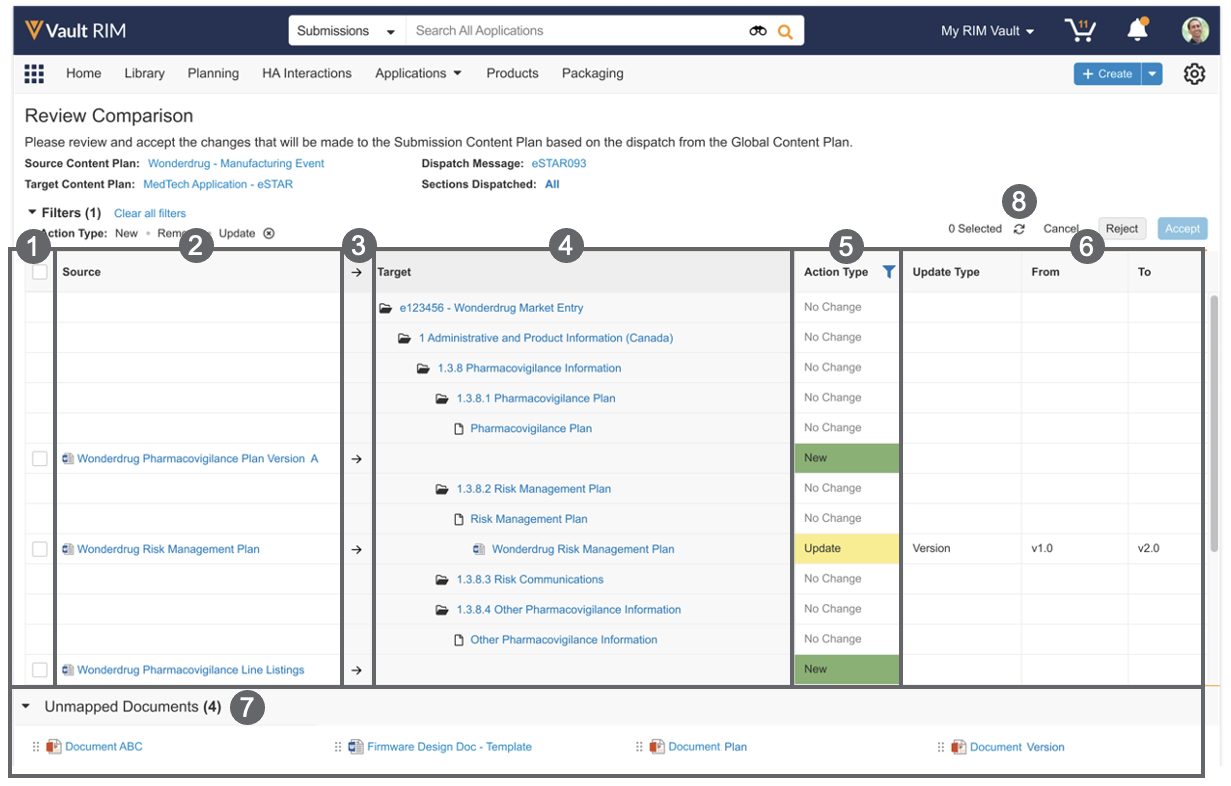
When previewing the changes Vault will make to the target _Submission Content Plan_, the comparison viewer provides several options for reviewing the content plan data:

<a href="https://platform.veevavault.help/assets/images/RIM_GCP_dispatch_comparison_viewer.png" data-lightbox="group name" data-title="" data-alt="Global content plan dispatch comparison viewer">
  <img class="docimage" src="https://platform.veevavault.help/assets/images/RIM_GCP_dispatch_comparison_viewer.png" alt="Global content plan dispatch comparison viewer" style="max-width: 100%;width: 800px;"  />
</a>

1. The **Checkbox** column allows you to select and deselect which changes you want to include in the dispatch. You can also click the checkbox in the panel header to select or deselect all changes. 
   * You cannot deselect items marked as <a href="/en/gr/77855/#about-the-mandatory-for-dispatch-acceptance-field">**Mandatory for Dispatch Acceptance**</a>. 
   * If you exit the comparison viewer without accepting or rejecting, Vault remembers the selected records for the next time you or another user views the comparison.
2. The **Source** column displays the global content plan structure (_Content Plan_, _Content Plan Items_, and matched documents) included in the dispatch. When the source and target templates are different, the source global content plan structure is not displayed in the Source column because Vault ultimately uses the _Target Content Plan Template_ structure for the target _Content Plan_.
3. The **Arrow** column displays a right arrow (<i class="fas fa-arrow-right"></i>) on every document row with a _New_ or _Update_ value in the _Action Type_ column. When you hover over the arrow in a cross-template comparison, a hovercard displays whether the item was manually mapped or automatically mapped using a _Content Plan Item Template Mapping_ record. Click the record link in the hovercard to view the mapping record. The hovercard is not displayed for same-template comparisons.
4. The **Target** column displays the matching record or document when it exists in the target content plan. If a new record or document will be matched as part of the dispatch, this field is blank. When the source and target templates are different, this column displays the structure of the _Target Content Plan Template_.
5. Filter the **Action Type** column to view the records Vault will **Update**, **Remove**, create as **New**, or for which there is **No Change**. By default, the viewer is filtered on rows with an _Action Type_ of Update, Remove, or New. You can also remove the filter to display rows with **No Change**. When dispatching a global content plan across templates, Vault does not propose any changes with an _Action Type_ of **Remove**.
6. When the **Action Type** is **Update**, you can use the **From** and **To** columns to compare the source _Global Content Plan_ values against the current target _Submission Content Plan_ values. By default, Vault displays the first three (3) changes for a given record or matched document, one in each row. For items with more than three changes, click **Show more** or **Show less** to display or hide the additional rows.
7. The **Unmapped Documents** tray displays documents from the source content plan that are not mapped to a target content plan item by a <a href="/en/gr/77855/#create-mappings">_Content Plan Item Template Mapping_</a> record. You can manually [match an unmapped document][7] to a target content plan item.
8. Click the <i class="far fa-sync"></i> icon to [regenerate][2] the comparison, if needed.

By default, Vault loads the first 2,000 content plan hierarchy rows and the first 2,000 unmapped documents in the comparison viewer. When there are more records, you can click **Load 2,000 more rows** or **Load remaining rows**. When there are more unmapped documents, you can click **Load 2,000 more documents** or **Load remaining documents**.

## About Dispatch Messages {#about-dispatch-messages}

Each time Vault dispatches a global content plan, it creates one _Dispatch Message_ record for each target _Activity_ or _Submission_. You can use it to track a dispatch and its status based on the relevant fields, including:

* _Dispatched By_
* _Dispatch Status_
* _Number of Excluded Changes_ reflects the count of individual changes deselected by the reviewer in the comparison viewer.
* _Reason for Rejection_ reflects the picklist value the reviewer selected when rejecting the dispatch. Picklist values are configurable.
* _Reviewed By_ indicates the user who accepted or rejected the dispatch.
* _Sections Dispatched_
* _Document Only Dispatch_ indicates whether documents were dispatched without the _Content Plan_ structure.
* _Target Content Plan Template_ indicates the _Content Plan Template_ of the target _Submission_.
* _Number of Unmapped Documents_ indicates the number of unmapped documents that were not placed into the _Target_ column within the comparison viewer. Applicable only when dispatch comparison is enabled.

Vault also includes the [dispatch summary CSV files][5] as Attachments to _Dispatch Message_ records when the _Enable Dispatch Comparison_ setting is enabled.

## Global Content Plan Dispatch Limitations

The following limitations apply when dispatching _Global Content Plans_:

* Vault can include a maximum of 10,000 _Content Plans_ and _Content Plan Items_ from the _Global Content Plan_ in a single dispatch when dispatching to the same template.
* Vault can dispatch to a target _Submission Content Plan_ with a maximum of 10,000 matched documents when dispatching to the same template.
* Vault can dispatch to a target _Submission Content Plan_ with a maximum of 20,000 _Content Plans_, _Content Plan Items_, and matched documents when dispatching across templates or using the _Dispatch Documents Only_ override.


[1]: #how-vault-dispatches-content-plans
[2]: #regenerating-a-comparison
[3]: #accessing-the-comparison-viewer
[4]: #navigating-the-comparison-viewer
[5]: #dispatch-outputs
[6]: #about-dispatch-messages
[7]: #matching-unmapped-documents
[8]: #dispatch-logic-validation