# Bulk Creating & Managing Event Details

Creating an _Event_ record is the recommended first step for many regulatory processes, as the records containing details pertaining to the event itself (such as the impacted product and its product variants, plus various types of packaging and their shelf life details) serve as the initial entry point for regulatory data that is eventually used across similar records for impacted markets via regulatory objectives and submissions.

The Create & Manage Event Details wizard provides a guided user interface for creating, updating, replacing, and withdrawing details in a few steps: Users can launch the wizard from an _Event_ record, select one or more applicable changes (for example, adding new _Drug Packaging_ details and withdrawing another), populate the required information, then review and confirm the results in a simplified view.

Along with the [Create Related Records](/en/lr/31322/) wizard for managing these details later in the process across impacted markets, bulk _Event_ detail management greatly reduces repetitive data entry, increasing efficiency and enhancing data integrity.


<div class="note-border alert-info">
  <div class="alert alert-info" role="alert">
    <div><i class="far fa-info-circle"></i></div>
    <div class="alert-text">
      <p><strong>Note</strong>: The Create &amp; Manage Event Details wizard is only available for RIM Registrations and must be <a href="/en/lr/549872/">configured</a> by an Admin.</p>
    </div>
  </div>
</div>


## About Creating & Managing Event Details

The Create & Manage Event Details wizard provides a streamlined UI for creating new or working with existing _Event_ details records. This simultaneous approach allows you to work with selected records in a unified view, without including duplicates.

After an _Event_ record is created in your Vault (either manually, or via the Quality-RIM Vault Connection), various [_Event_ lifecycle actions][2] allow you to launch the wizard to process the various [change types][3], then [preview, refine, and confirm][7] the proposed wizard output.

The objects and fields you see once you launch an action are based on [Admin-defined configuration records](/en/lr/549872/#about-event-change-types-and-details) and your user permissions.


### Event Lifecycle Actions {#event-lifecycle-actions}

Various actions configured in your Vault's _Event_ object lifecycle provide different methods for working with details records:

| Action Name | Action | Result |
|---|---|---|
| Create Event Details | Add, update, or withdraw existing and new _Event_ details using the wizard. | Creates and updates records<br>Transitions the _Event_ to the _In Review_ state<br>Generates a preview file |
| Manage Event Details | Generate a preview of an _Event_ with existing detail records, without adding any new ones. | Transitions the _Event_ to the _In Review_ state<br>Generates a preview file |
| Review Event Details | Access existing preview files from an _In Review_ Event record. | Vault loads the Review and Refine Event Details page |
| Clear Preview | Remove an existing preview file for an _In Review_ Event record. | Deletes the file<br>Reverts the _Event_ to its previous state. |

### Change Types {#change-types}

The wizard includes _Add_, _Replace_, _Update_, and _Withdraw_ actions to streamline _Event_ detail management activities, allowing you to complete one or many change types in a given session. The values you can select correspond to Admin-configured [Related Change Types](/en/lr/549872/#working-with-ect-details).

When processing a detail record, Vault sets its _Related Change Type_ value accordingly.

| Change Type | Details | Related Change Type Values |
|---|---|---|
| Add | Allows you to create new records. | Add |
| Replace | A combination of adding and withdrawing, allowing you to replace existing values and records with new ones. | Add, Replaced By, Replacing, Withdraw |
| Update | Typically used when updating documentation for the Content Plan. Additionally useful for running an Impact Assessment Report to find relevant registrations, for <a class="external-link " href="https://veevaconnect.com/communities/ALR_0Abp0AA/posts/BYaVgVJfUAA" target="_blank" rel="noopener">example<i class="fa fa-external-link" aria-hidden="true"></i></a> to find registrations eligible for renewal. | Update |
| Withdraw | Removes records and metadata via withdrawal workflows. | Withdraw |

## Creating Event Details

To create _Event_ details:

1. Open the associated _Event_ record.
2. Select **Create Event Details** from the **Actions** menu.
3. Select whether to **Add**, **Replace**, or **Withdraw** _Event_ details.
4. Select the _Event_ detail for which you'd like to process a change from the **Select change type** dropdown. Selectable values for this and all subsequent fields are controlled by Admin-defined configuration records and your user permissions.
5. Vault displays a simplified view of all relevant fields, records, or metadata options for the selected _Event_ details, beginning with the **Change field** dropdown. Populate this and all other fields as required.
6. Optional: Select **Optional Relationships**. In the resulting [advanced mode][5] dialog, select one or more Event relationships, click **Apply**, populate fields as required, then click **Save**. Repeat this step until all desired combinations are included.
7. Optional: Select **Add Change** to include additional _Event_ details, then repeat the applicable steps above.
8. Once complete, select **Generate Preview**.

When you select **Finish**, Vault begins creating records according to your selections. Once complete, you'll receive an email and Vault notification with a CSV file confirming the records Vault created or updated.

When you select **Generate Preview**, Vault:

  * Initiates a job to create and gather the selected records and metadata. Once complete, you'll receive an email and Vault notification with a link to preview them in Vault directly, as well as an attached CSV file summarizing the records included in the preview.
  * Transitions the selected _Event_ record to the _In Data Review_ state, preventing all users from executing the _Create Event Details_ or _Manage Event Details_ actions.

See [Reviewing & Refining Event Details][7] for instructions on working with preview files and completing the _Event_ detail creation process.

### About Advanced Mode

Some events require different combinations of field values, for example associating multiple site roles to a _Manufacturer_, or multiple storage conditions to a _Shelf Life or Condition_.

When available, use the wizard's **Optional Relationships** button to open the advanced mode dialog and populate the required values.


## Managing & Reviewing Event Details

The _Create Event Details_ and _Manage Event Details_ actions can be executed in any configured _Event_ lifecycle state (for example, _Planned_) by users with the appropriate permissions. While available states will vary according to your Vault's configuration, these actions cannot be configured on the _In Review_ state.

See [Event Lifecycle Actions][2] for more information, and [Reviewing & Refining Event Details][7] for details on working with preview files and completing the _Event_ detail creation process.


## Reviewing & Refining Event Details {#reviewing-and-refining-event-details}

To review and refine Event details:

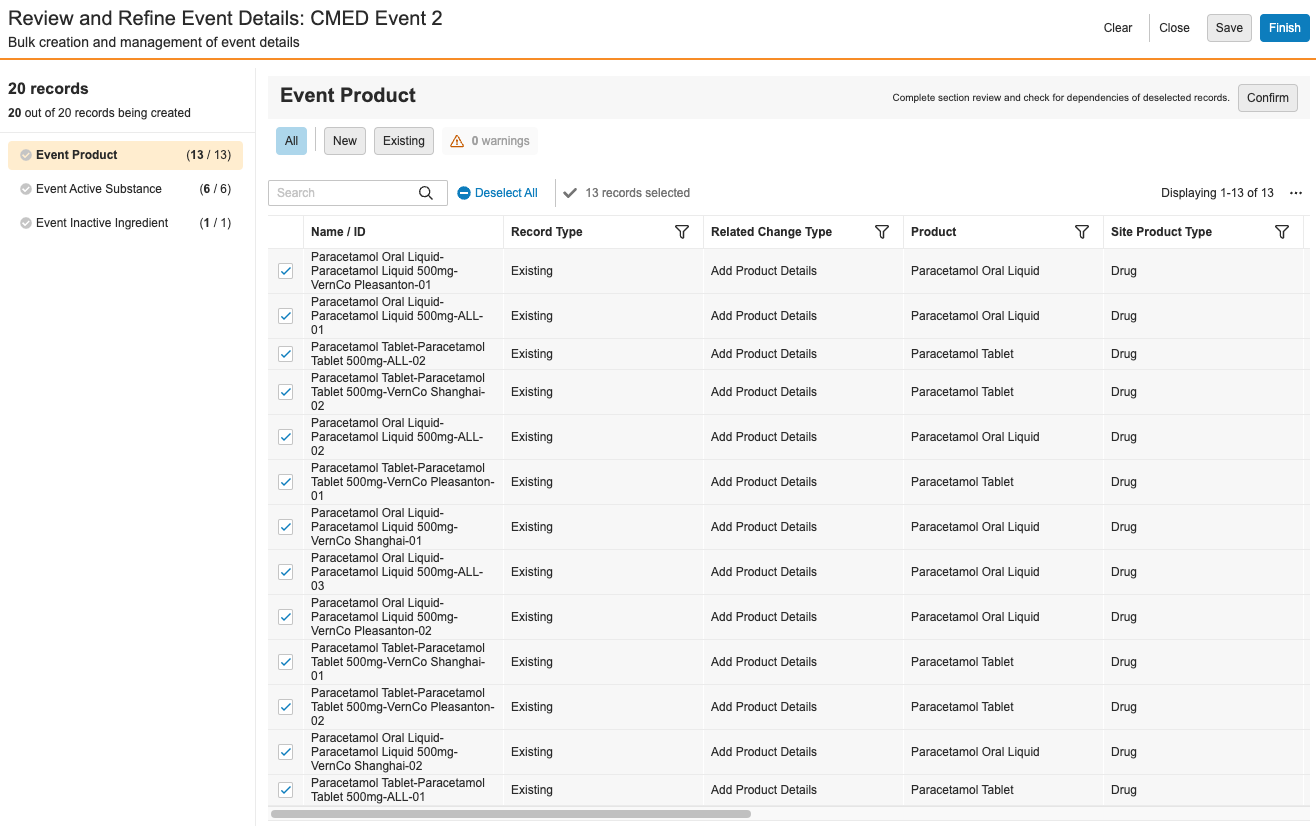
1. Click the link in the email or Vault notification you received when creating the records or generating the preview. You can also select **Review Event Details** from the **Actions** menu of an _Event_ in the _In Data Review_ state.
2. Vault displays the **Review and Refine Event Details** page. In the left-hand panel, select the Event details you'd like to review. Each _Event_ relationship record appears with various icons denoting their status prior to your review and confirmation: <i class="fas fa-check-circle" style="color: #b3b3b3;"></i> records are active, <i class="fas fa-check-circle" style="color: #dadada;"></i> records are inactive, and records with a <i class="far fa-exclamation-triangle" style="color: #cc6600;"></i> indicate a [dependency warning][8]
3. In the right-hand panel, use the various UI options to perform your review and make updates:
    * Select the **Actions** menu, then **Edit Columns** adjust the columns you see in the wizard.
    * At the top of the panel, click the <i class="far fa-exclamation-triangle" style="color: #cc6600;"></i> button to quickly display only the records with dependency warnings, or click the **All** button to return to a listing of all records in the preview. You can also select **New** or **Existing** to quickly filter by records only by those Vault will create or update, respectively.
    * Hover over individual cells you would like to edit. When a field is editable, the pencil icon <i class="fal fa-pencil-alt"></i> appears and you can double-click to inline edit the value.
    * To include a record, check the box to the left of the item, or uncheck the box to omit it. You can also click **Select All** or **Deselect All** to add or remove the selections for all records in that section.
    * If you encounter incorrect records requiring updates, click the **Clear** button at the top of the screen to [remove the preview file][10].
    * If you cannot complete your review in a single session, click the **Save** button to [save your selections][9].
4. When you've refined the list to your requirements for a given related record type, click **Confirm**. In the event of dependency warnings, the **Dependency Issues** dialog appears, requiring you to click **Continue** to confirm such records will be created, or **Cancel** to return to the **Review and Refine Event Details** page.
5. Repeat steps 2-4 until you've reviewed and confirmed the desired related record types. (The wizard does not require that you review and confirm all record types.) As you proceed through the list, Vault adds a green checkmark <i class="fas fa-check-circle" style="color: #539137;"></i> next to each record in the left-hand panel to indicate you've confirmed that selection, and that there have been no further changes to it since confirming.
6. When your review is complete, select **Finish** to create the records that are still selected in the preview.

Vault begins creating records according to your review. Once complete, you'll receive an email and Vault notification with a CSV file confirming the records Vault created or updated.

<a href="https://platform.veevavault.help/assets/images/cmed-user-review-and-define-event-details.png" data-lightbox="cmed" data-title="" data-alt="review and refine event details page">
  <img class="docimage" src="https://platform.veevavault.help/assets/images/cmed-user-review-and-define-event-details.png" alt="review and refine event details page" style="max-width: 50%;width: 600px;"  />
</a>

### About Dependency Warnings {#about-dependency-warnings}

A record dependency warning indicates that the wizard will create independent records, or records without a reference to a related record.

For example, if an _Event Inactive Ingredient_ record's _Event Product_ field is blank, Vault flags this with a dependency warning. If you do not populate the _Event Product_ field, Vault creates or updates the _Event Inactive Ingredient_ record with a blank _Event Product_ field.

### Saving Preview Files {#saving-preview-files}

When a given user is working in the wizard, Vault prevents all other users from generating a new preview file or working with the current one.

If you cannot complete your review in a single session, click the **Save** button at the top of the wizard's _Review and Refine Event Details_ page. Vault keeps your selections until you or another user return to it by running the _Review Event Details_ action.

### Clearing Preview Files {#clearing-preview-files}

In the event a preview includes incorrect or missing data, you can remove it and generate a new preview file.

To do so, click **Clear** at the top of the wizard's _Review and Refine Event Details_ page, or select the **Clear Preview** action from an _In Review_ Event record's **Actions** menu.

Once cleared, the _Event_ record returns to its previous lifecycle state and you can re-run the _Create Event Details_ action.

## About Content Planning

When an *Event* detail is used for Content Planning (according to its *Use for Content Planning* value), the wizard facilitates creating *Event Inactive Ingredient* and *Event Clinical Study* records so that they are appropriately filed within the corresponding *Content Plan* section.

When *Use for Content Planning* is set to "No", or it is blank:

* For *Event Inactive Ingredients*, Vault does not populate the *Event Product* field.
* For *Event Clinical Studies*, Vault does not populate the *Event Clinical Study* field.

When *Use for Content Planning* is set to "Yes":

* For *Event Inactive Ingredients*, the wizard populates new records with the first *Event Product* where *Use for Content Planning* is set to "Yes". To do this, one of the following additional conditions must apply:
    * The *Inactive Ingredient* is related to the *Product Variant* on the *Event Product* via the *Product Variant-Inactive Ingredient* relationship.
    * The *Inactive Ingredient* is related to the *Complex Product* on the *Event Product* via the *Product Variant-Inactive Ingredient* relationship between the *Inactive Ingredient* and one of the *Complex Product'*s components.
    * The *Product* on the *Event Product* is not complex, and *Product Variant* is blank.
* For *Event Clinical Studies*, the wizard populates new records with the first *Event Indication* record created by that change where *Use for Content Planning* is set to "Yes".

## Related Permissions

To execute any of the actions for the _Event_ detail records described in this article you must be assigned:
  * A role with _Execute_ access in the relevant _Event_ object lifecycle state(s).
  * A permission set with _Read_, _Create_, and _Edit_ access to the _Event_ and any object you intend to directly or indirectly alter with the wizard.

### About Preview File Permissions

The records available in a preview are based on the permissions of the user who generated it. If another user wishes to preview the file in full and confirm the changes, they must have these same permissions.

Otherwise, the previewing user:
  * Cannot view object information for any objects to which they do not have access.
  * Cannot confirm all details in the preview, and therefore cannot select the **Finish** button.
  * Receives a Page Not Found error if they do not have access to the _Event_ record. This page also appears if a preview has been cleared, or the preview URL is incorrect.

See [Configuration for Bulk Creating & Managing Event Details](/en/lr/549872/#related-permissions) for detailed permission requirements.

[2]: #event-lifecycle-actions
[3]: #change-types
[5]: #about-advanced-mode
[7]: #reviewing-and-refining-event-details
[8]: #about-dependency-warnings
[9]: #saving-preview-files
[10]: #clearing-preview-files
