# Working with Submissions Publishing (RIM)

The Submissions Publishing application lets you prepare, finalize, and submit content within Vault in preparation for submitting content to a Health Authority. Content plans allow you to create a collection of documents when introducing a new product, or when changes occur on an existing product. You can then submit these documents to request approval to make changes to the product.

<div class="note-border alert-info">
  <div class="alert alert-info" role="alert">
    <div><i class="far fa-info-circle"></i></div>
    <div class="alert-text">
      <p><strong>Note</strong>: This feature is only available on RIM Submissions Publishing Vaults.</p>
    </div>
  </div>
</div>


## How Submissions Publishing Works

When introducing a new product or making changes to an existing product that requires a submission, you can create or update a <a href="/en/gr/37472/">content plan</a>
 with a collection of documents that represent the changes made to the product. Once the documents are ready for submission, the continuous publishing and validation process begins. Vault will detect new and updated documents in the _Published_ lifecycle state and publish these documents. Users can then view the documents in the <a href="/en/gr/450731/">Submissions Archive Viewer</a>
 and send the documents for review, prior to submission.

The continuous publishing and validation process ensures changes to the source content are monitored and the published output is updated to reflect changes, such as additional links or new versions. Vault validates each document, providing feedback to the publisher. Publishers can then correct issues prior to sending content for final review.

You can also create link annotations and cross-document permalinks between documents within a submission. During the continuous publishing phase, Vault converts the link annotations to relative hyperlinks within the published document.

<div class="note-border alert-info">
  <div class="alert alert-info" role="alert">
    <div><i class="far fa-info-circle"></i></div>
    <div class="alert-text">
      <p><strong>Note</strong>: When exporting a published submission, Vault uses the <em>Source File Path</em> for each published document to construct the export’s folder hierarchy. The <em>Source File Path</em> is constructed based on the <em>Parameter</em> (<code class="language-plaintext highlighter-rouge">parameter__v</code>) value of the <em>Dossier Type</em> (<code class="language-plaintext highlighter-rouge">dossier_type__v</code>) field on the Submission, along with the <em>Published Output Location</em> of a given <em>Content Plan Item</em>. If the <em>Parameter</em> field contains a token for <code class="language-plaintext highlighter-rouge">{application__v.folder_name__v}</code>, the export uses the <em>Application Folder Name</em> (<code class="language-plaintext highlighter-rouge">folder_name__v</code>) field as the top level folder. As of 24R2, Vault prevents saving the <em>Application</em> object’s <em>Application Folder Name</em> field with the following special characters: <code class="language-plaintext highlighter-rouge">/</code> <code class="language-plaintext highlighter-rouge">*</code></p>
    </div>
  </div>
</div>


### About Non-eCTD Submissions

Vault can publish and validate non-eCTD submissions when continuous publishing is enabled and the XML fields on the _Submission_ record are set to **N/A**. When you set **Enable Continuous Publishing** to **Yes**, Vault:

*   Publishes the submission content plan. Any _Content Plan Items_ with the _Node Type_ (`xml_node_type__v`) field set to _Index-leaf_ or _Regional-leaf_ should be made inactive before enabling continuous publishing.
*   If the XML Element Name on a _Content Plan Template_ is empty, the Name of the Content Plan Template record will be used as the XML Element Name when creating the _Content Plan_ record. This is done by defaulting the _XML Element Name_ field via configuration if your Vault does not currently have this default. 
*   Publishes the submission as non-eCTD, respecting the _Dossier Format_ and its _Parameter_ (when the DTD version is set to N/A), similar to importing a submission. See <a href="/en/gr/64129/#hierarchy">Defining the Submission Folder Hierarchy</a>
 for more information on the parameter.

## Creating & Publishing a Submission-Ready Dossier

To create a submission-ready dossier:

1.  Navigate to **Applications > Submissions** and create a new _Submission_ record or edit an existing one.
2.  Fill in the **Plan Template** and **Planned Submission Date** fields. These field values determine which template to use when creating a _Content Plan_ and the publishing priority for the submission.
3.  To set a default overlay for this _Submission_ record, select **Set Default Overlay** from the **Actions** menu. Vault only applies this overlay when no _Publishing Elements_ exist on a content plan item.
4.  From the **Actions** menu, choose **Create Content Plan**.
5.  <a href="/en/gr/32749/">Match documents</a>
 to _Content Plan Item_ records. Depending on your configuration, Vault may automatically match documents. If you match a <a href="/en/gr/23145/">CrossLink document</a>
 to a content plan item, Vault publishes the CrossLink's source document or viewable rendition based upon the [_Source for Published Document_][9] field value as a standard document during publishing.
6.  To allow Vault to generate a [Table of Contents (TOC)][17] document, open the appropriate _Content Plan Item_ record and set the **Node Type** (`xml_node_type__v`) field to **Table of Contents**. In the **Publishing Element** field, select the TOC template. Repeat this step for each TOC that you want to include in your content plan.
7.  To allow Vault to apply an overlay to your matched documents, open the appropriate _Content Plan Item_ record and set the **Node Type** field to **Leaf**. In the **Publishing Element** field, select the _Publishing Element_ that defines the overlay.
8.  Create <a href="/en/gr/486081/#link-annotations">link annotations</a>
 or <a href="/en/gr/486081/#dynamic-links">dynamic links</a>
 on your matched documents or <a href="/en/gr/486081/#submitted-doc-links">_Submissions Archive Content_-type documents</a>
 that were imported or published previously. During publishing, Vault gathers the link annotations from the documents and converts them to standard PDF links. Vault does not create links to any _Submissions Archive Content_ documents that are currently being published. See also <a href="/en/gr/486081/#link-publishing">Working with Hyperlinks in RIM Submissions Publishing</a>
.
9.  Review the applicable _Content Plan Item_ records. For non-eCTD submissions, update the **Status** field to **Inactive** for any records where the _Node Type_ is set to _Index-leaf_ or _Regional-leaf_. Otherwise, you can set the **Continuous Publishing** and **Continuous Validation** fields to **Yes** on all applicable _Content Plan Item_ records. Enabling continuous publishing and validation allows Vault to monitor, publish, and validate the associated _Content Plan_ as needed. You should only enable continuous publishing when you are ready to publish.
10.  Set your documents to **Ready for Publishing**.
11.  Navigate to the _Submission_ record and set the [**Enable Continuous Publishing**][8] field to **Yes.** This publishes the _Submission_ to Submissions Archive.
12. Navigate to the **Viewer** tab to view your published output. Vault determines the submission dossier published output based on the [_Source for Published Document_][9] picklist.

In the **Viewer** tab, the _Relative Filename_ section doesn't appear in the published XML rendition for Study Tagging Files (STFs). This is caused by a defect in the stylesheet provided by the ICH.

Vault checks if the same Content Plan is used for multiple Submission records. If the Content Plan field on the Submission record is used by another Submission record, Vault prevents publishing from initiating and the user will receive an error message. 

## Publishing Details {#details}

Navigate to the <a href="/en/gr/450731/">**Viewer** tab</a>
 to access your published documents and their details. From here, you can view an outline of all your documents that you set to _Ready for Publishing_. The **Actions** menu on each of your published documents provides various user actions for reviewing your content. Published document details are based on the following _Content Plan Item_ fields:

  * **Published Output Location**: This field defines the folder path and filename of where the published document will reside. Vault uses it to create standard PDF links with a relative path from Microsoft Word inter-document links and Vault link annotations.
    * When editing this field, you must include the folder path in addition to the filename. For example, use `m1/1-2-cover/cover.pdf` instead of `cover.pdf`.
    * Depending on your configuration, this field may already be populated and may not appear on your _Content Plan Item_ page layouts.
    * The _Published Output Location_ field has a 100-character limit. If it exceeds the character limit, Vault cannot publish or publish/merge. Controlled characters (tabs and new-line) are automatically removed from the _Published Output Location_ field upon publishing so the folder or file path remains valid.
    * This value should be unique when publishing to the Submissions Archive Viewer, unless the same document has been matched multiple times to a Submission Content Plan. In this scenario, Vault duplicates the _Published Output Location_ for all _Content Plan Items_ with the same matched documents.

  * **Published Document**: Vault populates this field with a link to the published document based on the matched document. The published document is created from the matched document's version at the time of publishing and always links to the latest version.
  * **Source for Published Document**: This field defines the rendition or source document to be used as the published document. For example, if you specify _Viewable Rendition_ as the source, Vault uses the viewable rendition of the matched document as the source to create the published document. Custom rendition types can be configured if needed. The source for the published document must correspond to the filename extension specified in the _Published Output Location_ field. For example, if you specify _Source Document_ as the source, and the matched document extension is .docx, the published output location filename should have .docx as the extension. In Vaults where a <a href="/en/gr/53358/">connection</a>
 is configured, when you specify the source document as the _Source for Published Document_, Vault retrieves and publishes the file from the source Vault.


<div class="note-border alert-info">
  <div class="alert alert-info" role="alert">
    <div><i class="far fa-info-circle"></i></div>
    <div class="alert-text">
      <p><strong>Note</strong>: When publishing <a href="/en/gr/48608/#toc-publishing">Tables of Contents (TOCs)</a>
, Vault currently applies the viewable rendition in all cases, regardless of the <em>Source for Published Document</em> value set within in-scope <em>Content Plan Items</em>.</p>
    </div>
  </div>
</div>


These fields are defined by your Admin's _Content Plan Item Template_ configuration. However, based on your permissions, you can use inline editing to modify the _Published Output Location_ and _Source for Published Document_ fields from the <a href="/en/gr/59502/">Content Plan Hierarchy Viewer</a>
 or edit them directly from a _Content Plan Item_ record.

### Document Fields

During publishing, Vault also copies some field values from source documents to published documents. Vault can copy values when fields with the same _Name_ and field type exist on both the source document type and the _Submissions Archive_ document type. Vault does not copy values to the _Ready for Publishing_ field, document type fields, _Application_ or _Submission_ fields, archive fields, or any fields that the publishing process populates, such as _Title_.

## Working with Published Content

After your submission content is finalized, various user actions in Vault support the submissions publishing flow.

The following options are available from the **Actions** menu for documents published from _Content Plans_:

*   **Open Content Plan**: Opens the associated _Content Plan_ for the published document.
*   **Open Content Plan Item**: Open the associated _Content Plan Item_ for the published document.
*   **Open Source Document**: Opens the source document used to create the published document.

The following options are available from the **Actions** menu of Content _Plan_ and _Content Plan Item_ records:

*   **Open in Submissions Archive**: Opens the submission in the **Viewer** tab from a content plan
*   **Open Published Document**: Opens the published document
*   **Run On-Demand Validation**: Runs the validation process
*   **Run On-Demand Publishing & Validation**: Allows users to publish in the event that there is an issue that stops publishing from running
*   **Select Leaf Operation**: Allows users to target a leaf from a prior submission of the same application from within an eCTD _Content Plan_
*   **Generate Publishing Table of Contents**: Generates or recreates a Table of Contents (TOC) document from the template referenced on the related _Publishing Element_ record and matches it to the _Content Plan Item_

## Continuous Publishing {#continuous_publishing}

Continuous publishing improves the submission delivery process by incorporating publishing activities throughout content development. This process allows you to continuously publish documents as they become associated with a _Content Plan_ and as updates occur on related content.

When continuous publishing is enabled, Vault:
  * Creates the _Submissions Archive_-type binder and checks all matched documents to verify which ones are set to _Ready for Publishing_.
  * Monitors the source documents for version changes and annotation updates such as new, modified, or deleted links.
  * Publishes the documents to Submissions Archive based on the selected source document setting.
  * Creates a _Source References_ relationship between the source document and the published _Submissions Archive_ document.

### Continuous Publishing Prioritization

Vault automatically prioritizes continuous publishing jobs based on the value in the _Planned Submission Date_ field on the _Submission_ record. Continuous publishing jobs where the _Planned Submission Date_ is in the next two (2) days will receive the highest priority.

## Continuous Validation {#continuous-validation}

Continuous validation provides the ability to verify an eCTD submission, based on the Health Authority acceptance criteria, during submission assembly in Vault. While validation typically occurs after fully publishing a document, continuous validation allows you to validate and make corrections during submission assembly and as content becomes available. This provides the necessary information regarding validation errors and warnings earlier in the process.

### Setting Validation Conditions

Continuous validation conditions are dependent on a regional DTD/XSD version and a corresponding validation criteria version. The validation version determines which rules are applicable for the corresponding submission. You can set these conditions by specifying a regional DTD/XSD version in the _Validation Criteria Version_ field on a _Submission_ record. Note that your Admin determines the corresponding validation criteria for the specified regional DTD/XSD version.

### Validation Process

Vault performs continuous validation when the _Continuous Validation_ field is set to **Yes** on a _Content Plan Item_, and whenever the published document and/or related metadata is updated, including metadata affecting the published XML files.

### Submission Validation Results {#validation-results}

After performing validation, Vault creates a _Submission Validation Result_ record for each validation criterion on each _Content Plan Item_. You can view these from the _Submission Validation Results_ section on the _Content Plan Item_ record details page. If you turn off _Enable Continuous Publishing_ and then enable it again, Vault deletes and recreates all _Submission Validation Results_ records. This allows you to update the validation conditions for a submission.

Vault also archives all _Submission Validation Result_ records into a single XML file 365 days after the submission is complete so you can reference validation results without cluttering your Vault with unnecessary object records.

See <a href="/en/gr/58742/">Working with Submission Validation Results</a>
 for complete details about validation results.

## On-Demand Publishing & Validation {#on-demand-publishing}

On-demand publishing allows you to publish documents after continuous publishing has been disabled or force publishing for a specific content plan section or item. In most cases, we recommend that you allow Vault to handle all publishing jobs via [continuous publishing][8].

### Using On-Demand Publishing & Validation

When you use the **On-Demand Publishing & Validation** action, Vault runs publishing and validation on any documents that contain hyperlinks to the published document. This allows Vault to keep all document links current throughout the on-demand publishing process.

Running on-demand publishing from the content plan's root deletes all of the published output and recreates it. Starting on-demand publishing from a content plan item runs the publishing job on the related documents, regardless of the values in the _Continuous Publishing_ and _Continuous Validation_ fields on the record or the _Ready for Publishing_ field on the document.

## Link Publishing {#link_publishing}

During publishing, Vault compiles the link annotations and dynamic links within the document and converts them to standard PDF links with relative paths to the target documents, determined by the _Published Output Location_ (`xml_xlinkhref__v`) field within the same submission and application.

See <a href="/en/gr/486081/#link-publishing">Working with Hyperlinks in RIM Submissions Publishing</a>
 for more information.

## Working with Tables of Contents (TOCs) {#toc-publishing}

### Publishing a Table of Contents

When you first publish a content plan, Vault automatically performs the following actions for any _Content Plan Item_ records with the _Node Type_ (`xml_node_type__v`) field set to _Table of Contents_:

*   Generates and publishes a TOC document, using the related _Publishing Element_ record to determine the TOC template. When applying the overlay, Vault currently only selects the viewable rendition, regardless of the [_Source for Published Document_][9] value.
*   Classifies the TOC document based on the value in the _Document Type Detail_ field on the _Content Plan Item_
*   Sets the _Ready for Publishing_ field to **Yes** on the TOC document
*   Matches the TOC document to the _Content Plan Item_; if a document is already matched, Vault versions it

When the same source document in a Content Plan has been matched to multiple Content Plan Items, and each Content Plan Item has a unique _Published Output Location_ value, the separate system-generated Table of Contents entries link to each document individually. 

If a Table of Contents is placed at the top, in the middle, or at the bottom of a Content Plan section with Content Plan Items that are merged, Vault accurately reflects the overall page numbering of the Table of Contents on the top level Content Plan section row of the Table of Contents. 

<div class="note-border alert-info">
  <div class="alert alert-info" role="alert">
    <div><i class="far fa-info-circle"></i></div>
    <div class="alert-text">
      <p><strong>Note</strong>: When publishing and merging report level content plans, if the related Publishing Element record field Page Numbering is set to <strong>Overall Page Numbering</strong>, the TOC Template must be specified. Otherwise, the publishing job may fail.</p>
    </div>
  </div>
</div>


During continuous publishing, on-demand publishing, or when you select the **Generate Publishing Table of Contents** action, Vault regenerates, versions, and, if continuous publishing is enabled, publishes the TOC document. Continuous publishing occurs any time a document referenced by the TOC document is published, versioned, matched to a _Content Plan Item_ record, or when the _Published Output Location_, _Publishing Element_, or document metadata are updated.

<div class="note-border alert-info">
  <div class="alert alert-info" role="alert">
    <div><i class="far fa-info-circle"></i></div>
    <div class="alert-text">
      <p><strong>Note</strong>: Continuous publishing will not update a published TOC if the document matched to the <em>Content Plan Item</em> for the TOC is unmatched, locked to a specific version, or deleted. You must run on-demand publishing to updated published output in these scenarios. When a TOC is locked to a specific version and an event causes it to be republished, Vault up-versions the system-generated matched document from its current state, but does not update the published document.</p>
    </div>
  </div>
</div>


If you update the _Node Type_ (`xml_node_type__v`) field on the _Content Plan Item_, Vault deletes or generates the TOC document accordingly. If you update the TOC template, you'll need to use the **Generate Publishing Table of Contents** action to regenerate the TOC.

<div class="note-border alert-info">
  <div class="alert alert-info" role="alert">
    <div><i class="far fa-info-circle"></i></div>
    <div class="alert-text">
      <p><strong>Note</strong>: When a <em>Content Plan Item</em>’s <em>Node Type</em> is set for a Table of Contents, do not manually match any documents to the item. Doing so results in failure to generate the TOC document.</p>
    </div>
  </div>
</div>


<div class="note-border alert-info">
  <div class="alert alert-info" role="alert">
    <div><i class="far fa-info-circle"></i></div>
    <div class="alert-text">
      <p><strong>Note</strong>: When there are more than 10,000 rows in the system generated Table of Contents, Publishing and Table of Contents generation fails. The user-facing exception CSV can be downloaded via the Publishing Status icon.</p>
    </div>
  </div>
</div>


### Editing a Table of Contents

You can update the elements that make up the TOC from the content plan viewer without editing any matched documents by using the **Edit Table of Contents** action.

When you execute the action from the content plan viewer or _Content Plan Item_ **Actions** menu, Vault displays a hierarchical outline of the table of contents structure. The hierarchical outline shows the TOC's _Content Plan_, _Content Plan Item_, and PDF bookmark components for viewing, filtering, and updating within the TOC editor.


#### Navigating the TOC Editor

By default, Vault displays all _Active_ and _Inactive_ TOC components. Click the **Hide Inactive** button to remove any _Inactive_ components from the view, and **Show Inactive** to display them again. This action is useful for activating and inactivating items in bulk during your editing session.

You can **Expand** hierarchy items with child items below it by selecting the option from the item's **Actions** menu. You can also filter and search within all displayed columns.


#### Editing the TOC

You can apply changes to hierarchy items through each item's **Actions** menu. You can also use <a href="/en/gr/31019/">inline editing</a>
 to modify an item's name as it appears in the TOC. Some actions may be unavailable for the indicated TOC components.

* Select **Activate** to include or **Inactivate** to exclude an item from the generated and published TOC. You can also select **Activate all below** to perform the action on the item and all its descendants. Selecting Inactivate will automatically inactivate all items below it. Selecting Activate will automatically activate all inactive items in the parental hierarchy.
* Select **Reset all below** to remove edits from the item where you selected the action, in addition to any child items within the selected section. This action is not available for bookmarks.
* Select **Include bookmarks to defined level** within any item (except bookmarks) and enter the number for the **Level** at which to activate document bookmarks. All other bookmarks are inactivated. You can specify which level of bookmarks you want the Include bookmarks to defined level action to include in the Bookmark Level column.
* Select **Include all to defined level** from the root of the hierarchy and enter the number for the **Level** at which to activate items. All other items outside the level range are inactivated.

#### Reordering PDF Bookmarks

You can rearrange PDF bookmark TOC items using bookmark-specific actions.

When you **Promote** or **Demote** an item, Vault relocates it up or down one level in the hierarchy:

* _Promote_ moves the item and its children to the left and up one level in the hierarchy, but in the same position.
* _Demote_ moves the item and its children to the right and down one level in the hierarchy, but in the same position. This option is available only when there is a sibling directly above the item to be demoted.

When you select **Move Up** or **Move Down**, Vault relocates it above or below the adjacent TOC item:

* _Move Up_ moves the item and its children above the item directly above it, within the same level in the hierarchy. Siblings directly above the item are unaffected.
* _Move Down_ moves the item and its children below the item directly below it, within the same level in the hierarchy. Siblings directly below the item are unaffected.

#### Including Auto-Return PDF Bookmarks

You can include a bookmark that returns the reviewer from the TOC target PDF back to the published parent TOC.

To include auto-return PDF bookmarks, set the _Return Bookmark_ to **Yes** on the _Publishing Element_ record that is for the Table of Contents in your Content Plan. Vault automatically creates a return bookmark on target documents that are referenced in the system-generated TOC. 

Return bookmarks will appear at the top of the bookmarks pane in the published PDF file, and assumes the name of the TOC's Content Plan Item (`edl_item__v.title__v`). 

Return bookmark limitations: 

- Return bookmarks are only generated on published PDFs that have a Content Plan Item Source for Published Document field as Viewable Rendition  
- If a publishing element has Return Bookmarks set to No and is changed to Yes, in order for the PDFs within a Content Plan to have return bookmarks generated you must run on-demand publishing on the parent of the Table of Contents   
- Return bookmarks are not supported for RLCP publishing
- Auto-Return Bookmarks are not supported by eCTD 3.2 and 4.0

#### Ending the Editing Session

While the TOC is open for editing, Vault records overrides made during the editing session. When you conclude an editing session, Vault returns you to the viewer or _Content Plan Item_ from which you launched the editor, then handles overrides based upon the option selected:

* When you select **Close**, Vault discards all changes made during the session.
* When you select **Reset**, Vault discards all changes made during this session and all other sessions, then generates and up-versions the TOC document. Following the update, Vault also triggers on-demand publishing to re-publish the TOC for _Submissions_ in Submissions Publishing where continuous publishing is not enabled.
* When you select **Generate**, Vault applies all changes made during the session, then generates and up-versions the TOC document. If the TOC was previously published and its related _Submission_ does not have continuous publishing enabled, Vault also triggers on-demand publishing to re-publish the TOC.

## Overlay Publishing

When a PDF document is published as part of a submission content plan publish request, Vault applies the overlay defined in the content plan item's _Publishing Element_ record. If no _Publishing Element_ exists on the content plan item, Vault applies the default overlay. If the _Publishing Element_ exists but does not define an overlay, Vault does not apply an overlay.

You can also use the Source of Published Overlay picklist field on the _Publishing Element_ record to populate Overlay token values based on Source Document values rather than Published document values. When merging published output, this resolves the Overlay tokens with different values per Source matched to the Content Plan Item(s). By default, if no _Source of Published Overlay_ picklist is defined on the _Publishing Element_ record, Vault assumes the overlay token values are taken from the Source matched document on the Content Plan Item. 

To prevent unnecessary continuous publishing operations, Vault updates overlays on previously published documents only when you do one of the following:

* Update the _Default Overlay_ field on the _Submission_ record. This only re-publishes content plan items that don't reference a _Publishing Element_.
* Update the _Publishing Element_ field of a _Content Plan Item_ record.

Updating the _Overlay_ field on a _Publishing Element_ record does not re-apply the overlay to previously published documents and only affects future documents. To apply the new overlay, you must re-publish the _Content Plan Item_ using the _On-Demand Publishing_ action.

## eSignature Publishing

By default, Vault does not include eSignatures in published content plans. To include eSignatures, set the _Content Plan Item_ object field _Include eSignatures_ to _Yes_.


<div class="note-border alert-info">
  <div class="alert alert-info" role="alert">
    <div><i class="far fa-info-circle"></i></div>
    <div class="alert-text">
      <p><strong>Note</strong>: Due to an application-specific limitation, RIM Publishing does not support <a href="/en/gr/8975/">signature page templates</a>
 configured to populate eSignatures at the beginning of the document.</p>
    </div>
  </div>
</div>


## Selecting a Leaf Operation Target

You can use the **Set Leaf Operation** action to select a leaf node to lifecycle from a prior submission in the same Application  (_Replace_, _Delete_, _Append_). If a document has been replaced more than once, only the current submitted version may be selected for additional lifecycle operations.

When a _Content Plan Item_ record does not have an _XML Operation_ field value, you can set the operation as _New_. Upon saving, Vault sets the record's _XML Operation_ value to _New_.

When you select the _Delete_ operation, Vault sets the record's _XML Operation_ value to _Delete_ upon saving, then clears the _Published Output Location_ field during publishing. Vault also publishes a placeholder in Submissions Archive to indicate the lifecycle operation.

For any leaf with an _XML Operation_ of _Delete_, Vault clears the _Published Output Location_ upon publishing.

You can also Replace, Suspend (Delete), and Activate (New) documents previously submitted in both 3.2 and 4.0 formats, with appropriate handling of XML generation in the new submissionunit.xml. For Replace operations, users are able to select multiple previously submitted documents in a one:many or many:one relationship. Upon saving the Set Leaf Operation, Vault sets the _XML Operation_ based on the value selected in the Set Leaf dialog and sets the _eCTD 4 Modified Files_ field to the ID of the previously submitted document(s).

The **Set Reference Leaf** user action is not currently supported for eCTD 4.0 Submissions. To create a reference leaf, a user must match the previously-submitted matched document into a content plan item. Then, Vault automatically determines whether it can be  reused through document reuse or if they must submit the document as new again.

### How to Select a Leaf Operation Target

1.  From the _Content Plan Item_'s **Actions** menu, select **Set Leaf Operation**. This opens a dialog to the current view of the application and section based on your current location within the _Content Plan_. This dialog is similar to the Submissions Archive <a href="/en/gr/450731/">**Viewer** tab</a>
 and allows you to use filters to refine the list of submissions.
2.  In the **Select Leaf Operation Target** dialog, choose the desired **XML Operation** and leaf. Vault populates the selected leaf below the **Leaf Operation Target** heading in the dialog.
3.  Click **Save**.
4.  Vault populates the _XML Modified File_ field with the selected leaf node. You can edit this field if necessary.

To undo a mistaken selection in an in-progress submission, repeat the above steps.

To view and lifecycle STFs, launch the **Set Leaf Operation** action from an STF node, or filter to a single _Submission_.

### Related Permissions

To allow users to set a leaf operation, your Vault's permission sets and field security configuration must include the below.

#### Permission Set

Users must be assigned to a security profile containing a permission set with Read access to the following objects:
  * _Application_
  * _Submission_
  * _Content Plan_
  * _Content Plan Item_
  * _Submission Metadata_

#### Field Permissions

Users must have Edit or Read access to the following Content Plan Item object fields:
* _Primary Application_
* _Primary Submission_
* _XML Modified File_
* _XML Operation_
* _CTD Heading_
* _eCTD 4 Code Name_

#### Optional Object Permissions

When a user opens the Set Leaf Operation dialog, Vault auto-expands the view to the documents they are most likely to choose, based on their object permissions.

Including Read and Edit access to the below objects in users' permission sets allows Vault to be more precise when auto-expanding in all scenarios:
* _Active Substance_
* _Clinical Study_
* _Country_
* _Inactive Ingredient_
* _Nonclinical Study_
* _Pharmaceutical Form_
* _Product_
* _Submission Clinical Study_
* _Submission Nonclinical Study_
* _Therapeutic Indication_

## Setting a Reference Leaf {#set-reference-leaf}

A reference leaf is a file that has already been submitted but needs to appear in the XML backbone to indicate it is part of the current submission. You can use a  previously-submitted and reviewed Submissions Archive document as a reference leaf, reducing the review time at the relevant Health Authority. Vault supports reference leafs to documents in previous submissions within the same application or to documents in separate applications with the same _Lead Market_.

See <a href="/en/gr/486082/">Setting a Reference Leaf</a>
 for detailed instructions.

## Publishing Progress

Vault automatically updates the status indicator icon (or harvey ball) in the _Publishing Status_ field to inform you if there are outstanding publishing or validation jobs as part of continuous publishing. This ensures that you only review and submit content after it has been published and validated.

You can see publishing status for the entire content plan, content plan sections, or individual content plan items. See <a href="/en/gr/67459/">Viewing Publishing Progress</a>
 for details.

## About the System User & Published Content Owner

Vault determines a published document's _Owner_ based on the _Published Content Owner_ on the Content Plan's related _Submission_ record.

Additionally, Vault sets other roles on the published document based on roles assigned to the source document.
If the Published Content Owner is assigned to other roles on the source document, those roles are added to the published document and assigned to the Published Content Owner. If the source document has other roles on it and there is no Published Content Owner on the Submission record, the users assigned to the roles on the source document are copied to the roles on the published document.

### Example: Same Published Content Owner & Reviewer
If the _Published Content Owner_ is set to **Jane Doe**, and **Jane Doe** is also the _Reviewer_ on the source document, Jane Doe is added to both the _Owner_ and _Reviewer_ roles on the published document.

### Example: Different Published Content Owner & Reviewer

If the _Published Content Owner_ is set to **Jane Doe**, and **John Smith** is a _Reviewer_ on the source document, **Jane Doe** is added to both the _Owner_ and _Reviewer_ roles on the published document.

### Example: Blank Published Content Owner

If the _Published Content Owner_ is not set and **Jane Doe** and **John Smith** are both _Reviewers_ on the source document, **Jane Doe** and **John Smith** are _Reviewers_ on the published document.

If you don't select a user (the value is blank), Vault executes the submission publishing process as _System User_ instead of the user who initiated the action.

To prevent job failures, users selected as the _Published Content Owner_ must be <a href="/en/gr/5721/">licensed for the RIM Publishing application</a>
 and be <a href="/en/gr/618/#settings-at-all-levels">permitted to create documents</a>
 of the Submissions Archive document type.

## Reusing Documents

Vault automatically identifies documents within eCTD 4.0 submissions that have previously been submitted within the same Lead Market, Health Authority, and Health Authority division. When such a document is matched to a _Content Plan Item_, Vault automatically processes the document as a Reference Leaf by changing the _Published Output Location_ to a relative path and setting the _Node Type_ to _Reference Leaf_. 

The _Disable Automatic Reference Leaf_ field allows users to disable automatic reuse across specific _Content Plan Items_.

## Setting a Document Update Operation

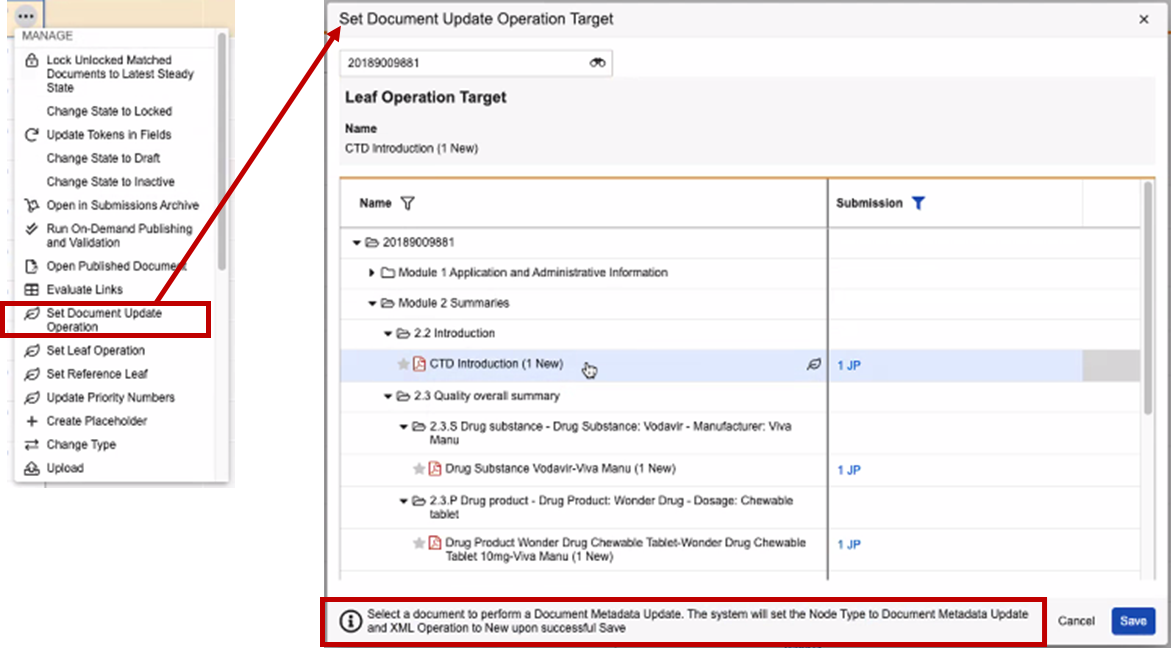
You can use the **Set Document Update** Operation to select a previously submitted document within the application and update that document’s Title. Vault sets the _eCTD 4 Modified Files_ field to the ID of the previously submitted document and the Node Type to Document Metadata Update. The system will ignore any matched documents for Node Type Document Metadata Update. 

<a href="https://platform.veevavault.help/assets/images/25r2.0-Set- Document-Update- Operation.png" data-lightbox="images" data-title="" data-alt="Set Document Update Operation">
  <img class="docimage" src="https://platform.veevavault.help/assets/images/25r2.0-Set- Document-Update- Operation.png" alt="Set Document Update Operation" style="max-width: 100%;width: 400px;"  />
</a>

## Generating and Updating Priority Numbers

Users can set and define _Priority Numbers_ for Context of Use (CoU) within eCTD 4.0 submissions. These actions allow for control over the display order of Context of Use/documents within Submissions Archive. When a submission is published, Vault automatically sets the _Priority Number_ of each Context of Use to an increment of ‘32’. Within a Context Group, the Context of Use Priority Number increases by 32 for each new CoU added to the group.

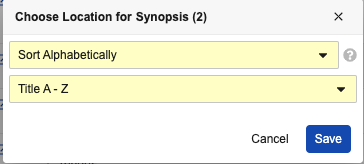
You can use the **Update Priority Numbers** action to change the display order of Context of Use (_Content Plan Items_) within a Context Group. The **Update Priority Numbers** dialog allows you to: 

* _Sort Alphabetically_: Sort all Context of Use within the Context Group alphabetically by Title of filename of the document  
* _Move to Top_: Move the current Context of Use to the top of the Context Group  
* _Move to Bottom_: Move the current Context of Use to the bottom of the Context Group  
* _Move Below_: Search for a specific Context of Use (by Title and sequence number) to move the current Context of Use below
<a href="https://platform.veevavault.help/assets/images/25r2.0-choose-synopsis-location.png" data-lightbox="images" data-title="" data-alt="Choose Synopsis Location">
  <img class="docimage" src="https://platform.veevavault.help/assets/images/25r2.0-choose-synopsis-location.png" alt="Choose Synopsis Location" style="max-width: 100%;width: 400px;"  />
</a>

## Managing Sender Defined Keywords

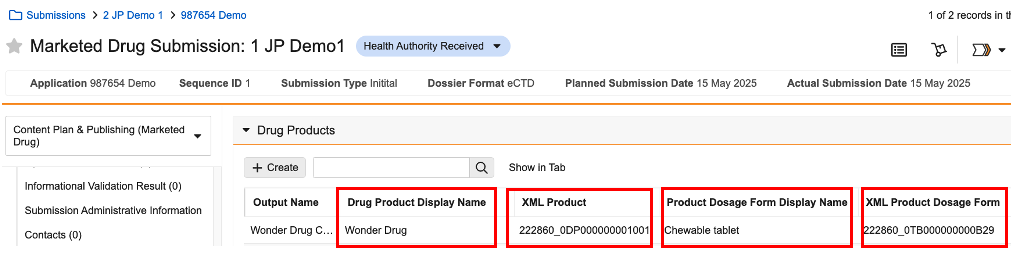
Sender Defined keywords on the submissionunit.xml pull from the   
relevant `submission__v` object joins. Vault uses the submission joins to populate these relevant sender defined keywords.

| Keyword Type | Keyword |
| :---- | :---- |
| ich_keyword_type_1 | indication |
| ich_keyword_type_2 | substance |
| ich_keyword_type_3 | manufacturer |
| ich_keyword_type_4 | product |
| ich_keyword_type_5 | dosage form |
| ich_keyword_type_6 | excipient |
| ich_keyword_type_8 | study id_study title |
<a href="https://platform.veevavault.help/assets/images/r252.0-Set-Document-Update-Operation.png" data-lightbox="images" data-title="" data-alt="Sender Defined Keywords">
  <img class="docimage" src="https://platform.veevavault.help/assets/images/r252.0-Set-Document-Update-Operation.png" alt="Sender Defined Keywords" style="max-width: 100%;width: 400px;"  />
</a>

[5]: #link-annotations
[6]: #dynamic-links
[7]: #creating-links
[8]: #continuous_publishing
[9]: #details
[17]: #toc-publishing
[18]: #set-reference-leaf
