Vault can export submission dossiers for up to 1,000 applications. Bulk export is particularly useful when extracting submissions for product divestiture, product collaboration, and outsourced publishing. Note that you must initiate bulk export from a report.
Unlike the single submission export, bulk export sends dossiers to your Vault’s file staging. From here, you can download it at your convenience.
Note: This feature is only available on RIM Submissions Archive Vaults.
How to Export
You can initiate a bulk export directly from the Submissions or Applications tabs using the Bulk Export from Submissions Archive record action.
Note: The legacy Export Submissions Archive Applications action is deprecated and no longer supported in 26R3. Instead, you can use the Bulk Export from Submissions Archive object action from the Applications and Submissions tab, or alternatively use the bulk action from a Vault report that includes the Application or Submission object
- Using the All Actions menu from All Applications tab or All Submissions tab, navigate to the Perform Bulk Action submenu and make a selection for all records (see Selection Limits below) or the current page of records.
- Using the Refine Selection page, ensure the Application(s) or Submission(s) that are selected are what you want to export from the Submissions Archive. Click Next once you’ve completed refining
- On the Choose Action page, select the Record Actions radio under the Manage Records menu, then click Next. Vault has a blank display and checks the records you’re exporting.
- On the Choose Record action, select Bulk Export from Submissions Archive (affects all records), and click Next
- Review the Confirmation screen, and if it meets your expectations for what will be exported, click Finish
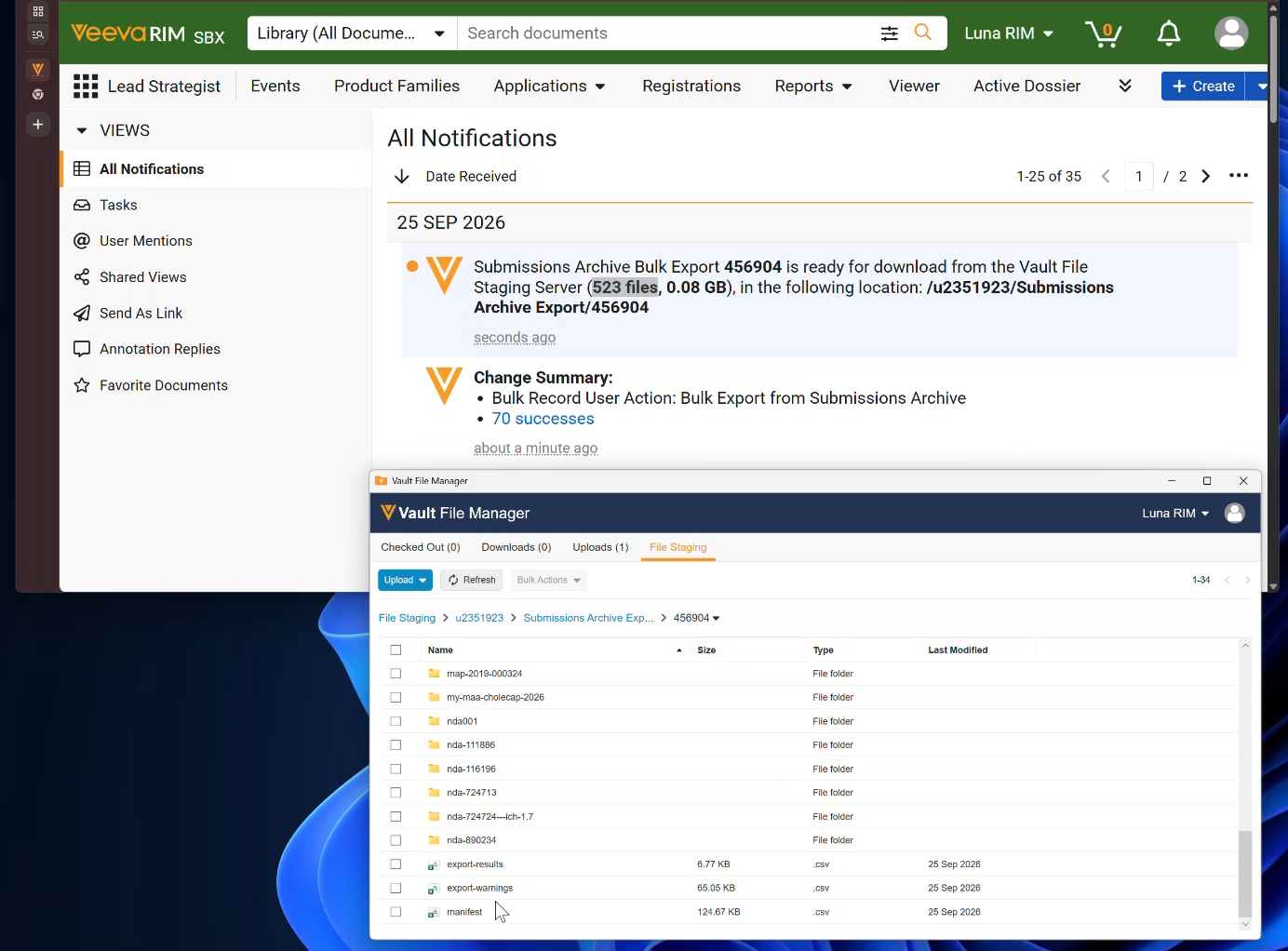
- Wait for the Vault Notification that looks like this example:
- Details in this notification are used as Folder Names for the output location on the Vault File Staging Server (where the Bulk Export is output)
- “412323” is the Job ID for the Export job
- “u0724167” represents the Bulk Export-initiating User’s system-managed ID, which is a Folder that can be found at the root level of the Vault File Staging Server.
- Submissions Archive Bulk Export 412323 is ready for download from the Vault File Staging Server (189 files, 0.10 GB), in the following location: /u0724167/Submissions Archive Export/412323
- Details in this notification are used as Folder Names for the output location on the Vault File Staging Server (where the Bulk Export is output)
Note: Vault displays a banner message that says “Performing bulk updates. You will receive a notification when processing is complete. Learn more”, however no updates are being performed by this action. This is confirming that the Submissions Archive Bulk Export is underway.
Limits
Selection Limits
-
From the Submissions grid, you can select up to 1,000 Submissions.
-
From the Applications grid, you can select up to 50 Applications.
Note: If your selection exceeds these limits, the Export from Submissions Archive action is hidden.
Export Output & Capacity
Vault routes bulk exports to your File Staging Server (FSS). Vault sends a notification with a download link or instructions to access the FSS.
Ensure your Submissions Archive Export folder on the FSS does not exceed the 1TB capacity limit, or the export will fail.
Output Folder Structure
The export generates a Job ID folder on the FSS containing:
- Individual Application subfolders, which contain the corresponding exported Submission folders and dossiers. Application-level correspondence is located in an output folder at the level of the Application folder. Submission-level correspondence is nested in the Submission folder.
- System-generated CSV files for the bulk export: export_results.csv, manifest.csv, and export_warnings.csv (if applicable).
Bulk Export Considerations
Vault only exports submissions that meet an eligible Dossier Status. For example, if the Dossier Status is blank there is no content in Submissions Archive, and so Vault will not export those in the Bulk Export. If you select 1000 submissions but 300 of the submissions have a blank Dossier Status, Vault skips these submissions.
How to Access File Staging
See Accessing Your Vault’s File Staging.
Export Files & File Formats
You can find all exported content in the Submissions Archive Export folder, within your personal user folder on file staging. The folder structure and folders are based on the Source File Path in Submissions Archive.
Your export also includes:
- Export Summary: These are system-generated CSV files that describe the export”: export_results.csv, manifest.csv, and export_warnings.csv (if applicable).
| File | Description |
|---|---|
| export_results.csv | Provides a high-level summary of the export job, including a count of documents exported per submission. |
| manifest.csv | Provides a detailed inventory of every individual document successfully included in the export. Documents that failed to export are not listed here — consult export_warnings.csv for those. |
| export_warnings.csv | Lists any warnings encountered during the export that did not cause the overall export to fail, but require user review. This file is conditionally generated — it only appears if one or more warnings exist. |
- Correspondence: When enabled, the correspondence documents are in Submissions Archive Export, within a folder that matches the document type, subtype, or classification of the material. Vault names each correspondence file using its Document Name value.
Note: Vault does not generate duplicate files when exporting via file staging. Exports with duplicate files can cause mismatched file counts between the Manifest and those available on file staging.
Export Job Progress
Admins can monitor the status of the Submissions Archive bulk export job from Admin > Operations > Job Status.
Related Permissions
The following permissions control your options for bulk exporting submission archives:
| Type | Permission Label | Controls |
|---|---|---|
| User License Type | Full User | Ability to access the Bulk Export from Submissions Archive action. |
| Security Profile | RIM Submissions Archive: Bulk Export | Ability to perform the Bulk Export from Submissions Archive action; by default, this permission is only granted to users with the standard System Administrator or Vault Owner security profiles. |
| Security Profile | File Staging: Access | Ability to access file staging and download the exported files. This permission is required for bulk export. |
| Object Sharing Settings | Viewer | (On Submission records and Application records) Ability to view the object records that you will be exporting, if Custom Sharing Rules are enabled for these objects. |
| Security Profile | Objects: Application: Read | Ability to view Application records for bulk export. |
| Security Profile | Objects: Submission: Read | Ability to view Submission records for bulk export. |
| Security Profile | Object Actions: Bulk Export from Submissions Archive: View | Ability to view the Bulk Export from Submissions Archive action. |
| Security Profile | Object Actions: Bulk Export from Submissions Archive: Execute | Ability to execute the Bulk Export from Submissions Archive action. |
| Document Role | Download Source | (On documents in the archive) Ability to download the source file for a given document via export. |
Configuring Bulk Export from Submissions Archive
If your Vault uses custom Application or Submission object types, an Admin must enable the Bulk Export from Submissions Archive object action on those object types before users can perform bulk exports. Vault automatically makes this action available on the standard Application and Submission object types, so no additional configuration is required.
To configure the bulk export action for custom object types:
- Navigate to Admin > Configuration > Objects and select Application or Submission.
- Open the Object Types tab.
- Click Actions.
- From the Actions menu, select Edit Object Type Actions.
- For each custom object type that should support bulk export, select the Bulk Export from Submissions Archive checkbox.
- Click Save.
Note: Ensure that you configure the appropriate Atomic Security or Object Action permissions in your permission sets so that users have the ability to execute this action.
Note: To use the Object Action: Bulk Export from Submissions Archive with the Application (application__v) or Submission (submission_v) object, an Object Lifecycle must be configured.